How To Use Multi App On Android
Mastering Productivity: How to Use Multi App on Android Efficiently
In the fast-paced digital era, multitasking is no longer a luxury—it is a necessity. Whether you are a professional managing multiple social media accounts, a student taking notes while watching a lecture, or a gamer trying to stay connected with teammates, knowing how to use multi app on Android can significantly boost your efficiency. Android, as an operating system, has evolved tremendously, offering various built-in features and third-party solutions to help users run two or more applications simultaneously.
This comprehensive guide will walk you through the different methods of multitasking, from the native split-screen mode to advanced app cloning techniques. By the end of this article, you will be able to transform your smartphone into a productivity powerhouse.
1. Utilizing the Built-In Split-Screen Mode
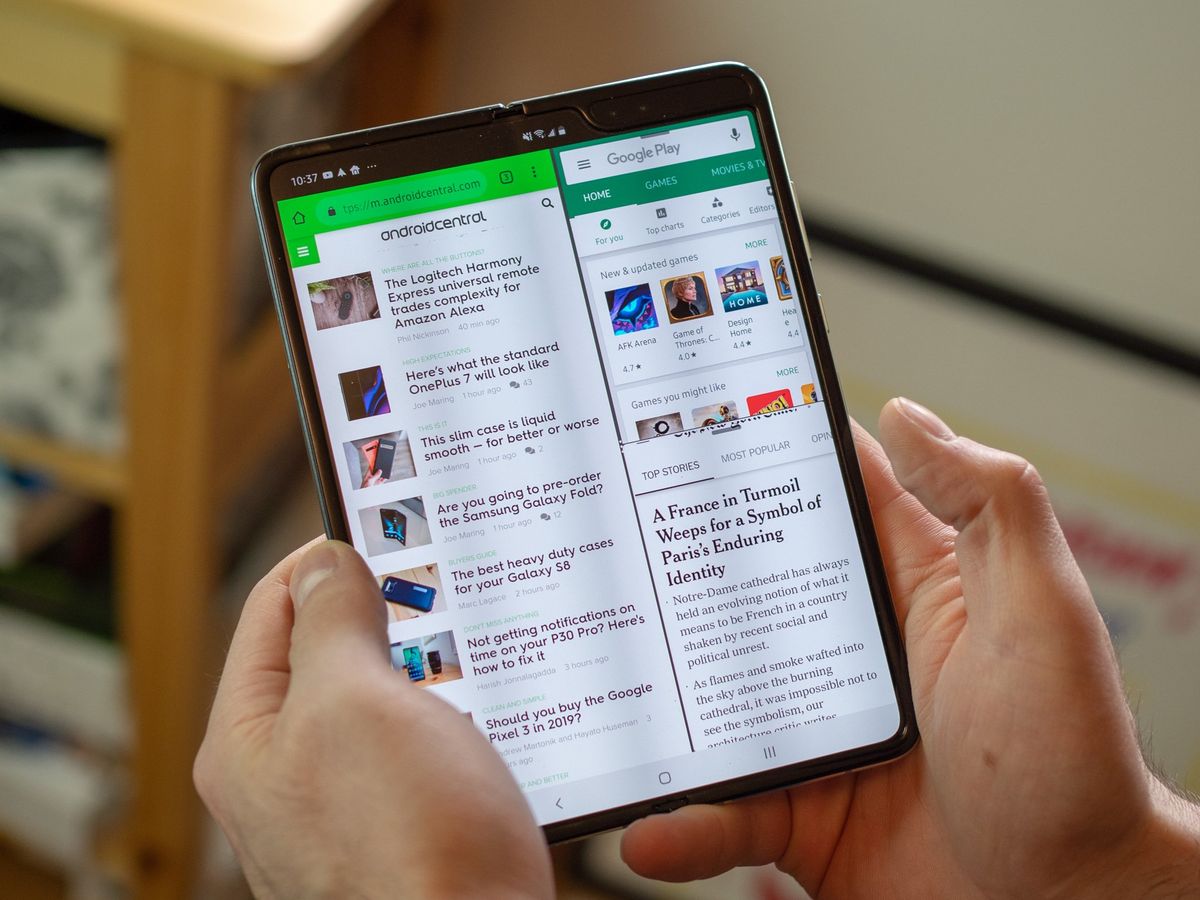
The most common way to use multi app functionality on Android is through the native Split-Screen mode. Introduced back in Android 7.0 (Nougat), this feature allows you to divide your screen into two halves, each running a different application.
How to Activate Split-Screen
- Open the first app you want to use.
- Swipe up from the bottom of the screen (or tap the 'Recents' button) to enter the App Overview or Multitasking view.
- Locate the icon of the app at the top of its preview card. Tap and hold this icon.
- Select "Split screen" from the menu that appears.
- The first app will dock at the top. Now, select the second app from your list of recent apps or your home screen.
This method is perfect for copying information from a browser into an email or watching a YouTube video while scrolling through Twitter. Note that some apps, particularly older games, may not support this feature by default.
2. Leveraging App Cloning for Multiple Accounts
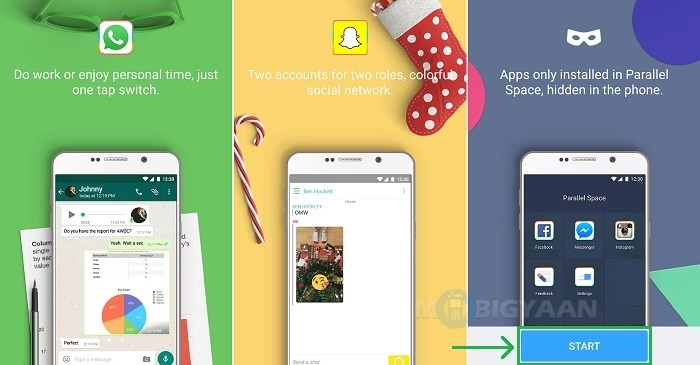
Sometimes, "multi app" refers to running two instances of the same application—for example, having two WhatsApp accounts or two Instagram profiles on one device. Many Android manufacturers include a native "App Cloner" or "Dual Apps" feature within their settings.
Brand-Specific Naming Conventions
- Samsung: Dual Messenger
- Xiaomi (MIUI): Dual Apps
- OnePlus: Parallel Apps
- Oppo/Realme: App Cloner
To enable this, go to your phone's Settings, search for "Dual Apps" or "App Cloner," and toggle the switch for the app you wish to duplicate. A second icon for that app will appear on your home screen, usually marked with a small symbol to distinguish it from the original.
3. Using Third-Party Multi-App Solutions
If your phone does not have native cloning features, or if you need to run more than two instances of an app, third-party developers offer robust solutions. These apps create a "virtual environment" or a "sandbox" on your phone.
| Feature/Aspect | Description |
|---|---|
| Parallel Space | A popular tool that creates a virtual space to clone and run multiple accounts of the same app simultaneously. |
| Island (by OasisFeng) | Uses Android's "Work Profile" to isolate apps, providing better privacy and battery management. |
| Shelter | An open-source alternative to Island that helps you run apps in a separate profile to keep data isolated. |
| Picture-in-Picture (PiP) | A built-in Android feature that allows video apps to shrink into a floating window. |
When using third-party apps like Parallel Space, be mindful of permissions. Since these apps act as a container for other applications, they often require extensive access to your device's data to function correctly.
4. Advanced Multitasking: Freeform Windows and Developer Options
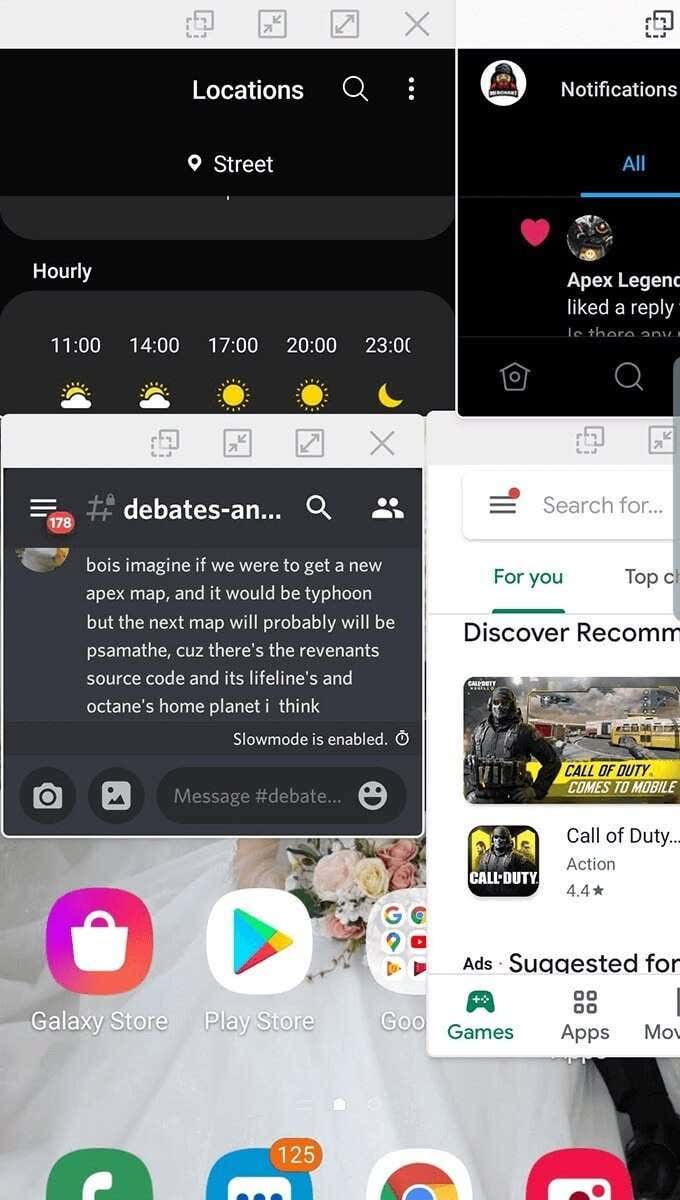
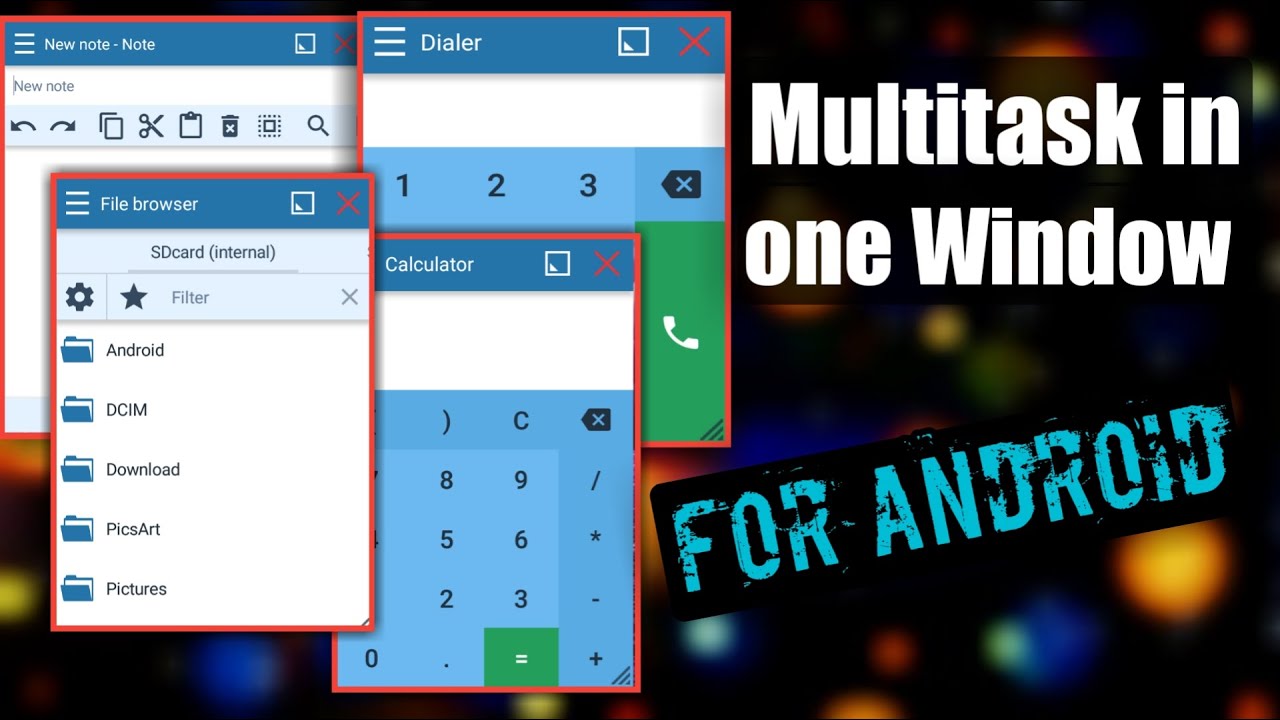
For power users who find split-screen too restrictive, Android offers a "Freeform Windows" mode. This allows apps to float on the screen like windows on a desktop OS (Windows or macOS). While this is a standard feature in tablets or foldable phones like the Galaxy Z Fold series, it can be forced on standard smartphones through Developer Options.
How to Enable Freeform Windows
- Go to Settings > About Phone and tap "Build Number" seven times to unlock Developer Options.
- Go to Settings > System > Developer Options.
- Scroll down to find "Enable freeform windows" and toggle it on.
- Find "Force activities to be resizable" and toggle that on as well.
- Restart your phone.
Once enabled, when you go to the Recents screen, you might see an option for "Freeform" in the app icon menu, allowing you to drag and resize windows anywhere on your screen.
5. Managing Performance and Battery Life
Running multi apps on Android consumes more resources. To ensure a smooth experience, consider the following tips:
- Monitor RAM: If your phone has 4GB of RAM or less, running multiple heavy apps might cause lag. Close unnecessary background processes.
- Battery Usage: Cloned apps and virtual environments run in the background, which can drain your battery faster. Check Settings > Battery to see which apps are the most demanding.
- Data Isolation: Use "Island" or "Shelter" if you are concerned about privacy, as they keep your work/cloned apps in a separate sandbox that cannot access your primary data.
Frequently Asked Questions (FAQ)
1. Can every Android app run in split-screen mode?
No, some apps are programmed by developers to only run in full-screen mode (e.g., high-end games or certain banking apps). However, you can bypass this by enabling "Force activities to be resizable" in the Developer Options menu.
2. Does using multi-app cloning apps drain more battery?
Yes. Since you are essentially running two instances of a process, your CPU and RAM usage increases, which in turn consumes more battery power. It is advisable to use these features on devices with decent battery capacity or keep a charger handy.
3. Is it safe to use third-party app cloners?
Generally, popular apps like Parallel Space are safe, but they often contain ads. For a more secure and ad-free experience, it is recommended to use open-source alternatives like Shelter or use the built-in "Work Profile" features provided by Android.
Conclusion
Learning how to use multi app on Android is a game-changer for anyone looking to maximize their mobile productivity. Whether you stick to the simple and effective split-screen mode, utilize the native app cloning features provided by manufacturers like Samsung and Xiaomi, or dive into advanced freeform windows via Developer Options, the possibilities are vast.
By leveraging these tools, you can stay more organized, manage your social presence more effectively, and enjoy a seamless multitasking experience. Always remember to monitor your device's performance and prioritize security when using third-party cloning tools. Start experimenting with these methods today and take full control of your Android device!
how to use multi app on android
how to use multi app on android Wallpapers
Collection of how to use multi app on android wallpapers for your desktop and mobile devices.

Crisp How To Use Multi App On Android Capture Digital Art
A captivating how to use multi app on android scene that brings tranquility and beauty to any device.

Crisp How To Use Multi App On Android Abstract Collection
A captivating how to use multi app on android scene that brings tranquility and beauty to any device.
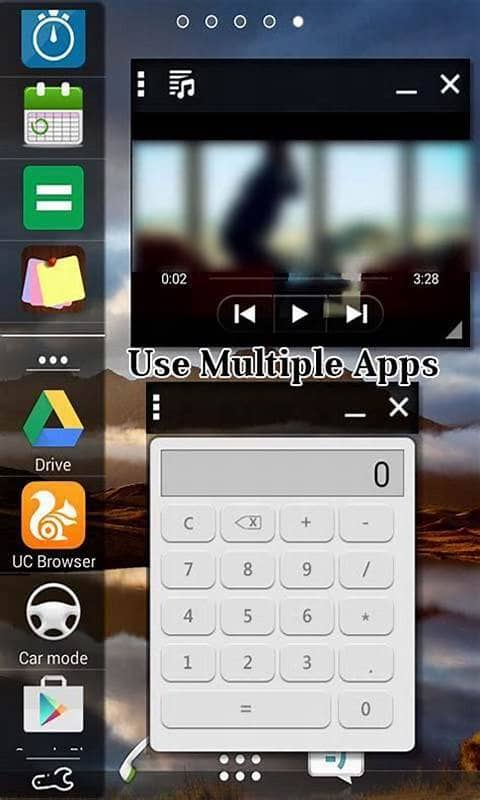
Stunning How To Use Multi App On Android Picture Art
Find inspiration with this unique how to use multi app on android illustration, crafted to provide a fresh look for your background.

Detailed How To Use Multi App On Android Scene in HD
Explore this high-quality how to use multi app on android image, perfect for enhancing your desktop or mobile wallpaper.

Breathtaking How To Use Multi App On Android Wallpaper Photography
Experience the crisp clarity of this stunning how to use multi app on android image, available in high resolution for all your screens.

Beautiful How To Use Multi App On Android Wallpaper Collection
Discover an amazing how to use multi app on android background image, ideal for personalizing your devices with vibrant colors and intricate designs.
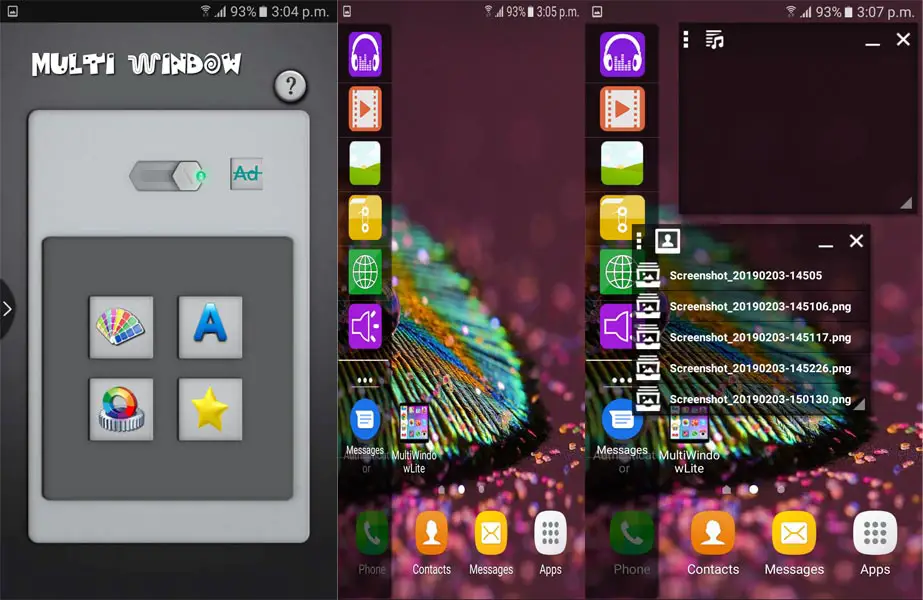
Crisp How To Use Multi App On Android Design for Desktop
Find inspiration with this unique how to use multi app on android illustration, crafted to provide a fresh look for your background.

Vivid How To Use Multi App On Android Picture for Mobile
Experience the crisp clarity of this stunning how to use multi app on android image, available in high resolution for all your screens.
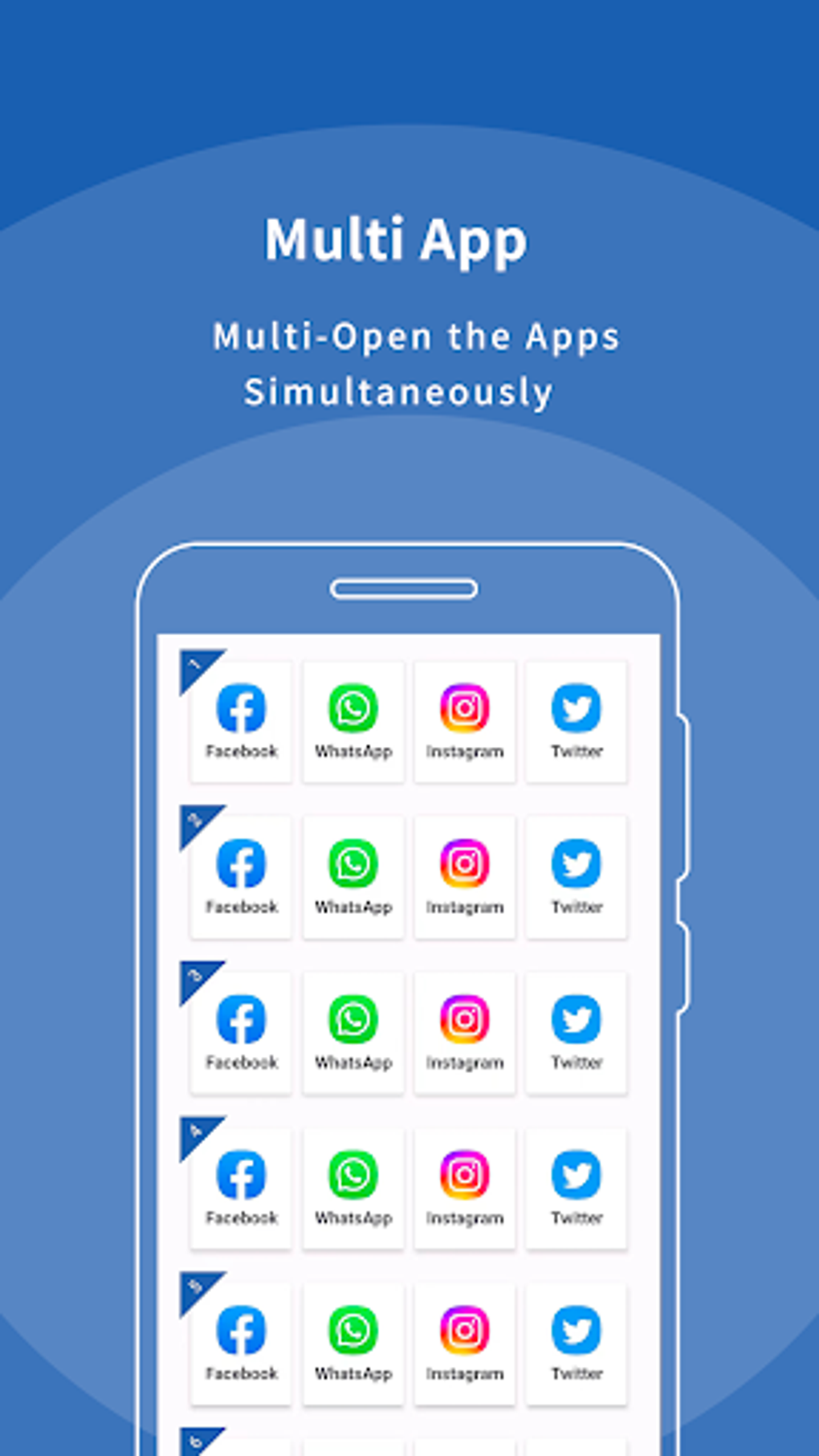
Beautiful How To Use Multi App On Android Design Photography
Discover an amazing how to use multi app on android background image, ideal for personalizing your devices with vibrant colors and intricate designs.

Captivating How To Use Multi App On Android Image Art
Find inspiration with this unique how to use multi app on android illustration, crafted to provide a fresh look for your background.
Breathtaking How To Use Multi App On Android Image Digital Art
Transform your screen with this vivid how to use multi app on android artwork, a true masterpiece of digital design.
Lush How To Use Multi App On Android Picture Collection
Find inspiration with this unique how to use multi app on android illustration, crafted to provide a fresh look for your background.
Captivating How To Use Multi App On Android Scene Illustration
This gorgeous how to use multi app on android photo offers a breathtaking view, making it a perfect choice for your next wallpaper.

Crisp How To Use Multi App On Android View Art
A captivating how to use multi app on android scene that brings tranquility and beauty to any device.

Detailed How To Use Multi App On Android Photo in HD
Explore this high-quality how to use multi app on android image, perfect for enhancing your desktop or mobile wallpaper.

Gorgeous How To Use Multi App On Android Capture Photography
A captivating how to use multi app on android scene that brings tranquility and beauty to any device.

Gorgeous How To Use Multi App On Android Photo Art
Immerse yourself in the stunning details of this beautiful how to use multi app on android wallpaper, designed for a captivating visual experience.
Exquisite How To Use Multi App On Android Wallpaper for Desktop
A captivating how to use multi app on android scene that brings tranquility and beauty to any device.
High-Quality How To Use Multi App On Android View for Desktop
Experience the crisp clarity of this stunning how to use multi app on android image, available in high resolution for all your screens.

Breathtaking How To Use Multi App On Android Wallpaper Illustration
Experience the crisp clarity of this stunning how to use multi app on android image, available in high resolution for all your screens.
Download these how to use multi app on android wallpapers for free and use them on your desktop or mobile devices.