How To Do A Pdf On Iphone 15
Mastering the Process: How to Do a PDF on iPhone 15
With the release of the iPhone 15 series, Apple has further integrated professional workflows into its mobile ecosystem. Whether you are a student needing to submit an assignment, a business professional handling contracts, or simply someone looking to organize digital receipts, knowing how to do a PDF on iPhone 15 is an essential skill. Thanks to the power of iOS 17 and the high-resolution camera of the iPhone 15, creating, editing, and sharing PDF documents has never been more seamless. Gone are the days when you needed a bulky scanner or specialized desktop software; your iPhone 15 is now a portable office capable of handling complex document tasks with a few taps.
How to Convert Photos to PDF on iPhone 15
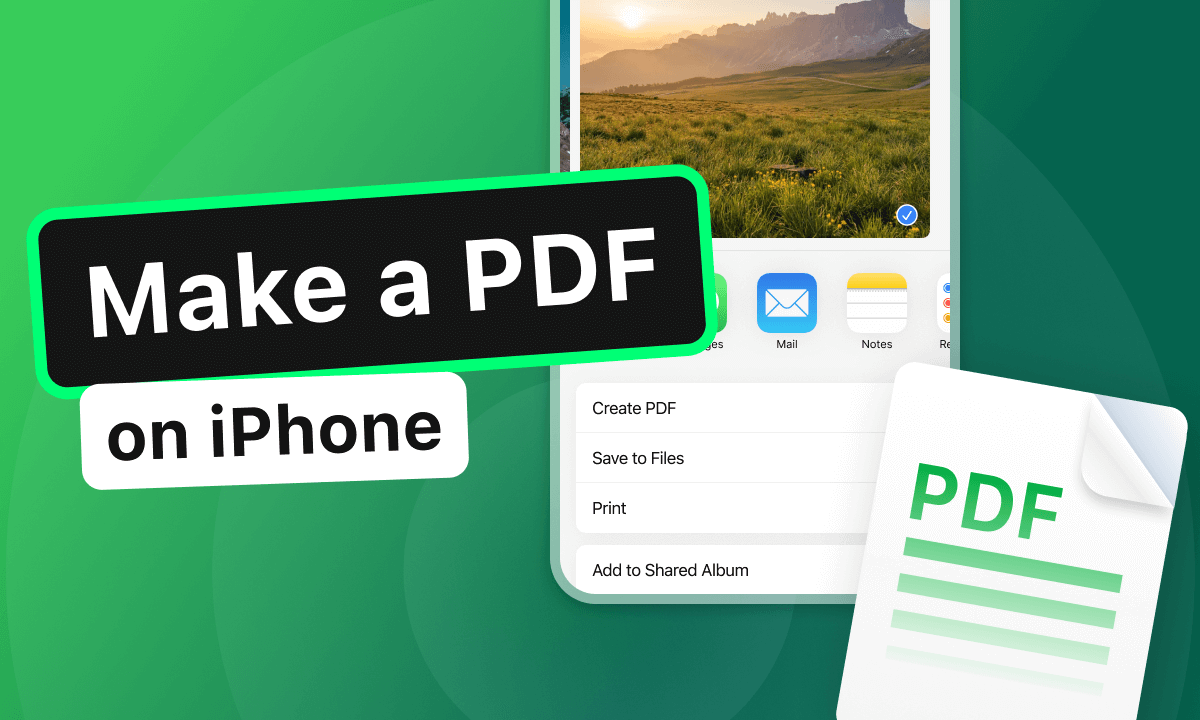
One of the most frequent questions users ask is how to turn a captured image into a professional PDF document. On the iPhone 15, this process is built directly into the Photos app via the "Print" trick, which remains the most reliable native method. This is particularly useful for sending multiple photos as a single document rather than individual image files, which can often be cumbersome for the recipient.
To convert a photo to a PDF, follow these steps:
- Open the Photos app and select the image (or multiple images) you wish to convert.
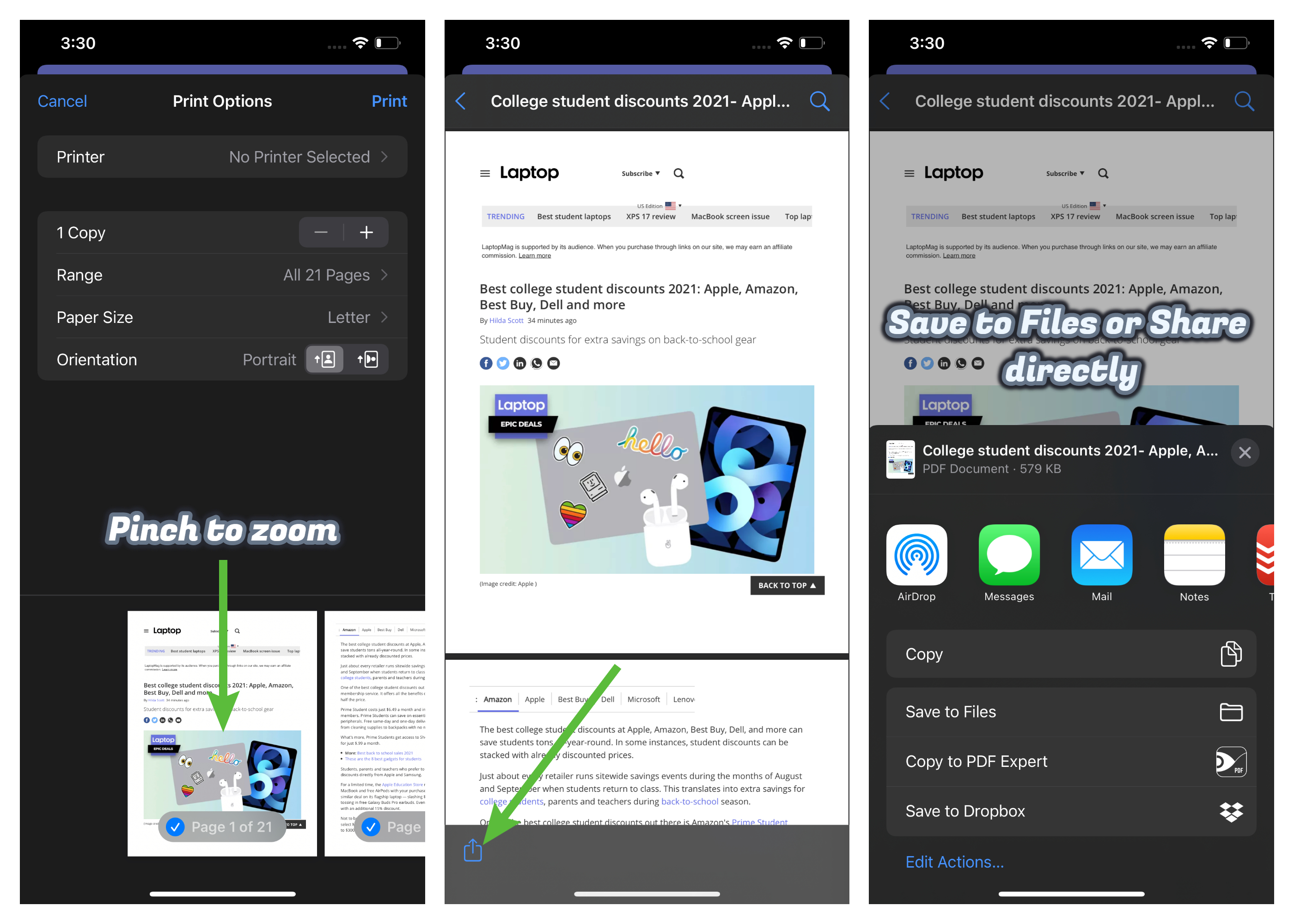
- Tap the Share button (the square with an upward arrow) in the bottom-left corner.
- Scroll down and select Print. This may seem counterintuitive, but it is the secret gateway to PDF creation.
- In the Print Preview screen, do not tap "Print" at the top right. Instead, use two fingers to pinch outward on the image preview (as if you are zooming in).
- This action expands the image into a PDF view. Now, tap the Share icon again at the bottom.
- You can now choose to save it to the Files app, send it via email, or share it through messaging apps as a genuine PDF file.
Creating PDFs from Webpages in Safari
Often, you may find a long-form article or a digital receipt on a website that you want to save for offline reading or archival purposes. The iPhone 15’s Safari browser offers a sophisticated "Reader View" and a direct PDF export option that ensures you get a clean, professional-looking document without distracting advertisements.
When you are on a webpage you want to save, tap the Share icon. Before clicking anything else, look for the "Options" link just below the webpage title in the share sheet. Here, you can switch from "Automatic" to "PDF." Once selected, you can save the entire webpage as a single PDF page or a multi-page document. For an even cleaner look, activate Reader Mode (the "Aa" icon in the URL bar) before following these steps to strip away banners and sidebars, leaving only the text and essential images.
Using the Files App to Merge and Manage Documents
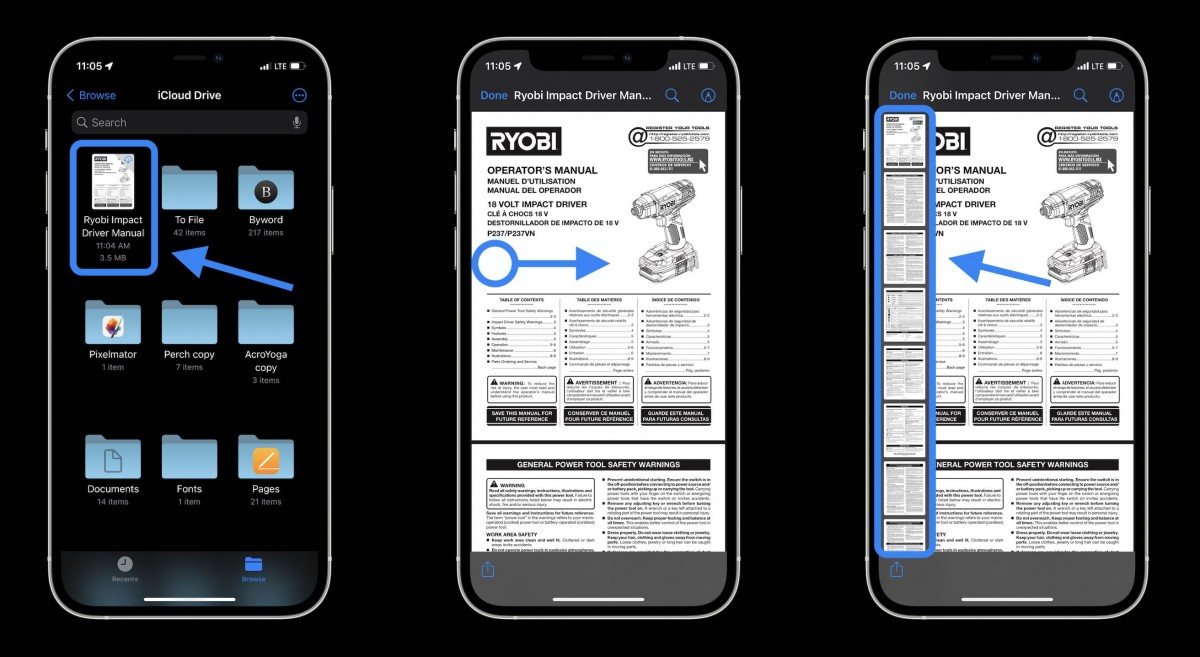
The Files app is the powerhouse of document management on the iPhone 15. If you have several separate PDFs and need to combine them into one file—a common requirement for job applications or legal submissions—the Files app makes this incredibly easy without requiring third-party software.
To merge PDFs on your iPhone 15:
- Open the Files app and navigate to the folder containing your documents.
- Tap the three-dot icon in the top right and choose Select.
- Tap on the files you want to combine in the order you want them to appear.
- Tap the three-dot icon (More) in the bottom-right corner of the screen.
- Select Create PDF.
The iPhone will instantly generate a new, merged PDF containing all the selected pages. This is a massive productivity boost for users who handle large volumes of paperwork on the go.
| Method | Best Use Case |
|---|---|
| Photos App 'Print' Trick | Quickly converting snapshots or screenshots into PDF format. |
| Safari Options | Archiving full-length articles and digital receipts from the web. |
| Notes App Scanner | Scanning physical paper documents with high clarity and auto-cropping. |
| Files App Context Menu | Merging multiple PDF files or converting saved images into PDFs. |
Scanning Physical Documents with the Notes App
The iPhone 15 features an advanced camera system that is perfect for document scanning. While you can just take a photo, the Notes app has a dedicated document scanner that automatically detects edges, removes shadows, and corrects perspective to make the scan look like it came from a flatbed scanner.
To scan a physical document:
- Open Notes and create a new note or open an existing one.
- Tap the Camera icon and select Scan Documents.
- Position your iPhone 15 over the document. If it is in "Auto" mode, it will take the photo automatically when the document is in focus.
- After scanning all pages, tap Save.
- Tap on the scanned document within the note, then use the Share icon to "Save to Files" or send it as a PDF.
This method is superior to a standard photo because it optimizes the contrast of the text, making the PDF searchable (OCR - Optical Character Recognition) and much easier to read.
Advanced Editing: Markup and Signatures
Once you know how to do a PDF on iPhone 15, the next step is mastering the Markup tool. Whether you need to highlight important text, add a handwritten note, or sign a contract, Apple’s built-in tools are incredibly intuitive. When viewing any PDF on your iPhone, simply tap the Pen tip icon in the top right corner. You can then add text boxes, draw shapes, or use the "Signature" tool to drop your pre-saved signature onto the document. This eliminates the need to print, sign, and re-scan documents, saving time and paper.
Conclusion
Mastering how to do a PDF on iPhone 15 transforms your smartphone from a communication device into a powerful productivity tool. Between the native capabilities of the Photos app, the document-handling prowess of the Files app, and the high-quality scanning features within Notes, there is almost no PDF-related task you cannot handle on the go. By utilizing these built-in iOS features, you ensure your documents remain professional, accessible, and organized. As the iPhone 15 continues to bridge the gap between mobile and desktop computing, these skills will remain vital for anyone looking to maximize their efficiency in a digital-first world.
Frequently Asked Questions (FAQ)
1. Can I password-protect a PDF on my iPhone 15?
Yes. After creating or opening a PDF in the Files app, tap the file name at the top of the screen and select "Lock PDF." You will be prompted to enter a password that will be required to view the document contents.
2. How do I reduce the file size of a PDF on my iPhone?
While Apple doesn't have a "compress" button in the Files app, you can use Shortcuts or third-party apps like Adobe Acrobat. Alternatively, when scanning in the Notes app, choosing "Black and White" instead of "Color" significantly reduces the final PDF size.
3. Does the iPhone 15 support OCR (searching text within a PDF)?
Yes, iOS 17 on the iPhone 15 uses Live Text technology. When you save a scan as a PDF, the system automatically recognizes the text, allowing you to search for specific words within the document using the search bar in the Files app or within the PDF viewer.
How To Do A Pdf On Iphone 15
How To Do A Pdf On Iphone 15 Wallpapers
Collection of how to do a pdf on iphone 15 wallpapers for your desktop and mobile devices.
:max_bytes(150000):strip_icc()/001_save-pdf-to-iphone-or-ipad-4165490-a6d58f2ee9a949a487411d23d3e45c54.jpg "High-Quality How To Do A Pdf On Iphone 15 Photo for Your Screen")
High-Quality How To Do A Pdf On Iphone 15 Photo for Your Screen
Discover an amazing how to do a pdf on iphone 15 background image, ideal for personalizing your devices with vibrant colors and intricate designs.

Beautiful How To Do A Pdf On Iphone 15 Image for Desktop
Experience the crisp clarity of this stunning how to do a pdf on iphone 15 image, available in high resolution for all your screens.

Exquisite How To Do A Pdf On Iphone 15 View for Desktop
This gorgeous how to do a pdf on iphone 15 photo offers a breathtaking view, making it a perfect choice for your next wallpaper.

Dynamic How To Do A Pdf On Iphone 15 Image Collection
A captivating how to do a pdf on iphone 15 scene that brings tranquility and beauty to any device.

Amazing How To Do A Pdf On Iphone 15 Landscape in HD
Explore this high-quality how to do a pdf on iphone 15 image, perfect for enhancing your desktop or mobile wallpaper.

Exquisite How To Do A Pdf On Iphone 15 Wallpaper Photography
Find inspiration with this unique how to do a pdf on iphone 15 illustration, crafted to provide a fresh look for your background.

Amazing How To Do A Pdf On Iphone 15 Moment for Mobile
Experience the crisp clarity of this stunning how to do a pdf on iphone 15 image, available in high resolution for all your screens.

Stunning How To Do A Pdf On Iphone 15 Design for Your Screen
This gorgeous how to do a pdf on iphone 15 photo offers a breathtaking view, making it a perfect choice for your next wallpaper.

Crisp How To Do A Pdf On Iphone 15 Capture in HD
Immerse yourself in the stunning details of this beautiful how to do a pdf on iphone 15 wallpaper, designed for a captivating visual experience.

Breathtaking How To Do A Pdf On Iphone 15 Picture Nature
Transform your screen with this vivid how to do a pdf on iphone 15 artwork, a true masterpiece of digital design.

Mesmerizing How To Do A Pdf On Iphone 15 Scene Photography
Experience the crisp clarity of this stunning how to do a pdf on iphone 15 image, available in high resolution for all your screens.

Captivating How To Do A Pdf On Iphone 15 Scene Nature
A captivating how to do a pdf on iphone 15 scene that brings tranquility and beauty to any device.
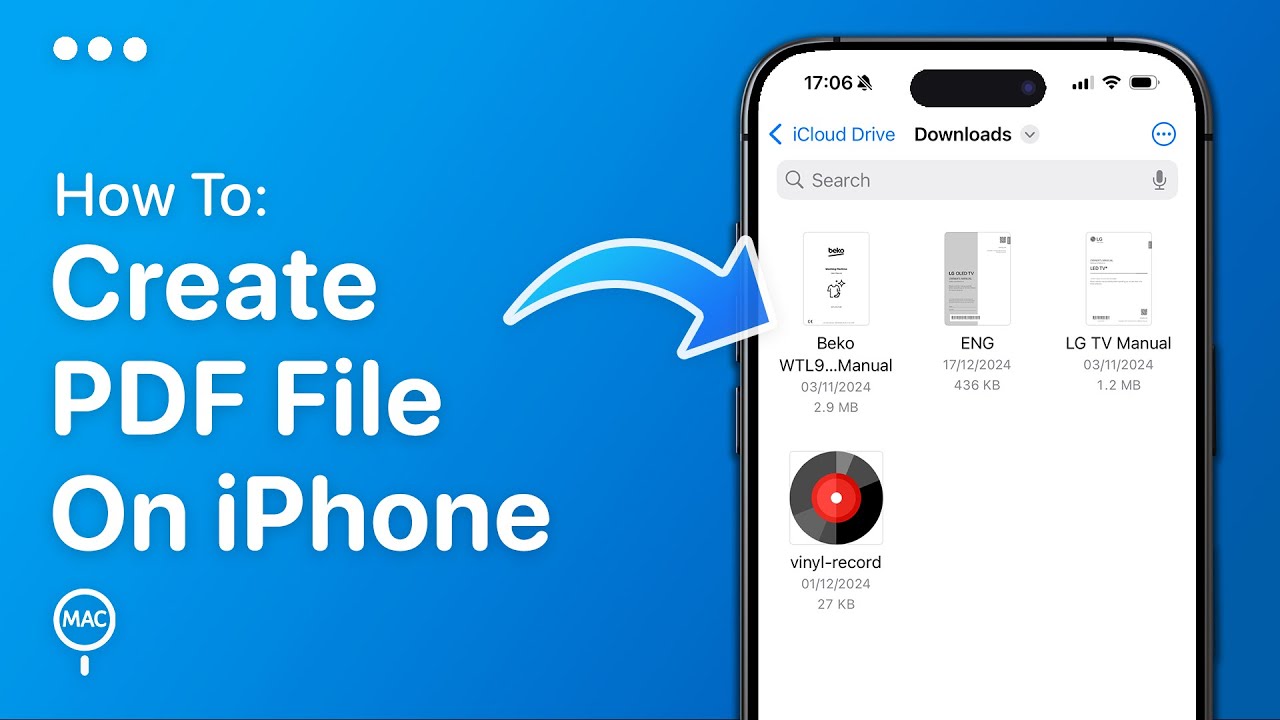
Vivid How To Do A Pdf On Iphone 15 Artwork Collection
Transform your screen with this vivid how to do a pdf on iphone 15 artwork, a true masterpiece of digital design.
Beautiful How To Do A Pdf On Iphone 15 View Photography
Discover an amazing how to do a pdf on iphone 15 background image, ideal for personalizing your devices with vibrant colors and intricate designs.
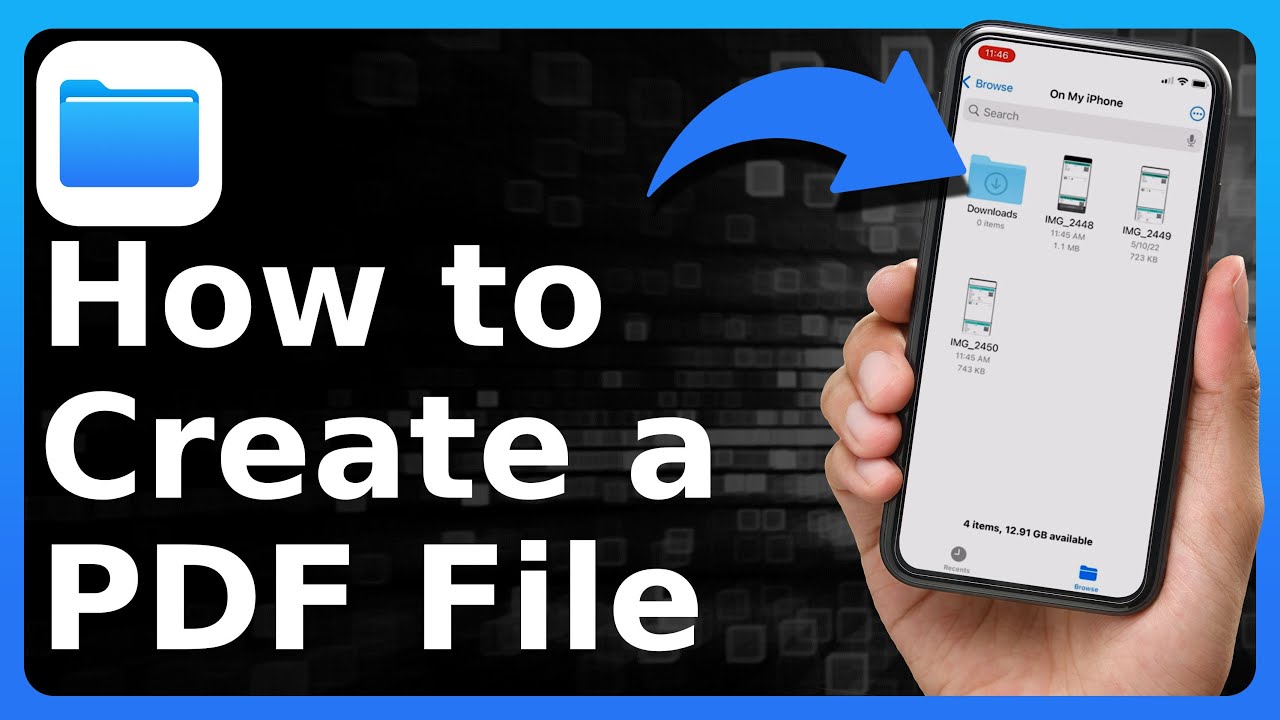
Vibrant How To Do A Pdf On Iphone 15 Picture Illustration
Explore this high-quality how to do a pdf on iphone 15 image, perfect for enhancing your desktop or mobile wallpaper.
Stunning How To Do A Pdf On Iphone 15 Picture for Your Screen
Find inspiration with this unique how to do a pdf on iphone 15 illustration, crafted to provide a fresh look for your background.
Breathtaking How To Do A Pdf On Iphone 15 View for Your Screen
Explore this high-quality how to do a pdf on iphone 15 image, perfect for enhancing your desktop or mobile wallpaper.

Serene How To Do A Pdf On Iphone 15 Scene Art
Discover an amazing how to do a pdf on iphone 15 background image, ideal for personalizing your devices with vibrant colors and intricate designs.
Detailed How To Do A Pdf On Iphone 15 Scene Art
Explore this high-quality how to do a pdf on iphone 15 image, perfect for enhancing your desktop or mobile wallpaper.
Breathtaking How To Do A Pdf On Iphone 15 Picture Photography
Transform your screen with this vivid how to do a pdf on iphone 15 artwork, a true masterpiece of digital design.
Download these how to do a pdf on iphone 15 wallpapers for free and use them on your desktop or mobile devices.