How To Condense A Pdf In Bluebeam
Master Your Workflow: How to Condense a PDF in Bluebeam Revu Efficiently
In the fast-paced world of Architecture, Engineering, and Construction (AEC), document management is a critical pillar of project success. Bluebeam Revu has established itself as the industry standard for PDF markup and collaboration, but with high-resolution architectural drawings and hundreds of markups comes a common challenge: massive file sizes. Learning how to condense a PDF in Bluebeam is not just a convenience—it is a necessity for sharing files via email, uploading to project management portals like Procore or BIM 360, and ensuring smooth performance on mobile devices in the field.
A bloated PDF can lead to slow loading times, crashed applications, and frustrated collaborators. Fortunately, Bluebeam Revu provides several powerful tools designed specifically to shrink file sizes without sacrificing the clarity of your technical drawings. In this comprehensive guide, we will explore the most effective methods to condense your documents, ranging from the user-friendly "Reduce File Size" tool to advanced document repair techniques.
Why Condensing PDFs is Essential for AEC Professionals
Before diving into the "how-to," it is important to understand why file optimization matters. Construction documents often contain high-resolution raster images, complex vector paths, and layers of metadata. When these elements accumulate, a single floor plan can easily exceed 50MB. Large files are difficult to sync over cellular data on job sites and often exceed the 20MB attachment limit of most enterprise email servers.
By condensing your PDFs, you improve the "responsiveness" of the document. Panning and zooming become instantaneous, and the risk of memory-related errors is significantly reduced. Furthermore, optimized files consume less storage space on cloud servers, potentially saving your firm significant overhead costs over the long term.
Method 1: Using the "Reduce File Size" Feature
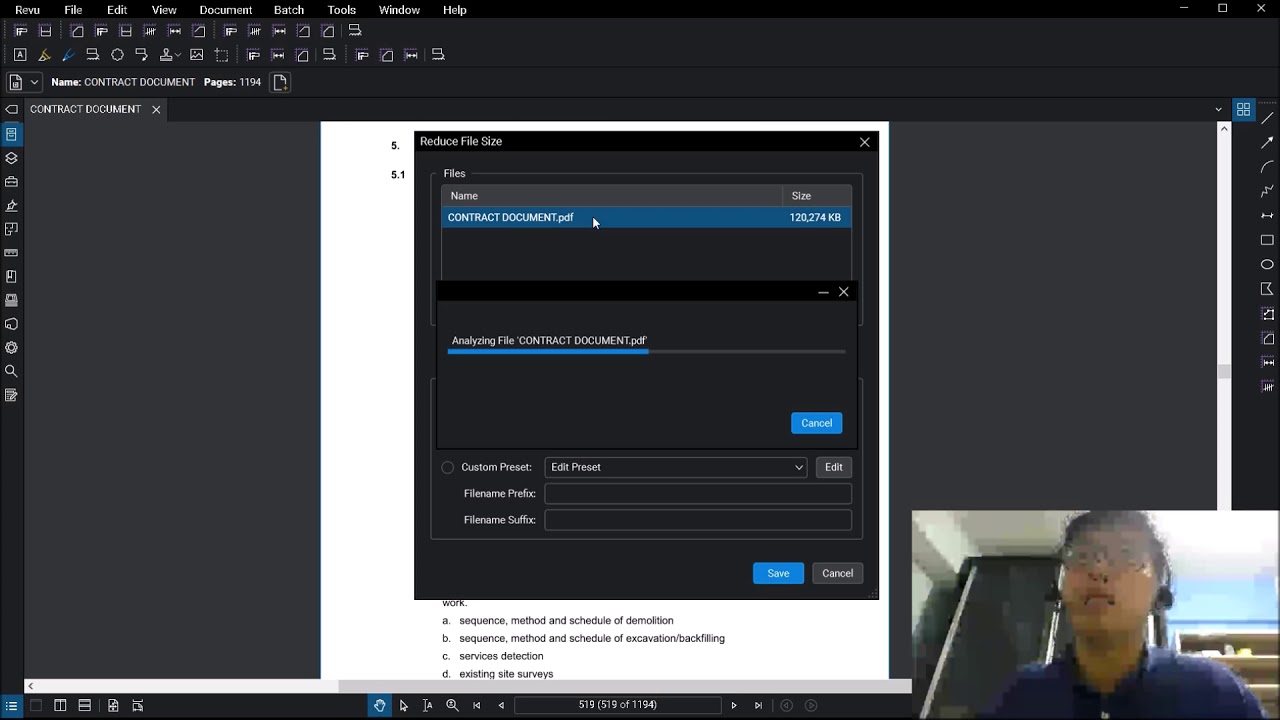
The most straightforward way to condense a PDF in Bluebeam is through the dedicated Reduce File Size tool. This feature is designed to automate the compression process by analyzing the document and applying optimized settings to images and fonts.
Step-by-Step Instructions:
- Open the PDF you wish to compress in Bluebeam Revu.
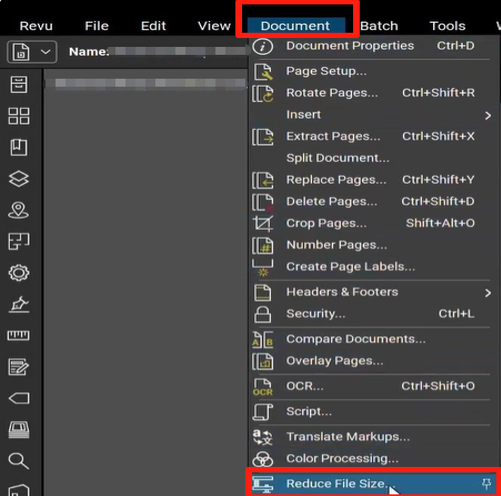
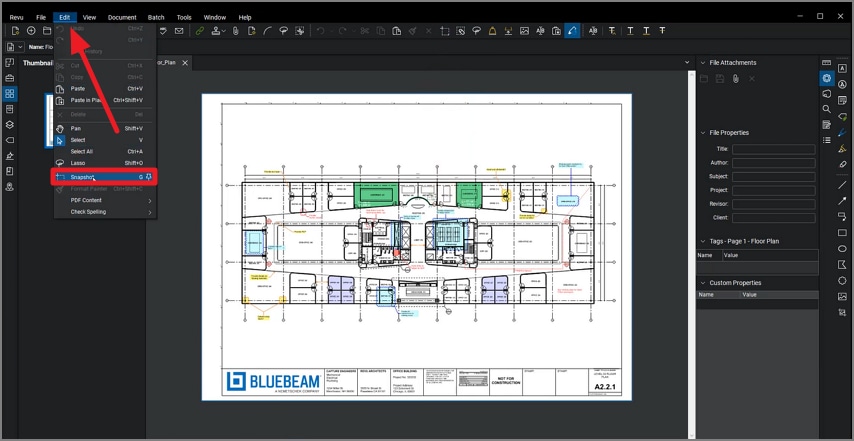
- Navigate to the Document menu in the top toolbar.
- Select Reduce File Size from the dropdown list.
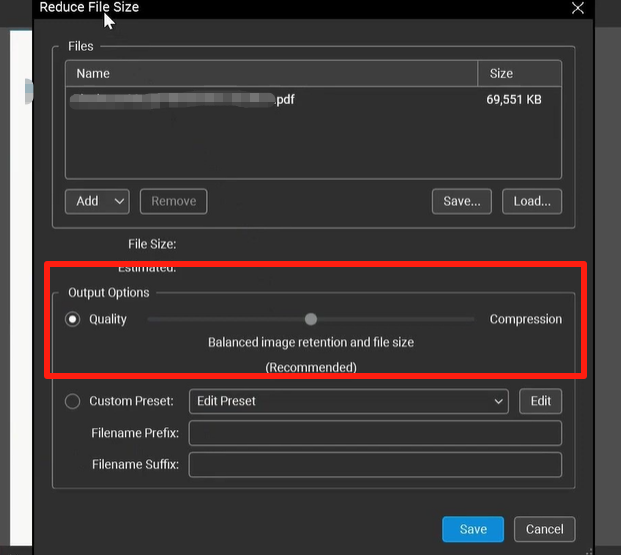
- A dialog box will appear with a simple slider. Moving the slider toward "Compressed" will prioritize file size reduction, while moving it toward "Quality" will preserve higher image resolution.
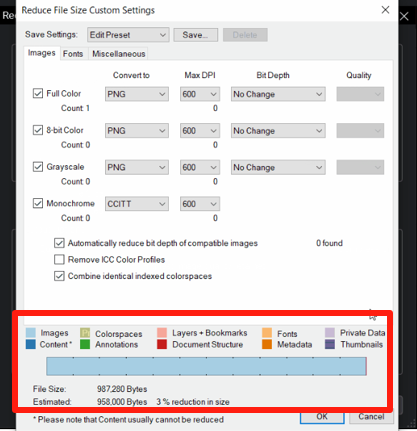
- For more control, click the Edit button. Here, you can manually adjust the DPI (Dots Per Inch) for color and grayscale images. Setting these to 150 DPI is usually sufficient for screen viewing and standard printing.
- Click OK and choose whether you want to overwrite the existing file or save a new version (recommended).
Method 2: Advanced Optimization with "Repair Document"
Sometimes, a PDF remains stubbornly large even after using the standard reduction tool. This often happens because of "bloat" hidden within the file’s internal structure, such as redundant metadata, unused fonts, or corrupted XRefs. In these cases, the Repair Document feature is your best ally.
Repairing a document effectively rebuilds the PDF's internal table. To access this, go to Document > Process > Repair Document. In the settings window, ensure that "Remove Unused Objects" and "Compress Content Streams" are checked. This method is particularly effective for files that originated from CAD software like AutoCAD or Revit, which often include unnecessary data overhead.
| Feature/Aspek | Description / Function |
|---|---|
| Reduce File Size Tool | A slider-based automated tool that compresses images and removes non-essential data. |
| Image Downsampling | Reduces the resolution (DPI) of raster images within the PDF to save space. |
| Repair Document | Cleans up the internal code of the PDF, removing broken links and redundant metadata. |
| Markup Flattening | Converts editable markups into permanent page content, significantly reducing file complexity. |
| Batch Processing | Allows users (Revu eXtreme) to condense hundreds of files simultaneously. |
Method 3: Flattening Markups to Reduce Complexity
One often overlooked aspect of how to condense a PDF in Bluebeam is the impact of markups. Every cloud, text box, and line you draw on a PDF is a separate object stored in a "markup layer." If a document has thousands of markups, Bluebeam must process each one individually every time you scroll.
Flattening these markups merges them into the main content layer of the PDF. This drastically reduces the file's processing requirements and total size. To do this, go to Document > Flatten. You can choose to flatten all markups or select specific types. If you want to retain the ability to edit them later, ensure the "Allow Markup Recovery (Unflatten)" option is checked—though keep in mind that unflattening capability keeps some extra data in the file.
Method 4: Manually Managing Images and Fonts
If you are working with a document that contains many photos—such as a field inspection report—the images are likely the primary cause of the large file size. When using the "Reduce File Size" custom settings, pay close attention to the Image Compression tab. Switching from ZIP to JPEG compression for photos can result in a massive reduction in size with minimal visible loss in quality.
Additionally, Bluebeam allows you to "Drop Embedded Fonts." While embedding fonts ensures the PDF looks the same on every computer, it adds weight. If you use standard fonts like Arial or Calibri, you can often safely deselect font embedding to save a few hundred kilobytes per document.
Best Practices for Maintaining Small File Sizes
Prevention is often better than a cure. To keep your Bluebeam files lean from the start, consider these tips:
- Export, Don't Print: When creating PDFs from CAD or Word, use the "Export" or "Save As PDF" function rather than "Print to PDF." Exporting usually creates cleaner vector data.
- Crop Unused Areas: If you only need a portion of a large map, use the Crop Pages tool to delete the unnecessary data rather than just masking it.
- Limit High-Res Photos: When inserting images into a PDF as markups, resize them to a reasonable resolution before importing them into Bluebeam.
Frequently Asked Questions (FAQ)
1. Does condensing a PDF reduce the quality of my drawings?
It can, depending on the settings you choose. If you move the "Reduce File Size" slider all the way to "Compressed," images may appear pixelated. However, vector lines (the actual drawing lines) usually remain crisp regardless of compression.
2. Can I compress multiple Bluebeam files at once?
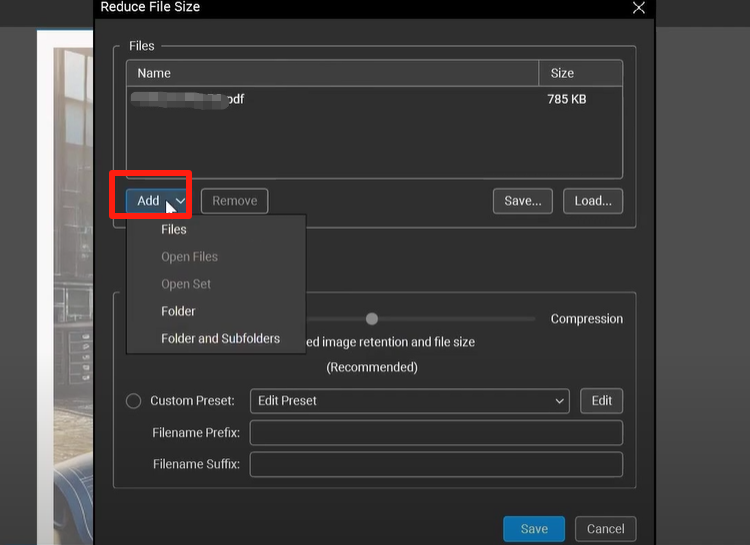
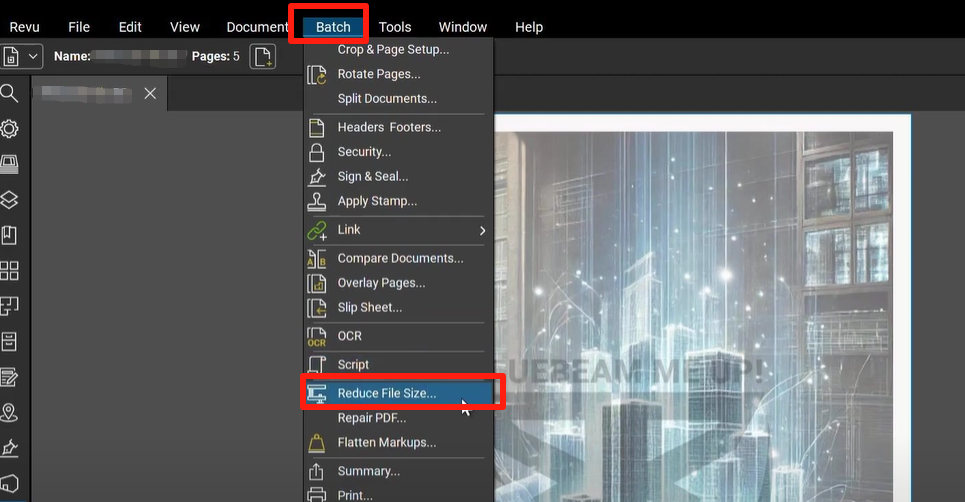
Yes, if you have Bluebeam Revu eXtreme. You can use the Batch > Reduce File Size feature to apply compression settings to an entire folder of documents simultaneously, saving hours of manual work.
3. What is the difference between "Reduce File Size" and "Repair Document"?
"Reduce File Size" focuses primarily on compressing visual elements like images and fonts. "Repair Document" focuses on the technical "health" of the file, removing corrupted data and optimizing the way the file is written.
Conclusion
Mastering how to condense a PDF in Bluebeam is an essential skill for any modern professional working with digital documents. By utilizing the "Reduce File Size" tool for quick fixes, the "Repair Document" feature for deeper optimization, and flattening markups for better performance, you ensure that your files are professional, portable, and easy to use. Remember to always keep a backup of your original high-resolution file before performing aggressive compression, ensuring you have the best of both worlds: a master copy for archives and a condensed version for seamless collaboration.
How To Condense A Pdf In Bluebeam
How To Condense A Pdf In Bluebeam Wallpapers
Collection of how to condense a pdf in bluebeam wallpapers for your desktop and mobile devices.
Amazing How To Condense A Pdf In Bluebeam Abstract in 4K
Explore this high-quality how to condense a pdf in bluebeam image, perfect for enhancing your desktop or mobile wallpaper.
Lush How To Condense A Pdf In Bluebeam Abstract in 4K
Immerse yourself in the stunning details of this beautiful how to condense a pdf in bluebeam wallpaper, designed for a captivating visual experience.
Crisp How To Condense A Pdf In Bluebeam Design Art
A captivating how to condense a pdf in bluebeam scene that brings tranquility and beauty to any device.
Serene How To Condense A Pdf In Bluebeam Design Art
Transform your screen with this vivid how to condense a pdf in bluebeam artwork, a true masterpiece of digital design.

Gorgeous How To Condense A Pdf In Bluebeam Capture Collection
A captivating how to condense a pdf in bluebeam scene that brings tranquility and beauty to any device.
Breathtaking How To Condense A Pdf In Bluebeam Landscape for Your Screen
Transform your screen with this vivid how to condense a pdf in bluebeam artwork, a true masterpiece of digital design.

Captivating How To Condense A Pdf In Bluebeam Design for Desktop
This gorgeous how to condense a pdf in bluebeam photo offers a breathtaking view, making it a perfect choice for your next wallpaper.
Captivating How To Condense A Pdf In Bluebeam Background Illustration
A captivating how to condense a pdf in bluebeam scene that brings tranquility and beauty to any device.
Beautiful How To Condense A Pdf In Bluebeam View Illustration
Explore this high-quality how to condense a pdf in bluebeam image, perfect for enhancing your desktop or mobile wallpaper.

Amazing How To Condense A Pdf In Bluebeam Image Digital Art
Experience the crisp clarity of this stunning how to condense a pdf in bluebeam image, available in high resolution for all your screens.
Breathtaking How To Condense A Pdf In Bluebeam Moment Collection
Explore this high-quality how to condense a pdf in bluebeam image, perfect for enhancing your desktop or mobile wallpaper.

Artistic How To Condense A Pdf In Bluebeam Artwork Photography
A captivating how to condense a pdf in bluebeam scene that brings tranquility and beauty to any device.

Vibrant How To Condense A Pdf In Bluebeam Scene in 4K
Discover an amazing how to condense a pdf in bluebeam background image, ideal for personalizing your devices with vibrant colors and intricate designs.
Crisp How To Condense A Pdf In Bluebeam Background Illustration
This gorgeous how to condense a pdf in bluebeam photo offers a breathtaking view, making it a perfect choice for your next wallpaper.

Beautiful How To Condense A Pdf In Bluebeam Wallpaper Art
Experience the crisp clarity of this stunning how to condense a pdf in bluebeam image, available in high resolution for all your screens.
Artistic How To Condense A Pdf In Bluebeam Capture for Desktop
A captivating how to condense a pdf in bluebeam scene that brings tranquility and beauty to any device.
Exquisite How To Condense A Pdf In Bluebeam Scene for Mobile
Find inspiration with this unique how to condense a pdf in bluebeam illustration, crafted to provide a fresh look for your background.

Breathtaking How To Condense A Pdf In Bluebeam Capture for Desktop
Experience the crisp clarity of this stunning how to condense a pdf in bluebeam image, available in high resolution for all your screens.

Serene How To Condense A Pdf In Bluebeam Picture in HD
Discover an amazing how to condense a pdf in bluebeam background image, ideal for personalizing your devices with vibrant colors and intricate designs.
Vibrant How To Condense A Pdf In Bluebeam Artwork for Mobile
Explore this high-quality how to condense a pdf in bluebeam image, perfect for enhancing your desktop or mobile wallpaper.
Download these how to condense a pdf in bluebeam wallpapers for free and use them on your desktop or mobile devices.