Disable Google Play Protect Chromecast
How to Disable Google Play Protect on Chromecast with Google TV: A Comprehensive Guide
The Chromecast with Google TV has revolutionized how we consume media, transforming any standard HDMI-equipped television into a smart entertainment hub. However, for power users and enthusiasts who wish to venture beyond the curated confines of the official Google Play Store, certain security features can become roadblocks. One such feature is Google Play Protect. While designed to keep your device safe from malicious software, it often prevents the installation of perfectly legitimate third-party applications or specialized APKs. In this extensive guide, we will explore how to disable Google Play Protect on your Chromecast, the implications of doing so, and how to manage your device's security effectively.
Understanding Google Play Protect and Its Role
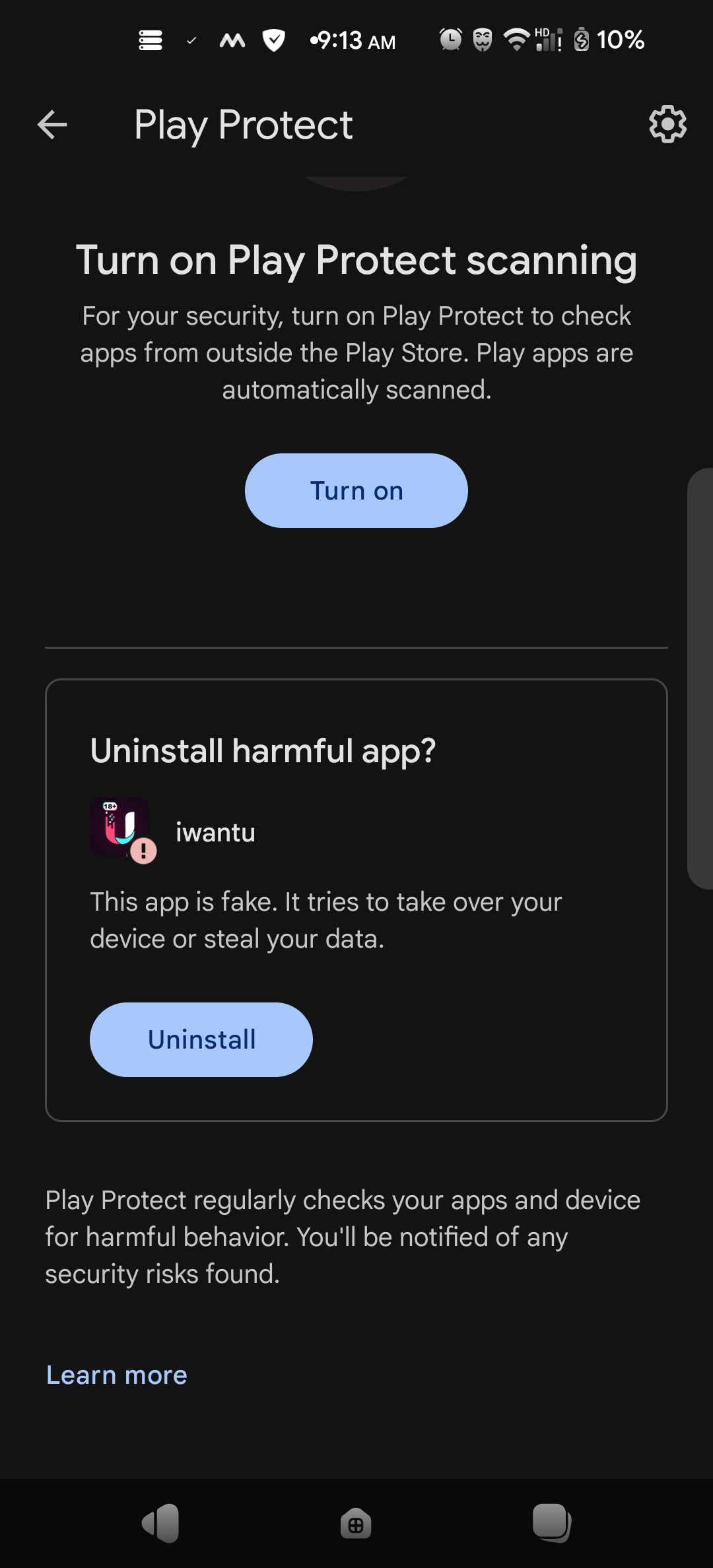
Google Play Protect is a built-in security suite for Android-based devices, including the Chromecast with Google TV. Its primary function is to scan your device for "Potentially Harmful Applications" (PHAs). It checks apps at the time of installation and periodically scans the apps already residing on your system. If it detects something suspicious, it can block the installation, issue a warning, or even automatically remove the app from your device.
For the average user, Play Protect is a vital line of defense. However, if you are a developer testing your own apps or a user looking to install niche streaming tools, file managers, or open-source software not hosted on the Play Store, Play Protect might flag these files as "Unknown" or "Dangerous." Disabling this feature is often the only way to proceed with "sideloading"—the process of installing apps from sources other than the official store.
Step-by-Step Guide: How to Disable Google Play Protect on Chromecast
Disabling Google Play Protect on a Chromecast with Google TV is a straightforward process, but it is tucked away within the system settings. Follow these steps carefully to navigate the interface:
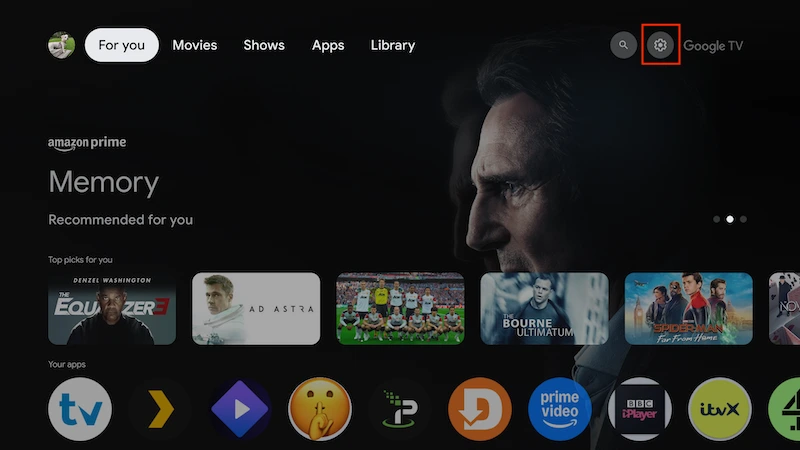
- Access the Home Screen: Power on your Chromecast and ensure you are on the main Google TV home screen.
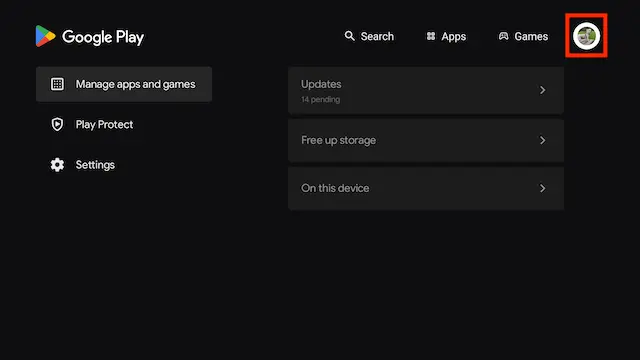
- Open Settings: Use your remote to navigate to your profile icon (usually located in the top-right corner). Select the "Settings" (gear icon) option.
- Navigate to Privacy: Within the Settings menu, scroll down and select the "Privacy" tab.
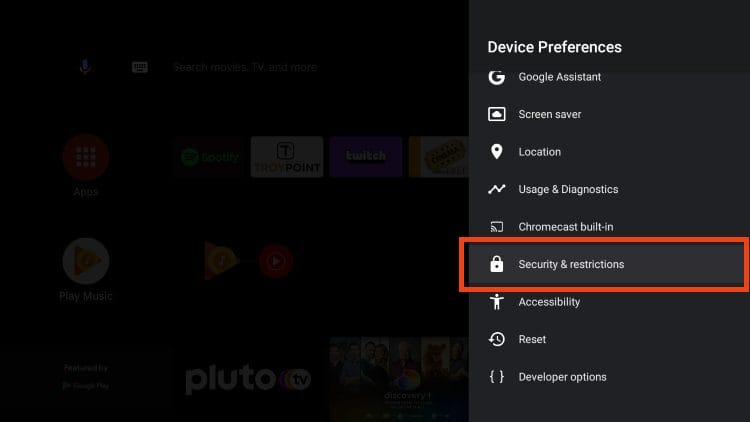
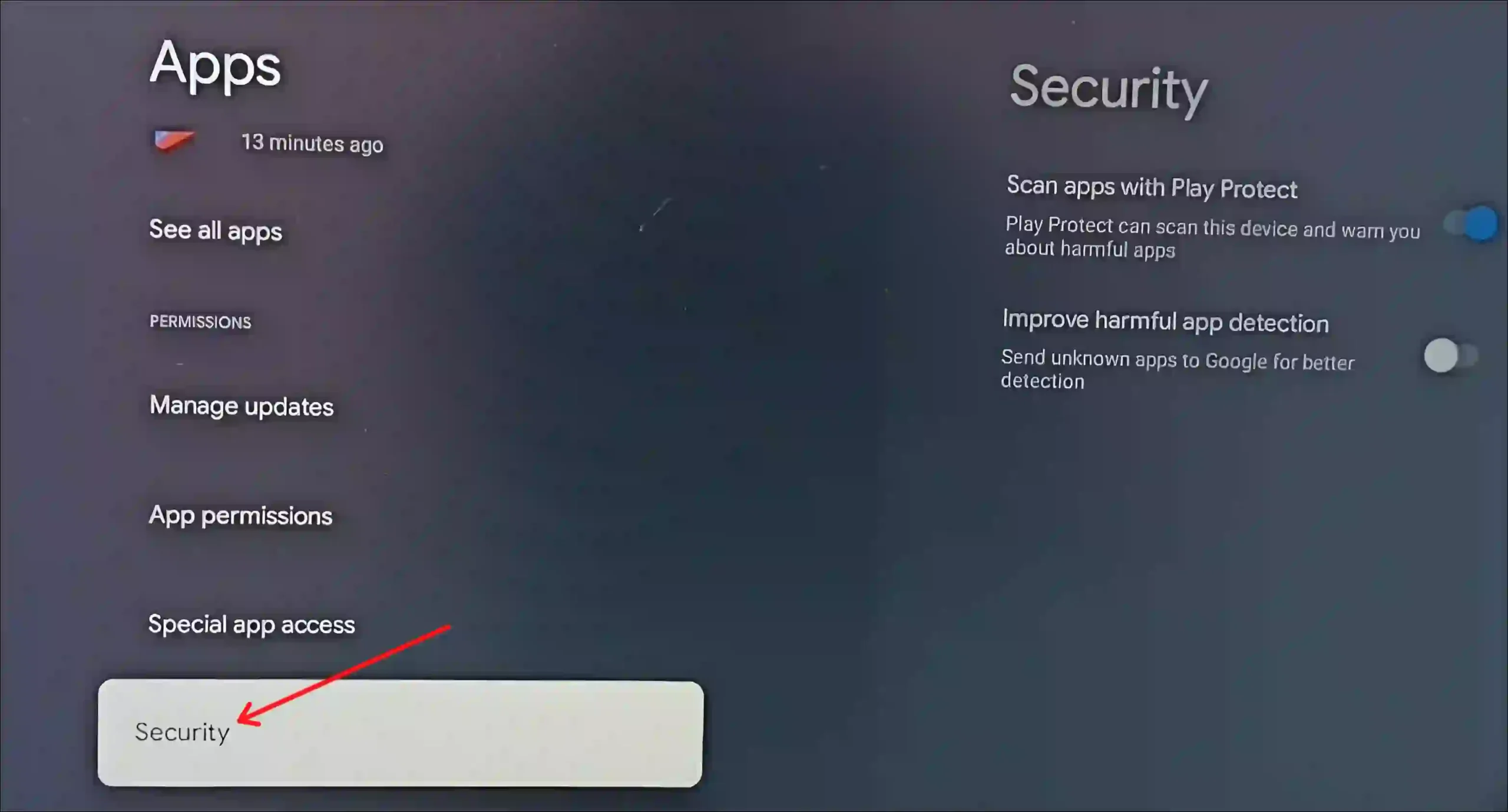
- Locate Security: Inside the Privacy menu, find and click on "Security & Restrictions."
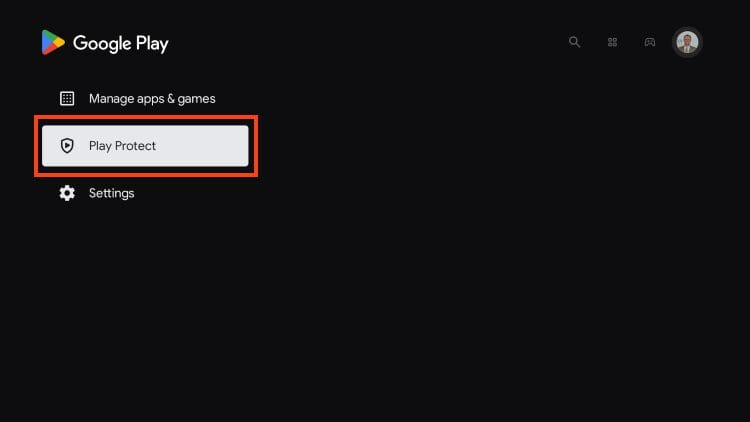
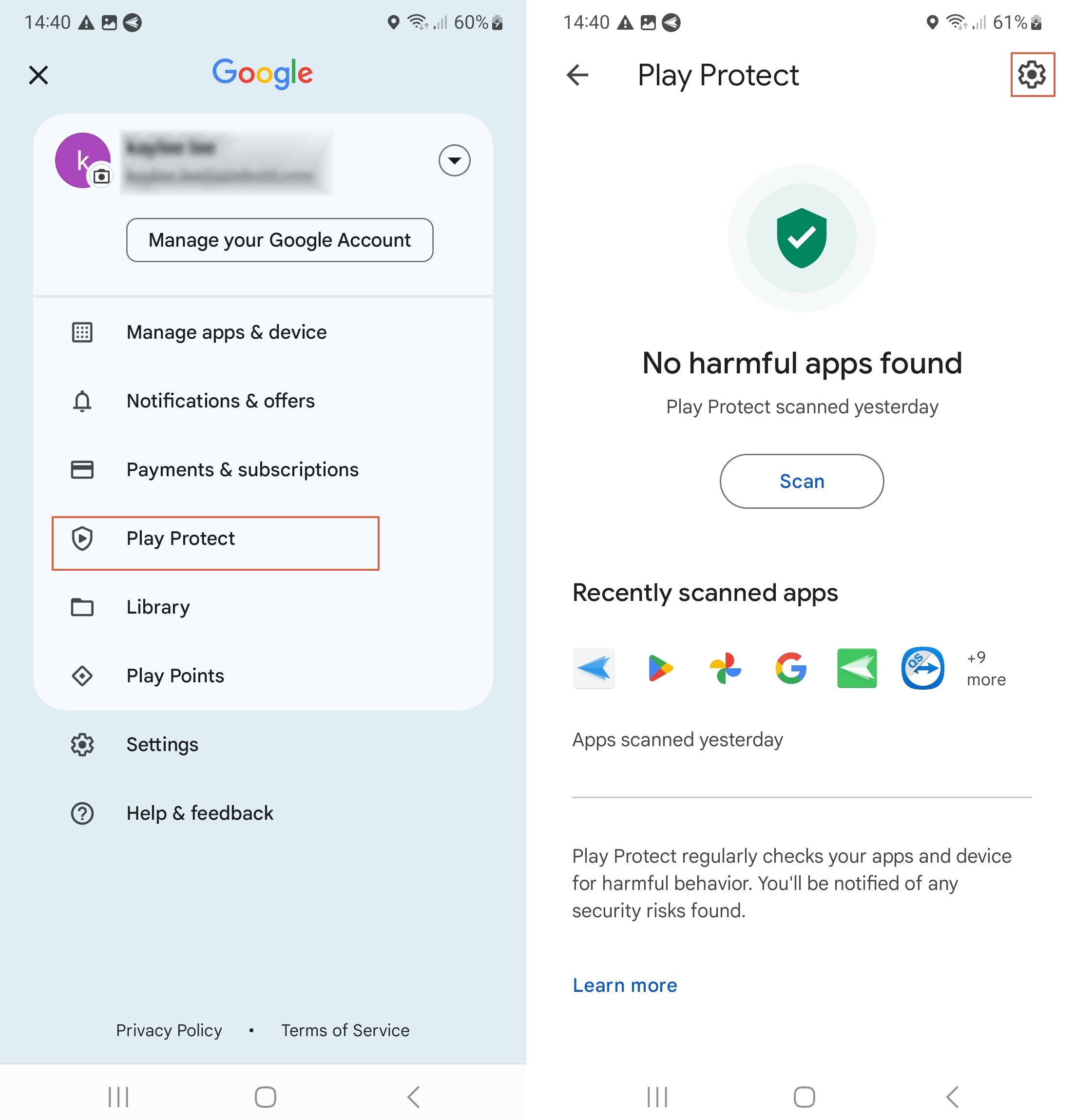
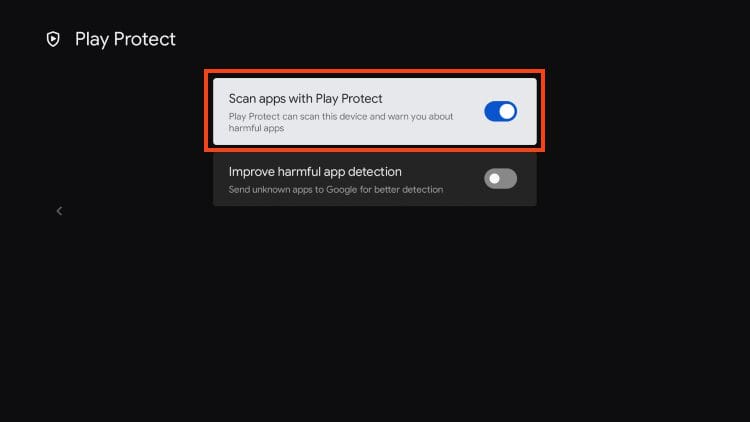
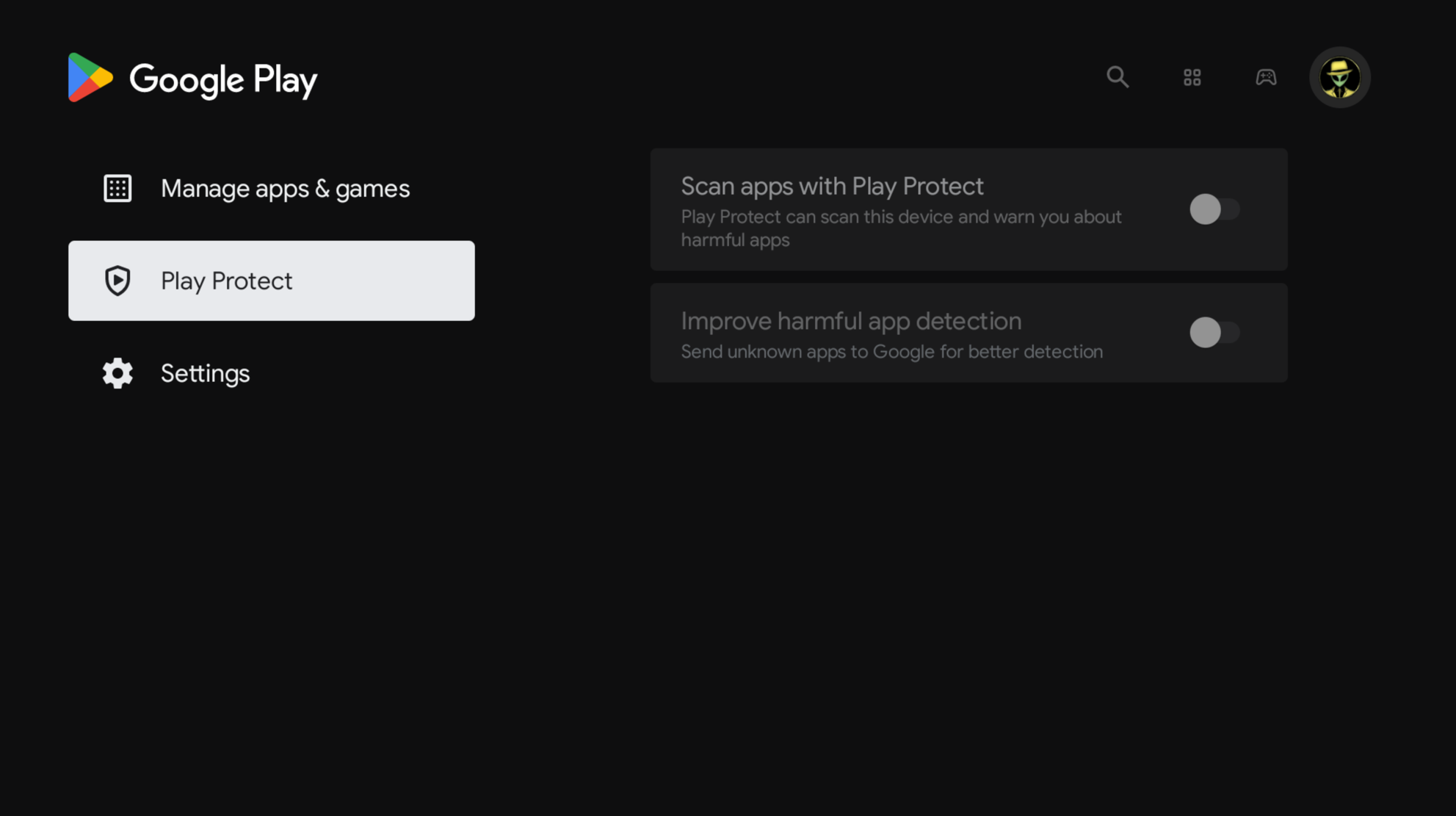
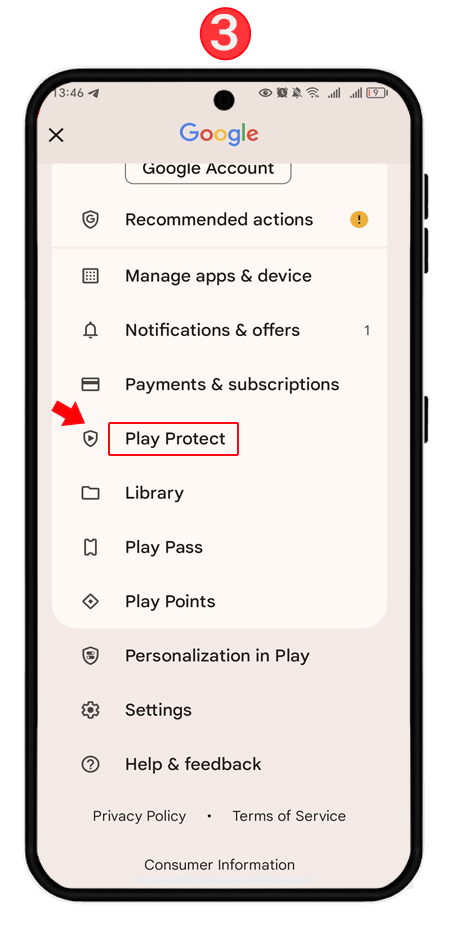
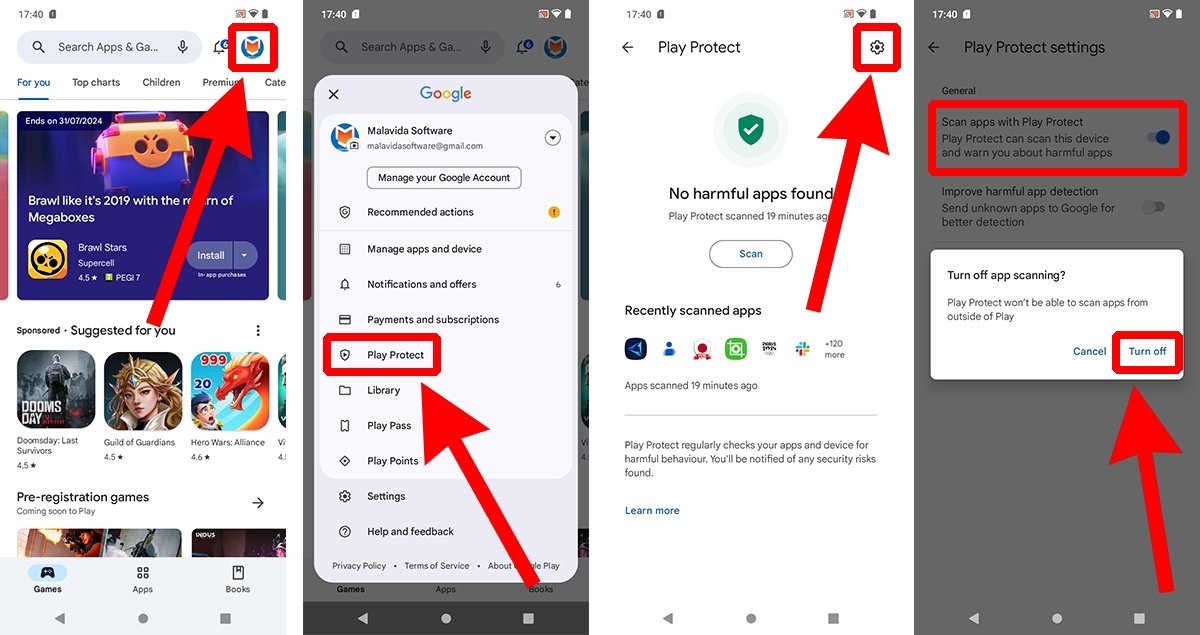
- Enter Google Play Protect: You will see an option for "Google Play Protect." Click on it to open the dedicated security interface.
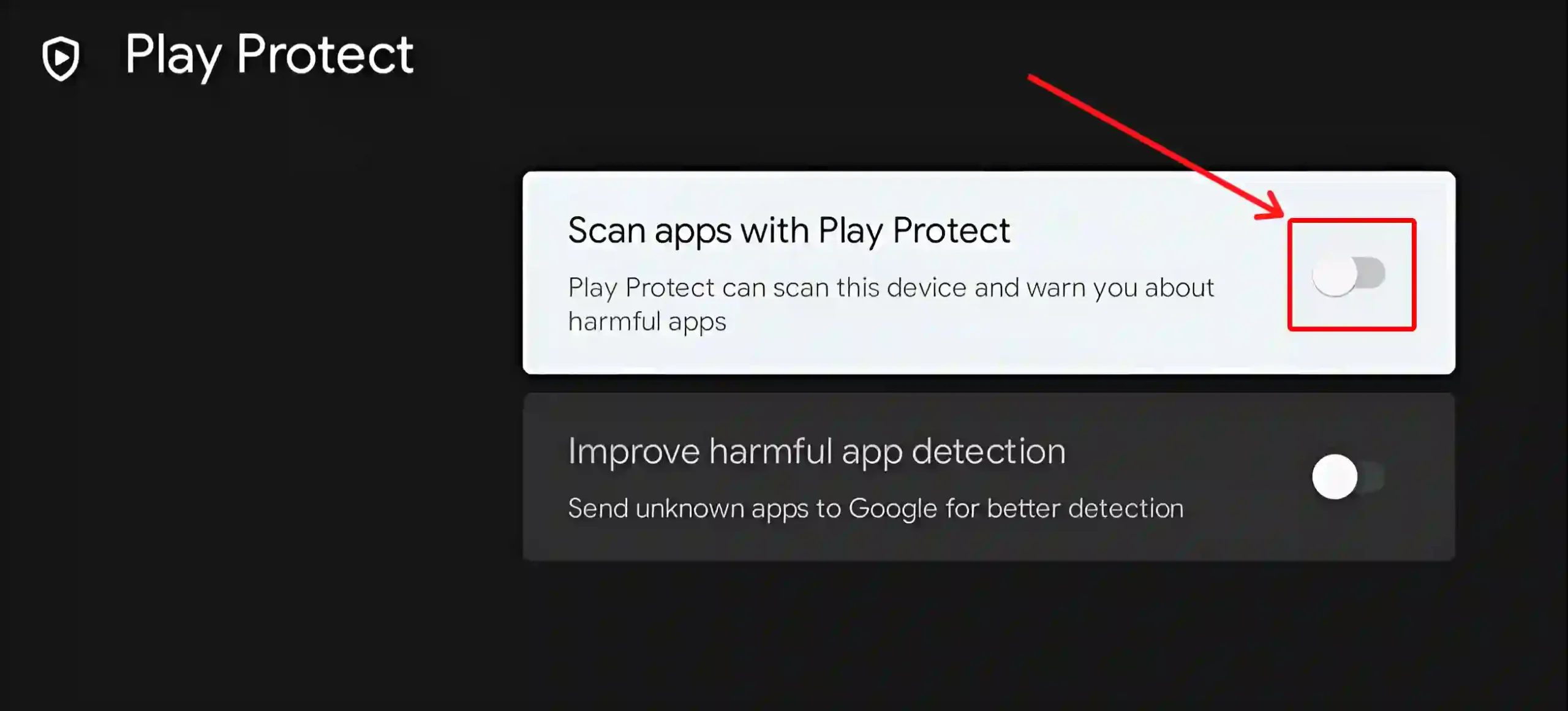
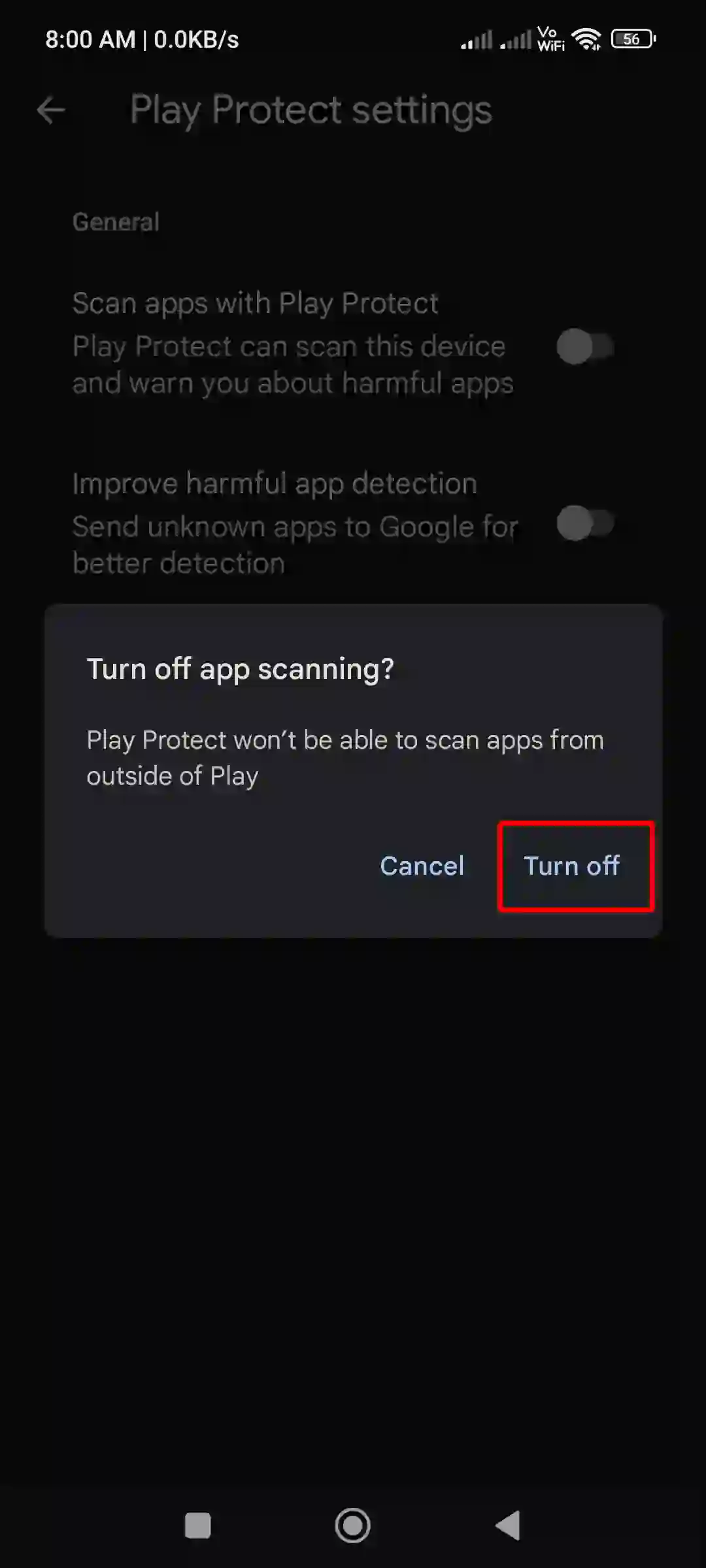
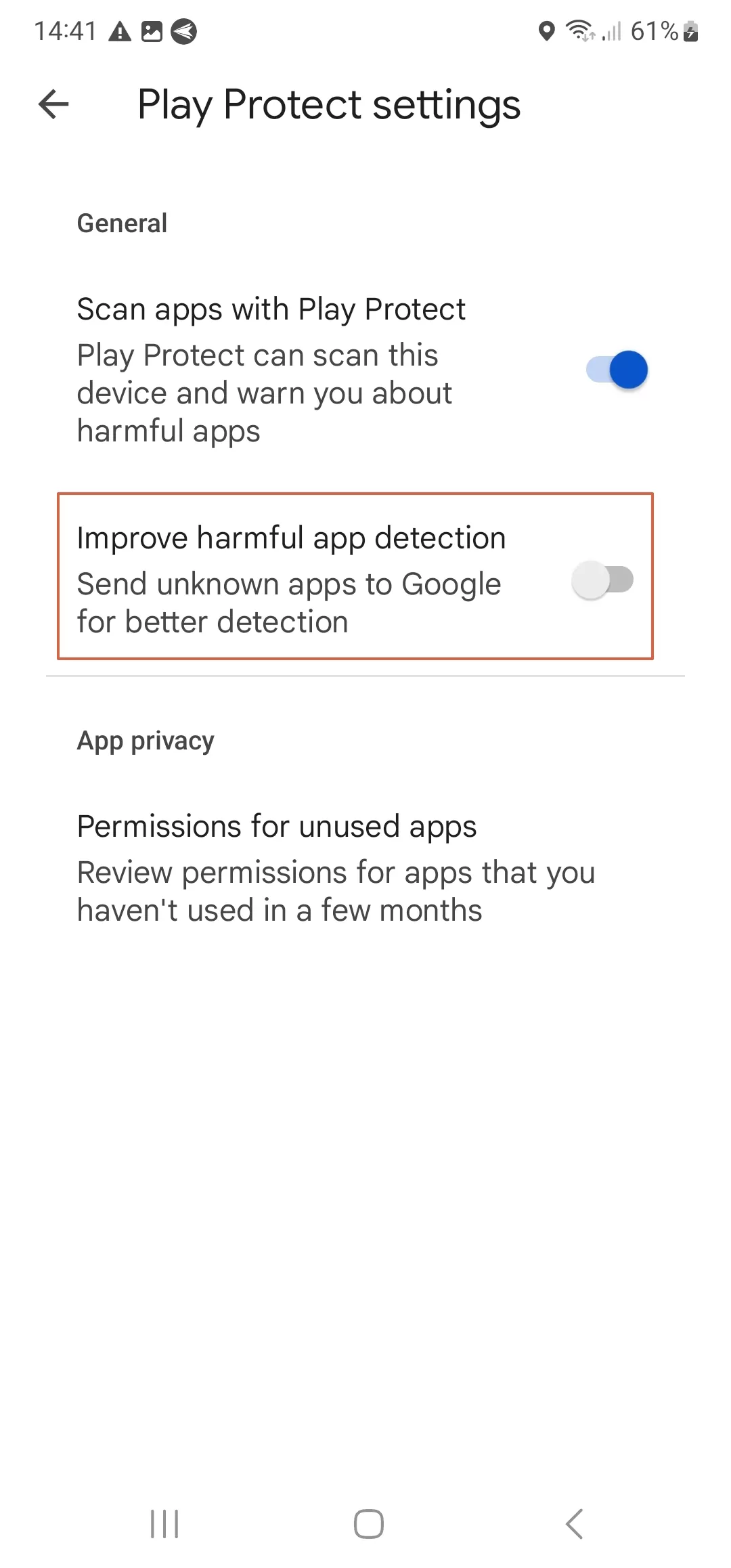
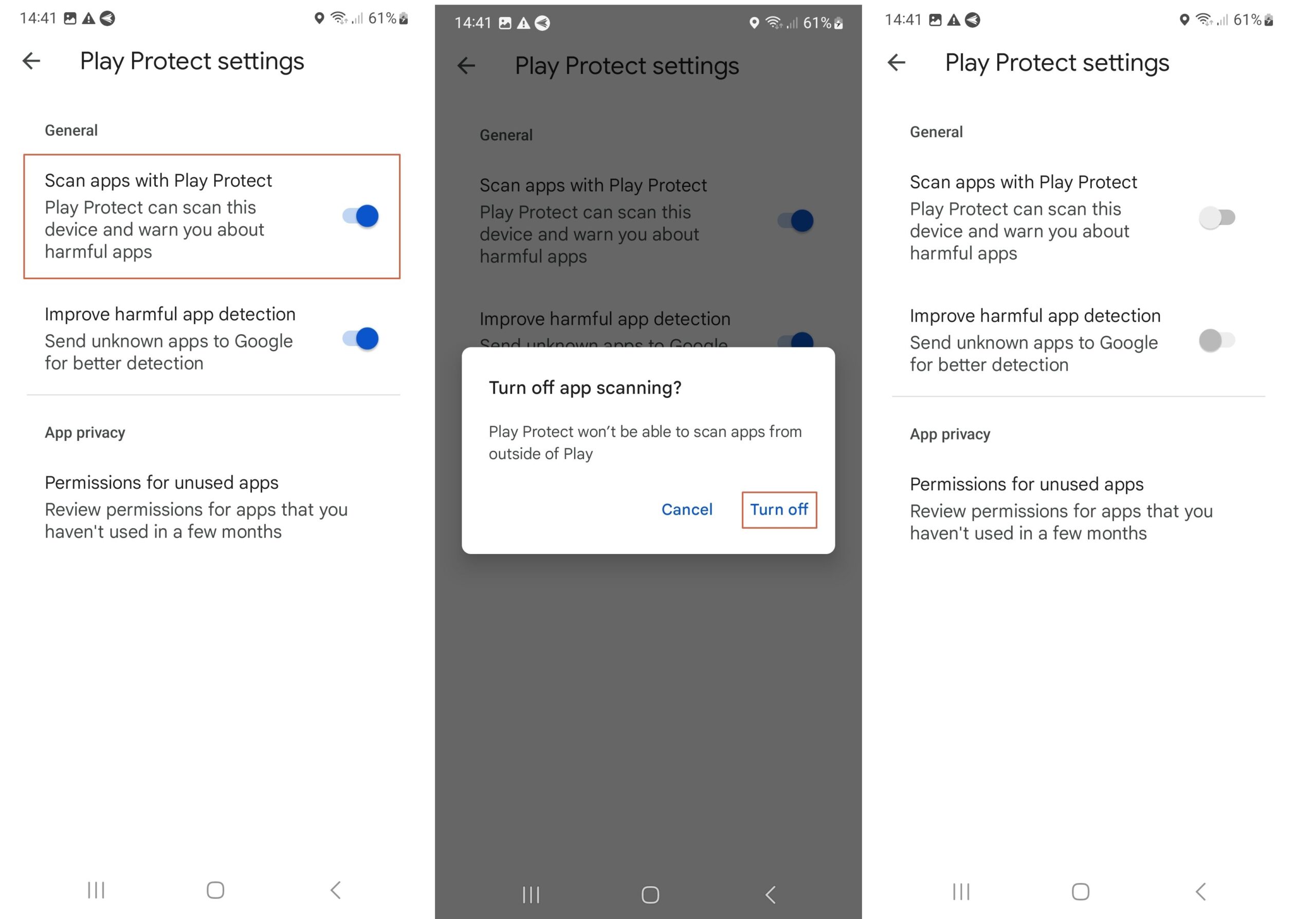
- Toggle Off Scanning: In the Play Protect menu, you will typically see a toggle for "Scan apps with Play Protect." Switch this toggle to the Off position.
- Confirm Your Choice: A warning dialog may appear, explaining that your device will no longer be protected from harmful apps. Confirm that you want to disable it.
Once these steps are completed, the system will no longer block APK installations based on Play Protect signatures. However, keep in mind that you may still need to enable "Unknown Sources" for specific apps like Downloader or a File Browser to actually execute the installation of an APK file.
Why Users Choose to Disable Security Features
While it may seem counterintuitive to disable security, there are several professional and practical reasons why a user might choose to disable Google Play Protect on their Chromecast:
- Sideloading Specialized Apps: Many high-quality media players, IPTV clients, and utility tools are not available on the official Play Store due to strict licensing or regional restrictions.
- App Development: Developers testing their own builds need to install APKs frequently. Play Protect can sometimes interfere with the deployment of unassigned testing packages.
- Legacy Software: Occasionally, an older version of an app is more stable or feature-rich than the current version. Sideloading an older APK often requires Play Protect to be inactive.
- Customization: Users who want to change the launcher or deep-system settings of their Chromecast often need third-party tools that Google considers "system-altering."
| Feature/Aspect | Description |
|---|---|
| Primary Function | Scans apps for malware and security vulnerabilities before and after installation. |
| Default State | Enabled by default on all Chromecast with Google TV devices. |
| Sideloading Impact | When enabled, it may block APKs from third-party websites or "Unknown Sources." |
| User Control | Can be toggled off/on via the Privacy and Security settings menu. |
| Risk Level | High; disabling it removes the automated safeguard against malicious code. |
Risks and Safety Precautions
It is important to emphasize that disabling Google Play Protect is not without risk. Google Play Protect acts as a silent guardian, and turning it off leaves your device vulnerable. If you choose to disable it, you should follow these safety best practices:
1. Use Trusted Sources Only
If you are sideloading an APK, ensure you are downloading it from a reputable source like APKMirror or the official website of the software developer. Avoid "cracked" or "modded" versions of paid apps, as these are the most common vectors for malware.
2. Enable Only When Necessary
A smart strategy is to disable Play Protect only during the installation of a specific app that is being blocked. Once the app is successfully installed and verified, you can go back into settings and re-enable Play Protect to maintain ongoing security for the rest of your system.
3. Monitor Device Performance
If your Chromecast starts behaving strangely—such as lagging, crashing, or displaying unauthorized advertisements—after you have disabled Play Protect and installed a third-party app, uninstall that app immediately and perform a security scan.
Troubleshooting: Play Protect Still Blocking Apps?
In some cases, even after disabling the main toggle for Play Protect, you might still encounter errors when trying to install an APK. This is usually due to the "Install Unknown Apps" permission. To fix this:
- Go to Settings > Apps > Special app access.
- Select Install unknown apps.
- Find the app you are using to install the APK (e.g., "Downloader" or "File Commander") and switch the toggle to Allowed.
Additionally, ensure that "Developer Options" are enabled if you are trying to push apps via ADB (Android Debug Bridge). You can enable this by going to Settings > System > About and clicking the "Android TV OS build" seven times.
Frequently Asked Questions (FAQ)
1. Is it safe to disable Google Play Protect on my Chromecast?
It is generally safe if you are an experienced user and only install apps from verified, trustworthy sources. However, for most users, it is recommended to keep it enabled to prevent accidental malware infections that could compromise your Google account or local network.
2. Will disabling Play Protect void my warranty?
No, toggling system settings like Play Protect or enabling Developer Options does not void the hardware warranty of your Chromecast. However, Google may not provide software support for issues caused by third-party apps installed while security features were disabled.
3. How do I turn Play Protect back on?
Simply follow the same path: Settings > Privacy > Security & Restrictions > Google Play Protect, and toggle the "Scan apps with Play Protect" switch back to the On position. It will immediately perform a scan of your current library.
Conclusion
Disabling Google Play Protect on your Chromecast with Google TV unlocks the full potential of the device, allowing you to bypass restrictions and install a wider variety of applications. Whether you are seeking to enhance your media library or develop new software, knowing how to manage these security settings is an essential skill. However, with great freedom comes the responsibility of maintaining your own digital safety. Always source your APKs carefully, consider re-enabling security features after installation, and stay informed about the apps you choose to run on your home network. By following the steps outlined in this guide, you can enjoy a customized, powerful streaming experience without compromising the integrity of your hardware.
Disable Google Play Protect Chromecast
Disable Google Play Protect Chromecast Wallpapers
Collection of disable google play protect chromecast wallpapers for your desktop and mobile devices.
Mesmerizing Disable Google Play Protect Chromecast View Photography
Transform your screen with this vivid disable google play protect chromecast artwork, a true masterpiece of digital design.
Breathtaking Disable Google Play Protect Chromecast Landscape Collection
Discover an amazing disable google play protect chromecast background image, ideal for personalizing your devices with vibrant colors and intricate designs.
Amazing Disable Google Play Protect Chromecast View Digital Art
Transform your screen with this vivid disable google play protect chromecast artwork, a true masterpiece of digital design.
Detailed Disable Google Play Protect Chromecast Capture for Mobile
Discover an amazing disable google play protect chromecast background image, ideal for personalizing your devices with vibrant colors and intricate designs.

Gorgeous Disable Google Play Protect Chromecast Wallpaper Concept
Immerse yourself in the stunning details of this beautiful disable google play protect chromecast wallpaper, designed for a captivating visual experience.
Mesmerizing Disable Google Play Protect Chromecast Artwork Digital Art
Explore this high-quality disable google play protect chromecast image, perfect for enhancing your desktop or mobile wallpaper.
Artistic Disable Google Play Protect Chromecast Artwork in 4K
This gorgeous disable google play protect chromecast photo offers a breathtaking view, making it a perfect choice for your next wallpaper.
Gorgeous Disable Google Play Protect Chromecast Landscape Collection
Find inspiration with this unique disable google play protect chromecast illustration, crafted to provide a fresh look for your background.
Serene Disable Google Play Protect Chromecast Moment Art
Explore this high-quality disable google play protect chromecast image, perfect for enhancing your desktop or mobile wallpaper.

Crisp Disable Google Play Protect Chromecast Abstract Concept
Find inspiration with this unique disable google play protect chromecast illustration, crafted to provide a fresh look for your background.
Artistic Disable Google Play Protect Chromecast Photo in 4K
Find inspiration with this unique disable google play protect chromecast illustration, crafted to provide a fresh look for your background.
Breathtaking Disable Google Play Protect Chromecast Landscape for Desktop
Discover an amazing disable google play protect chromecast background image, ideal for personalizing your devices with vibrant colors and intricate designs.
Vivid Disable Google Play Protect Chromecast Image Collection
Explore this high-quality disable google play protect chromecast image, perfect for enhancing your desktop or mobile wallpaper.
Artistic Disable Google Play Protect Chromecast Photo in HD
This gorgeous disable google play protect chromecast photo offers a breathtaking view, making it a perfect choice for your next wallpaper.
Serene Disable Google Play Protect Chromecast Image Digital Art
Transform your screen with this vivid disable google play protect chromecast artwork, a true masterpiece of digital design.
Crisp Disable Google Play Protect Chromecast Scene Nature
This gorgeous disable google play protect chromecast photo offers a breathtaking view, making it a perfect choice for your next wallpaper.

Vibrant Disable Google Play Protect Chromecast Scene Nature
Experience the crisp clarity of this stunning disable google play protect chromecast image, available in high resolution for all your screens.

Serene Disable Google Play Protect Chromecast Wallpaper Concept
Explore this high-quality disable google play protect chromecast image, perfect for enhancing your desktop or mobile wallpaper.
Stunning Disable Google Play Protect Chromecast View Concept
A captivating disable google play protect chromecast scene that brings tranquility and beauty to any device.
Artistic Disable Google Play Protect Chromecast Moment Nature
This gorgeous disable google play protect chromecast photo offers a breathtaking view, making it a perfect choice for your next wallpaper.
Download these disable google play protect chromecast wallpapers for free and use them on your desktop or mobile devices.