How To Make Pdf Of Photos In Mobile Without Any App
How to Make PDF of Photos in Mobile Without Any App: A Comprehensive Step-by-Step Guide
In today's digital age, the need to convert images into a professional document format is more common than ever. Whether you are a student submitting an assignment, a freelancer sending receipts to a client, or an employee sharing scanned documents, PDFs are the gold standard. However, many users are hesitant to download third-party applications due to storage limitations, privacy concerns, or the annoyance of intrusive advertisements.
The good news is that both Android and iOS devices come equipped with powerful built-in tools that allow you to convert images to PDF files effortlessly. Knowing how to make PDF of photos in mobile without any app not only saves time but also ensures your data stays secure on your device. In this guide, we will explore the native features of your smartphone that turn it into a portable document converter.
Why Convert Photos to PDF Directly on Your Phone?
Before diving into the "how-to," it is essential to understand the benefits of using native system tools over third-party applications. Most free "Image to PDF" apps on the Play Store or App Store often come with "gotchas"—watermarks, limited file counts, or the requirement to upload your sensitive photos to a cloud server for processing.
By using the built-in methods on your iPhone or Android device, you gain the following advantages:
- Privacy and Security: Your photos are processed locally on your hardware. They are never uploaded to an external server.
- Zero Cost: You don't need to pay for "Premium" versions to unlock basic features like batch conversion.
- Storage Efficiency: No need to waste megabytes on an app you might only use once a month.
- Speed: The native "Print to PDF" function is often faster than opening a third-party app and navigating its UI.
How to Convert Photos to PDF on iPhone (iOS) Without Apps
Apple has integrated PDF conversion tools deeply into the iOS ecosystem. There are two primary ways to do this: using the Photos app and the Files app. Both methods are seamless and take less than a minute.
Method 1: Using the "Print" Gesture in the Photos App
- Open the Photos app on your iPhone.
- Select the photo (or multiple photos) you want to convert.
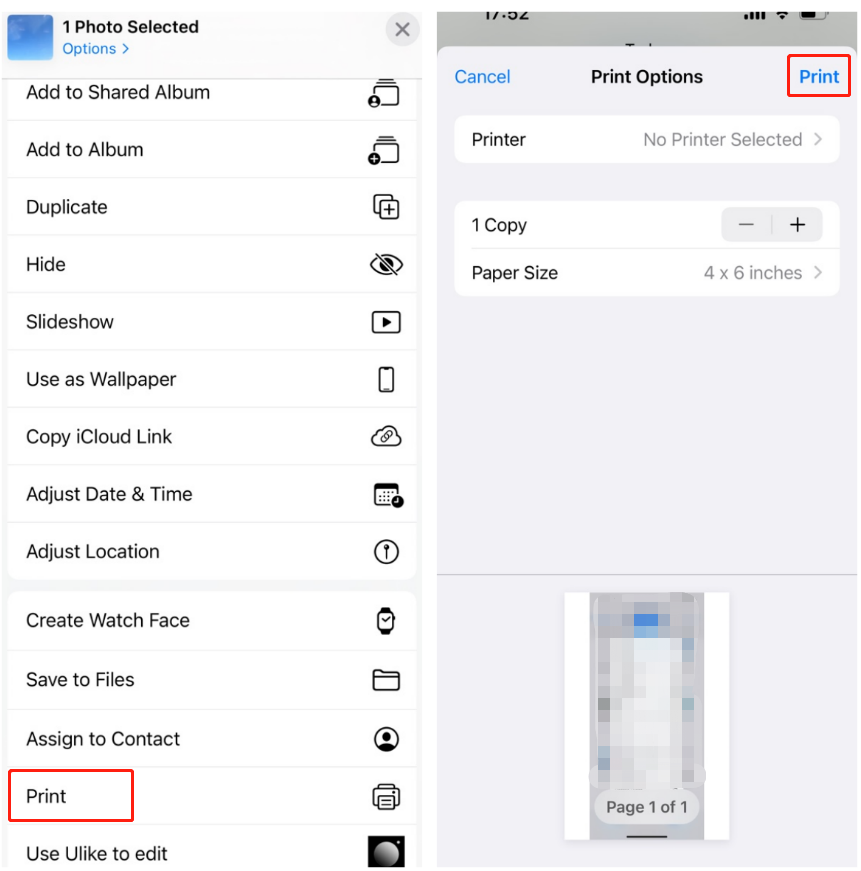
- Tap the Share button (the square with an upward arrow) at the bottom left.
- Scroll down and select Print.
- On the Print Preview screen, do not select a printer. Instead, use two fingers to pinch out (zoom in) on the thumbnail image of your photo.
- The photo will magically expand into a PDF view. Tap the Share icon again at the top right.
- Choose Save to Files and select a folder. Your photo is now a PDF!
Method 2: Using the Files App
- Move your images from the Photos app to the Files app (Select photos > Share > Save to Files).
- Open the Files app and navigate to the folder containing your images.
- Long-press on a single image, or tap the three dots at the top right to "Select" multiple images.
- Once selected, tap the three dots (More) icon at the bottom right.
- Select Create PDF. iOS will instantly generate a PDF file in the same folder.
How to Convert Photos to PDF on Android Without Third-Party Apps
Android devices, regardless of whether you use a Samsung, Pixel, or OnePlus, utilize the "Print" service powered by Google. This system-wide feature allows you to "print" any document or image into a PDF file saved directly to your internal storage.
Step-by-Step Guide for Android Users:
- Open your Gallery or Google Photos app.
- Select the image you wish to convert. If you want to combine multiple photos into one PDF, select them all at once.
- Tap the Share icon.
- Look for the Print icon. If you don't see it immediately, look for "View All" or swipe through the app list.
- At the top of the screen, tap the dropdown menu and select Save as PDF.
- Tap the PDF download icon (usually a yellow or blue circle with a downward arrow).
- Choose the destination folder on your phone and tap Save.
Note: On some Samsung devices, you may need to tap the three-dot menu within the Gallery app and select "Print" directly from there.
Quick Comparison of Built-in Mobile PDF Conversion Methods
To help you decide which method fits your current situation, refer to the table below which summarizes the core aspects of native PDF conversion.
| Feature/Aspect | Description |
|---|---|
| Internet Requirement | Completely Offline. No data usage required. |
| Batch Conversion | Supported on both iOS (Files app) and Android (Gallery/Google Photos). |
| Privacy | High. Files never leave the local device storage. |
| Cost | Free. Pre-installed as part of the operating system. |
| Output Quality | Maintains the original resolution of the captured photo. |
Advanced Tips for Professional Results
While the basic conversion is straightforward, a few professional tweaks can make your PDFs look much better:
- Optimize Lighting: Before converting, use your phone’s built-in editor to increase the contrast and brightness of the photo. This makes text in the PDF much easier to read.
- Crop the Edges: Remove unnecessary backgrounds (like a table surface) by cropping the photo to the edges of the document before initiating the PDF conversion.
- Check Orientation: Ensure your photos are rotated correctly. A PDF with sideways pages looks unprofessional and is difficult for the recipient to read.
- Naming Your Files: Always rename your PDF immediately after saving. Names like "Project_Proposal_Final.pdf" are much better than "IMG_20231025_1200.pdf".
Frequently Asked Questions (FAQ)
1. Does converting a photo to PDF reduce its quality?
Generally, no. The native "Print to PDF" function preserves the resolution of the image. However, the final file size may be larger than the original JPEG because PDF containers add some metadata. If you need a smaller file, you might need an online compressor after the conversion.
2. Can I combine 10 photos into a single PDF file?
Yes. On iPhone, using the Files App method is the best way to combine multiple images into one document. On Android, selecting multiple images in Google Photos and hitting "Print" will create a single PDF with each photo on a separate page.
3. Where do the converted PDF files go?
On Android, they are typically saved in the "Downloads" or "Documents" folder. On iPhone, you choose the destination within the "Files" app (either "On My iPhone" or "iCloud Drive") during the final saving step.
4. Is it possible to convert a PDF back to a photo without an app?
This is slightly trickier. The easiest way without an app is to open the PDF and take a screenshot of the page. Alternatively, you can use the built-in browser (Chrome or Safari) to visit a web-based converter like SmallPDF or ILovePDF.
Conclusion
Learning how to make PDF of photos in mobile without any app is a valuable digital skill that enhances productivity and safeguards your privacy. By leveraging the "Print" functionality on Android or the "Files" app capabilities on iOS, you eliminate the need for cluttered third-party software and expensive subscriptions.
The next time you need to send a document, remember that your smartphone is already a powerful document processor. Whether you are using the "Pinch to Zoom" trick on an iPhone or the "Save as PDF" print option on Android, a professional-grade document is only a few taps away. Try these methods today and experience a cleaner, faster way to manage your mobile files!
How To Make Pdf Of Photos In Mobile Without Any App
How To Make Pdf Of Photos In Mobile Without Any App Wallpapers
Collection of how to make pdf of photos in mobile without any app wallpapers for your desktop and mobile devices.

Detailed How To Make Pdf Of Photos In Mobile Without Any App Capture for Desktop
Discover an amazing how to make pdf of photos in mobile without any app background image, ideal for personalizing your devices with vibrant colors and intricate designs.

Crisp How To Make Pdf Of Photos In Mobile Without Any App Abstract in HD
Immerse yourself in the stunning details of this beautiful how to make pdf of photos in mobile without any app wallpaper, designed for a captivating visual experience.

Lush How To Make Pdf Of Photos In Mobile Without Any App Scene for Desktop
Immerse yourself in the stunning details of this beautiful how to make pdf of photos in mobile without any app wallpaper, designed for a captivating visual experience.
Serene How To Make Pdf Of Photos In Mobile Without Any App Wallpaper for Your Screen
Experience the crisp clarity of this stunning how to make pdf of photos in mobile without any app image, available in high resolution for all your screens.

Crisp How To Make Pdf Of Photos In Mobile Without Any App Background Concept
Find inspiration with this unique how to make pdf of photos in mobile without any app illustration, crafted to provide a fresh look for your background.
Dynamic How To Make Pdf Of Photos In Mobile Without Any App Capture for Desktop
Find inspiration with this unique how to make pdf of photos in mobile without any app illustration, crafted to provide a fresh look for your background.

Vibrant How To Make Pdf Of Photos In Mobile Without Any App Wallpaper Photography
Explore this high-quality how to make pdf of photos in mobile without any app image, perfect for enhancing your desktop or mobile wallpaper.

Lush How To Make Pdf Of Photos In Mobile Without Any App Landscape Art
Immerse yourself in the stunning details of this beautiful how to make pdf of photos in mobile without any app wallpaper, designed for a captivating visual experience.

Beautiful How To Make Pdf Of Photos In Mobile Without Any App Abstract Digital Art
Experience the crisp clarity of this stunning how to make pdf of photos in mobile without any app image, available in high resolution for all your screens.

Dynamic How To Make Pdf Of Photos In Mobile Without Any App Moment Art
Immerse yourself in the stunning details of this beautiful how to make pdf of photos in mobile without any app wallpaper, designed for a captivating visual experience.
Vibrant How To Make Pdf Of Photos In Mobile Without Any App Image Photography
Explore this high-quality how to make pdf of photos in mobile without any app image, perfect for enhancing your desktop or mobile wallpaper.
Vivid How To Make Pdf Of Photos In Mobile Without Any App Artwork Concept
Discover an amazing how to make pdf of photos in mobile without any app background image, ideal for personalizing your devices with vibrant colors and intricate designs.

Artistic How To Make Pdf Of Photos In Mobile Without Any App Picture Nature
This gorgeous how to make pdf of photos in mobile without any app photo offers a breathtaking view, making it a perfect choice for your next wallpaper.

Spectacular How To Make Pdf Of Photos In Mobile Without Any App Moment Digital Art
Find inspiration with this unique how to make pdf of photos in mobile without any app illustration, crafted to provide a fresh look for your background.
High-Quality How To Make Pdf Of Photos In Mobile Without Any App Background for Mobile
Discover an amazing how to make pdf of photos in mobile without any app background image, ideal for personalizing your devices with vibrant colors and intricate designs.
Lush How To Make Pdf Of Photos In Mobile Without Any App Scene in 4K
Find inspiration with this unique how to make pdf of photos in mobile without any app illustration, crafted to provide a fresh look for your background.
Stunning How To Make Pdf Of Photos In Mobile Without Any App Abstract Art
A captivating how to make pdf of photos in mobile without any app scene that brings tranquility and beauty to any device.
Beautiful How To Make Pdf Of Photos In Mobile Without Any App View Photography
Discover an amazing how to make pdf of photos in mobile without any app background image, ideal for personalizing your devices with vibrant colors and intricate designs.

Vivid How To Make Pdf Of Photos In Mobile Without Any App Image for Your Screen
Transform your screen with this vivid how to make pdf of photos in mobile without any app artwork, a true masterpiece of digital design.

High-Quality How To Make Pdf Of Photos In Mobile Without Any App Capture in HD
Explore this high-quality how to make pdf of photos in mobile without any app image, perfect for enhancing your desktop or mobile wallpaper.
Download these how to make pdf of photos in mobile without any app wallpapers for free and use them on your desktop or mobile devices.