How To Make A Photo A Pdf On Iphone
How to Make a Photo a PDF on iPhone: A Complete Guide to iOS PDF Creation
In today’s digital-first world, the ability to convert images into professional documents is a vital skill. Whether you are a student needing to submit an assignment, a freelancer sending an invoice, or an employee sharing a scanned receipt, knowing how to make a photo a PDF on iPhone is incredibly useful. Fortunately, Apple has integrated several powerful tools directly into iOS that allow you to perform this conversion without needing to download expensive third-party software.
The PDF (Portable Document Format) is the gold standard for sharing documents because it preserves formatting across all devices and operating systems. By converting your JPG or HEIC iPhone photos into PDFs, you ensure that the recipient sees exactly what you intended, with no risk of accidental edits or layout shifts. In this comprehensive guide, we will explore five different methods to transform your images into PDFs using built-in iPhone features.
Method 1: Using the "Print" Gesture (The Hidden Shortcut)
Most iPhone users are unaware that the "Print" function is actually one of the fastest ways to create a PDF. This method uses a clever "pinch-to-zoom" gesture that triggers the system to generate a PDF file from any image in your Photos app.
Step-by-Step Instructions:
- Open the Photos app on your iPhone.
- Select the photo you wish to convert. If you want to convert multiple photos into a single PDF, tap "Select" at the top right and choose all the images you need.
- Tap the Share button (the square with an upward arrow) in the bottom-left corner.
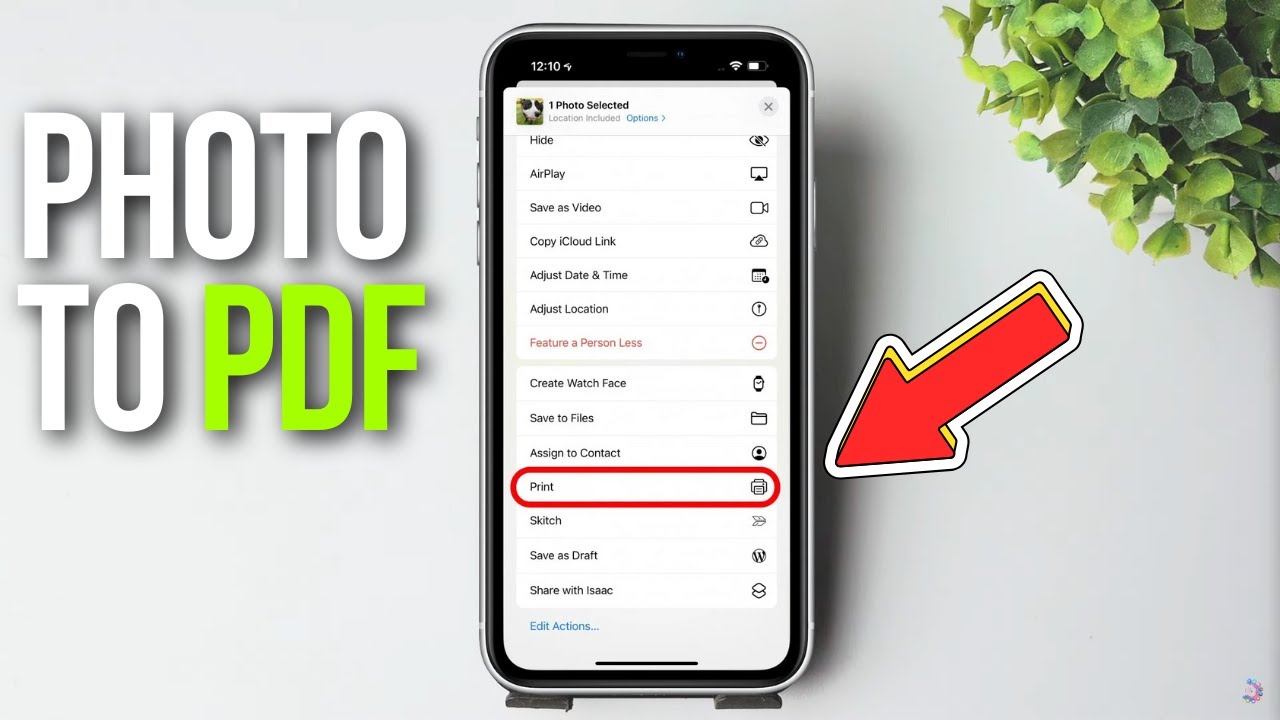
- Scroll down the share sheet and select Print.
- On the "Print Options" screen, you will see a preview of your photo. Do not tap "Print" at the top right. Instead, place two fingers on the photo preview and "pinch out" (spread your fingers apart) as if you were zooming in.
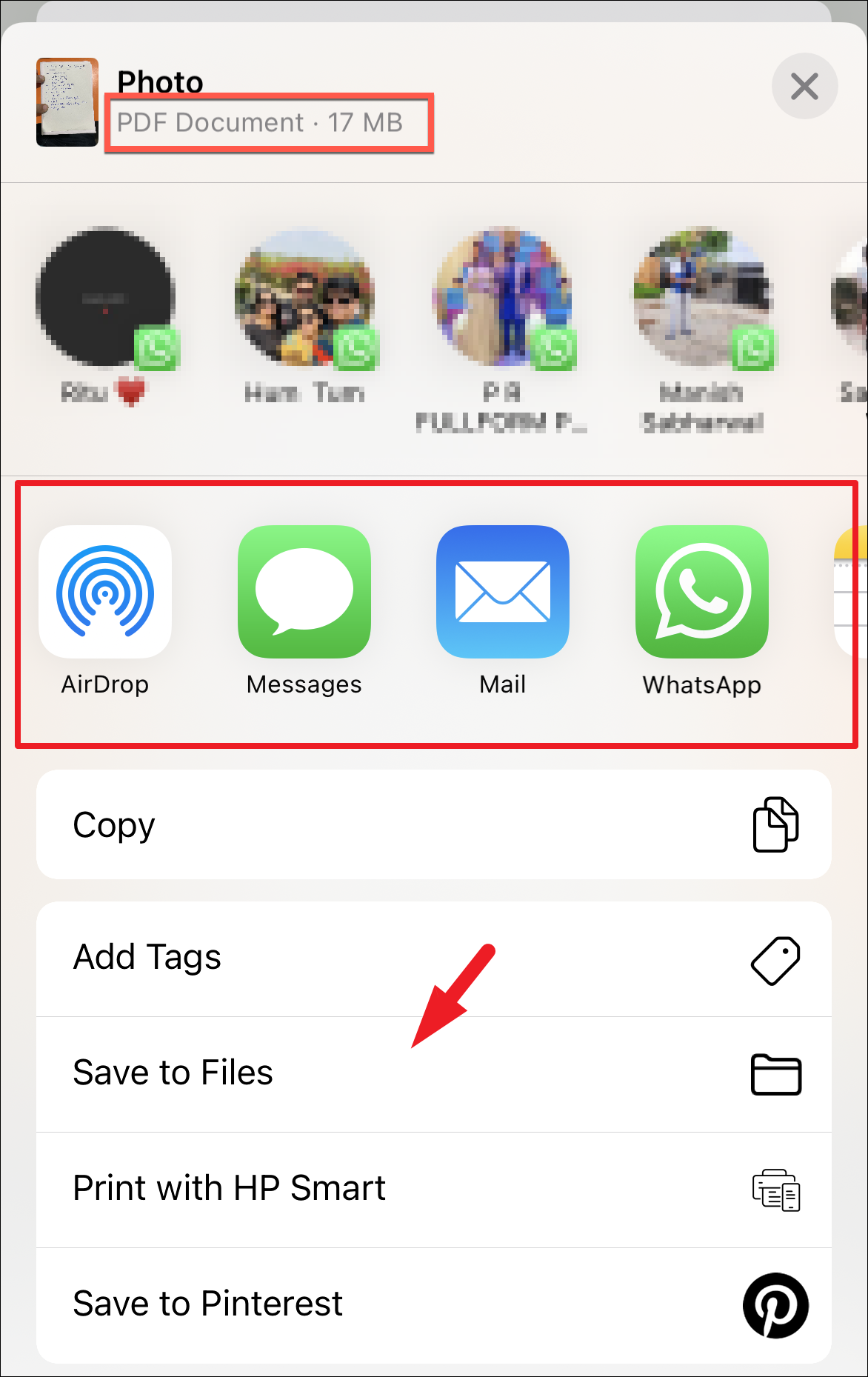
- The image will instantly transform into a PDF view. Now, tap the Share button again at the bottom of this new screen.
- Choose Save to Files to store your new PDF on your iPhone or iCloud Drive.
Method 2: Creating a PDF via the Files App
If you prefer a more organized approach or need to handle a large batch of images, the Files app is your best friend. This method is highly efficient for professionals who manage their documents in a folder-based system.
Step-by-Step Instructions:
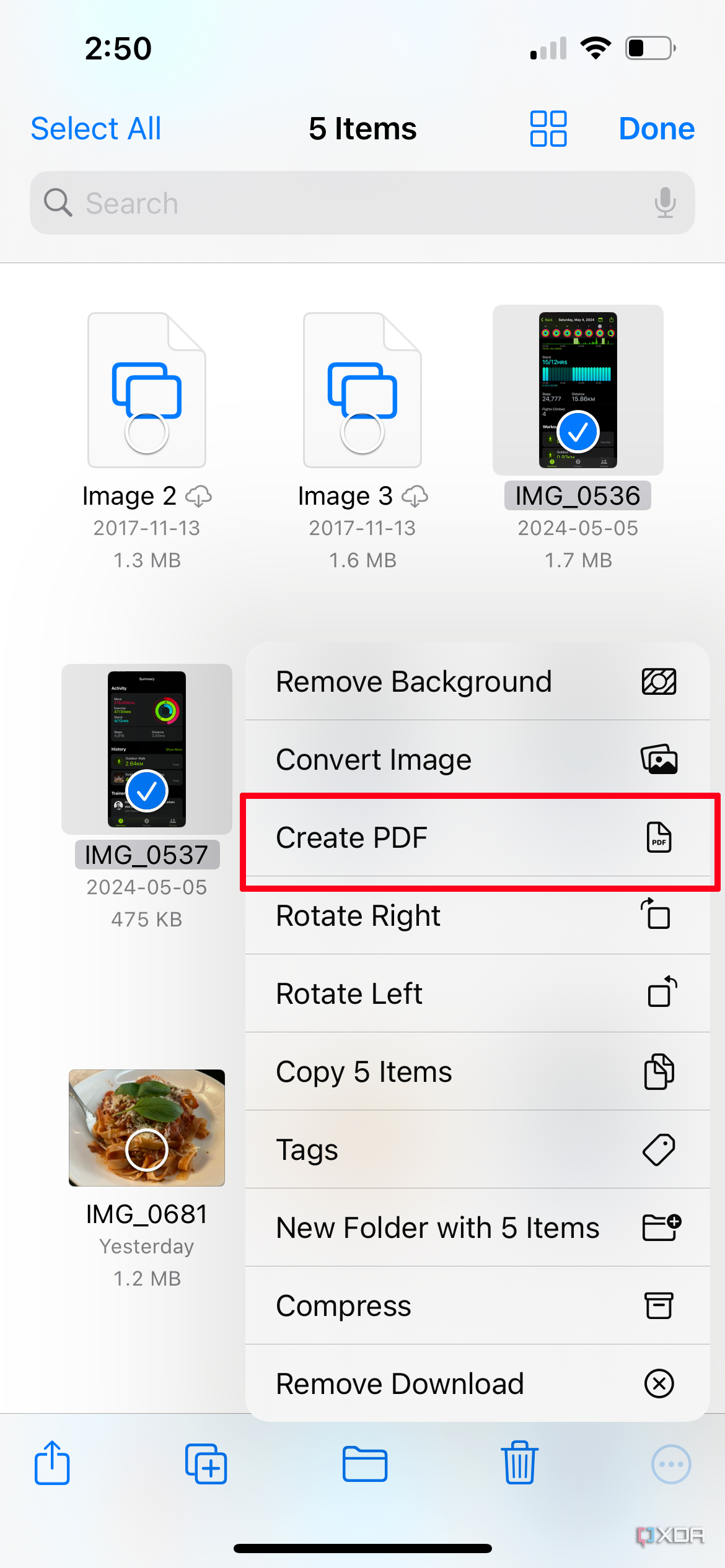
- First, send your photo(s) to the Files app. Go to Photos, select your images, tap Share, and select Save to Files. Choose a folder and hit Save.
- Open the Files app and navigate to the folder where you saved the photos.
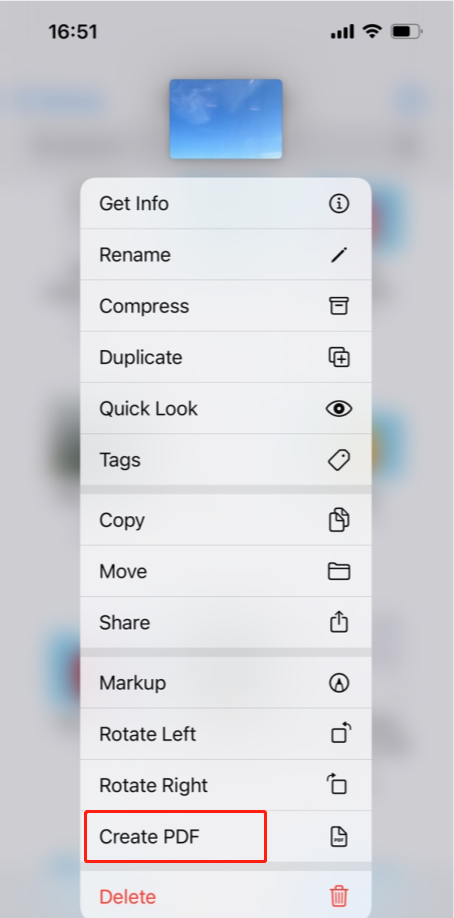
- For a single photo: Long-press on the image and select Quick Actions > Create PDF.
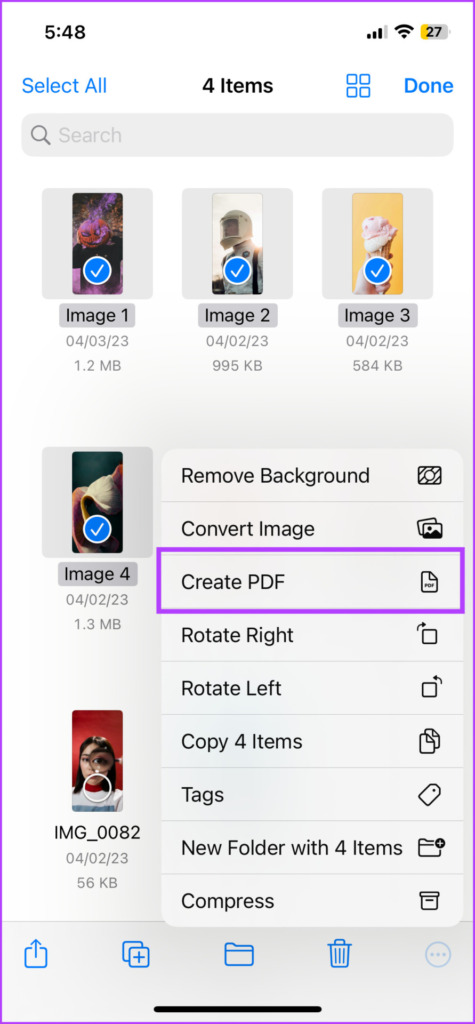
- For multiple photos: Tap the "three dots" (More) icon at the top right, then tap Select. Choose all the photos you want to combine.
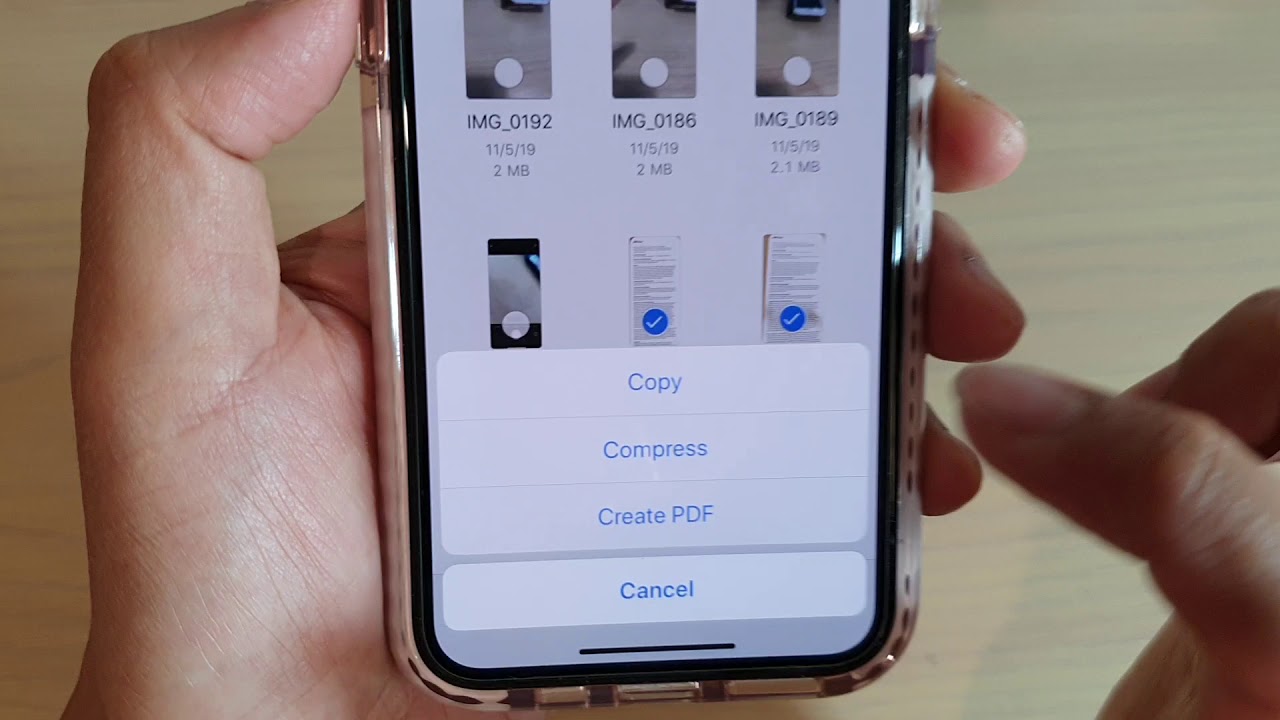
- Tap the "three dots" icon in the bottom-right corner and select Create PDF.
The Files app will automatically generate a PDF file in the same folder. If you selected multiple images, it will compile them into a single, multi-page PDF document, which is perfect for presentations or multi-page contracts.
| Fitur/Aspek | Deskripsi |
|---|---|
| Compatibility | Works on all iPhones running iOS 11 and later. |
| Output Quality | High-resolution PDF output preserving original image clarity. |
| Multi-Page Support | Available via Files App and Print gesture selection. |
| Required Apps | No third-party apps required; uses native Photos and Files apps. |
| Cloud Integration | Directly saves to iCloud Drive for easy Mac/PC access. |
Method 3: Using the Apple Books App
The Apple Books app isn't just for reading novels; it’s also an excellent tool for converting and storing PDFs. When you share a photo to Books, the app automatically converts it into a PDF and syncs it across all your Apple devices.
How to do it:
- Open the Photos app and select your image(s).
- Tap the Share icon.
- In the row of app icons, scroll until you find Books. If you don't see it, tap "More" (the three dots) and select Books from the list.
- The app will open, and your photo will now be a PDF inside your library. You can share it from there via email or message.
Method 4: Automating with the Shortcuts App
For power users who frequently need to convert photos to PDFs, setting up a Shortcuts automation can save significant time. You can create a button on your home screen that performs the conversion in a single tap.
Setting up the Shortcut:
- Open the Shortcuts app and tap the + icon to create a new shortcut.
- Search for the action Select Photos and add it. Toggle the "Select Multiple" switch if needed.
- Search for the action Make PDF and add it.
- Search for Share or Save File and add it as the final step.
- Name your shortcut (e.g., "Photo to PDF") and save it.
Now, whenever you run this shortcut, it will prompt you to pick photos and automatically turn them into a PDF document ready for sharing.
Why Should You Convert Photos to PDF?
While JPG and PNG files are great for viewing images, they are not always the best choice for professional communication. Here is why you should learn how to make a photo a PDF on iPhone:
- Professionalism: Sending a PDF looks more official than sending a raw camera photo.
- Universal Viewability: PDFs look the same on a Windows PC, a Mac, an Android phone, or a Linux machine.
- Security: You can password-protect PDF files, which is not easily done with standard image files.
- File Size Management: Often, converting multiple high-resolution images into a single PDF can actually result in a more manageable file size for email attachments.
- Document Integrity: Text within a PDF can sometimes be searchable (OCR), and the layout remains locked.
Frequently Asked Questions (FAQ)
1. Can I convert multiple photos into one PDF?
Yes! The easiest way is to use the Files app. Select multiple images in the Files app, tap the three dots icon, and choose "Create PDF." This will merge all selected images into a single multi-page document.
2. Does converting a photo to PDF reduce its quality?
Generally, no. iOS native conversion tools maintain the original resolution of the image. However, the PDF format may apply some light compression to keep the file size reasonable for sharing.
3. Do I need to download a third-party app?
No, you do not. While there are many "PDF Converter" apps on the App Store, your iPhone has everything it needs built-in via the Photos, Files, and Books apps. Avoiding third-party apps also protects your privacy.
4. How do I rename the PDF after creating it?
In the Files app, simply long-press on the newly created PDF file and select Rename. Type your desired name and hit "Done."
Conclusion
Learning how to make a photo a PDF on iPhone is a game-changer for mobile productivity. Whether you use the hidden "Print" gesture, the organizational power of the "Files" app, or the automation of "Shortcuts," iOS provides you with all the tools necessary to handle documents professionally on the go. By mastering these methods, you eliminate the need for third-party converters and ensure your files are always compatible, secure, and ready for any professional setting. Next time you need to send a document, remember that your iPhone is more than just a camera—it's a powerful document processor in your pocket.
How To Make A Photo A Pdf On Iphone
How To Make A Photo A Pdf On Iphone Wallpapers
Collection of how to make a photo a pdf on iphone wallpapers for your desktop and mobile devices.
Captivating How To Make A Photo A Pdf On Iphone Design Collection
Find inspiration with this unique how to make a photo a pdf on iphone illustration, crafted to provide a fresh look for your background.

Artistic How To Make A Photo A Pdf On Iphone Artwork for Desktop
A captivating how to make a photo a pdf on iphone scene that brings tranquility and beauty to any device.
Amazing How To Make A Photo A Pdf On Iphone Design for Desktop
Transform your screen with this vivid how to make a photo a pdf on iphone artwork, a true masterpiece of digital design.

High-Quality How To Make A Photo A Pdf On Iphone Image Art
Explore this high-quality how to make a photo a pdf on iphone image, perfect for enhancing your desktop or mobile wallpaper.
Beautiful How To Make A Photo A Pdf On Iphone Abstract for Your Screen
Discover an amazing how to make a photo a pdf on iphone background image, ideal for personalizing your devices with vibrant colors and intricate designs.

High-Quality How To Make A Photo A Pdf On Iphone Wallpaper for Mobile
Discover an amazing how to make a photo a pdf on iphone background image, ideal for personalizing your devices with vibrant colors and intricate designs.

Mesmerizing How To Make A Photo A Pdf On Iphone Design Collection
Transform your screen with this vivid how to make a photo a pdf on iphone artwork, a true masterpiece of digital design.
Breathtaking How To Make A Photo A Pdf On Iphone Picture Photography
Transform your screen with this vivid how to make a photo a pdf on iphone artwork, a true masterpiece of digital design.

Lush How To Make A Photo A Pdf On Iphone Abstract in HD
Find inspiration with this unique how to make a photo a pdf on iphone illustration, crafted to provide a fresh look for your background.
Dynamic How To Make A Photo A Pdf On Iphone Capture Digital Art
This gorgeous how to make a photo a pdf on iphone photo offers a breathtaking view, making it a perfect choice for your next wallpaper.
Beautiful How To Make A Photo A Pdf On Iphone Scene Art
Explore this high-quality how to make a photo a pdf on iphone image, perfect for enhancing your desktop or mobile wallpaper.

Exquisite How To Make A Photo A Pdf On Iphone Landscape for Mobile
Find inspiration with this unique how to make a photo a pdf on iphone illustration, crafted to provide a fresh look for your background.

Vibrant How To Make A Photo A Pdf On Iphone Design Art
Explore this high-quality how to make a photo a pdf on iphone image, perfect for enhancing your desktop or mobile wallpaper.

Artistic How To Make A Photo A Pdf On Iphone View Collection
Find inspiration with this unique how to make a photo a pdf on iphone illustration, crafted to provide a fresh look for your background.

Detailed How To Make A Photo A Pdf On Iphone Design Concept
Transform your screen with this vivid how to make a photo a pdf on iphone artwork, a true masterpiece of digital design.

Stunning How To Make A Photo A Pdf On Iphone Design for Your Screen
This gorgeous how to make a photo a pdf on iphone photo offers a breathtaking view, making it a perfect choice for your next wallpaper.
Amazing How To Make A Photo A Pdf On Iphone Landscape Digital Art
Experience the crisp clarity of this stunning how to make a photo a pdf on iphone image, available in high resolution for all your screens.
Stunning How To Make A Photo A Pdf On Iphone Picture in HD
Find inspiration with this unique how to make a photo a pdf on iphone illustration, crafted to provide a fresh look for your background.

Lush How To Make A Photo A Pdf On Iphone Moment Illustration
This gorgeous how to make a photo a pdf on iphone photo offers a breathtaking view, making it a perfect choice for your next wallpaper.
Exquisite How To Make A Photo A Pdf On Iphone Photo Concept
This gorgeous how to make a photo a pdf on iphone photo offers a breathtaking view, making it a perfect choice for your next wallpaper.
Download these how to make a photo a pdf on iphone wallpapers for free and use them on your desktop or mobile devices.