How To Make A Picture A Pdf On Iphone
Master Guide: How to Make a Picture a PDF on iPhone Effortlessly
In today's digital-first world, the ability to convert various file formats on the go is more than just a convenience—it is a necessity. Whether you are a student needing to submit an assignment, a professional sending a signed contract, or a creative sharing a portfolio, knowing how to make a picture a PDF on iPhone is a fundamental skill. While images like JPEGs and PNGs are great for viewing, PDFs (Portable Document Format) are the industry standard for document sharing because they preserve formatting across all devices and operating systems.
Apple’s iOS ecosystem is packed with hidden features that allow you to perform this conversion without needing to download expensive third-party software. In this comprehensive guide, we will explore several native methods to transform your photos into high-quality PDF documents directly from your iPhone.
Why Convert Your Photos to PDF?
Before diving into the "how," it is important to understand the "why." Converting a picture to a PDF offers several advantages over leaving it as a standard image file:
- Universal Compatibility: PDFs look the same on a Mac, PC, Android, or iPhone. You don’t have to worry about the recipient being unable to open the file.
- File Security: PDFs can be password-protected, making them ideal for sensitive documents like ID cards or medical records.
- Professionalism: When submitting documents via email, a PDF is viewed as more professional than a raw photo attachment.
- Combining Multiple Images: One of the biggest perks of using a PDF is the ability to merge multiple photos into a single, scrollable document.
Method 1: Using the "Print" Shortcut (The Hidden Gem)
Most users are surprised to learn that the Print function on an iPhone is actually one of the fastest ways to generate a PDF. This method doesn't require a printer; it uses the print preview to "trick" the system into creating a PDF file.
Step-by-Step Instructions:
- Open the Photos app on your iPhone.
- Select the image (or multiple images) you wish to convert.
- Tap the Share button (the square with an upward arrow) located at the bottom-left corner.
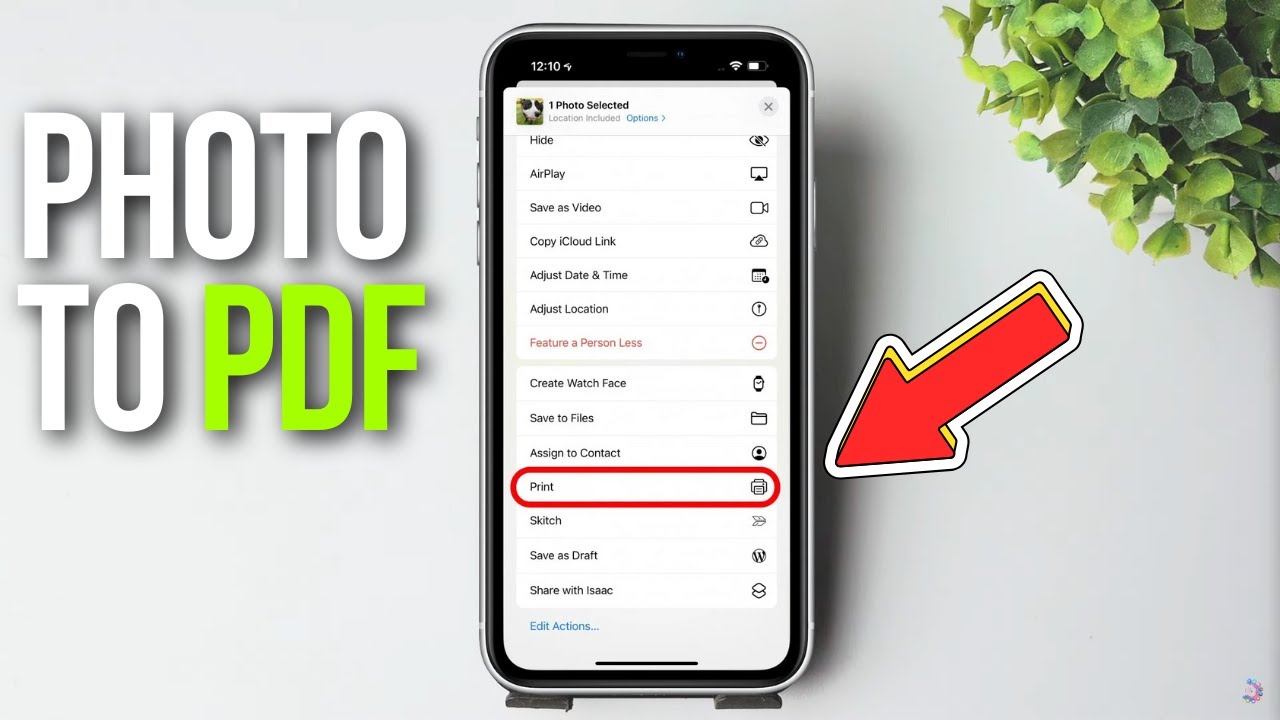
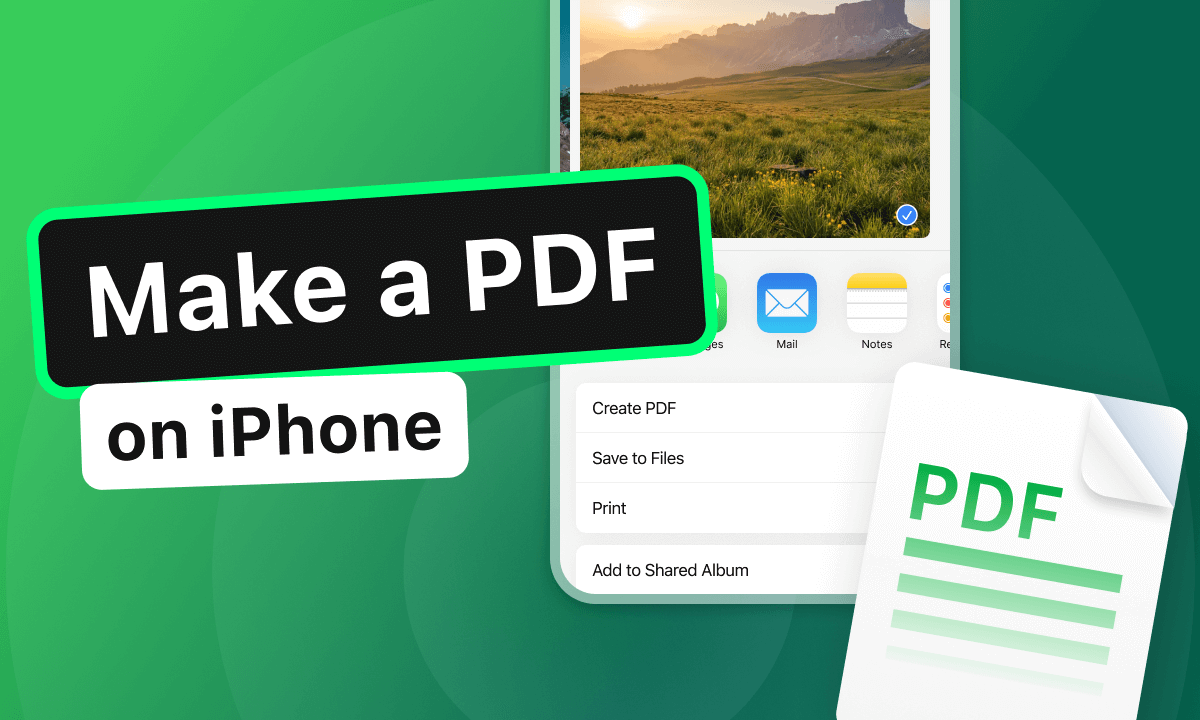
- Scroll down through the share sheet options and tap Print.
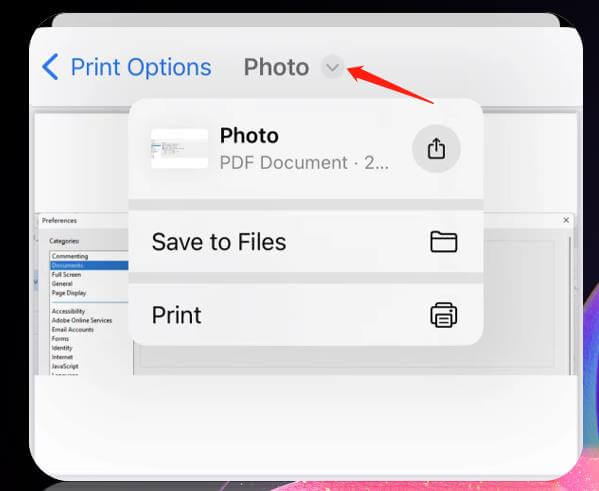
- On the "Print Options" screen, you will see a preview of your photo. Pinch outward with two fingers on the photo preview (as if you are zooming in).
- The image will immediately expand into a PDF view. Now, tap the Share icon again at the top of the screen.
- From here, you can choose to "Save to Files," send it via email, or share it through messaging apps. Your photo is now officially a PDF!
Method 2: Using the Files App for Quick Conversion
The Files app, introduced in later versions of iOS, is a powerful tool for document management. It features a "Quick Actions" menu that allows for near-instant conversion from image to PDF.
How to do it:
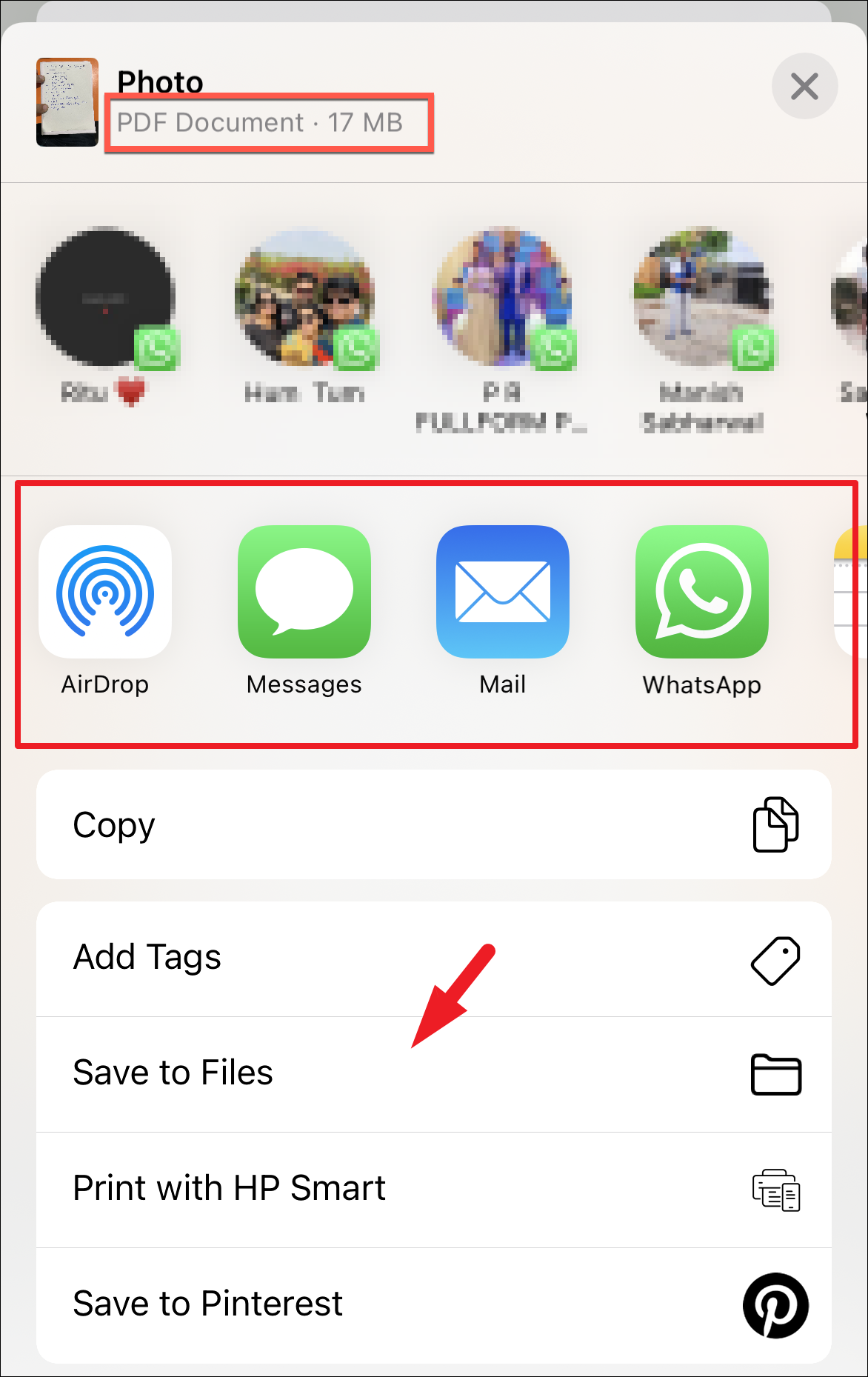
- First, make sure your photo is saved in the Files app. If it’s in your Photos app, select the photo, tap Share, and choose Save to Files.
- Open the Files app and navigate to the folder where your image is stored.
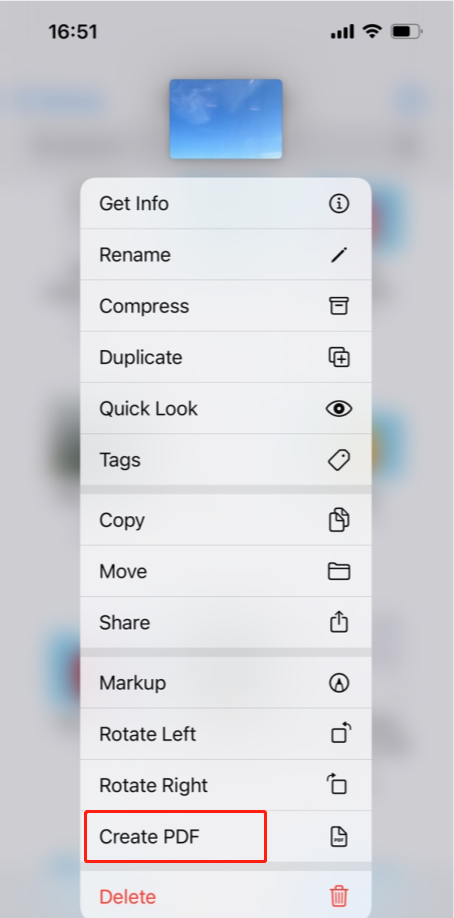
- Long-press (press and hold) on the image thumbnail.
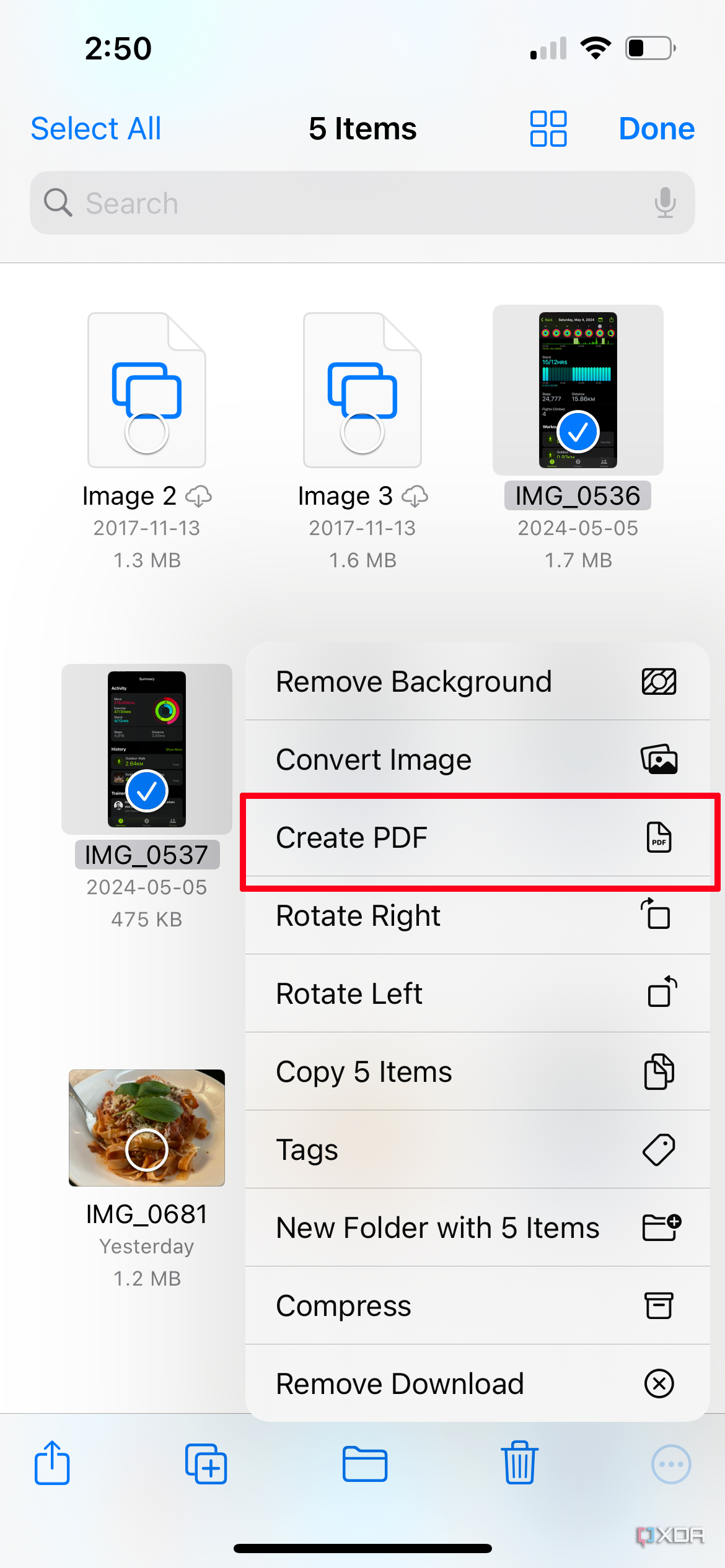
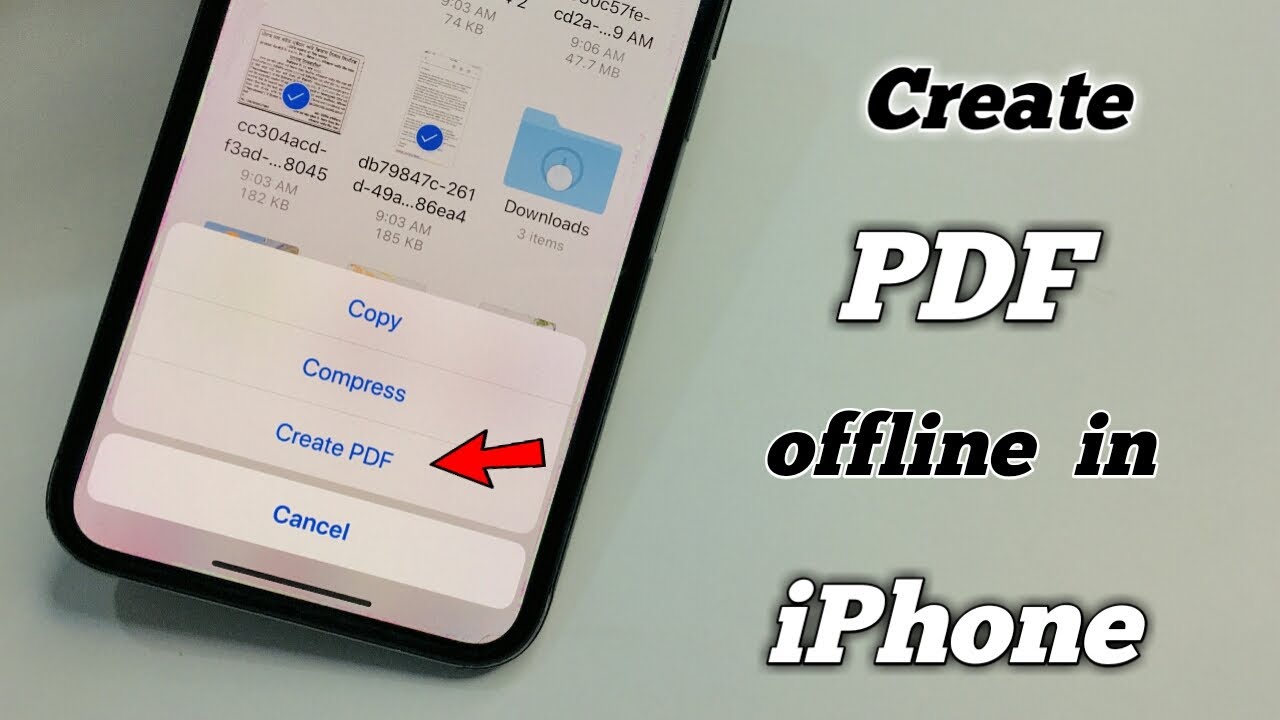
- A context menu will appear. Tap on Quick Actions.
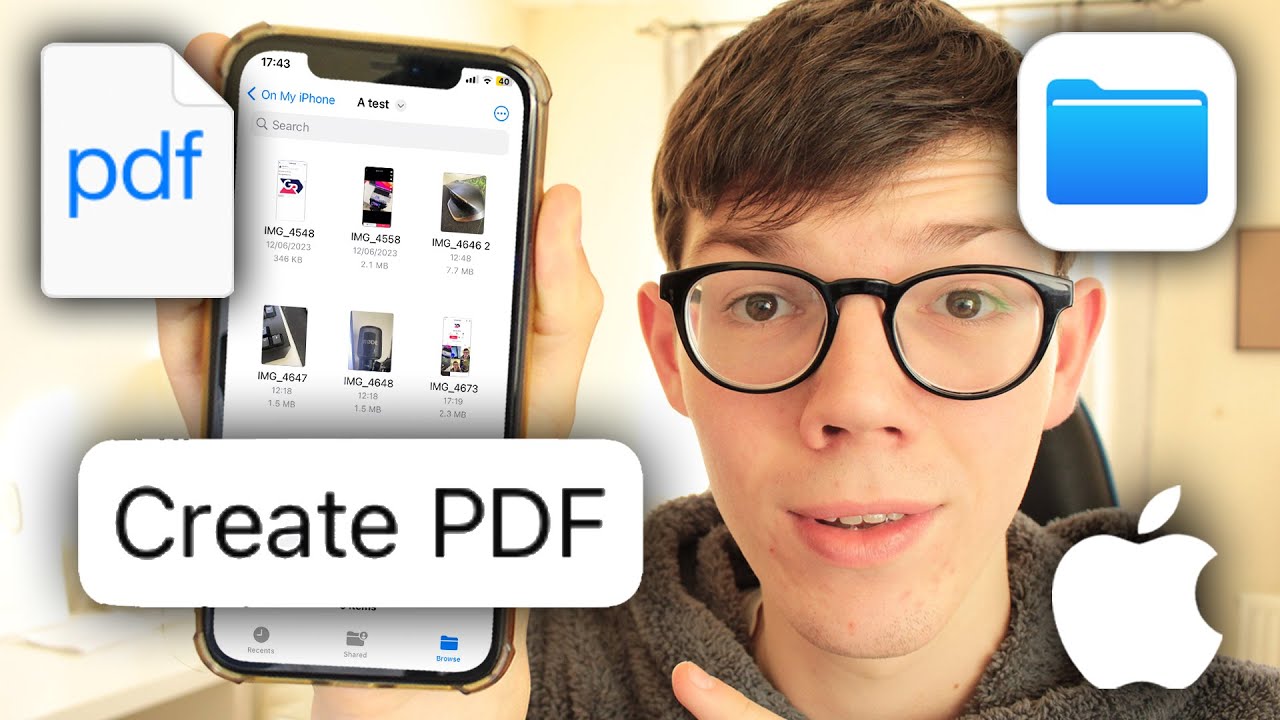
- Select Create PDF.
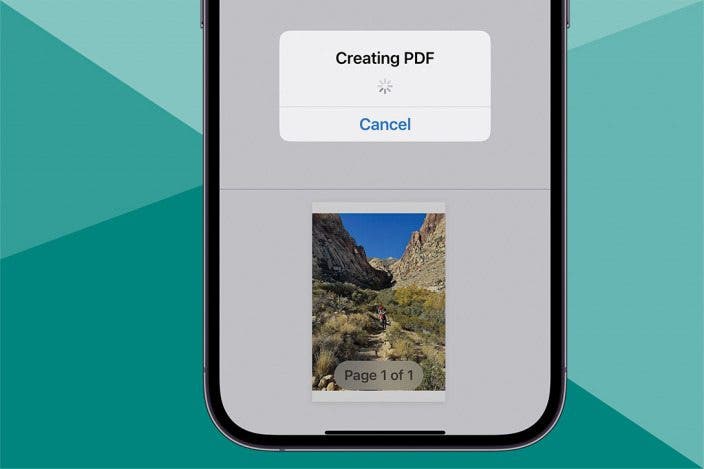
- iOS will instantly create a PDF version of that image in the same folder. You can then rename it or move it as needed.
Method 3: Converting Multiple Photos into One PDF
If you have several pages of a document or a series of photos that belong together, you likely want them in a single PDF rather than five separate files. The Files app is the best tool for this specific task.
Steps for Batch Conversion:
- Move all the photos you want to combine into a single folder in the Files app.
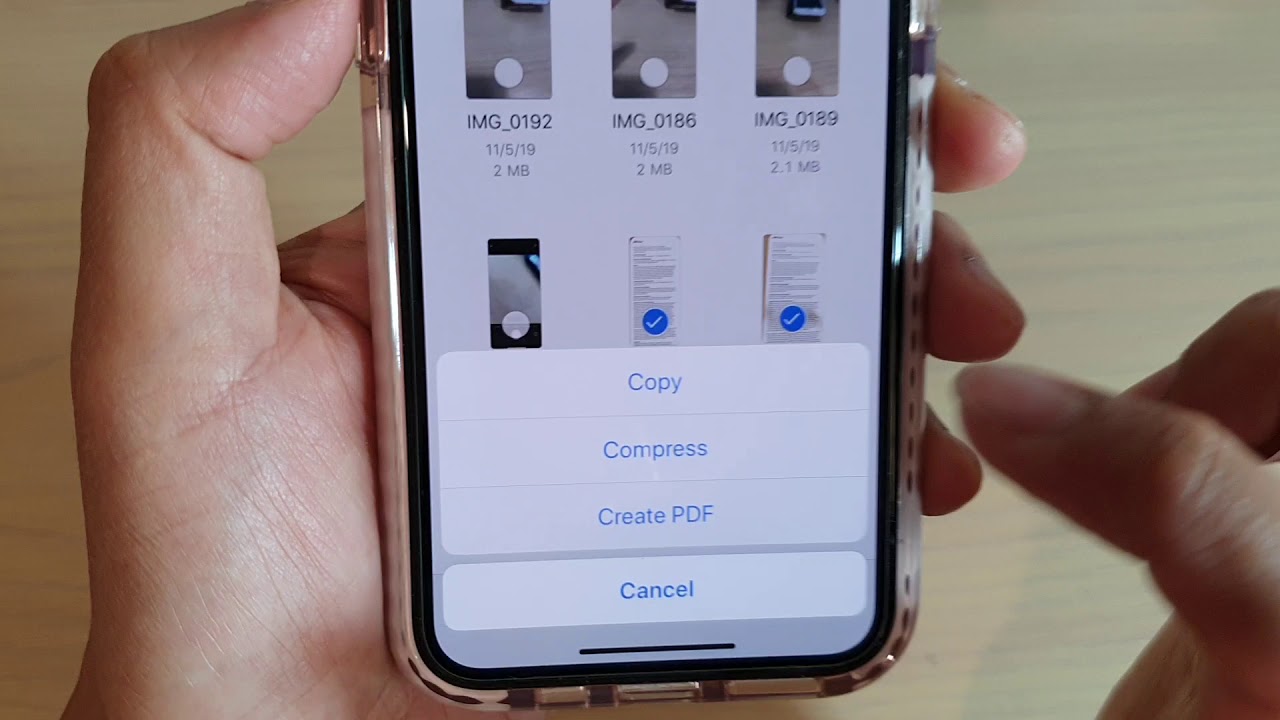
- Tap the three dots (...) in the top-right corner and choose Select.
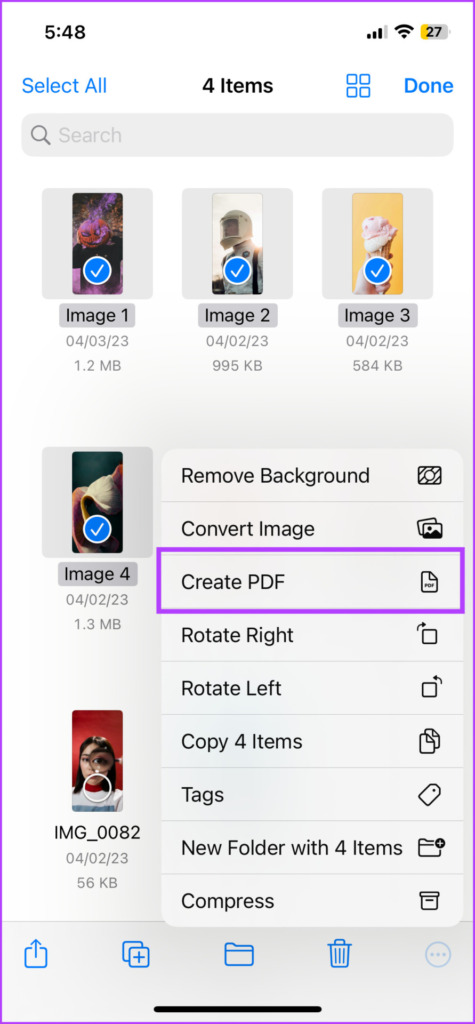
- Tap on all the images you want to include in your PDF. Note: The PDF will order the images based on their file names (alphabetical/numerical), so rename them beforehand if order is crucial.
- Once selected, tap the three dots (More) in the bottom-right corner.
- Tap Create PDF.
- A new PDF file will appear containing all selected images as individual pages.
Method 4: Using the Books App for Formatting
The Apple Books app is another native way to convert images. This method is particularly useful if you want the PDF to be saved in a "library" format for future reading.
- Open Photos and select your image.
- Tap the Share icon.
- In the row of app icons (Messages, Mail, etc.), scroll until you see Books. (If you don't see it, tap "More" and find it there).
- Once you tap Books, the image is automatically converted to a PDF and opened within the Books app.
- You can then share it from the Books app or keep it stored there for easy access.
Comparison of iPhone PDF Conversion Methods
To help you decide which method is best for your specific needs, refer to the table below:
| Method | Best For... |
|---|---|
| Photos App (Print) | Quick, single-image conversion without leaving the gallery. |
| Files App (Quick Actions) | Users who manage documents in folders and need speed. |
| Files App (Multi-Select) | Combining multiple photos into a single, multi-page PDF. |
| Books App | Saving documents for long-term reading or archiving. |
Pro Tips for Better PDF Quality
While the conversion process is straightforward, the quality of your PDF depends on a few factors:
- Lighting: If you are taking a photo of a physical document, ensure you are in a well-lit area to avoid graininess in the PDF.
- Cropping: Use the "Edit" tool in the Photos app to crop out unnecessary backgrounds before converting. This makes the PDF look much cleaner.
- Orientation: Ensure your photos are rotated correctly. A PDF with upside-down pages is difficult for the recipient to read.
- Use "Scan Documents" in Notes: If your goal is to create a PDF of a paper document, the Notes app has a "Scan Documents" feature that automatically detects edges and enhances text, which is often better than a standard photo.
Frequently Asked Questions (FAQ)
1. Will converting a picture to PDF reduce its quality?
Generally, no. Converting a high-resolution photo to a PDF on an iPhone maintains the visual integrity of the image. However, the file size may increase slightly due to the PDF wrapper.
2. Can I convert a PDF back to a JPG on my iPhone?
Yes, though it’s not as direct. You can take a screenshot of the PDF page, or use a "Shortcuts" automation to convert PDF pages back into image formats.
3. Is there a limit to how many photos I can combine into one PDF?
There is no hard limit set by iOS, but keep in mind that the more photos you add, the larger the file size will be. Large PDFs might be difficult to send via email (which often has a 20-25MB limit).
4. Do I need an internet connection to convert photos to PDF?
No. All the methods mentioned above (Photos, Files, Books) are processed locally on your iPhone's hardware, meaning you can convert files even in airplane mode.
Conclusion
Learning how to make a picture a PDF on iPhone is a skill that saves time and enhances your digital productivity. Whether you use the clever "Print" trick, the efficient "Files" app, or the "Books" library method, Apple provides all the tools you need right out of the box. By following the steps outlined in this guide, you can transform your visual content into professional, shareable, and secure documents in a matter of seconds. Next time you need to send a document, skip the expensive third-party apps and utilize the powerful features already sitting in your pocket.
How To Make A Picture A Pdf On Iphone
How To Make A Picture A Pdf On Iphone Wallpapers
Collection of how to make a picture a pdf on iphone wallpapers for your desktop and mobile devices.
Beautiful How To Make A Picture A Pdf On Iphone Abstract for Your Screen
Discover an amazing how to make a picture a pdf on iphone background image, ideal for personalizing your devices with vibrant colors and intricate designs.
Captivating How To Make A Picture A Pdf On Iphone Design Collection
Find inspiration with this unique how to make a picture a pdf on iphone illustration, crafted to provide a fresh look for your background.

Artistic How To Make A Picture A Pdf On Iphone Artwork for Desktop
A captivating how to make a picture a pdf on iphone scene that brings tranquility and beauty to any device.
Amazing How To Make A Picture A Pdf On Iphone Design for Desktop
Transform your screen with this vivid how to make a picture a pdf on iphone artwork, a true masterpiece of digital design.
Breathtaking How To Make A Picture A Pdf On Iphone Picture Photography
Transform your screen with this vivid how to make a picture a pdf on iphone artwork, a true masterpiece of digital design.

Vibrant How To Make A Picture A Pdf On Iphone Abstract Concept
Explore this high-quality how to make a picture a pdf on iphone image, perfect for enhancing your desktop or mobile wallpaper.

Mesmerizing How To Make A Picture A Pdf On Iphone Design Collection
Transform your screen with this vivid how to make a picture a pdf on iphone artwork, a true masterpiece of digital design.

Crisp How To Make A Picture A Pdf On Iphone Design Concept
Immerse yourself in the stunning details of this beautiful how to make a picture a pdf on iphone wallpaper, designed for a captivating visual experience.
Beautiful How To Make A Picture A Pdf On Iphone Scene Art
Explore this high-quality how to make a picture a pdf on iphone image, perfect for enhancing your desktop or mobile wallpaper.

Artistic How To Make A Picture A Pdf On Iphone View Collection
Find inspiration with this unique how to make a picture a pdf on iphone illustration, crafted to provide a fresh look for your background.
Dynamic How To Make A Picture A Pdf On Iphone Capture Digital Art
This gorgeous how to make a picture a pdf on iphone photo offers a breathtaking view, making it a perfect choice for your next wallpaper.
Amazing How To Make A Picture A Pdf On Iphone Landscape Digital Art
Experience the crisp clarity of this stunning how to make a picture a pdf on iphone image, available in high resolution for all your screens.
Captivating How To Make A Picture A Pdf On Iphone Moment in HD
Find inspiration with this unique how to make a picture a pdf on iphone illustration, crafted to provide a fresh look for your background.

Detailed How To Make A Picture A Pdf On Iphone Design Concept
Transform your screen with this vivid how to make a picture a pdf on iphone artwork, a true masterpiece of digital design.
Captivating How To Make A Picture A Pdf On Iphone Background in HD
Immerse yourself in the stunning details of this beautiful how to make a picture a pdf on iphone wallpaper, designed for a captivating visual experience.
Exquisite How To Make A Picture A Pdf On Iphone Photo Concept
This gorgeous how to make a picture a pdf on iphone photo offers a breathtaking view, making it a perfect choice for your next wallpaper.

Stunning How To Make A Picture A Pdf On Iphone Design for Your Screen
This gorgeous how to make a picture a pdf on iphone photo offers a breathtaking view, making it a perfect choice for your next wallpaper.
Beautiful How To Make A Picture A Pdf On Iphone View Photography
Discover an amazing how to make a picture a pdf on iphone background image, ideal for personalizing your devices with vibrant colors and intricate designs.
Spectacular How To Make A Picture A Pdf On Iphone Image Nature
This gorgeous how to make a picture a pdf on iphone photo offers a breathtaking view, making it a perfect choice for your next wallpaper.
Spectacular How To Make A Picture A Pdf On Iphone Abstract in HD
A captivating how to make a picture a pdf on iphone scene that brings tranquility and beauty to any device.
Download these how to make a picture a pdf on iphone wallpapers for free and use them on your desktop or mobile devices.