How To Reduce The Size Of A Pdf File In Bluebeam
How to Reduce the Size of a PDF File in Bluebeam: A Professional Guide to Optimization
In the world of architecture, engineering, and construction (AEC), digital blueprints and project documentation are the lifeblood of communication. However, as projects grow in complexity, so do their file sizes. A single PDF containing high-resolution images, numerous layers, and thousands of markups can easily exceed 100MB, making it nearly impossible to email or view smoothly on mobile devices in the field. Learning how to reduce the size of a PDF file in Bluebeam Revu is a critical skill for any professional looking to maintain efficiency and ensure seamless collaboration.
Bluebeam Revu offers a variety of sophisticated tools designed specifically to trim the "fat" from your documents without sacrificing the clarity of your technical drawings. This guide will walk you through the most effective methods—from the standard compression tool to advanced repair techniques—ensuring your files are lean, fast, and professional.
Why PDF File Size Optimization Matters in AEC
Before diving into the "how-to," it is essential to understand why optimization is necessary. Large PDF files are more than just a storage nuisance; they represent a bottleneck in project workflows. High-resolution raster images embedded in drawings often contribute the most to file bloat. When these files are shared via cloud platforms like Bluebeam Cloud or Procore, slow upload and download speeds can lead to version control errors and delays.
Furthermore, field workers using tablets or smartphones often experience lag when navigating oversized PDFs. By optimizing your files, you ensure that every stakeholder, from the lead architect to the site foreman, can access the information they need instantly, regardless of their hardware or internet connection strength.
Method 1: Using the Dedicated "Reduce File Size" Tool
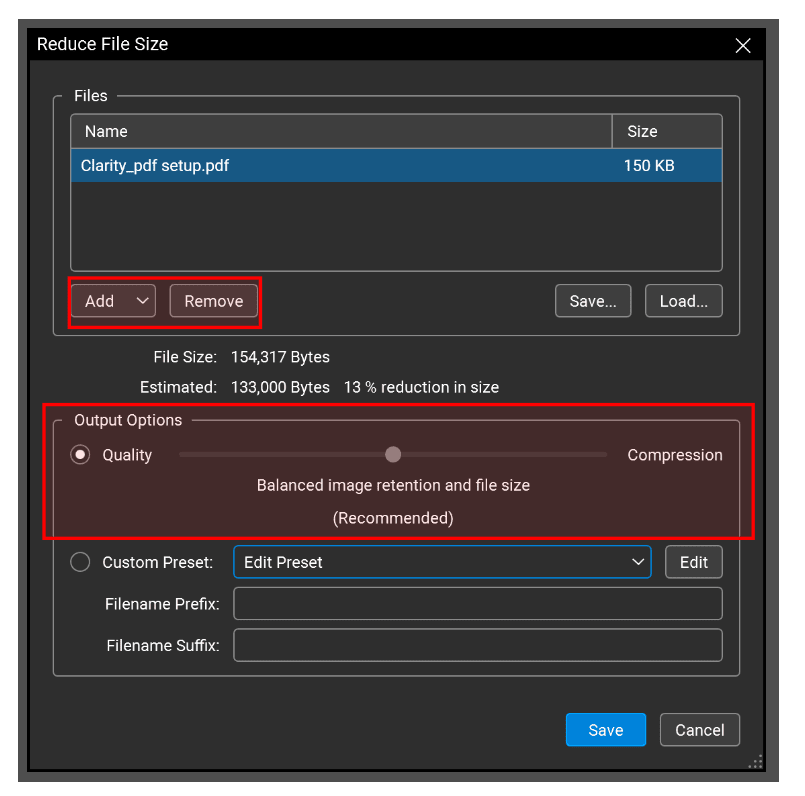
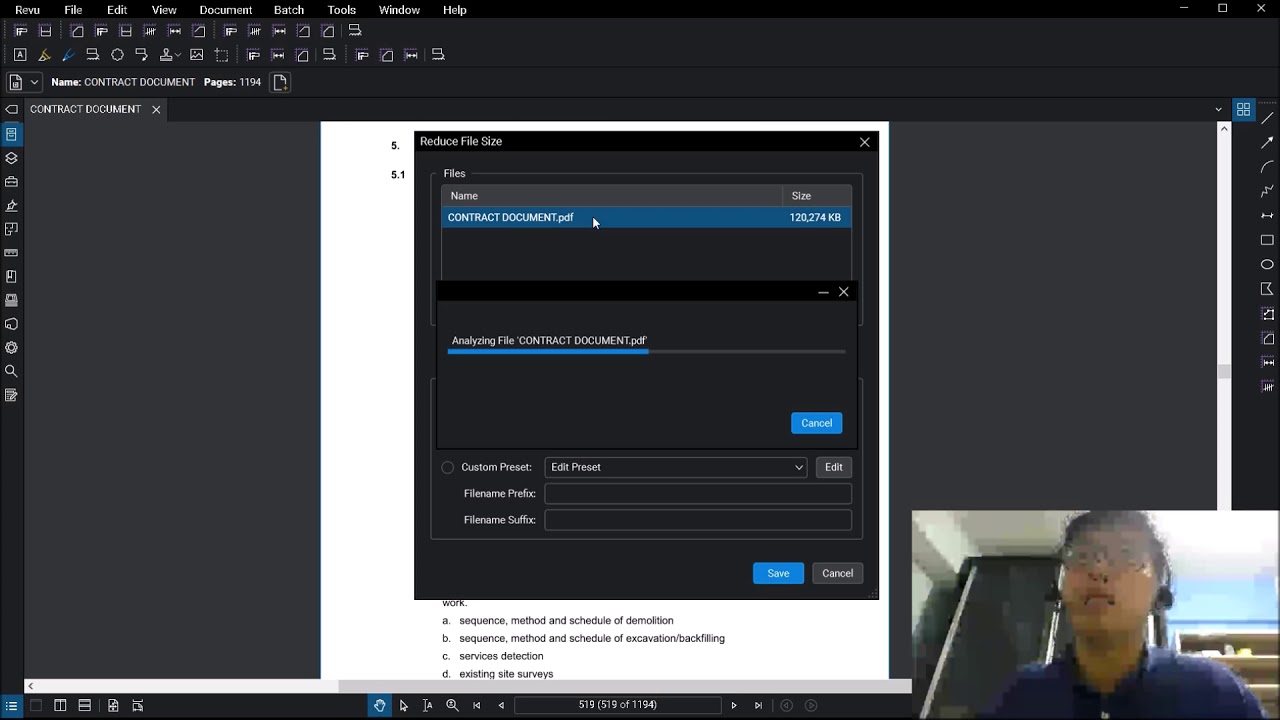
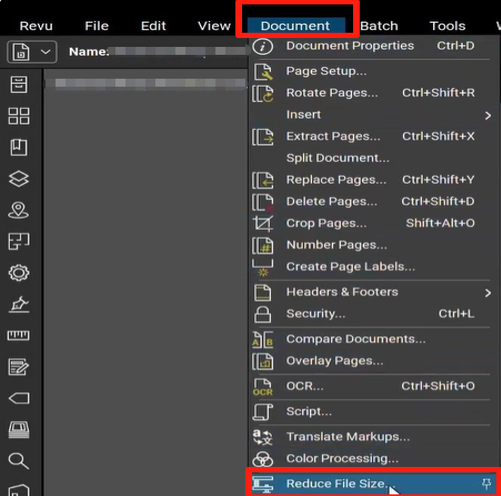
The most direct way to tackle document bloat is by using Bluebeam's built-in Reduce File Size utility. This tool provides a user-friendly interface to compress images and remove unnecessary metadata.
Step-by-Step Instructions:
- Open the PDF file you wish to compress in Bluebeam Revu.
- Navigate to the Document menu in the top toolbar.
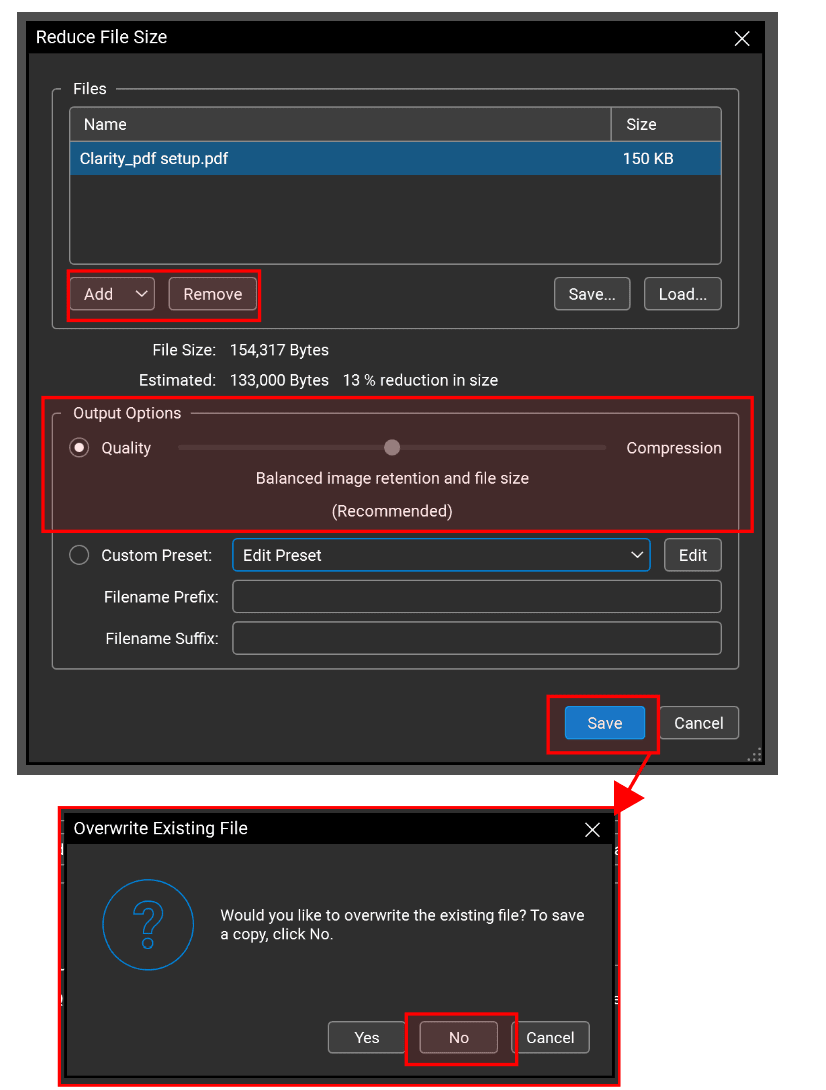
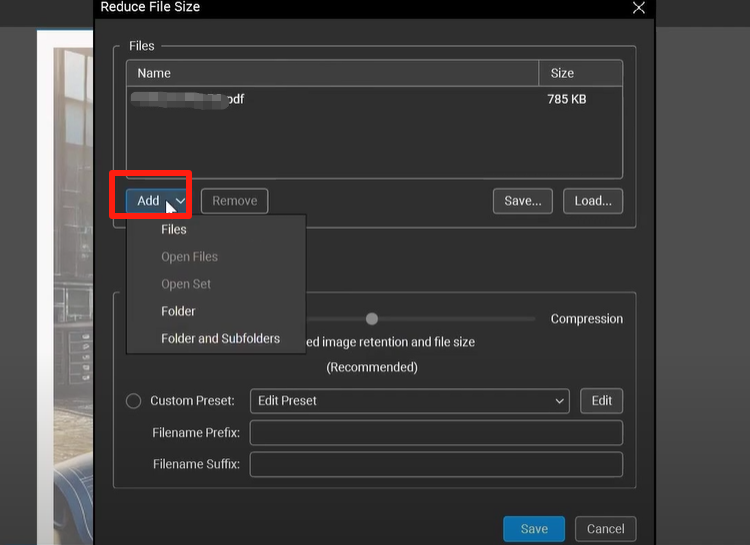
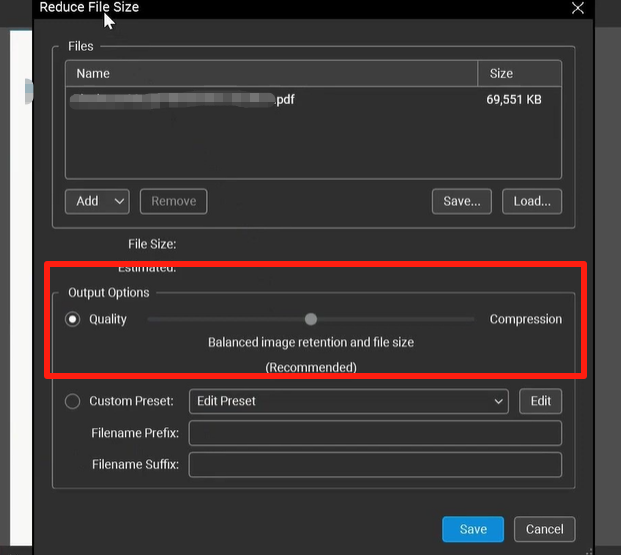
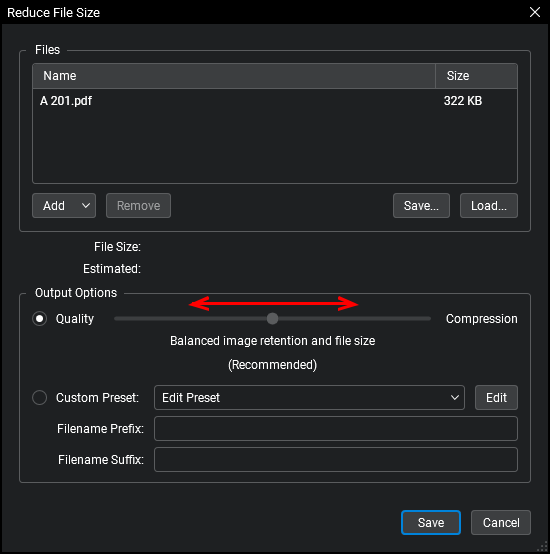
- Select Reduce File Size. A new dialog box will appear.
- You will see a slider ranging from "Compressed" to "High Quality." For most construction documents, moving the slider to the middle or slightly toward the "Compressed" side offers the best balance.
- Click OK. Bluebeam will prompt you to save the file. It is recommended to save it as a new version (e.g., "Project_Drawing_Reduced.pdf") to preserve the original high-resolution master copy.
Advanced Customization in Reduce File Size
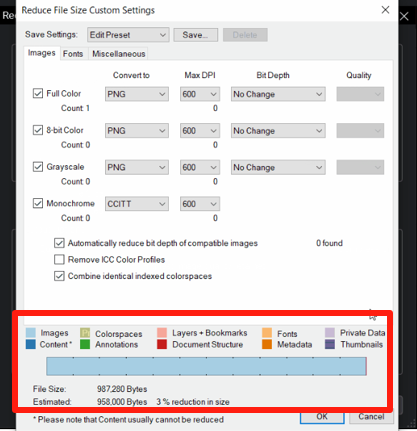
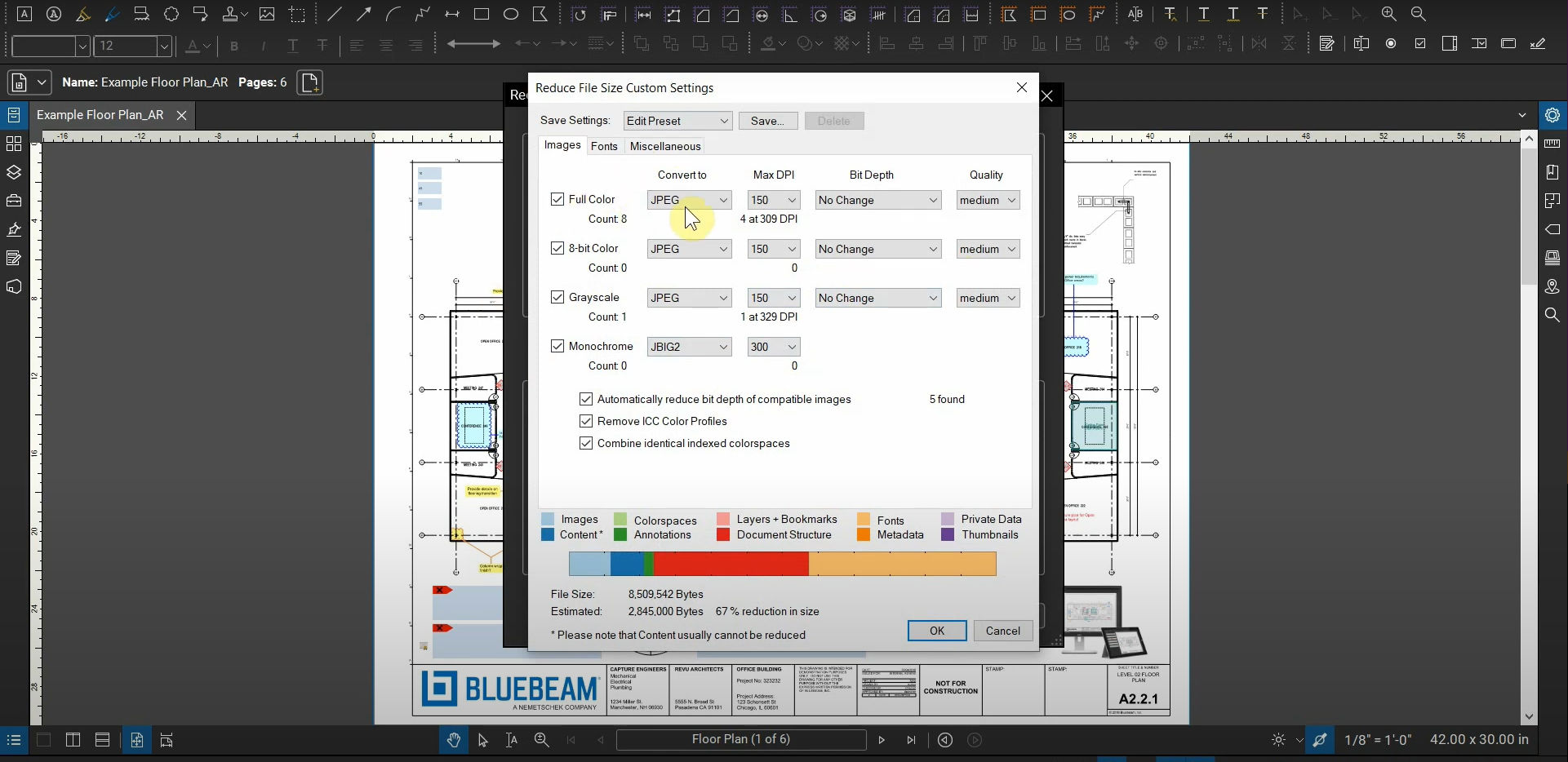
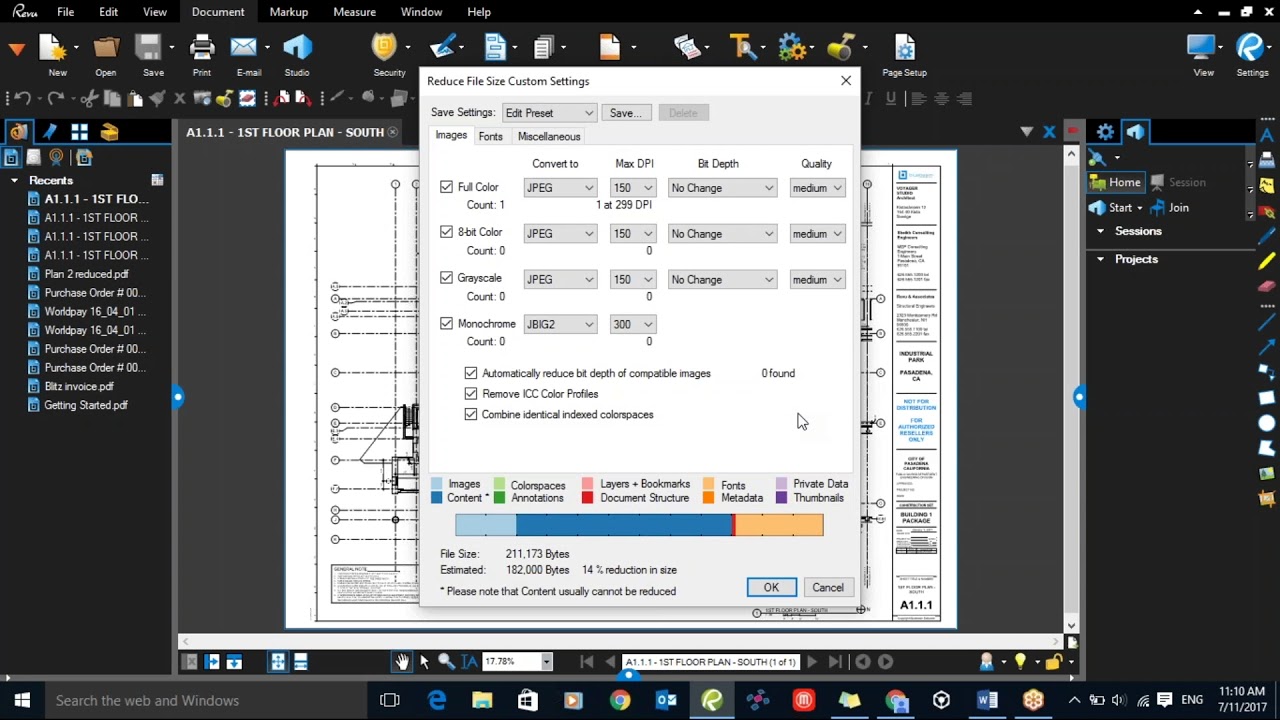
If the slider doesn't provide enough control, click the Edit button within the Reduce File Size dialog. This allows you to manually adjust settings for color images, grayscale images, and monochrome images. You can downsample images to a specific DPI (dots per inch). For digital viewing, 72 to 150 DPI is usually sufficient, whereas 300 DPI is standard for high-quality printing.
| Feature/Aspect | Description |
|---|---|
| Reduce File Size Tool | A simple slider-based utility that automates image compression and metadata removal. |
| DPI Downsampling | Reduces the resolution of embedded images to lower the overall file footprint. |
| Flattening Markups | Integrates annotations into the document content layer, reducing processing overhead. |
| Font Subsetting | Embeds only the characters used in the document rather than the entire font library. |
| Repair PDF Utility | A deep-cleaning tool that fixes internal file errors and strips hidden data. |
Method 2: Flattening Markups for Faster Performance
One of the most common reasons a Bluebeam PDF becomes sluggish is an abundance of markups. Each cloud, callout, and measurement is stored as a separate object with its own metadata. When a file has hundreds of markups, the software must render each one individually every time you zoom or pan.
Flattening is the process of merging these markups into the main content layer of the PDF. While this makes the markups permanent (unless you allow "Unflattening"), it drastically reduces the file's complexity and size.
How to Flatten Markups:
- Go to the Document menu and select Flatten (or press Ctrl+Shift+M).
- In the Flatten dialog, you can choose which types of markups to flatten.
- Ensure "Allow Markup Recovery (Unflatten)" is unchecked if your primary goal is maximum file size reduction.
- Click Flatten.
Method 3: The "Repair PDF" Strategy
Sometimes, a PDF remains large even after compression. This is often due to "ghost" data, redundant PDF structures, or errors within the file's internal cross-reference table. The Repair PDF tool is an "under-the-hood" method to strip away this hidden bloat.
How to Repair and Optimize:
- Navigate to Document > Process > Repair PDF.
- Check the options for Remove Unused Resources and Fix File Structure.
- This process essentially rebuilds the PDF from the ground up, often resulting in a significantly smaller and more stable file.
Method 4: Optimizing Images and Colors
High-resolution photos attached to a drawing are the primary culprits of massive file sizes. If you are preparing a document for review rather than for high-end marketing print, you can optimize these images via the "Custom" settings in the Reduce File Size tool.
- Image Compression: Use JPEG compression for photos and ZIP compression for line work and text.
- Color Reduction: If a document doesn't require full color, converting it to Grayscale or decreasing the color depth from 24-bit to 8-bit can cut the size by more than half.
- Remove Unused Fonts: Many PDFs embed entire font families. By using "Font Subsetting," Bluebeam only saves the characters actually used in your text.
Best Practices for Maintaining Small PDF Sizes
Efficiency starts before you even open Bluebeam. To keep your files manageable, consider these habits:
- Exporting from CAD: When exporting from AutoCAD or Revit, use the Bluebeam PDF printer driver and select a "Small File" profile in the settings.
- Avoid Over-Nesting: Try not to nest too many PDFs within one another as attachments. Use Bluebeam Sets instead for managing large drawing packages.
- Regular Cleaning: Periodically use the "Reduce File Size" tool during the life of a project, especially after several rounds of redlines and comments.
Frequently Asked Questions (FAQ)
1. Will reducing the file size in Bluebeam make my drawings blurry?
It can if the settings are too aggressive. To avoid blurriness, keep your DPI settings between 150 and 300 for technical drawings. Always check the "Preview" or save a copy to verify that the text and fine lines remain legible.
2. Can I reduce the size of multiple PDF files at once?
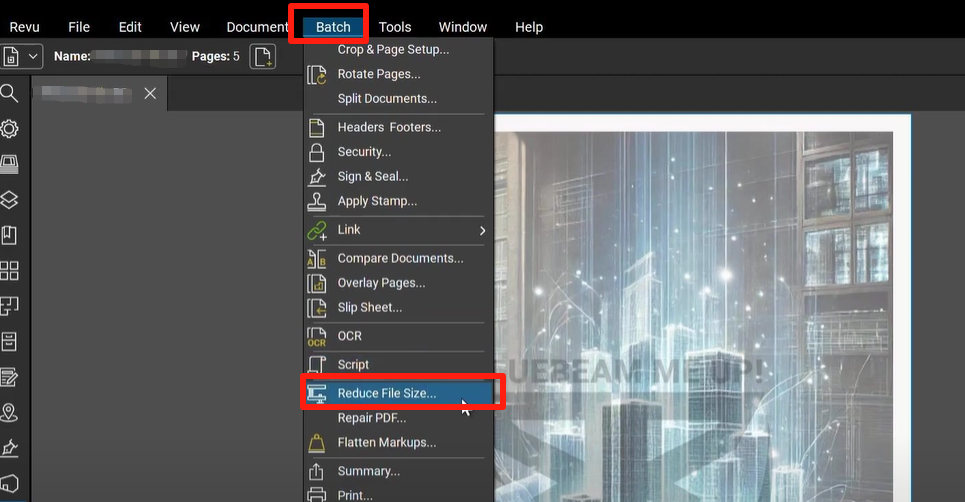
Yes. Bluebeam Revu eXtreme users can use the Batch tool. Go to Batch > Reduce File Size to apply compression settings to an entire folder of documents simultaneously.
3. What is the difference between "Reduce File Size" and "Flattening"?
"Reduce File Size" focuses on compressing images and removing metadata. "Flattening" focuses on merging annotations and markups into the document background. Using both methods together yields the smallest possible file size.
Conclusion
Mastering how to reduce the size of a PDF file in Bluebeam is an essential skill for modern AEC professionals. By utilizing the Reduce File Size tool, flattening markups, and occasionally using the Repair PDF utility, you can transform cumbersome, slow-loading documents into streamlined assets. Not only does this save storage space, but it also improves the speed of digital collaboration and ensures that your project information is accessible to everyone, everywhere. Remember to always keep a backup of your original high-resolution files, and use the "Custom" settings to find the perfect balance between clarity and compression for your specific project needs.
How To Reduce The Size Of A Pdf File In Bluebeam
How To Reduce The Size Of A Pdf File In Bluebeam Wallpapers
Collection of how to reduce the size of a pdf file in bluebeam wallpapers for your desktop and mobile devices.
Crisp How To Reduce The Size Of A Pdf File In Bluebeam Design Art
Find inspiration with this unique how to reduce the size of a pdf file in bluebeam illustration, crafted to provide a fresh look for your background.

Artistic How To Reduce The Size Of A Pdf File In Bluebeam Artwork Photography
A captivating how to reduce the size of a pdf file in bluebeam scene that brings tranquility and beauty to any device.
Beautiful How To Reduce The Size Of A Pdf File In Bluebeam Image Art
Transform your screen with this vivid how to reduce the size of a pdf file in bluebeam artwork, a true masterpiece of digital design.

Captivating How To Reduce The Size Of A Pdf File In Bluebeam Landscape in 4K
Find inspiration with this unique how to reduce the size of a pdf file in bluebeam illustration, crafted to provide a fresh look for your background.

Amazing How To Reduce The Size Of A Pdf File In Bluebeam Image Digital Art
Experience the crisp clarity of this stunning how to reduce the size of a pdf file in bluebeam image, available in high resolution for all your screens.
Crisp How To Reduce The Size Of A Pdf File In Bluebeam Design Art
A captivating how to reduce the size of a pdf file in bluebeam scene that brings tranquility and beauty to any device.
Captivating How To Reduce The Size Of A Pdf File In Bluebeam Background Illustration
A captivating how to reduce the size of a pdf file in bluebeam scene that brings tranquility and beauty to any device.
Lush How To Reduce The Size Of A Pdf File In Bluebeam Abstract in 4K
Immerse yourself in the stunning details of this beautiful how to reduce the size of a pdf file in bluebeam wallpaper, designed for a captivating visual experience.
High-Quality How To Reduce The Size Of A Pdf File In Bluebeam Abstract in HD
Experience the crisp clarity of this stunning how to reduce the size of a pdf file in bluebeam image, available in high resolution for all your screens.
Breathtaking How To Reduce The Size Of A Pdf File In Bluebeam Landscape for Your Screen
Transform your screen with this vivid how to reduce the size of a pdf file in bluebeam artwork, a true masterpiece of digital design.

Mesmerizing How To Reduce The Size Of A Pdf File In Bluebeam Picture Nature
Transform your screen with this vivid how to reduce the size of a pdf file in bluebeam artwork, a true masterpiece of digital design.
Breathtaking How To Reduce The Size Of A Pdf File In Bluebeam Photo for Your Screen
Explore this high-quality how to reduce the size of a pdf file in bluebeam image, perfect for enhancing your desktop or mobile wallpaper.
Spectacular How To Reduce The Size Of A Pdf File In Bluebeam Scene Illustration
Find inspiration with this unique how to reduce the size of a pdf file in bluebeam illustration, crafted to provide a fresh look for your background.
Serene How To Reduce The Size Of A Pdf File In Bluebeam Design Art
Transform your screen with this vivid how to reduce the size of a pdf file in bluebeam artwork, a true masterpiece of digital design.
Crisp How To Reduce The Size Of A Pdf File In Bluebeam Scene Art
Immerse yourself in the stunning details of this beautiful how to reduce the size of a pdf file in bluebeam wallpaper, designed for a captivating visual experience.
Amazing How To Reduce The Size Of A Pdf File In Bluebeam Abstract in 4K
Explore this high-quality how to reduce the size of a pdf file in bluebeam image, perfect for enhancing your desktop or mobile wallpaper.

Gorgeous How To Reduce The Size Of A Pdf File In Bluebeam Picture in 4K
Find inspiration with this unique how to reduce the size of a pdf file in bluebeam illustration, crafted to provide a fresh look for your background.

Beautiful How To Reduce The Size Of A Pdf File In Bluebeam Wallpaper Illustration
Transform your screen with this vivid how to reduce the size of a pdf file in bluebeam artwork, a true masterpiece of digital design.

Dynamic How To Reduce The Size Of A Pdf File In Bluebeam View in 4K
This gorgeous how to reduce the size of a pdf file in bluebeam photo offers a breathtaking view, making it a perfect choice for your next wallpaper.

Mesmerizing How To Reduce The Size Of A Pdf File In Bluebeam Moment Nature
Explore this high-quality how to reduce the size of a pdf file in bluebeam image, perfect for enhancing your desktop or mobile wallpaper.
Download these how to reduce the size of a pdf file in bluebeam wallpapers for free and use them on your desktop or mobile devices.