How To Compress A Pdf In Bluebeam Revu
Mastering File Optimization: How to Compress a PDF in Bluebeam Revu Like a Pro
In the world of Architecture, Engineering, and Construction (AEC), digital documentation is the backbone of every project. However, high-fidelity architectural drawings, layered markups, and high-resolution images often result in massive PDF files that are difficult to email, slow to load, and cumbersome to store. This is where Bluebeam Revu shines. Known as the industry standard for PDF markup and editing, Bluebeam offers powerful tools to shrink file sizes without compromising the clarity of your technical data. Learning how to compress a PDF in Bluebeam Revu is not just about saving disk space; it is about improving project workflow efficiency and ensuring your collaborators can access files instantly on any device.
Why Compressing PDFs in Bluebeam Revu is Essential for Professionals
Before diving into the "how-to," it is important to understand why file optimization is a critical skill. Large PDFs—sometimes reaching hundreds of megabytes—can cause significant bottlenecks. Most email servers have a 25MB limit, and mobile devices used in the field may struggle to render complex vector data if the file isn't optimized. By compressing your PDFs, you ensure that:
- Faster Transfer Speeds: Uploading and downloading from Bluebeam Cloud or Studio Sessions becomes significantly faster.
- Enhanced Mobile Performance: Field engineers using tablets can open drawings instantly without lag.
- Professionalism: Sending a sleek, optimized 2MB file looks much more professional than sending a bloated 50MB file that crashes the recipient's inbox.
- Storage Savings: Long-term archiving of project documents requires less server space, reducing overhead costs.
Method 1: Using the "Reduce File Size" Tool (The Quick Way)
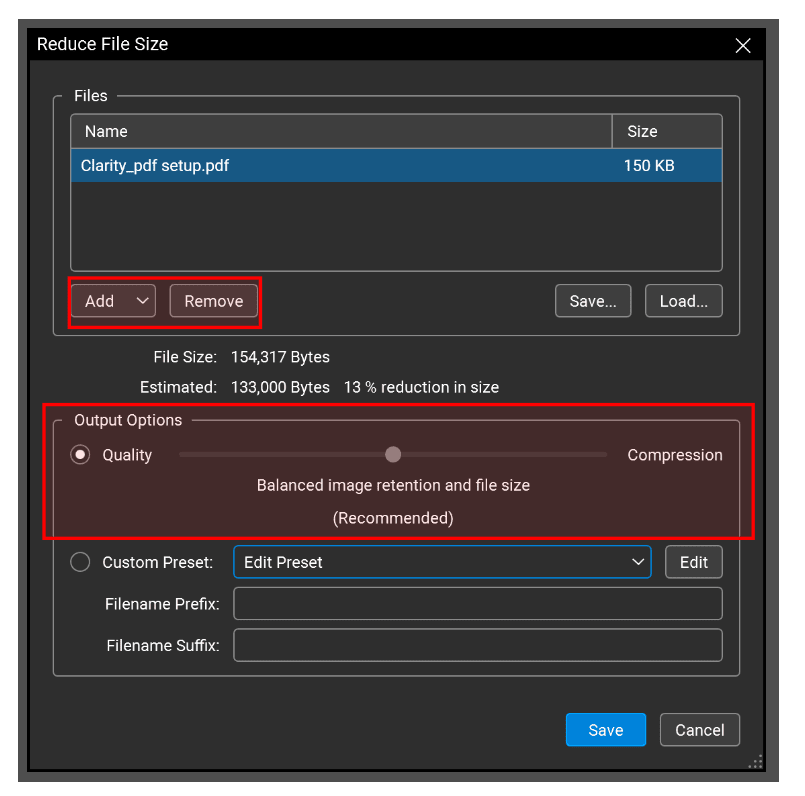
Bluebeam Revu provides a user-friendly "Reduce File Size" feature designed for users who need a quick fix without diving into complex technical settings. This tool uses pre-configured algorithms to balance quality and compression.
Step-by-Step Guide:
- Open your PDF: Launch Bluebeam Revu and open the document you wish to compress.
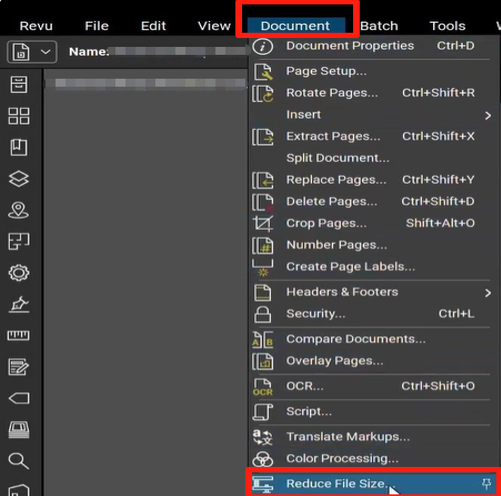
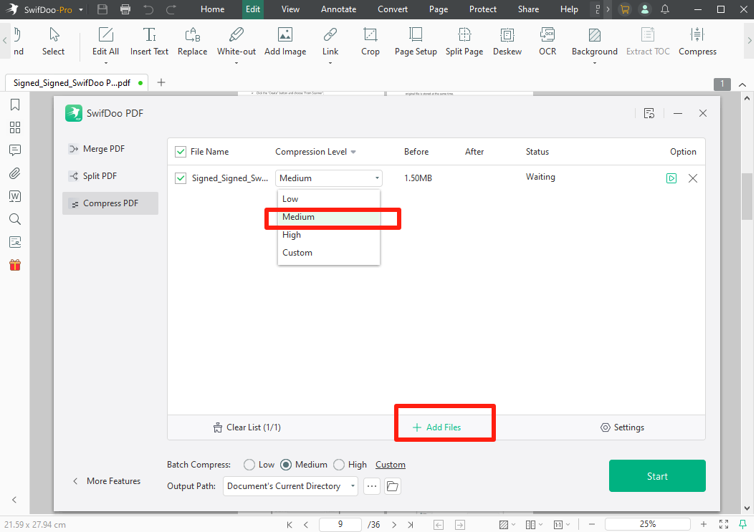
- Navigate to the Document Menu: Go to the top menu bar and click on Document, then select Reduce File Size.
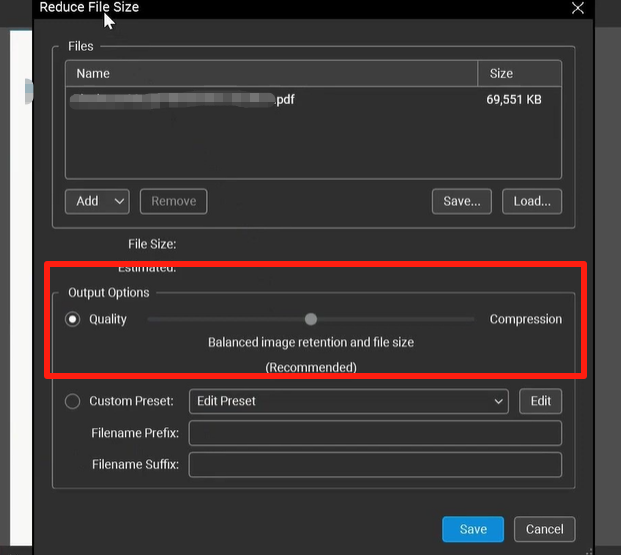
- Adjust the Slider: A pop-up window will appear with a slider ranging from "Compression" to "Quality."
- Moving the slider to the left increases compression but may reduce image clarity.
- Moving the slider to the right preserves more detail but results in a larger file.
- Select Output Version: You can choose the compatibility level (e.g., Acrobat 5.0 or later). Generally, staying with a modern version is best for efficiency.
- Run the Process: Click OK. Bluebeam will prompt you to save the file. It is highly recommended to "Save As" a new version so you don't overwrite your original high-resolution master copy.
| Fitur/Aspek | Deskripsi |
|---|---|
| Reduce File Size Tool | A slider-based interface for quick, automated compression levels. |
| PDF Optimizer | An advanced tool allowing manual control over images, fonts, and metadata. |
| Batch Processing | Ability to compress multiple PDF files simultaneously to save time. |
| Image Downsampling | Reduces the DPI of embedded images to lower the overall file footprint. |
| Metadata Stripping | Removes hidden document history and XML data that adds unnecessary bulk. |
Method 2: Advanced Compression via the "PDF Optimizer"
For those who need granular control—such as maintaining specific line-weight clarity while heavily compressing background images—the PDF Optimizer is the tool of choice. This is where you can manually decide which elements of the PDF are preserved and which are sacrificed for space.
Fine-Tuning Your Settings
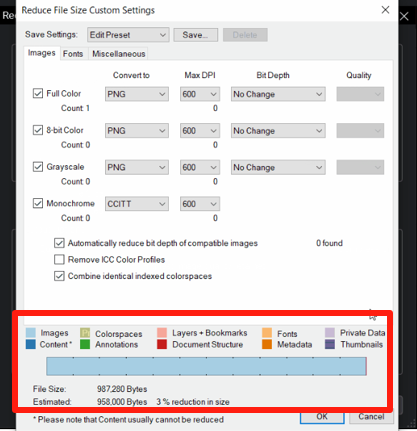
When you open the PDF Optimizer (via Document > Process > Optimize PDF in some versions, or via the Advanced button in the Reduce File Size window), you are presented with several tabs:
1. Images
Images are often the biggest culprit in large file sizes. Here, you can set "Downsampling" limits. For most printed construction documents, 150 to 300 DPI (Dots Per Inch) is plenty. If the file is for screen viewing only, you can even drop to 72 or 96 DPI. You can also change the compression type to JPEG for photos or CCITT for monochrome scans.
2. Fonts
PDFs often embed entire font libraries to ensure they look the same on every computer. By selecting "Unembed Fonts," you can significantly reduce size. However, be careful—if the recipient doesn't have the font installed, the PDF might look different. A safer bet is to "Subset" fonts, which only embeds the specific characters used in the document.
3. Discard Objects & User Data
Every time you edit a PDF, hidden data is stored. You can use the Optimizer to discard:
- Bookmarks and Thumbnails
- Comments and Markups (if they are already flattened)
- Private data from other applications
- Unused resources
Batch Compression: Handling Multiple Files
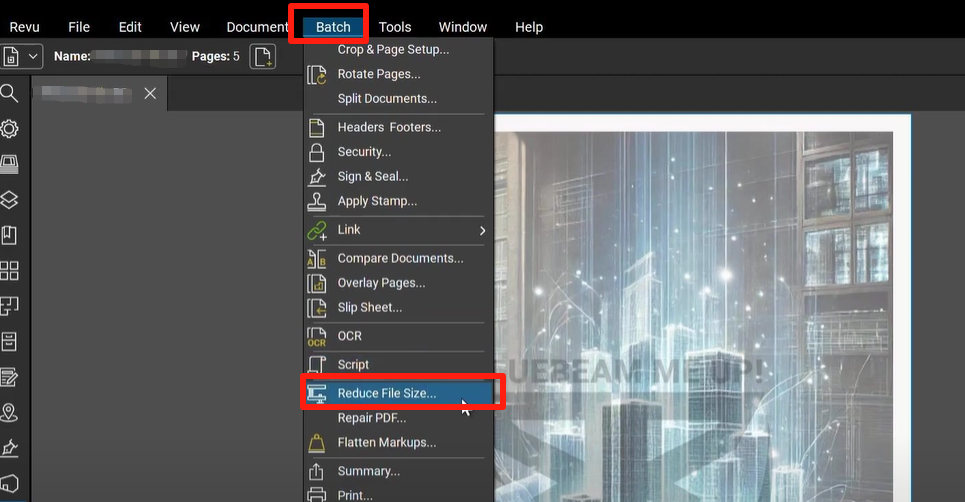
If you are working on a large project with hundreds of drawings, compressing them one by one is inefficient. Bluebeam Revu eXtreme edition users have access to Batch Processing.
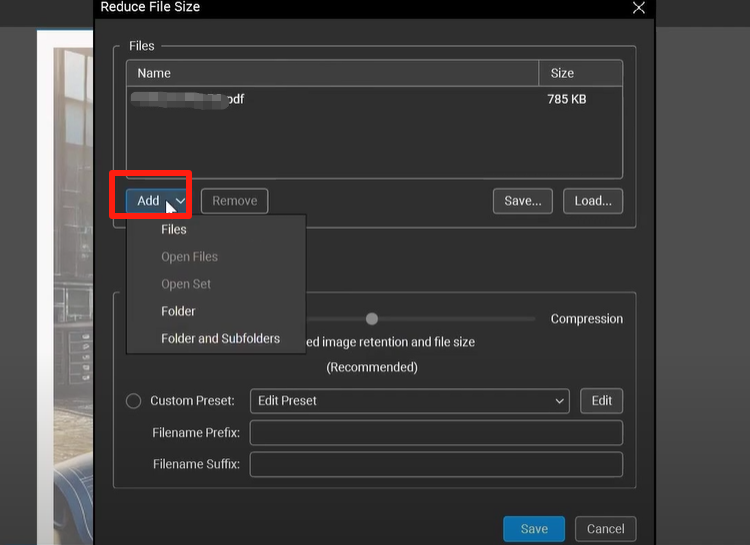
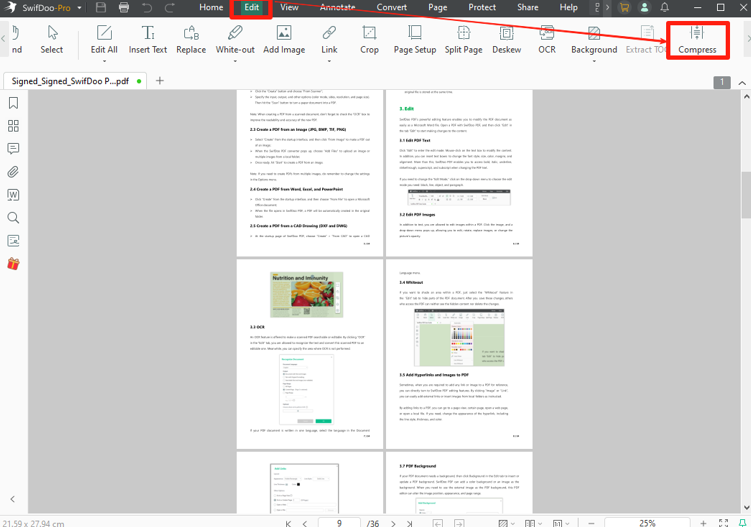
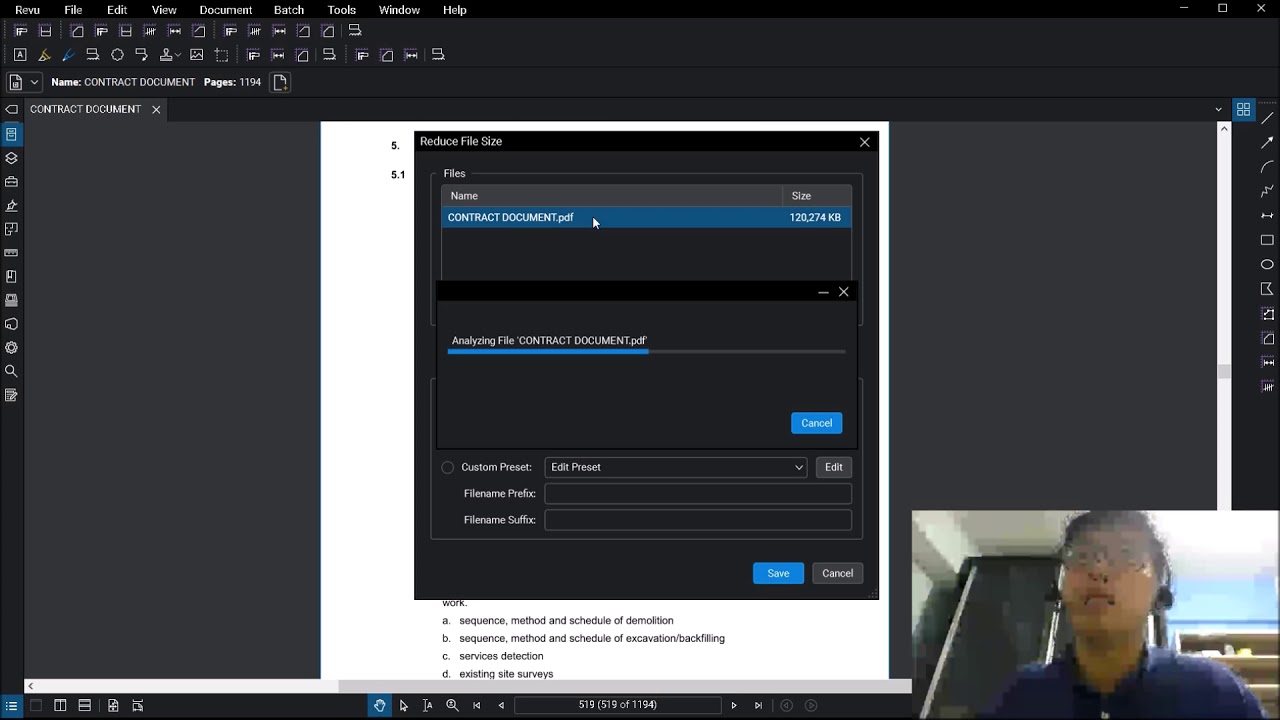
To compress files in bulk, go to Batch > Reduce File Size. Here, you can add entire folders of PDFs. The software will apply your chosen compression settings to every file in the list and save them to a designated output folder. This is an essential workflow for end-of-month reporting or project handovers.
Best Practices for Maintaining Quality
While the goal is a smaller file, a PDF that is unreadable is useless. Follow these professional tips to ensure your compressed files remain functional:
- Flatten Markups Before Compression: Flattening converts your markups into permanent parts of the PDF content stream. This makes the file more stable and often smaller.
- Test Your Text: After compression, zoom in on the smallest text on the drawing. If it looks "fuzzy" or pixelated, your image downsampling settings are too aggressive.
- Check Your Vector Data: Unlike images, vector lines (lines drawn by CAD software) usually don't lose quality during compression, but removing unnecessary nodes can help reduce the processing power required to view the file.
Frequently Asked Questions (FAQ)
1. Will compressing a PDF in Bluebeam Revu delete my layers?
Using the standard "Reduce File Size" tool usually preserves layers. However, if you use the PDF Optimizer and check the box for "Discard Layers" or "Flatten Layers," they will be merged into a single background layer.
2. Why didn't my file size change much after compression?
This often happens if the PDF is already optimized or if the file consists mostly of vector data (lines) rather than raster data (images). Compression works best on scanned documents and high-resolution images.
3. Can I undo the compression if the quality is too low?
No, compression is a permanent change to the file's data. This is why you should always save a copy (e.g., "Drawing_v1_Optimized.pdf") rather than overwriting the original source file.
Conclusion
Mastering the art of PDF compression in Bluebeam Revu is a vital skill for any modern professional in the AEC industry. Whether you use the simple "Reduce File Size" slider for quick tasks or the advanced "PDF Optimizer" for complex technical drawings, Bluebeam provides the flexibility needed to balance quality and file weight. By integrating these optimization techniques into your daily workflow, you will ensure faster communication, better document management, and a smoother experience for everyone involved in your project. Don't let bloated files slow down your progress—start optimizing your PDF library today!
How To Compress A Pdf In Bluebeam Revu
How To Compress A Pdf In Bluebeam Revu Wallpapers
Collection of how to compress a pdf in bluebeam revu wallpapers for your desktop and mobile devices.
Amazing How To Compress A Pdf In Bluebeam Revu Abstract in 4K
Explore this high-quality how to compress a pdf in bluebeam revu image, perfect for enhancing your desktop or mobile wallpaper.
Crisp How To Compress A Pdf In Bluebeam Revu Design Art
A captivating how to compress a pdf in bluebeam revu scene that brings tranquility and beauty to any device.
Lush How To Compress A Pdf In Bluebeam Revu Abstract in 4K
Immerse yourself in the stunning details of this beautiful how to compress a pdf in bluebeam revu wallpaper, designed for a captivating visual experience.
Breathtaking How To Compress A Pdf In Bluebeam Revu Landscape for Your Screen
Transform your screen with this vivid how to compress a pdf in bluebeam revu artwork, a true masterpiece of digital design.
Crisp How To Compress A Pdf In Bluebeam Revu Design Art
Find inspiration with this unique how to compress a pdf in bluebeam revu illustration, crafted to provide a fresh look for your background.
Beautiful How To Compress A Pdf In Bluebeam Revu View Illustration
Explore this high-quality how to compress a pdf in bluebeam revu image, perfect for enhancing your desktop or mobile wallpaper.

Artistic How To Compress A Pdf In Bluebeam Revu Artwork Photography
A captivating how to compress a pdf in bluebeam revu scene that brings tranquility and beauty to any device.
Serene How To Compress A Pdf In Bluebeam Revu Design Art
Transform your screen with this vivid how to compress a pdf in bluebeam revu artwork, a true masterpiece of digital design.
Captivating How To Compress A Pdf In Bluebeam Revu Background Illustration
A captivating how to compress a pdf in bluebeam revu scene that brings tranquility and beauty to any device.
Spectacular How To Compress A Pdf In Bluebeam Revu Scene Illustration
Find inspiration with this unique how to compress a pdf in bluebeam revu illustration, crafted to provide a fresh look for your background.

Captivating How To Compress A Pdf In Bluebeam Revu Design for Desktop
This gorgeous how to compress a pdf in bluebeam revu photo offers a breathtaking view, making it a perfect choice for your next wallpaper.

Captivating How To Compress A Pdf In Bluebeam Revu Landscape in 4K
Find inspiration with this unique how to compress a pdf in bluebeam revu illustration, crafted to provide a fresh look for your background.

Amazing How To Compress A Pdf In Bluebeam Revu Image Digital Art
Experience the crisp clarity of this stunning how to compress a pdf in bluebeam revu image, available in high resolution for all your screens.

Vivid How To Compress A Pdf In Bluebeam Revu Scene Illustration
Experience the crisp clarity of this stunning how to compress a pdf in bluebeam revu image, available in high resolution for all your screens.

Dynamic How To Compress A Pdf In Bluebeam Revu View in 4K
This gorgeous how to compress a pdf in bluebeam revu photo offers a breathtaking view, making it a perfect choice for your next wallpaper.
Serene How To Compress A Pdf In Bluebeam Revu Abstract Art
Discover an amazing how to compress a pdf in bluebeam revu background image, ideal for personalizing your devices with vibrant colors and intricate designs.
Exquisite How To Compress A Pdf In Bluebeam Revu Abstract Art
A captivating how to compress a pdf in bluebeam revu scene that brings tranquility and beauty to any device.
Breathtaking How To Compress A Pdf In Bluebeam Revu Moment Collection
Explore this high-quality how to compress a pdf in bluebeam revu image, perfect for enhancing your desktop or mobile wallpaper.

Gorgeous How To Compress A Pdf In Bluebeam Revu Capture Collection
A captivating how to compress a pdf in bluebeam revu scene that brings tranquility and beauty to any device.

Crisp How To Compress A Pdf In Bluebeam Revu View for Mobile
Immerse yourself in the stunning details of this beautiful how to compress a pdf in bluebeam revu wallpaper, designed for a captivating visual experience.
Download these how to compress a pdf in bluebeam revu wallpapers for free and use them on your desktop or mobile devices.