How To Create One Pdf File On Iphone
How to Create One PDF File on iPhone: A Comprehensive Professional Guide
In today’s digital-first environment, the ability to manage documents on the go is no longer a luxury—it is a necessity. Whether you are a student submitting an assignment, a freelancer sending an invoice, or a corporate executive reviewing contracts, knowing how to create one PDF file on iPhone can significantly boost your productivity. Apple’s iOS ecosystem has evolved to include powerful built-in tools that eliminate the need for expensive third-party subscriptions. In this guide, we will explore every professional method to consolidate your images and documents into a single, high-quality PDF file.
Why Create PDFs Directly on Your iPhone?
The PDF (Portable Document Format) is the universal standard for document sharing because it preserves formatting across all devices. By creating these files directly on your iPhone, you gain the advantage of speed. You don't need a scanner or a desktop computer to digitize paperwork. Using the integrated features within iOS, you can ensure your documents look professional, are easy to email, and remain secure. Understanding how to create one PDF file on iPhone using native apps like Files, Photos, and Notes ensures that your data remains private, as you aren't uploading sensitive documents to unknown third-party web servers.
Method 1: Using the Files App to Merge Multiple Documents
The Files app is the central hub for document management on iOS. It is perhaps the most efficient way to combine multiple different files—such as Word docs, existing PDFs, or images—into a single PDF document.
Step-by-Step Instructions:
- Open the Files App: Locate the app on your home screen or through Spotlight search.
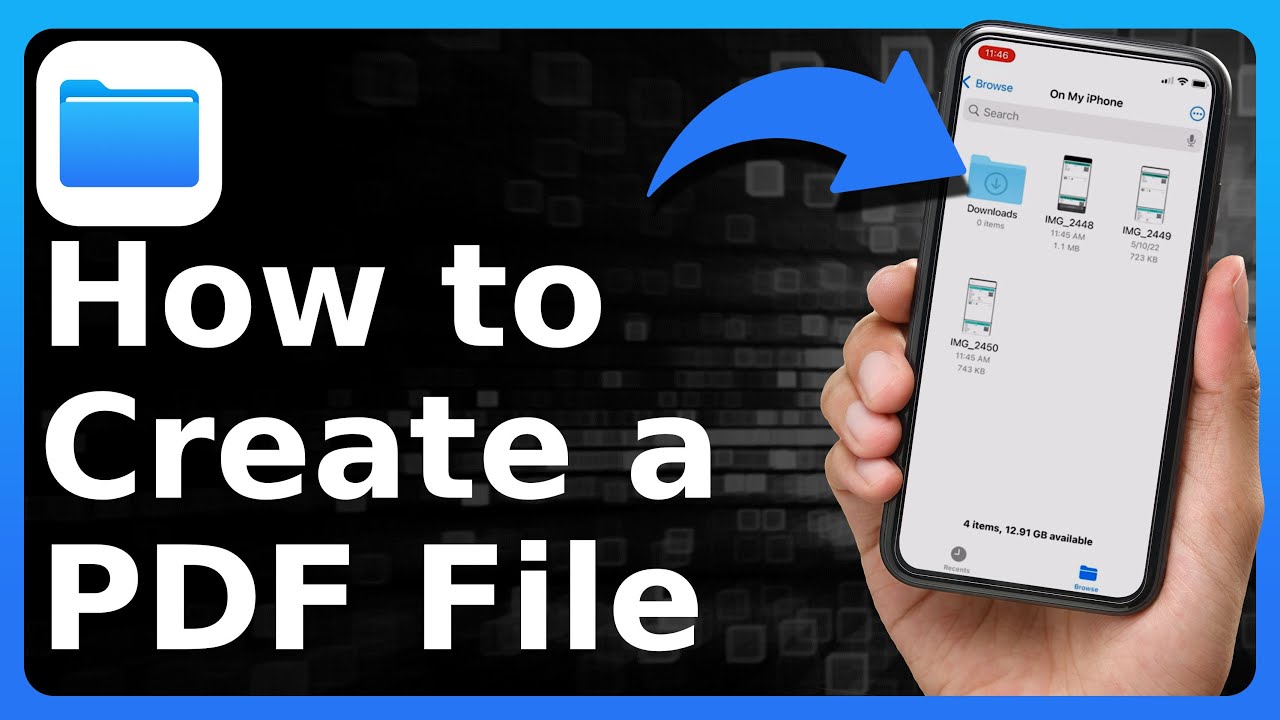
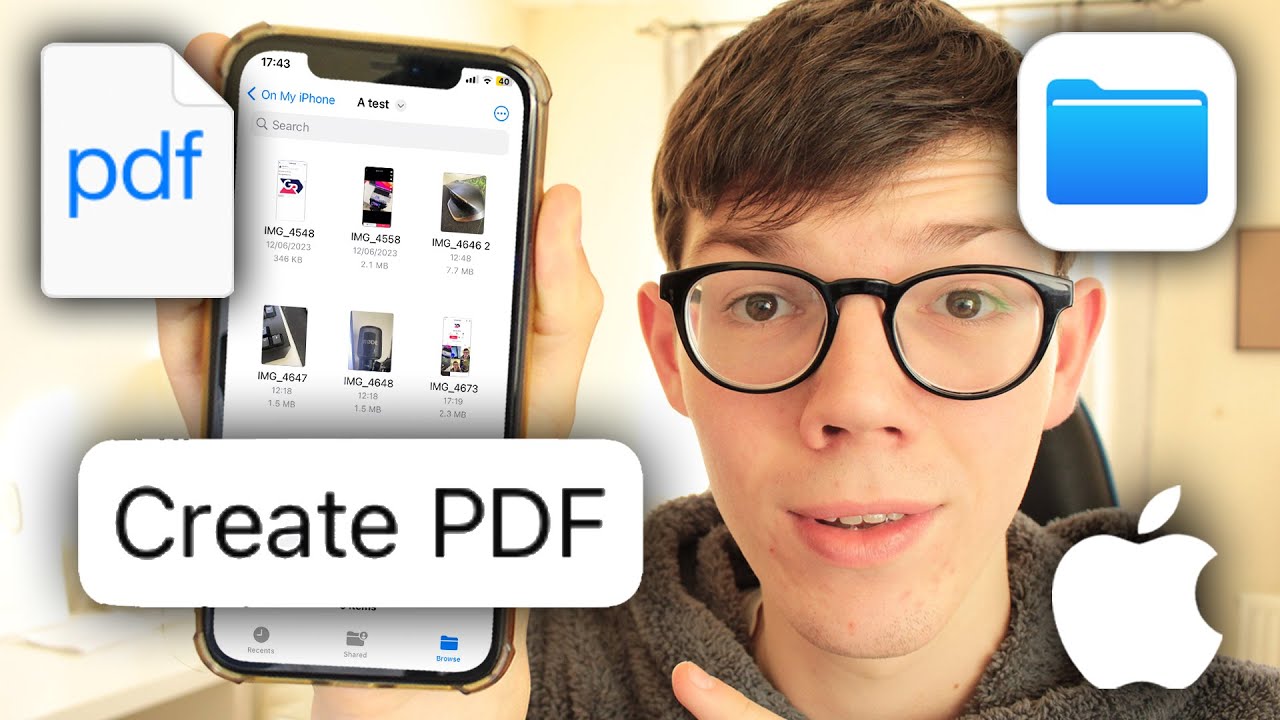
- Navigate to Your Files: Go to the folder containing the items you want to merge (e.g., "On My iPhone" or "iCloud Drive").
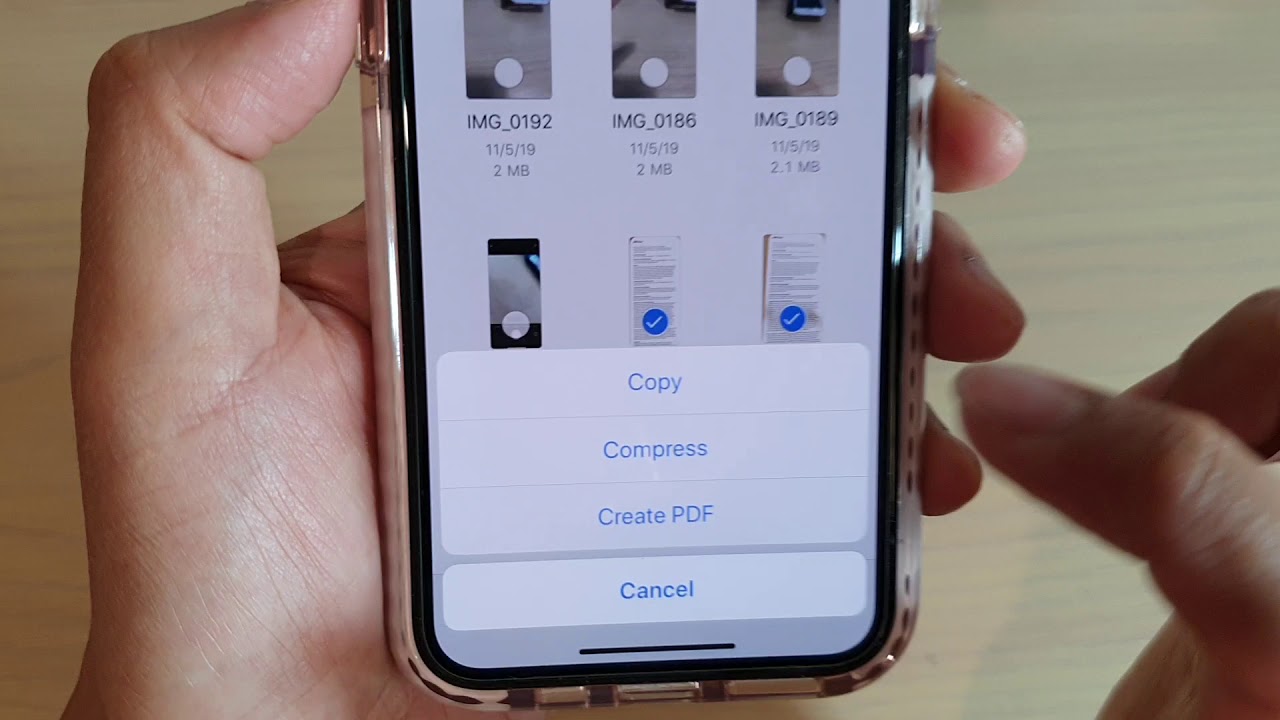
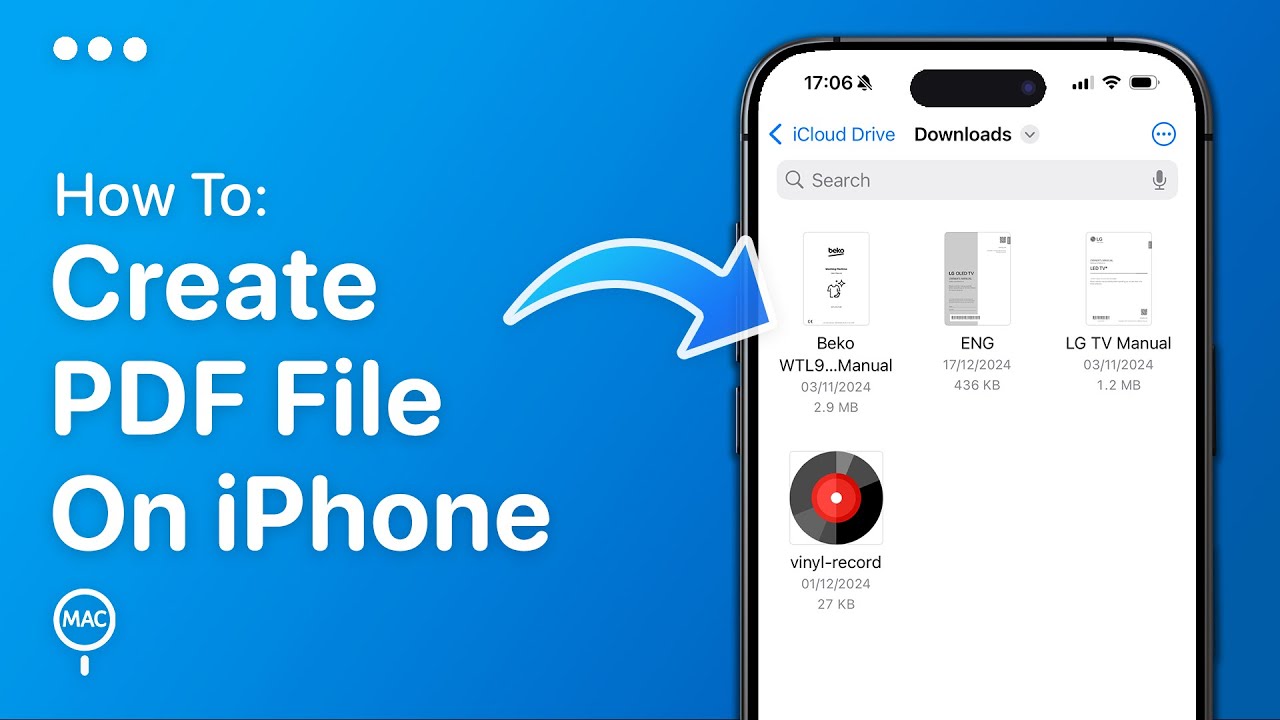
- Select Your Files: Tap the "More" icon (three dots in a circle) at the top right and choose "Select." Tap on each file you wish to include in your single PDF.
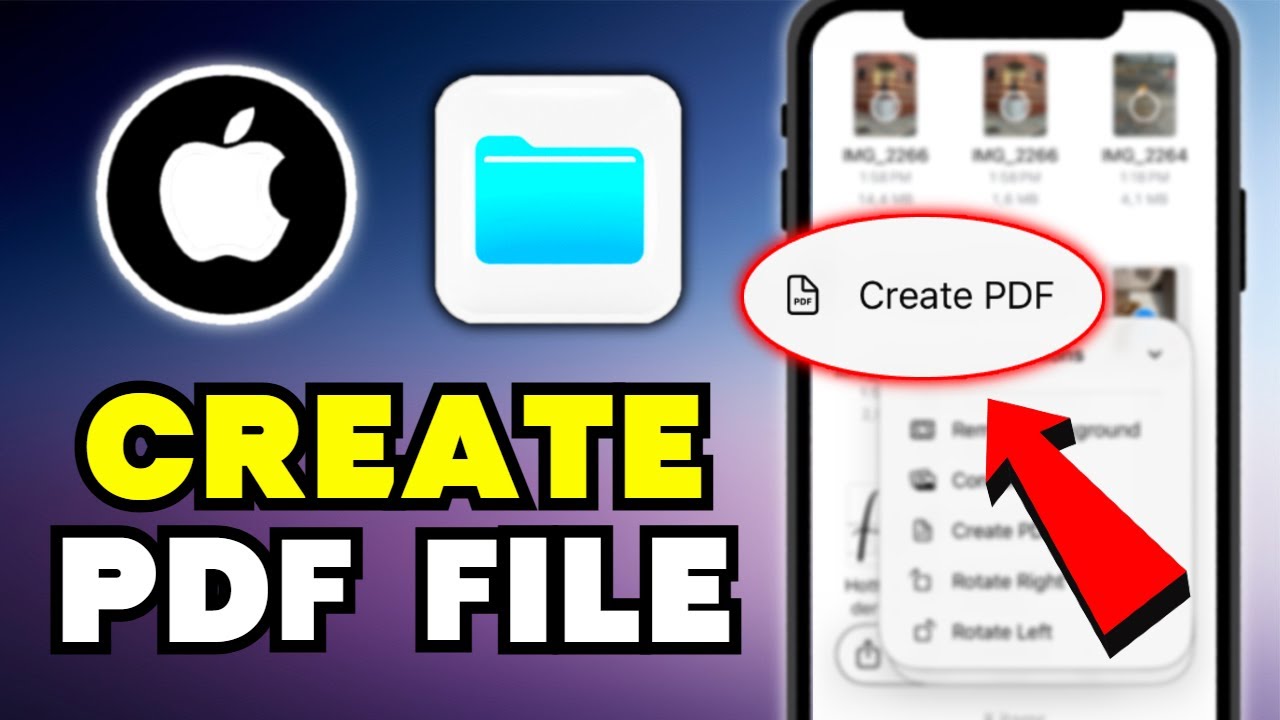
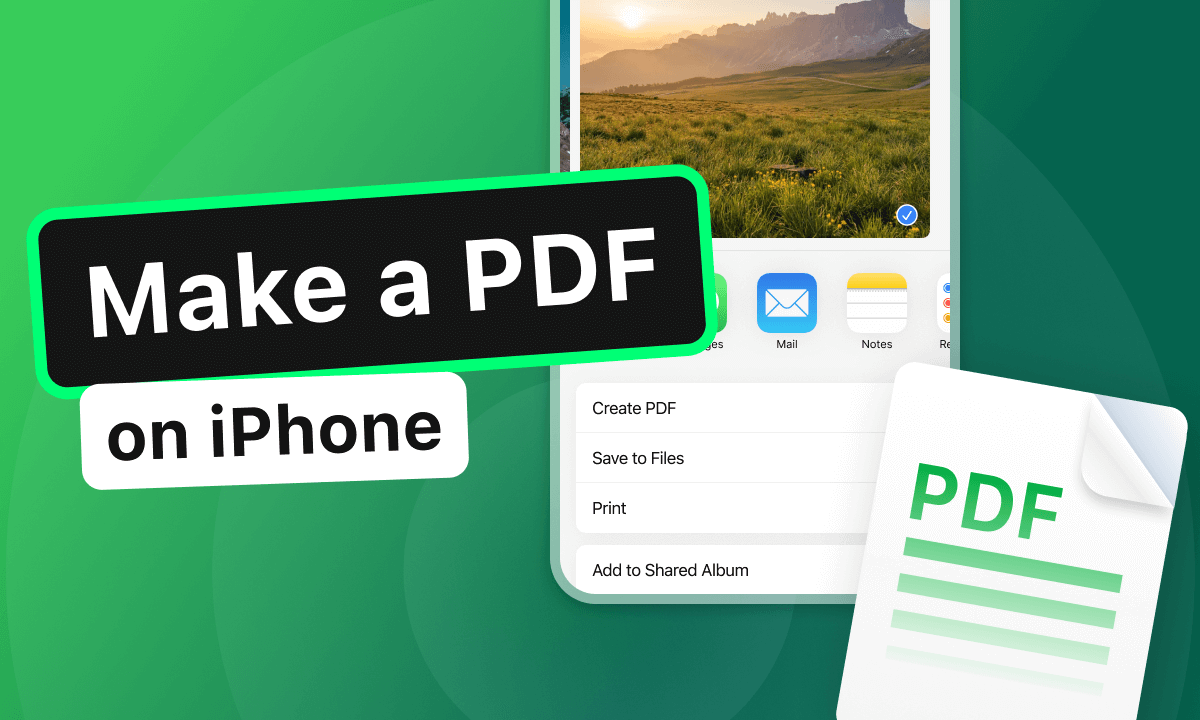
- Create the PDF: Once selected, tap the three dots in the bottom right corner of the screen. Select "Create PDF" from the menu.
- Finalize: iOS will automatically generate a new PDF file containing all selected items. You can then long-press the new file to rename it for better organization.
Method 2: Converting Photos to a Single PDF via the Photos App
Often, you may have several photos of a physical document that you need to send as a single file. The Photos app has a "hidden" feature that allows you to print to PDF, which effectively merges your images into one document.
Step-by-Step Instructions:
- Open Photos: Launch the Photos app and tap "Select" at the top right.
- Choose Images: Tap the photos you want to include in the PDF in the order you want them to appear.
- Share Icon: Tap the "Share" button (the square with an upward arrow) in the bottom left.
- Select Print: Scroll down and tap "Print." Note: You do not need a physical printer for this.
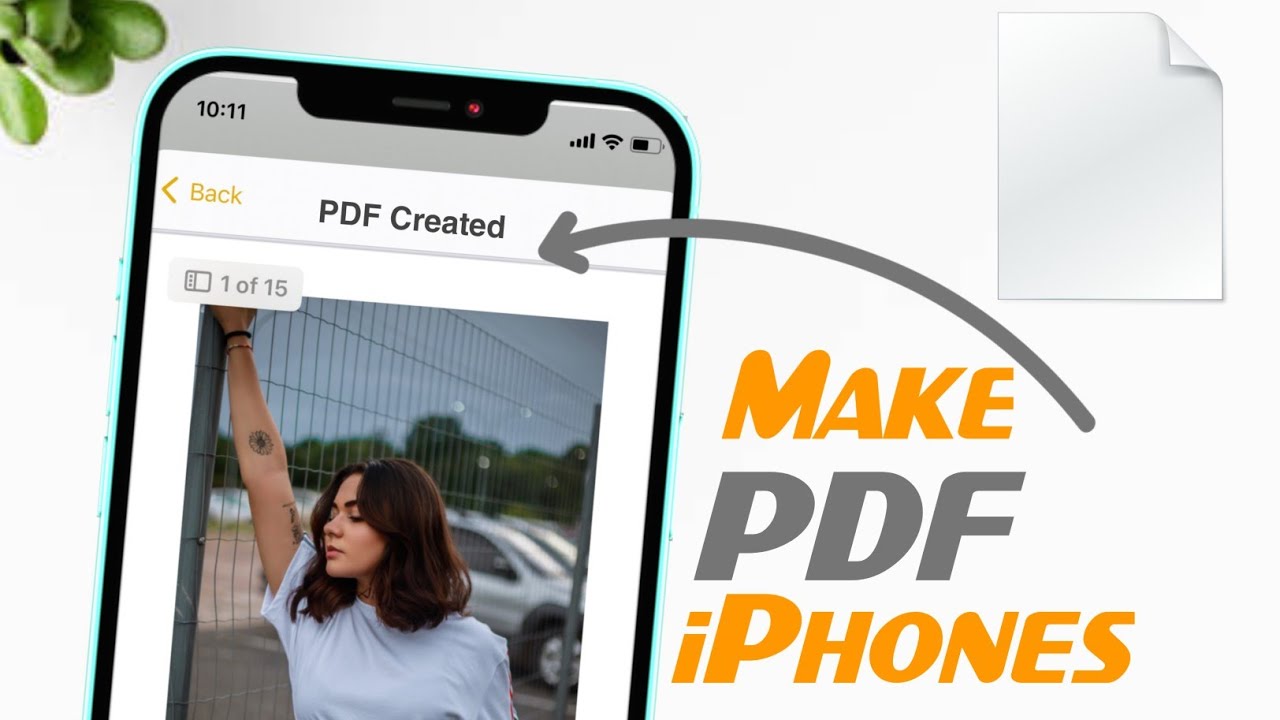
- The "Pinch to Zoom" Trick: On the Print Preview screen, use two fingers to "pinch out" (zoom in) on any of the photo thumbnails. This action instantly converts the selection into a PDF.
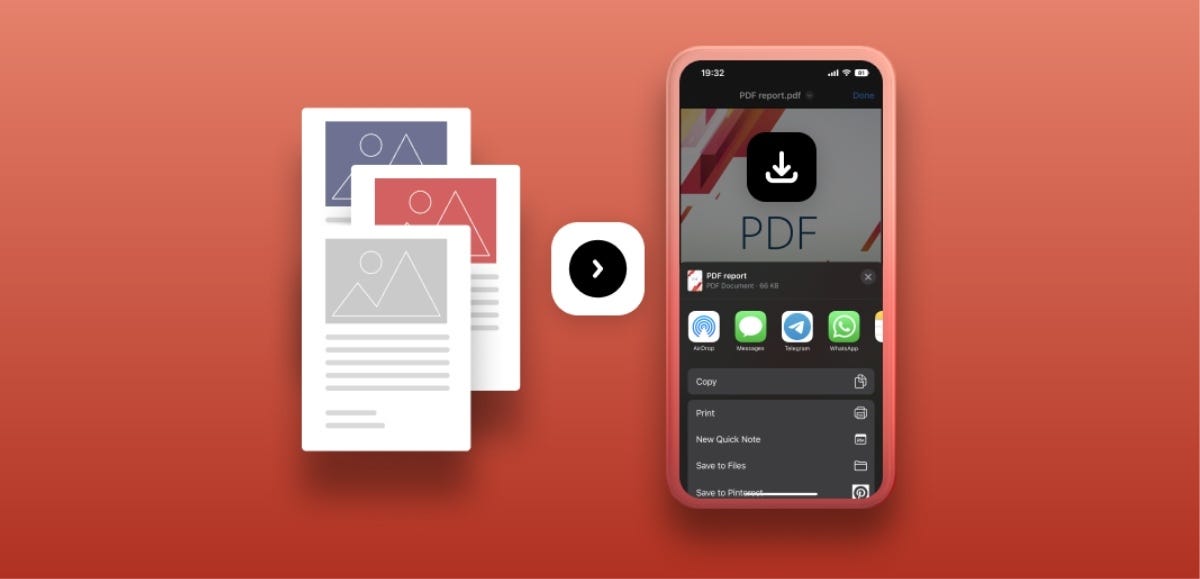
- Save the PDF: Tap the Share icon again from this new preview screen and select "Save to Files."
Method 3: Scanning Physical Documents into PDF using the Notes App
If you have physical paperwork, the Notes app provides a high-quality scanning engine that automatically detects edges, removes shadows, and compiles multiple pages into one PDF file.
Step-by-Step Instructions:
- Open Notes: Create a new note or open an existing one.
- Camera Icon: Tap the camera icon on the toolbar and select "Scan Documents."
- Capture Pages: Point your camera at the document. If it's in "Auto" mode, it will snap the picture automatically. Repeat this for all pages you want in the single PDF.
- Save: Tap "Save" at the bottom right. All scanned pages are now housed in a single container within the note.
- Export as PDF: Tap the Share icon at the top of the note, then scroll down and select "Print." Use the pinch-out gesture mentioned in Method 2 to save it as a PDF to your Files app.
Comparing Methods for Creating PDFs on iPhone
To help you decide which method is best for your specific needs, refer to the comparison table below:
| Fitur/Aspek | Deskripsi |
|---|---|
| Files App Method | Best for merging existing digital files like Word docs and existing PDFs. |
| Photos App Method | Ideal for quickly turning a gallery of images into a single document. |
| Notes App (Scanner) | Perfect for digitizing physical paper with high clarity and edge detection. |
| Markup Tool | Allows you to sign or annotate the PDF immediately after creation. |
Advanced Tips: Organizing and Editing Your PDF
Once you have mastered how to create one PDF file on iPhone, you may want to refine the document. After creating a PDF in the Files app, you can tap on the file to open it and use the following features:
- Rearrange Pages: Swipe from the left edge to see the page thumbnails. Long-press and drag thumbnails to change their order.
- Rotate or Delete: Tap a thumbnail to rotate a single page or delete unnecessary ones.
- Add Signatures: Tap the Markup icon (the pen tip) to add your digital signature, text boxes, or shapes.
- Compress PDF: If the file is too large for email, long-press the file in the Files app and select "Quick Actions" > "Optimize File Size."
Frequently Asked Questions (FAQ)
1. Can I combine two existing PDF files into one on my iPhone?
Yes. You can use the Files app. Select both PDF files, tap the three dots (More), and select "Create PDF." This will merge the two documents into a single, multi-page PDF file.
2. Is there a limit to how many pages I can add to a PDF?
While iOS doesn't have a strict page limit for PDFs, performance may slow down if you try to merge hundreds of high-resolution images. For standard documents (20-50 pages), the process is virtually instantaneous.
3. Do I need to download a third-party app from the App Store?
No. For 99% of users, the built-in Files, Photos, and Notes apps provide all the functionality needed to create and merge PDFs. This is safer and saves storage space on your device.
Conclusion
Learning how to create one PDF file on iPhone is a vital skill that streamlines your digital workflow. By leveraging the Files app for existing documents, the Photos app for image conversion, and the Notes app for high-quality scanning, you have a portable office right in your pocket. These native iOS features are not only fast and efficient but also ensure that your documents remain secure within the Apple ecosystem. Start using these methods today to manage your documents like a pro, and enjoy the convenience of a truly paperless lifestyle.
How To Create One Pdf File On Iphone
How To Create One Pdf File On Iphone Wallpapers
Collection of how to create one pdf file on iphone wallpapers for your desktop and mobile devices.
High-Quality How To Create One Pdf File On Iphone Photo in 4K
Experience the crisp clarity of this stunning how to create one pdf file on iphone image, available in high resolution for all your screens.

Breathtaking How To Create One Pdf File On Iphone Picture Nature
Transform your screen with this vivid how to create one pdf file on iphone artwork, a true masterpiece of digital design.
Vibrant How To Create One Pdf File On Iphone Picture Illustration
Explore this high-quality how to create one pdf file on iphone image, perfect for enhancing your desktop or mobile wallpaper.

Dynamic How To Create One Pdf File On Iphone Moment Illustration
Find inspiration with this unique how to create one pdf file on iphone illustration, crafted to provide a fresh look for your background.
:max_bytes(150000):strip_icc()/001_save-pdf-to-iphone-or-ipad-4165490-a6d58f2ee9a949a487411d23d3e45c54.jpg "High-Quality How To Create One Pdf File On Iphone Photo for Your Screen")
High-Quality How To Create One Pdf File On Iphone Photo for Your Screen
Discover an amazing how to create one pdf file on iphone background image, ideal for personalizing your devices with vibrant colors and intricate designs.

Amazing How To Create One Pdf File On Iphone Moment for Mobile
Experience the crisp clarity of this stunning how to create one pdf file on iphone image, available in high resolution for all your screens.

Serene How To Create One Pdf File On Iphone Scene Art
Discover an amazing how to create one pdf file on iphone background image, ideal for personalizing your devices with vibrant colors and intricate designs.

Amazing How To Create One Pdf File On Iphone Landscape in HD
Explore this high-quality how to create one pdf file on iphone image, perfect for enhancing your desktop or mobile wallpaper.

Vivid How To Create One Pdf File On Iphone Moment in 4K
Transform your screen with this vivid how to create one pdf file on iphone artwork, a true masterpiece of digital design.
Spectacular How To Create One Pdf File On Iphone Abstract in HD
A captivating how to create one pdf file on iphone scene that brings tranquility and beauty to any device.
Stunning How To Create One Pdf File On Iphone Picture for Your Screen
Find inspiration with this unique how to create one pdf file on iphone illustration, crafted to provide a fresh look for your background.
Breathtaking How To Create One Pdf File On Iphone Picture Photography
Transform your screen with this vivid how to create one pdf file on iphone artwork, a true masterpiece of digital design.

Mesmerizing How To Create One Pdf File On Iphone Scene Photography
Experience the crisp clarity of this stunning how to create one pdf file on iphone image, available in high resolution for all your screens.
Serene How To Create One Pdf File On Iphone Capture for Desktop
Transform your screen with this vivid how to create one pdf file on iphone artwork, a true masterpiece of digital design.

Detailed How To Create One Pdf File On Iphone Landscape Art
Transform your screen with this vivid how to create one pdf file on iphone artwork, a true masterpiece of digital design.

Amazing How To Create One Pdf File On Iphone Background Digital Art
Transform your screen with this vivid how to create one pdf file on iphone artwork, a true masterpiece of digital design.
Stunning How To Create One Pdf File On Iphone Picture in HD
Find inspiration with this unique how to create one pdf file on iphone illustration, crafted to provide a fresh look for your background.
Exquisite How To Create One Pdf File On Iphone Photo Concept
This gorgeous how to create one pdf file on iphone photo offers a breathtaking view, making it a perfect choice for your next wallpaper.
Vivid How To Create One Pdf File On Iphone Artwork Collection
Transform your screen with this vivid how to create one pdf file on iphone artwork, a true masterpiece of digital design.

Detailed How To Create One Pdf File On Iphone Design Concept
Transform your screen with this vivid how to create one pdf file on iphone artwork, a true masterpiece of digital design.
Download these how to create one pdf file on iphone wallpapers for free and use them on your desktop or mobile devices.