How To Create Pdf File On Iphone Notes
How to Create PDF File on iPhone Notes: A Complete Step-by-Step Guide
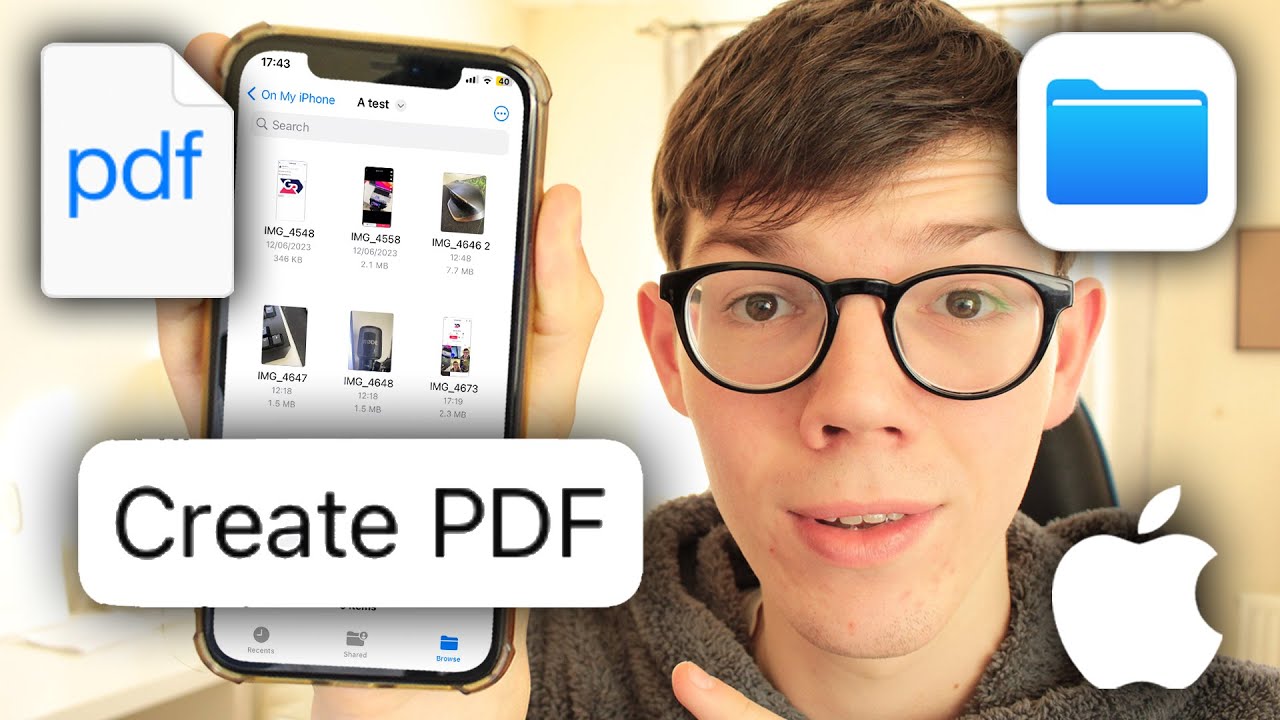
In today's fast-paced digital world, the ability to transform quick thoughts or physical documents into professional-grade digital files is more than just a convenience—it’s a necessity. If you are an Apple user, you might be surprised to learn that you don’t need expensive third-party software to handle your document needs. The built-in Notes app on your iPhone is a powerhouse of productivity. In this guide, we will explore exactly how to create PDF file on iPhone Notes, covering everything from simple text exports to advanced document scanning.
Why Use Apple Notes for PDF Creation?
Before diving into the "how-to," it is important to understand why the Notes app is often the best tool for the job. Unlike many third-party PDF converters found on the App Store, Apple Notes is free, ad-free, and deeply integrated into the iOS ecosystem. This means your data remains private and secure under Apple’s encryption standards.
Furthermore, the app utilizes advanced Optical Character Recognition (OCR) technology. When you scan a document to create a PDF, the text within that image becomes searchable within the Notes app. This integration makes it an ideal choice for students, freelancers, and corporate professionals who need to manage receipts, contracts, or study notes on the go.
Method 1: Exporting an Existing Note as a PDF
The most common scenario is having a note filled with text, checklists, and images that you need to send to someone as a fixed-format PDF. Follow these steps to convert your digital notes:
- Open the Notes App: Launch the app and select the specific note you wish to convert.
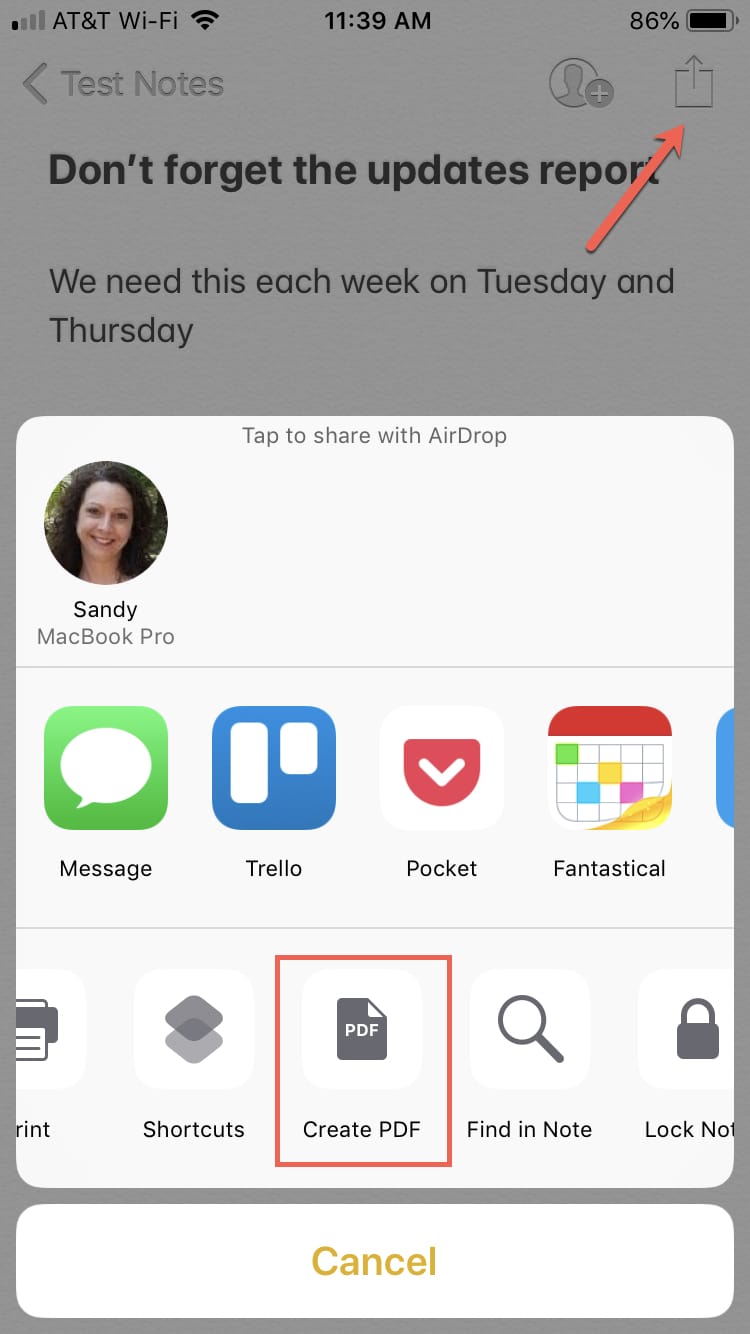
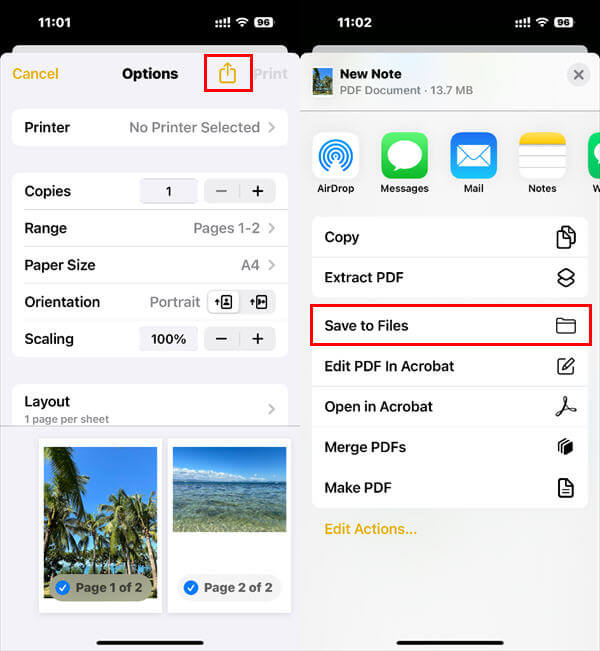
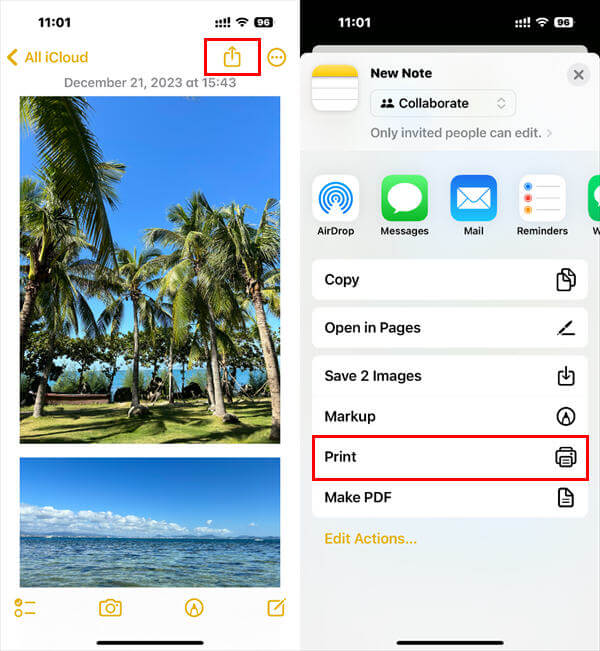
- Tap the Share Icon: This is the square icon with an upward arrow located at the top right of the screen.
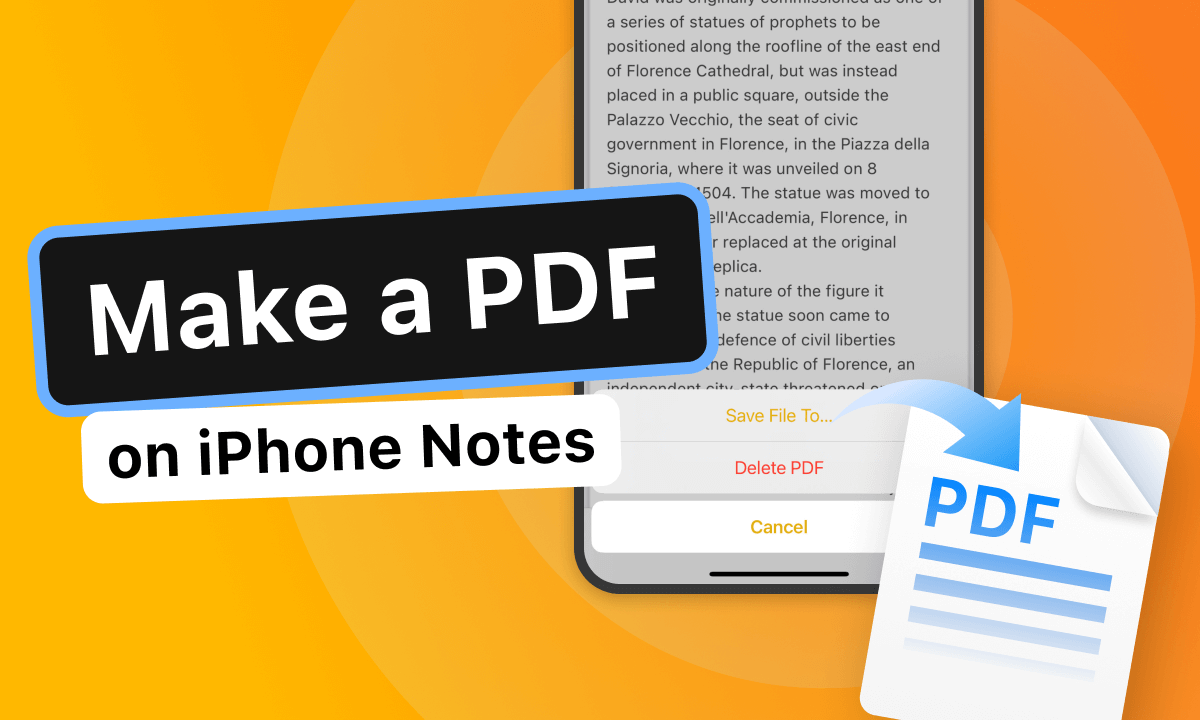
- Select "Markup": Scrolling down the share sheet, you will see an option for "Markup." Tapping this generates a PDF preview of your note.
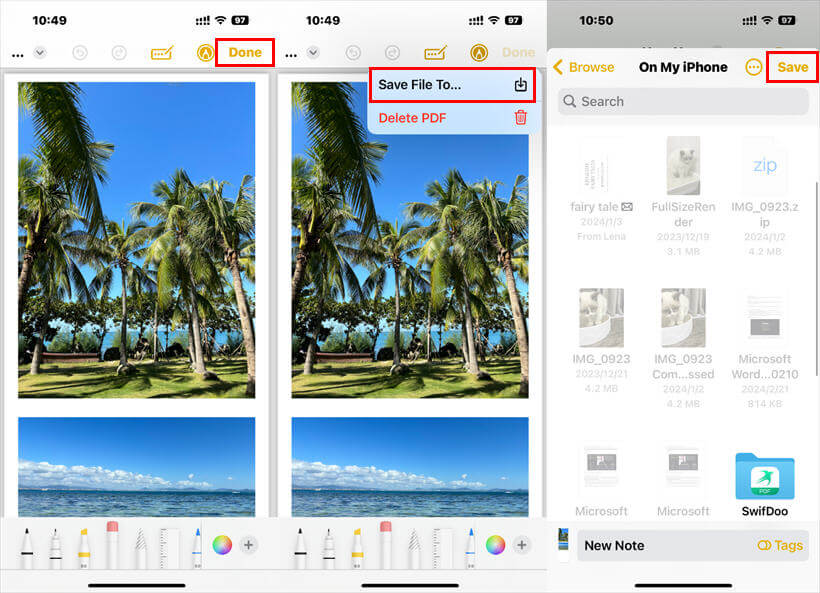
- Refine with Tools: In the Markup screen, you can use the pen or highlighter tools to add annotations. If you don’t need to draw, simply tap "Done."
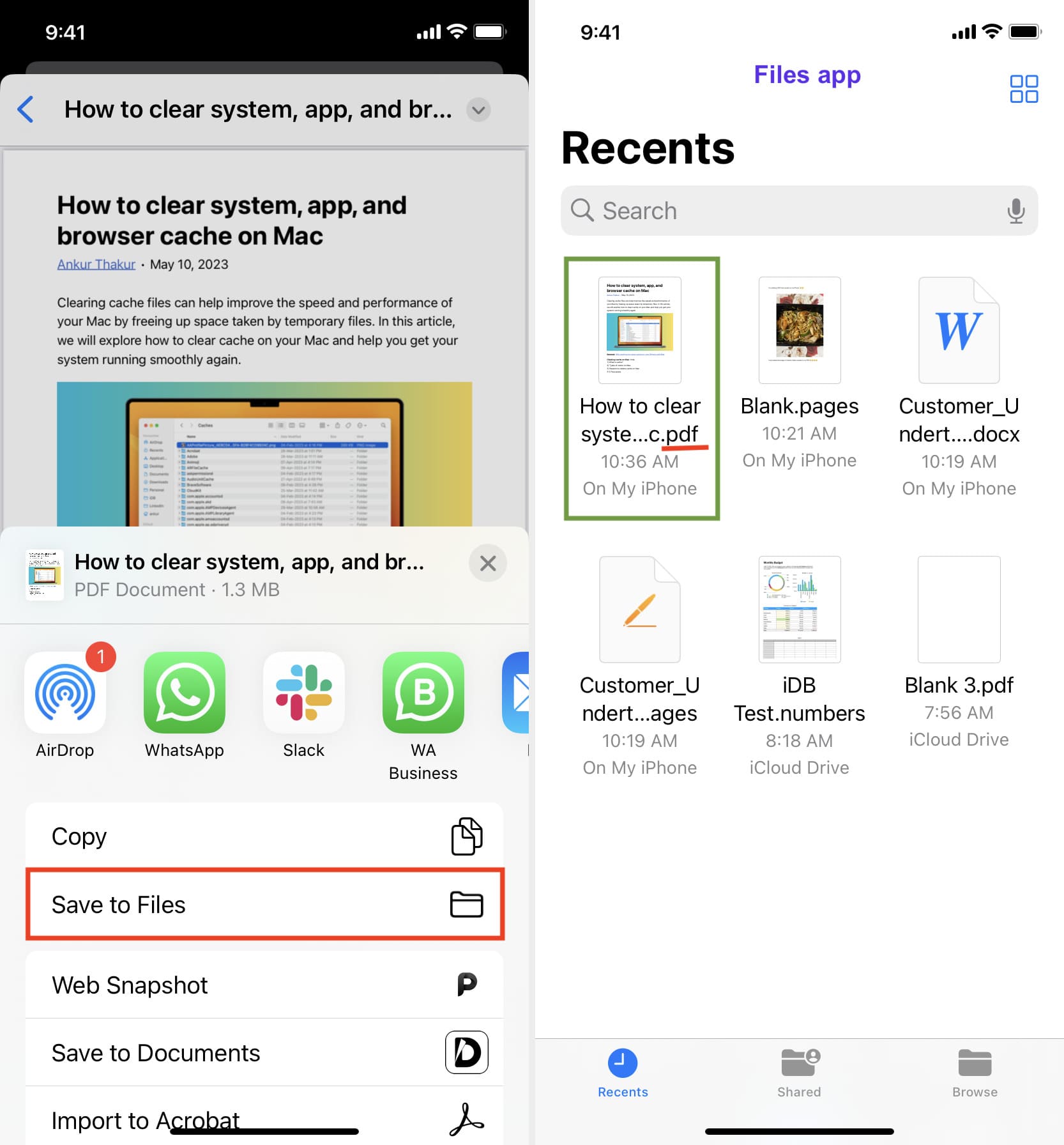
- Save the File: Tap "Save File To..." and choose a location in your Files app or iCloud Drive. Your note is now officially a PDF.
The "Print" Gesture Trick
There is a "secret" method that many power users prefer. Instead of selecting Markup, tap Print from the share sheet. When the print preview appears, use two fingers to "pinch out" (zoom in) on the document preview. This action instantly converts the preview into a full-screen PDF, which you can then save or share directly.
Method 2: Scanning Physical Documents into PDF
One of the most powerful features of the iPhone is its ability to act as a portable scanner. You can turn physical paper into a high-quality PDF in seconds.
How to Scan in Notes:
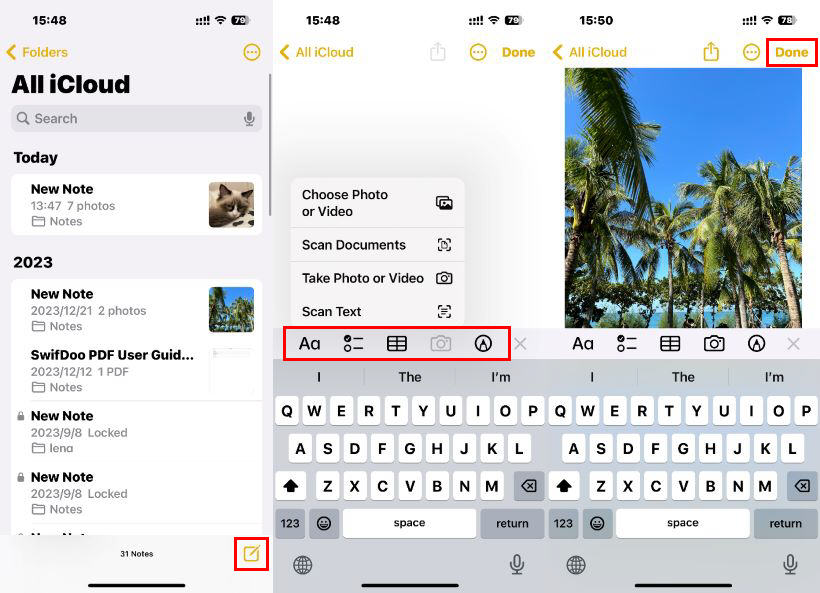
- Open a new or existing note.
- Tap the Camera icon located on the toolbar above the keyboard.
- Select Scan Documents.
- Position your iPhone over the document. In "Auto" mode, it will detect the edges and take the photo automatically.
- Once all pages are scanned, tap Save.
Once saved in your note, you can tap on the scanned document and use the Share sheet (as described in Method 1) to export it as a PDF. This is the gold standard for creating PDFs of contracts or receipts because the iPhone automatically adjusts the perspective and lighting to ensure the text is crisp and legible.
| Feature/Aspect | Description |
|---|---|
| OCR Searchability | Scanned PDFs allow you to search for specific words within the image text. |
| Annotation Support | Add signatures, shapes, and highlights using the built-in Markup tools. |
| Automatic Cropping | The scanner automatically detects document edges to remove background clutter. |
| Cloud Integration | Directly save to iCloud, Google Drive, or Dropbox via the Files app. |
Advanced Customization: Annotating and Signing Your PDF
Knowing how to create PDF file on iPhone Notes is only half the battle. Often, you need to sign a document or highlight important sections before sending it off. Once you have generated the PDF preview using the Markup tool, you can use the "+" icon at the bottom of the screen. This allows you to:
- Add a Signature: You can create a digital signature with your finger and place it anywhere on the document.
- Insert Text Boxes: Perfect for filling out forms that aren't natively interactive.
- Magnifier: Highlight a specific area of the document for the recipient to focus on.
- Shapes: Use arrows or boxes to point out specific data points.
This functionality essentially replaces the need for desktop applications like Adobe Acrobat for basic document workflows, saving you time and reducing the number of apps you need to manage.
Managing Your PDFs in the Files App
Once you have created your PDF, organization is key. iOS handles this through the Files app. When you save your PDF from Notes, you should create a dedicated folder structure. For example, you might have folders for "Receipts," "Work Contracts," and "Personal Scans."
Because these files are stored in iCloud, they will automatically sync to your Mac or iPad. This seamless transition is why the iPhone is often considered the best mobile device for productivity; the PDF you created on your phone while standing in line at the post office is waiting for you on your desktop when you get home.
Frequently Asked Questions (FAQ)
1. Can I combine multiple Notes into a single PDF?
Directly, no. However, you can copy the content of multiple notes into one "Master Note" and then export that single note as a PDF. Alternatively, you can save them as individual PDFs and use the "Merge PDF" quick action in the Files app.
2. Will the PDF quality be high enough for professional printing?
Yes. The document scanner in the Notes app uses high-resolution imaging and image processing to ensure that text is sharp and contrast is high, making it perfectly suitable for professional printing and archival.
3. Is there a file size limit for PDFs created in Notes?
While there isn't a strict "page limit," very large notes with dozens of high-resolution images can become sluggish. For standard documents (1-20 pages), the performance is excellent.
Conclusion
Learning how to create PDF file on iPhone Notes is a transformative skill for any iPhone user. By leveraging the built-in "Markup" and "Scan Documents" features, you turn your smartphone into a sophisticated mobile office. Whether you are converting a simple shopping list into a shareable document or scanning a multi-page legal contract, the Notes app provides the tools you need with professional results.
Next time you find yourself reaching for a third-party app to handle your PDF needs, remember that the solution is already in your pocket. Start by experimenting with the "Print" gesture or the scanner tool today, and streamline your digital workflow like a pro.
How To Create Pdf File On Iphone Notes
How To Create Pdf File On Iphone Notes Wallpapers
Collection of how to create pdf file on iphone notes wallpapers for your desktop and mobile devices.

Detailed How To Create Pdf File On Iphone Notes Landscape Art
Transform your screen with this vivid how to create pdf file on iphone notes artwork, a true masterpiece of digital design.
Dynamic How To Create Pdf File On Iphone Notes Wallpaper Concept
A captivating how to create pdf file on iphone notes scene that brings tranquility and beauty to any device.
Crisp How To Create Pdf File On Iphone Notes Abstract in HD
A captivating how to create pdf file on iphone notes scene that brings tranquility and beauty to any device.
Detailed How To Create Pdf File On Iphone Notes Scene Collection
Explore this high-quality how to create pdf file on iphone notes image, perfect for enhancing your desktop or mobile wallpaper.

Vivid How To Create Pdf File On Iphone Notes Moment for Your Screen
Experience the crisp clarity of this stunning how to create pdf file on iphone notes image, available in high resolution for all your screens.

Crisp How To Create Pdf File On Iphone Notes Design Digital Art
This gorgeous how to create pdf file on iphone notes photo offers a breathtaking view, making it a perfect choice for your next wallpaper.
Beautiful How To Create Pdf File On Iphone Notes View for Desktop
Experience the crisp clarity of this stunning how to create pdf file on iphone notes image, available in high resolution for all your screens.

Serene How To Create Pdf File On Iphone Notes Scene in HD
Transform your screen with this vivid how to create pdf file on iphone notes artwork, a true masterpiece of digital design.

Dynamic How To Create Pdf File On Iphone Notes Moment Illustration
Find inspiration with this unique how to create pdf file on iphone notes illustration, crafted to provide a fresh look for your background.
Lush How To Create Pdf File On Iphone Notes Picture Art
Find inspiration with this unique how to create pdf file on iphone notes illustration, crafted to provide a fresh look for your background.
Vibrant How To Create Pdf File On Iphone Notes Abstract for Your Screen
Explore this high-quality how to create pdf file on iphone notes image, perfect for enhancing your desktop or mobile wallpaper.
Beautiful How To Create Pdf File On Iphone Notes View Photography
Discover an amazing how to create pdf file on iphone notes background image, ideal for personalizing your devices with vibrant colors and intricate designs.
Captivating How To Create Pdf File On Iphone Notes Picture Digital Art
A captivating how to create pdf file on iphone notes scene that brings tranquility and beauty to any device.

Vivid How To Create Pdf File On Iphone Notes Background Nature
Discover an amazing how to create pdf file on iphone notes background image, ideal for personalizing your devices with vibrant colors and intricate designs.
Spectacular How To Create Pdf File On Iphone Notes Abstract in HD
A captivating how to create pdf file on iphone notes scene that brings tranquility and beauty to any device.
Amazing How To Create Pdf File On Iphone Notes Moment Concept
Discover an amazing how to create pdf file on iphone notes background image, ideal for personalizing your devices with vibrant colors and intricate designs.
Detailed How To Create Pdf File On Iphone Notes Picture Digital Art
Experience the crisp clarity of this stunning how to create pdf file on iphone notes image, available in high resolution for all your screens.
Breathtaking How To Create Pdf File On Iphone Notes Design Digital Art
Explore this high-quality how to create pdf file on iphone notes image, perfect for enhancing your desktop or mobile wallpaper.
Gorgeous How To Create Pdf File On Iphone Notes Image Digital Art
Find inspiration with this unique how to create pdf file on iphone notes illustration, crafted to provide a fresh look for your background.

Exquisite How To Create Pdf File On Iphone Notes Wallpaper Digital Art
Immerse yourself in the stunning details of this beautiful how to create pdf file on iphone notes wallpaper, designed for a captivating visual experience.
Download these how to create pdf file on iphone notes wallpapers for free and use them on your desktop or mobile devices.