How To Write A Pdf File On Iphone
Master Mobile Productivity: How To Write A PDF File On iPhone Like a Pro
In the modern digital era, the ability to handle documents on the go is no longer just a luxury—it is a necessity. Whether you are a student submitting an assignment, a freelancer signing a contract, or a corporate professional reviewing a report, knowing how to write a PDF file on iPhone can significantly boost your productivity. Gone are the days when you needed a bulky desktop or a printer-scanner setup to manage PDF documents. Apple’s iOS ecosystem has evolved into a robust platform that offers various native tools and third-party integrations to create, edit, and annotate PDFs with ease.
This comprehensive guide will walk you through the various methods available to write, edit, and generate PDF files directly from your iPhone. We will explore built-in features like Markup, the hidden "Print" trick, and the power of the Notes app, ensuring you have the right tool for every situation.
Using the Built-in Markup Tool to Write on PDFs
One of the most powerful yet underutilized features of iOS is the Markup tool. This feature allows you to write directly on any PDF file, add text boxes, and even include your digital signature without downloading any external software. This is the fastest way to "write" on a PDF that someone has sent to you via email or message.
How to Access Markup for PDF Editing
- Open the PDF file you wish to edit (from your Mail, Files app, or even a website).
- Tap the Share button (the square with an upward arrow).
- Select Markup from the list of options.
- Use the pen, highlighter, or pencil tools at the bottom to write freehand.
- To type text, tap the + (Plus) icon and select Text. You can then move the text box to the desired location and type your content.
- Once finished, tap Done and save the file to your device.
How to Create and Write a PDF File Using the Notes App
Many users do not realize that the Apple Notes app is one of the most efficient PDF creators available on the iPhone. It allows you to transform physical paper documents into digital PDFs or start a PDF from scratch by typing notes and exporting them.
Scanning Documents into PDF
If you have a physical document that you need to "write" on digitally, the Notes app can scan it perfectly. Simply open a new note, tap the camera icon, and choose Scan Documents. Once the scan is captured, the iPhone automatically converts it into a PDF format. You can then use the Markup tool described above to write over the scanned image, fill out forms, or add comments.
Exporting Text Notes as PDF
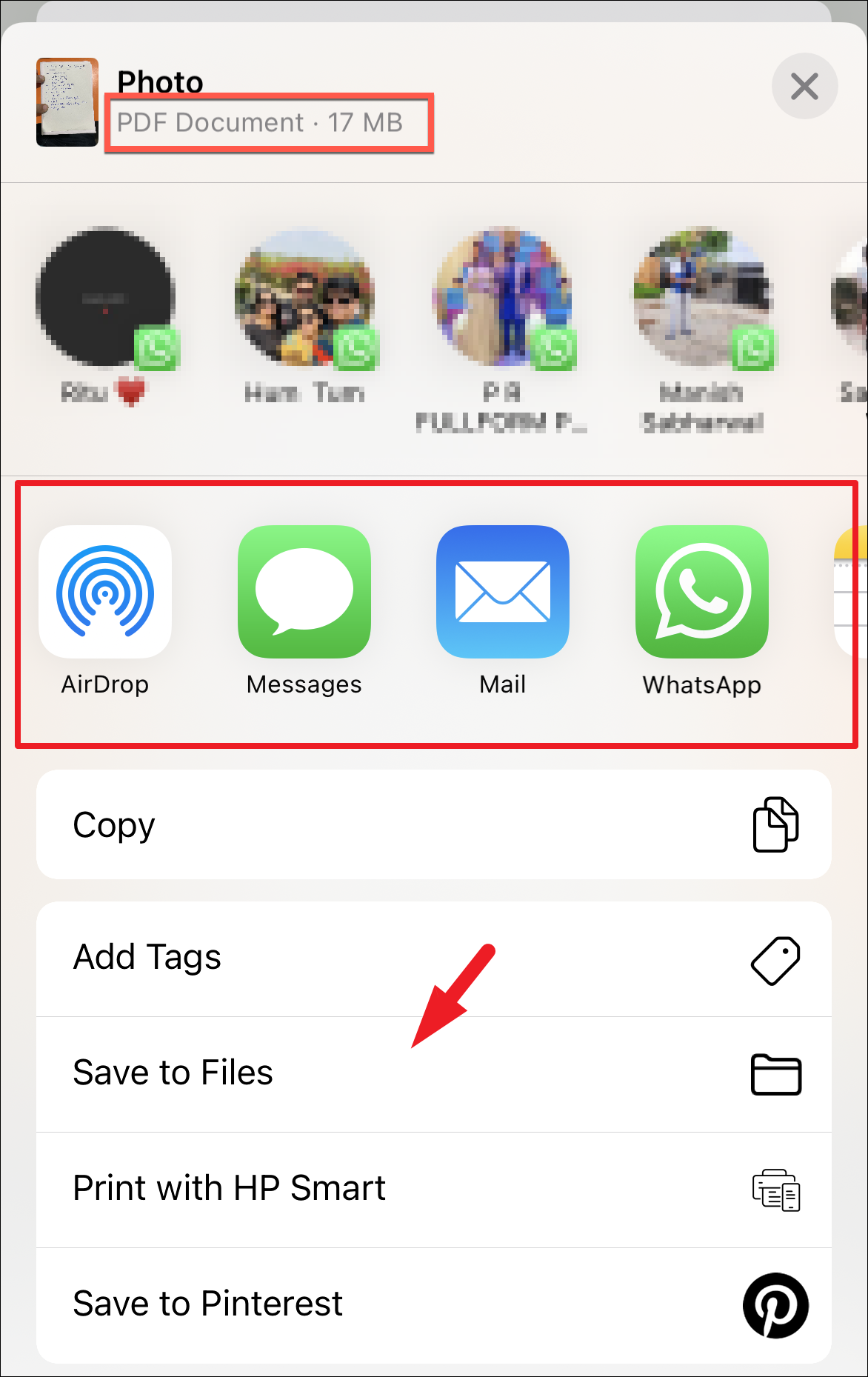
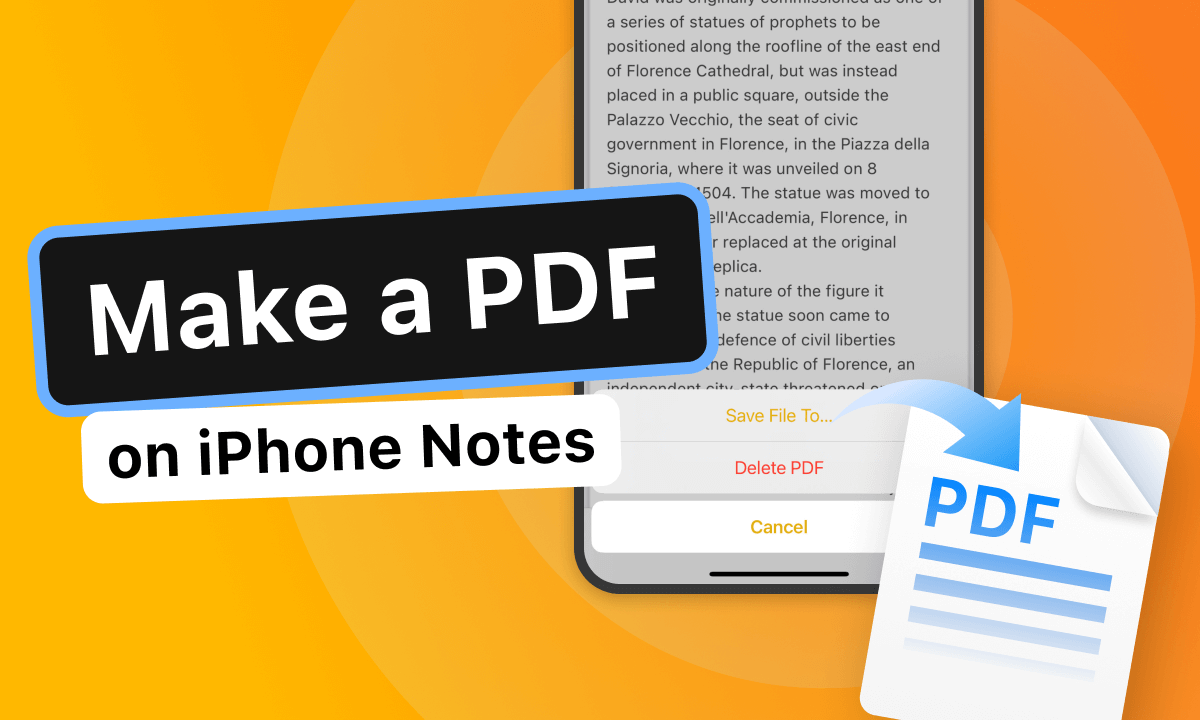
If you prefer to type your document first, you can write your entire content in the Notes app. Once your draft is ready, tap the Share icon and select Print. In the print preview screen, instead of sending it to a printer, use two fingers to "pinch out" (zoom in) on the document preview. This action instantly converts the note into a PDF file, which you can then save or share.
The "Hidden" Print Trick: Converting Anything to PDF
One of the most versatile methods for those wondering how to write a PDF file on iPhone is the "Print to PDF" hack. This works for webpages, emails, photos, and Word documents. It essentially allows you to take any content and "print" it into a static PDF format.
For example, if you are browsing a webpage and want to save it as a PDF to write notes on later, simply tap the Share button, select Print, and use the "pinch-to-zoom" gesture on the preview thumbnails. This generates a high-quality PDF. This method is incredibly useful for capturing information from various sources and compiling it into a professional-looking document for further annotation.
| Method/Feature | Best Use Case |
|---|---|
| iOS Markup | Quickly signing documents or drawing/writing freehand on existing PDFs. |
| Notes App Scan | Turning physical paper documents into editable digital PDF files. |
| Print to PDF Hack | Converting emails, webpages, or images into a PDF format. |
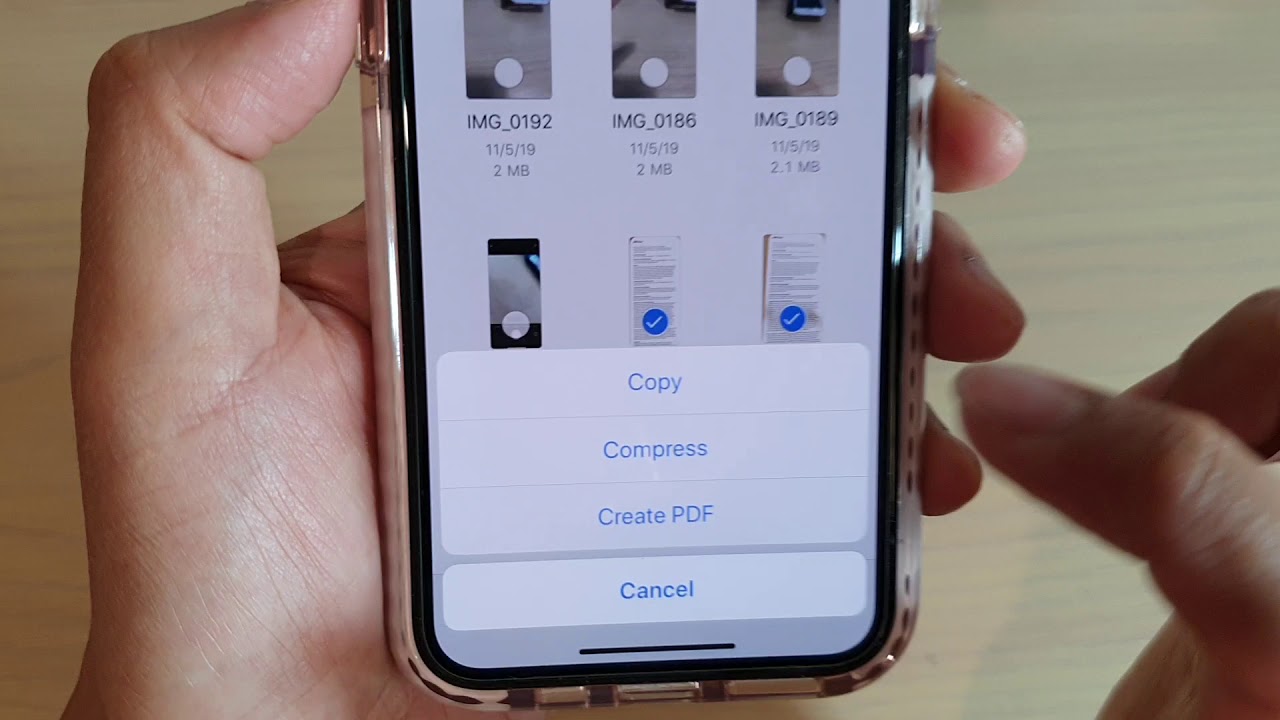
| Files App Integration | Combining multiple images or documents into a single PDF file. |
| Third-Party Apps | Advanced editing, such as changing existing text or structural layouts. |
Using the Files App for Advanced PDF Management
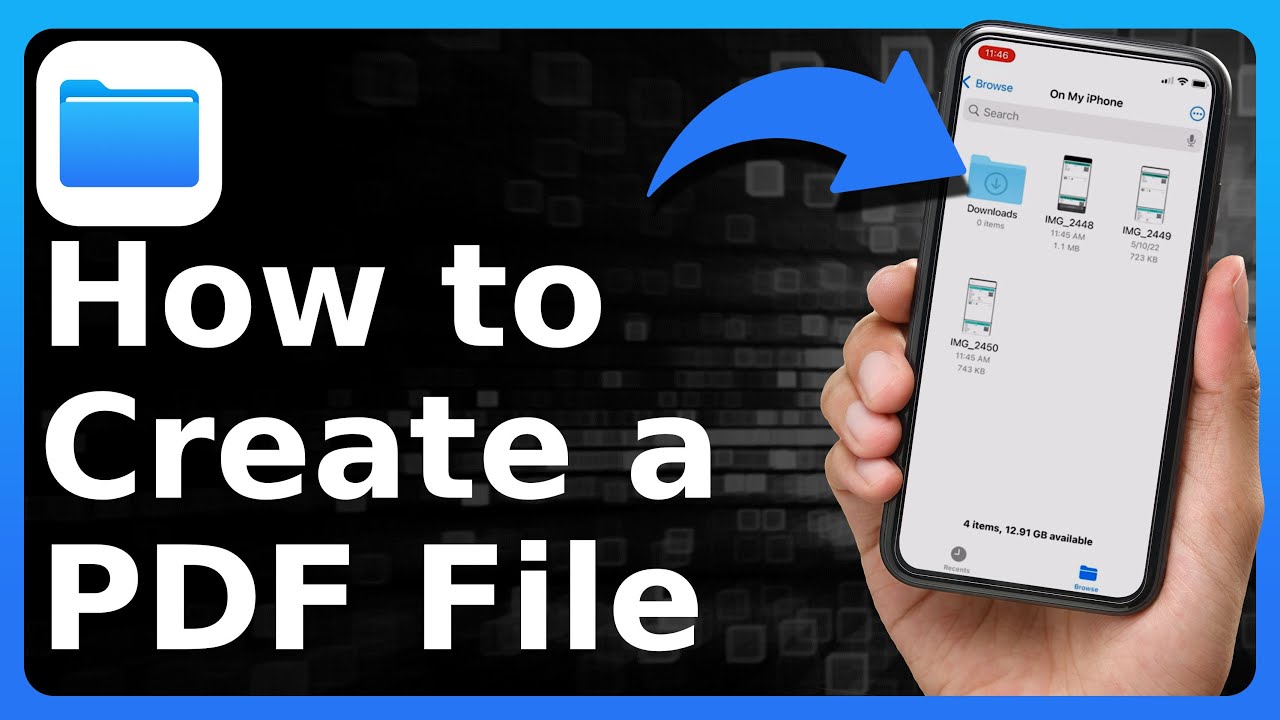
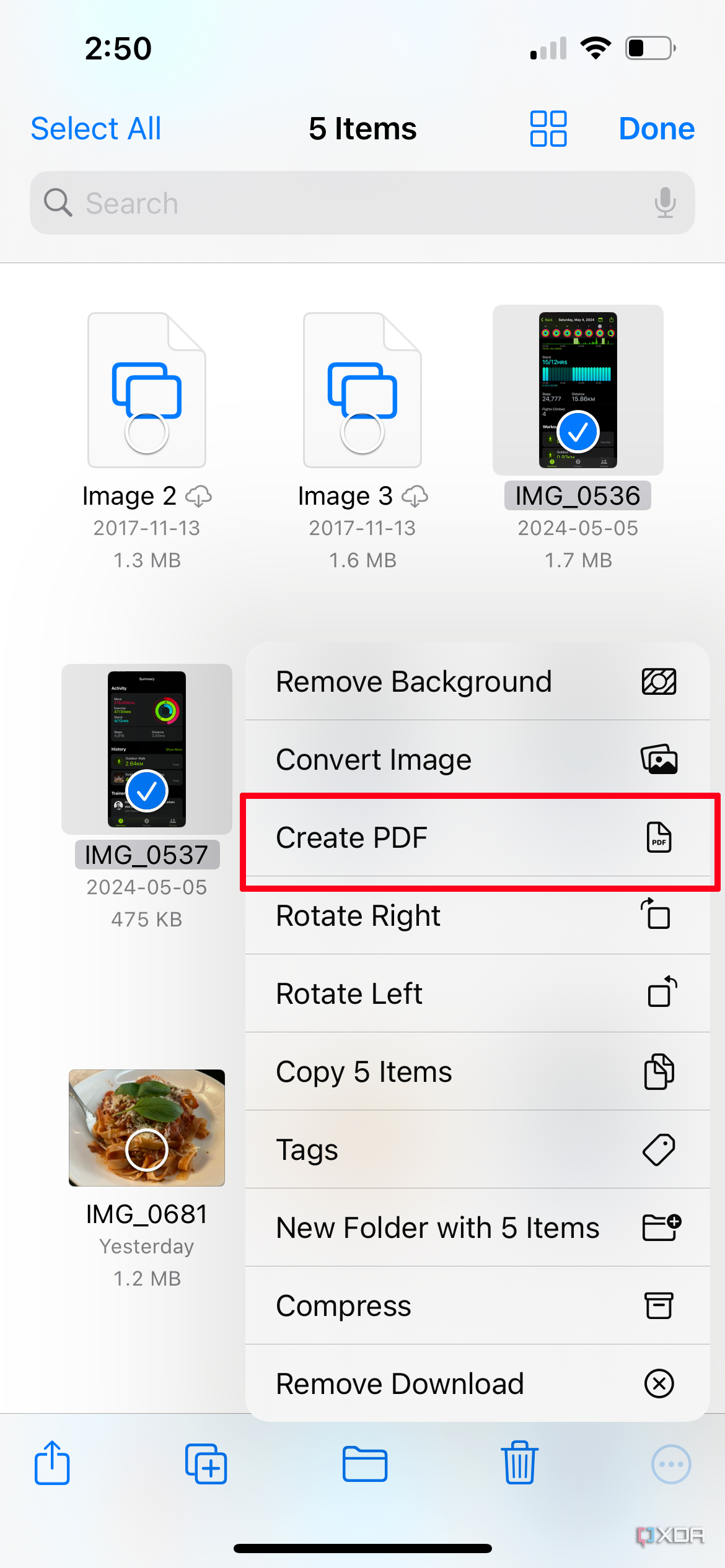
The Files app is the central hub for document management on the iPhone. It is not just for storage; it offers several "Quick Actions" that make writing and creating PDFs seamless. If you have a series of images that you want to turn into a single PDF document, the Files app can do this in seconds.
Merging Files into a Single PDF
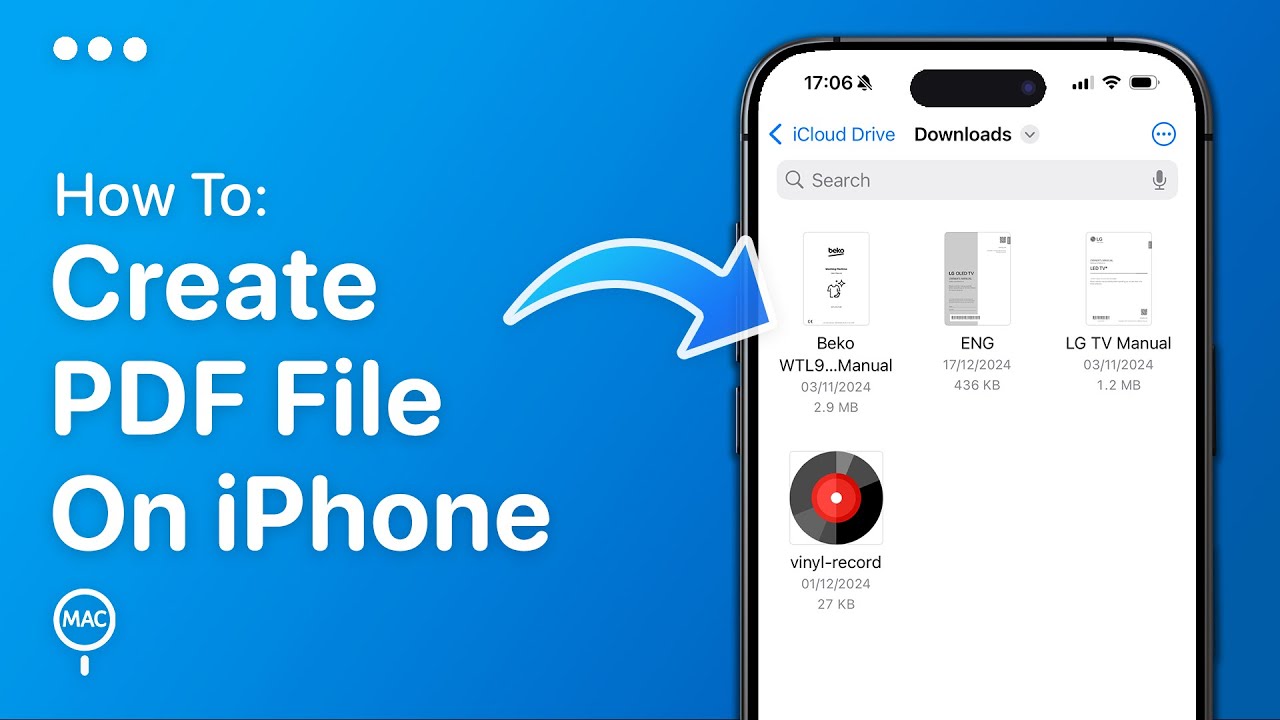
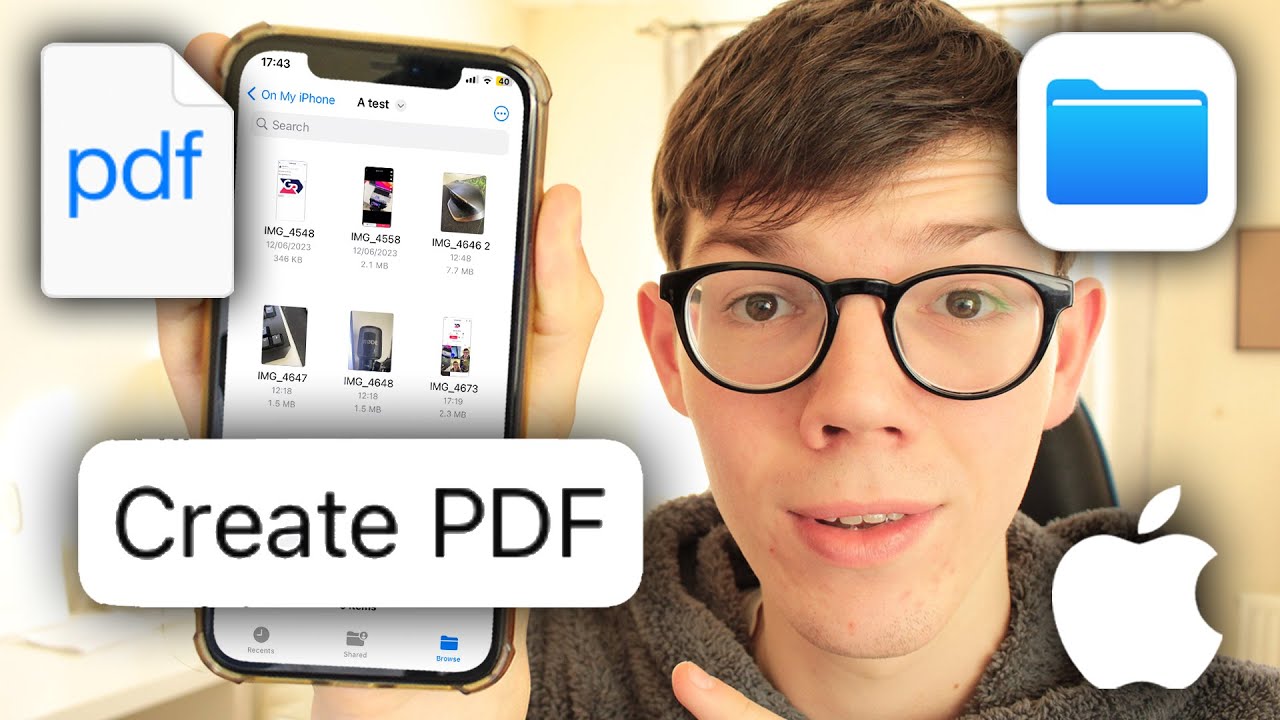
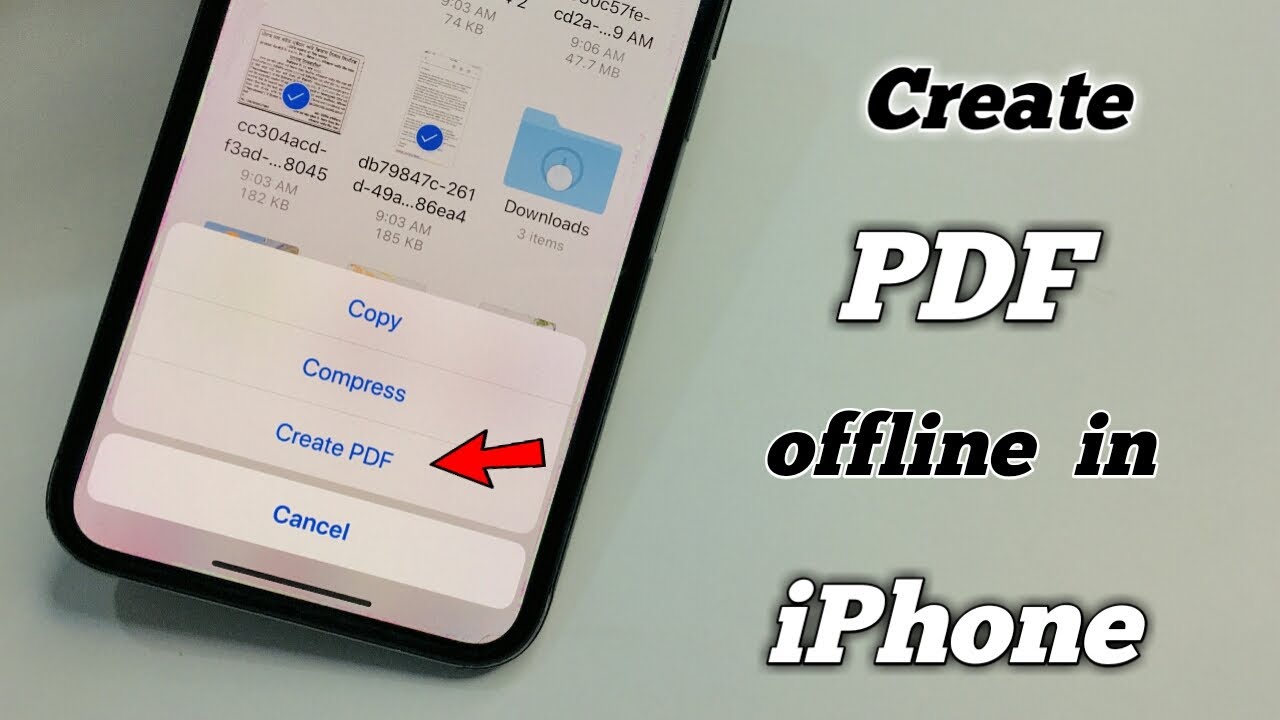
Navigate to the folder containing your items. Tap the three dots (menu) in the top right corner and choose Select. Pick the files you want to combine, then tap the three dots in the bottom right corner and select Create PDF. This will merge all selected items into one PDF file. You can then open this new file and use the Markup tools to add text or headings.
Top Third-Party Apps for Writing on PDFs
While the native iOS tools are excellent for most tasks, power users might find them a bit limiting. If you need to edit the actual existing text within a PDF (rather than just writing over it), you may need a dedicated third-party application. Here are some of the best options available on the App Store:
- Adobe Acrobat Reader: The industry standard. It offers robust commenting tools, form-filling features, and cloud integration.
- PDF Expert by Readdle: Widely considered the best PDF editor for iOS. It allows you to edit text, images, and links within a PDF as if you were using a word processor.
- GoodNotes 6: If you prefer handwriting with an Apple Pencil (on iPad) or your finger on iPhone, GoodNotes offers a superior "notebook" feel for writing on PDF documents.
SEO Tips for Managing PDFs on iPhone
If you are creating PDFs for business or web use, remember that PDF files can also be indexed by search engines. When saving your PDF on your iPhone, ensure you use a descriptive file name containing relevant keywords. Instead of saving a file as "IMG_1234.pdf," rename it to "How-To-Write-PDF-iPhone-Guide.pdf." This small step helps with organization and digital discoverability.
Frequently Asked Questions (FAQ)
1. Can I sign a PDF file on my iPhone without an app?
Yes. You can use the built-in Markup tool. Open the PDF, tap the Share icon, select Markup, tap the "+" button, and choose "Signature." You can create a signature with your finger and place it anywhere on the document.
2. How do I turn a Word document into a PDF on my iPhone?
The easiest way is to open the document in the Microsoft Word app or the Pages app, tap the "More" or "Share" icon, and select "Export" or "Send a Copy," then choose PDF as the format.
3. Is there a way to edit existing text in a PDF for free on iPhone?
Standard iOS tools only allow you to write *over* the PDF (annotation). To edit the actual text that is already in the PDF, you generally need a premium app like PDF Expert or Adobe Acrobat with a subscription.
4. Where are my saved PDFs stored?
By default, when you save a PDF on your iPhone, it is stored in the Files app. You can choose to save it locally "On My iPhone" or in "iCloud Drive" to access it from other Apple devices.
Conclusion
Learning how to write a PDF file on iPhone is a game-changer for anyone looking to optimize their mobile workflow. Between the versatility of the Markup tool, the document scanning capabilities of the Notes app, and the simple "Print to PDF" trick, the iPhone provides a comprehensive suite of tools that rival many desktop applications. Whether you are performing simple annotations or managing complex documents, the methods outlined in this guide ensure that you can handle any PDF task directly from the palm of your hand. Start utilizing these features today and transform your iPhone into a professional-grade document editor.
How To Write A Pdf File On Iphone
How To Write A Pdf File On Iphone Wallpapers
Collection of how to write a pdf file on iphone wallpapers for your desktop and mobile devices.
Beautiful How To Write A Pdf File On Iphone Abstract for Your Screen
Discover an amazing how to write a pdf file on iphone background image, ideal for personalizing your devices with vibrant colors and intricate designs.
:max_bytes(150000):strip_icc()/001_save-pdf-to-iphone-or-ipad-4165490-a6d58f2ee9a949a487411d23d3e45c54.jpg "High-Quality How To Write A Pdf File On Iphone Photo for Your Screen")
High-Quality How To Write A Pdf File On Iphone Photo for Your Screen
Discover an amazing how to write a pdf file on iphone background image, ideal for personalizing your devices with vibrant colors and intricate designs.
Exquisite How To Write A Pdf File On Iphone Photo Concept
This gorgeous how to write a pdf file on iphone photo offers a breathtaking view, making it a perfect choice for your next wallpaper.
Vibrant How To Write A Pdf File On Iphone Picture Illustration
Explore this high-quality how to write a pdf file on iphone image, perfect for enhancing your desktop or mobile wallpaper.

Dynamic How To Write A Pdf File On Iphone Moment Illustration
Find inspiration with this unique how to write a pdf file on iphone illustration, crafted to provide a fresh look for your background.
Captivating How To Write A Pdf File On Iphone Design Collection
Find inspiration with this unique how to write a pdf file on iphone illustration, crafted to provide a fresh look for your background.
Vivid How To Write A Pdf File On Iphone Artwork Collection
Transform your screen with this vivid how to write a pdf file on iphone artwork, a true masterpiece of digital design.

Artistic How To Write A Pdf File On Iphone Artwork for Desktop
A captivating how to write a pdf file on iphone scene that brings tranquility and beauty to any device.
Spectacular How To Write A Pdf File On Iphone Abstract in HD
A captivating how to write a pdf file on iphone scene that brings tranquility and beauty to any device.

Breathtaking How To Write A Pdf File On Iphone Picture Nature
Transform your screen with this vivid how to write a pdf file on iphone artwork, a true masterpiece of digital design.
Dynamic How To Write A Pdf File On Iphone Wallpaper Concept
A captivating how to write a pdf file on iphone scene that brings tranquility and beauty to any device.

Captivating How To Write A Pdf File On Iphone Scene Nature
A captivating how to write a pdf file on iphone scene that brings tranquility and beauty to any device.
Mesmerizing How To Write A Pdf File On Iphone Moment for Your Screen
Transform your screen with this vivid how to write a pdf file on iphone artwork, a true masterpiece of digital design.
Stunning How To Write A Pdf File On Iphone Picture in HD
Find inspiration with this unique how to write a pdf file on iphone illustration, crafted to provide a fresh look for your background.

Detailed How To Write A Pdf File On Iphone Landscape Art
Transform your screen with this vivid how to write a pdf file on iphone artwork, a true masterpiece of digital design.

Serene How To Write A Pdf File On Iphone Scene Art
Discover an amazing how to write a pdf file on iphone background image, ideal for personalizing your devices with vibrant colors and intricate designs.
Spectacular How To Write A Pdf File On Iphone Moment Photography
Find inspiration with this unique how to write a pdf file on iphone illustration, crafted to provide a fresh look for your background.

Exquisite How To Write A Pdf File On Iphone Wallpaper Concept
A captivating how to write a pdf file on iphone scene that brings tranquility and beauty to any device.
Captivating How To Write A Pdf File On Iphone Background in HD
Immerse yourself in the stunning details of this beautiful how to write a pdf file on iphone wallpaper, designed for a captivating visual experience.
Lush How To Write A Pdf File On Iphone Artwork Nature
A captivating how to write a pdf file on iphone scene that brings tranquility and beauty to any device.
Download these how to write a pdf file on iphone wallpapers for free and use them on your desktop or mobile devices.