How To Make A Pdf Fillable In Bluebeam Revu
How to Make a PDF Fillable in Bluebeam Revu: A Complete Step-by-Step Guide
In the modern Architecture, Engineering, and Construction (AEC) industries, the transition from paper-based workflows to digital documentation is no longer optional—it is a necessity. Bluebeam Revu has long been the industry standard for PDF markup and collaboration, but many users are unaware of its powerful form-creation capabilities. Knowing how to make a PDF fillable in Bluebeam Revu can significantly streamline your administrative tasks, from RFI (Request for Information) submissions to safety checklists and site inspection reports.
Creating a fillable PDF ensures that data collection is standardized, legible, and professional. Instead of printing a document, signing it by hand, and scanning it back into the system, fillable forms allow users to input data directly into the file. This guide will walk you through the entire process, from utilizing the automated "Auto-Create" feature to manually fine-tuning complex form fields for maximum efficiency.
Understanding Version Compatibility for Form Creation
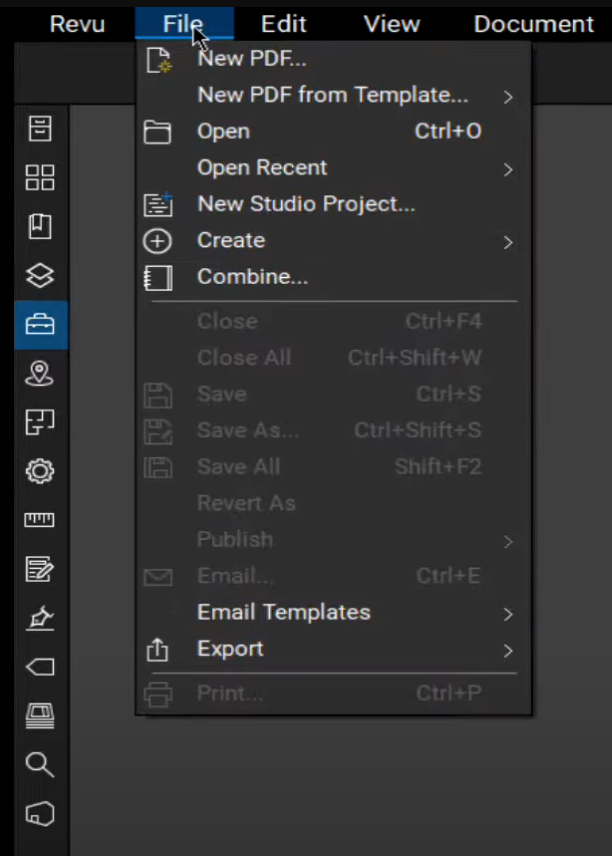
Before diving into the technical steps, it is important to note that form creation is a feature traditionally found in Bluebeam Revu eXtreme (or the Complete tier in the newer Bluebeam subscription model). While all versions of Revu allow users to fill out forms, the tools required to create or edit form fields are reserved for the higher-tier versions. If you find that your Form menu is greyed out or missing, you likely need to upgrade your license to access these professional-grade automation tools.
Method 1: Using the Auto-Create Tool for Instant Results
The fastest way to make a PDF fillable in Bluebeam Revu is by using the Auto-Create function. This AI-driven tool analyzes the document for lines, boxes, and text labels that look like form fields and automatically overlays the appropriate interactive elements.
- Open Your Document: Launch Bluebeam Revu and open the PDF you wish to convert into a fillable form.
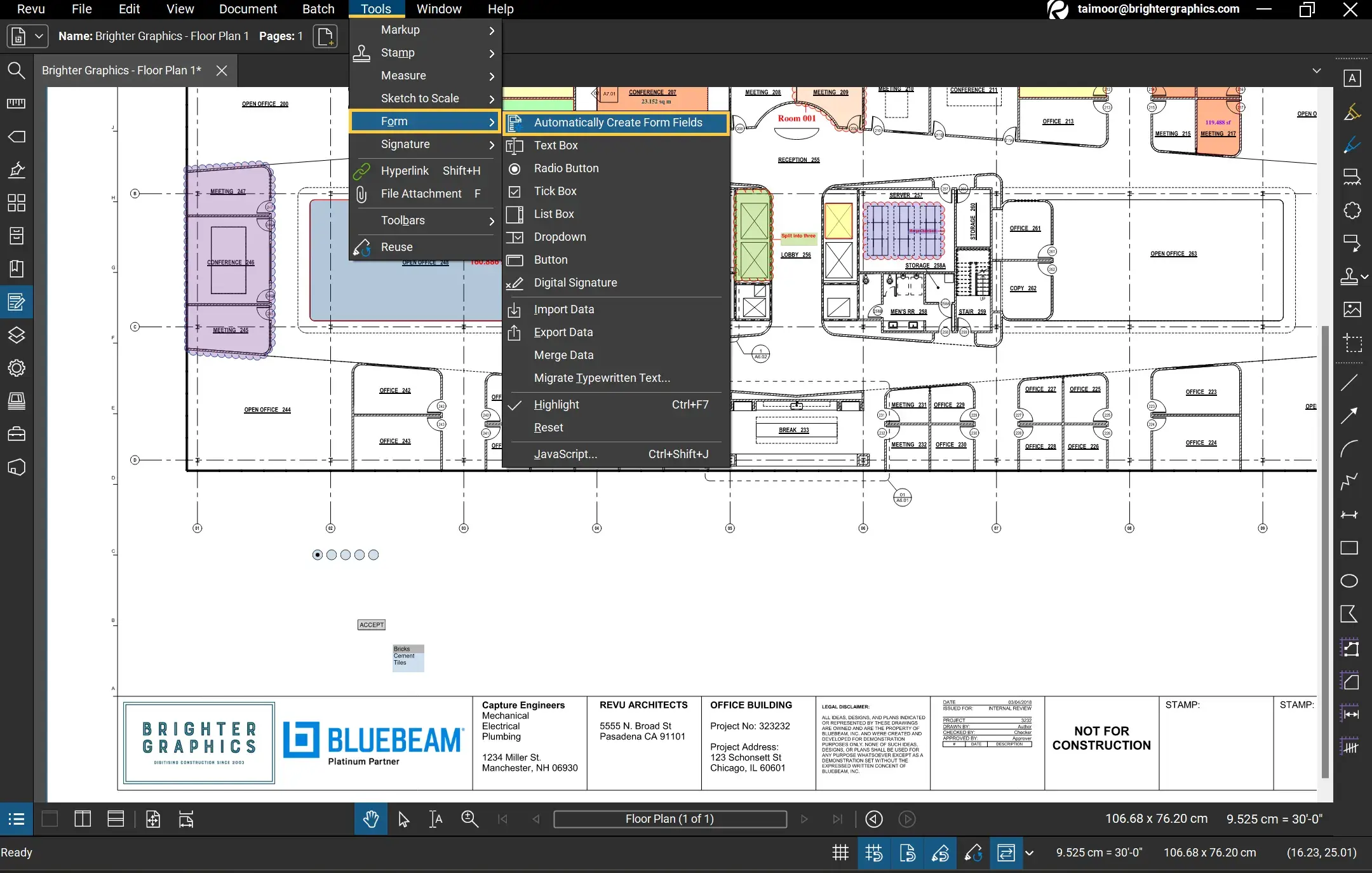
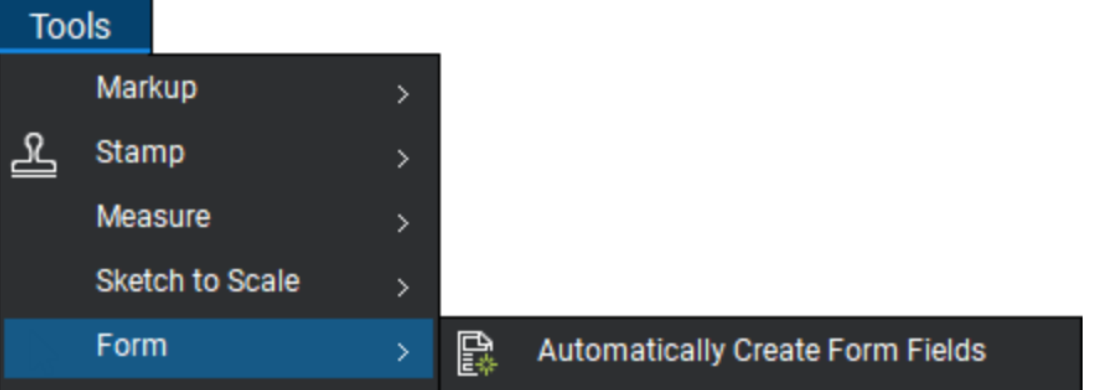
- Access the Form Menu: Go to the Form tab on the top menu bar.
- Select Auto-Create: Click the Auto-Create button. Bluebeam will process the document instantly.
- Review the Fields: Once the process is complete, Bluebeam will have placed text boxes, checkboxes, and signature fields where it detected them. Always review these fields, as some may need resizing or renaming.
This method is ideal for flat PDFs that were originally created in Word or Excel and already have a clear visual structure. It saves hours of manual placement, especially on long, multi-page documents.
Method 2: Manually Adding and Customizing Form Fields
While Auto-Create is efficient, manual creation is necessary for specialized forms or when you need total control over the user experience. Bluebeam Revu offers a variety of field types to suit any data input requirement.
Step-by-Step Manual Placement
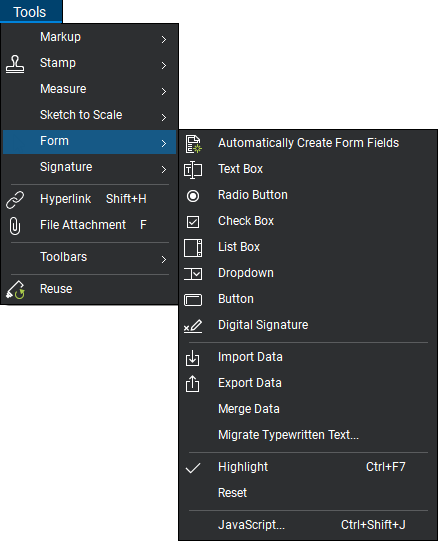
To manually add fields, navigate to the Form panel (usually found on the right-hand side or under the Window > Panels menu). Here, you can select specific tools:
- Text Box: Used for names, dates, or general comments.
- Checkboxes: Ideal for "Yes/No" options or selecting multiple items from a list.
- Radio Buttons: Best used when a user must select only one option from a group.
- Dropdowns: Creates a list of options to keep the form clean and standardized.
- Digital Signatures: Essential for official approvals and submittals.
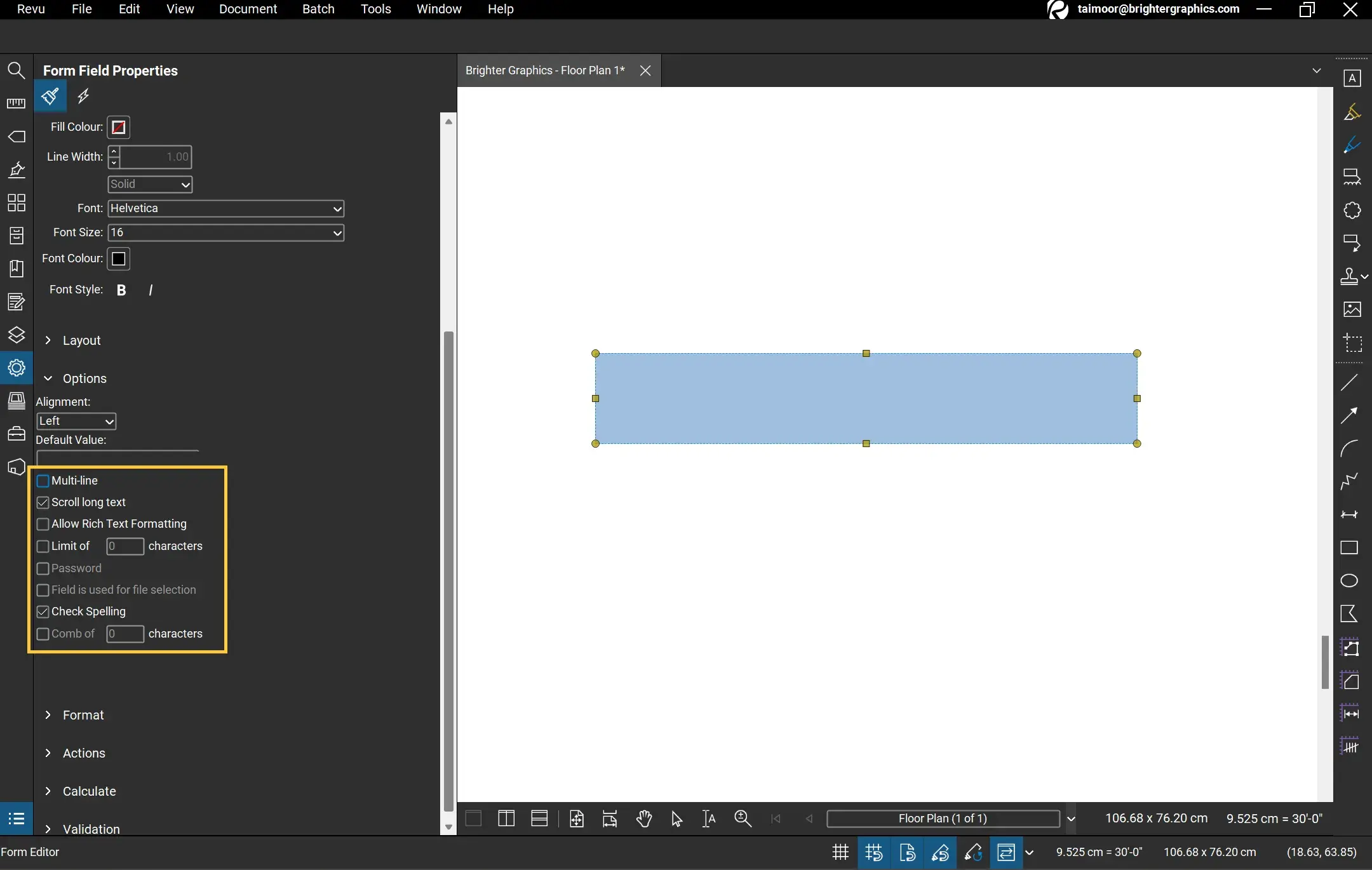
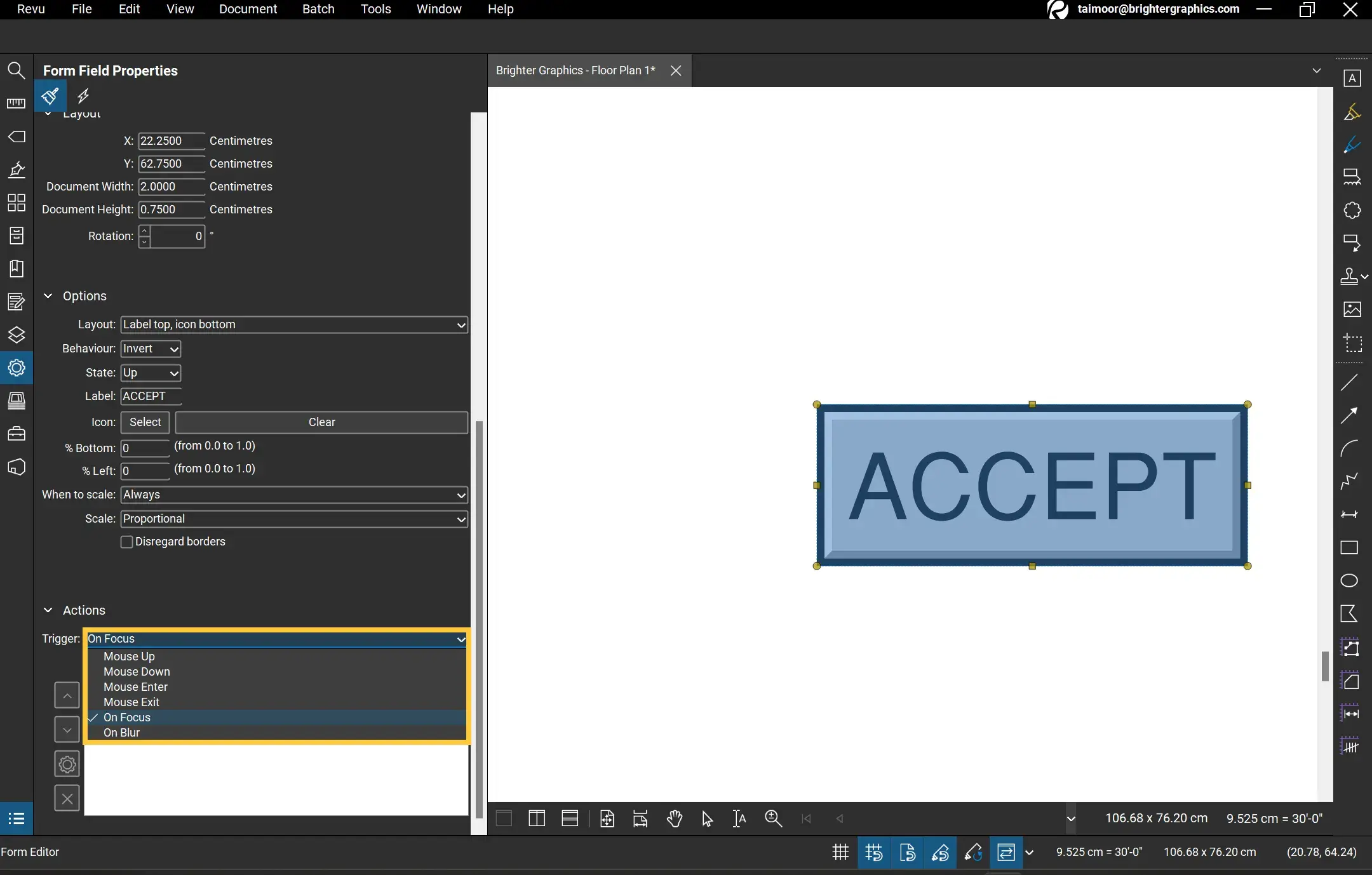
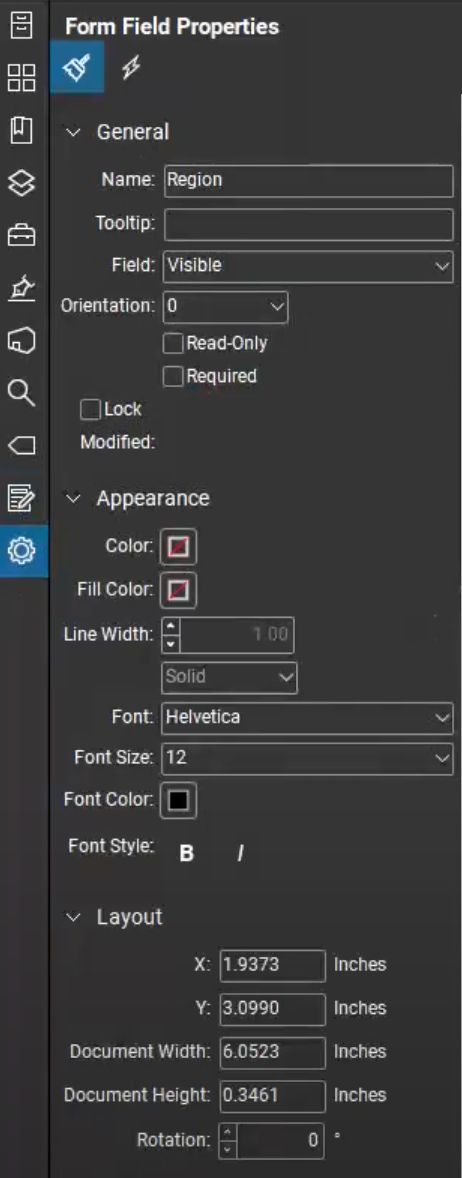
Once you select a tool, simply click and drag on the PDF to place the field. You can then use the Properties panel to change the font size, color, and even the "Limit Character" count to prevent users from entering too much text in a confined space.
Advanced Form Properties and Logic
To truly master how to make a PDF fillable in Bluebeam Revu, you must understand the Properties tab. Every field you create can be customized with specific behaviors. For example, you can mark a field as "Required," ensuring that a user cannot submit the form without providing essential information. This is particularly useful for safety inspections where every checkbox must be addressed.
Furthermore, Bluebeam allows for basic calculation logic. If you are creating an invoice or a material takeoff form, you can set a "Total" text box to automatically calculate the sum of previous fields. To do this, go to the Properties of the field, select Calculate, and choose the fields you wish to add, multiply, or average.
| Fitur/Aspek | Deskripsi |
|---|---|
| Auto-Create | Automatically detects and generates form fields from static PDFs. |
| Field Logic | Allows for automated calculations (sum, product) within the form. |
| Required Fields | Ensures users provide critical data before the document is finalized. |
| Digital Signature Fields | Provides a secure way to sign documents digitally within the AEC workflow. |
| Form Alignment Tools | Ensures all text boxes and checkboxes are perfectly aligned for a professional look. |
Best Practices for Fillable Forms in Bluebeam
Creating a form is only half the battle; making it user-friendly is what defines a professional document. Here are several tips to enhance your Bluebeam forms:
- Tab Order: Users often use the "Tab" key to move between fields. In the Forms Panel, you can drag and drop fields into the correct order to ensure a logical flow from top to bottom.
- Tooltips: In the properties of a field, add a "Tooltip." This text appears when a user hovers over the field, providing instructions like "Please enter date as MM/DD/YYYY."
- Formatting: If a field is meant for a date, set the Format category to "Date." This provides the user with a standardized picker or enforces the correct text format.
- Flattening: Before sending a form to a client who might not have Bluebeam, consider if you want the fields to remain editable. If you want to "lock" the data after it’s filled, use the Flatten command, but be sure to select "Allow Markup Recovery" if you want to undo it later.
Common Troubleshooting Tips
Even for experienced users, making a PDF fillable can sometimes present challenges. If the Auto-Create tool isn't picking up your lines, ensure your PDF is high-quality and not a "flat" image scan. If it is a scan, you may need to run OCR (Optical Character Recognition) first to turn the image into selectable text. Additionally, always check that your document security settings allow for form filling, as some restricted PDFs may block interactive elements.
Frequently Asked Questions (FAQ)
1. Why is the "Form" tab missing or greyed out in my Bluebeam Revu?
The ability to create fillable forms is limited to the eXtreme version or the "Complete" subscription tier. If you have Revu Standard, CAD, Core, or Basics, you will be able to fill out forms but not create them.
2. Can I convert a Word document directly into a fillable form in Bluebeam?
Yes. First, save the Word document as a PDF. Open that PDF in Bluebeam Revu eXtreme/Complete and use the "Auto-Create" tool under the Form menu to instantly turn your Word layout into a fillable form.
3. How do I make a field mandatory so it can't be skipped?
Select the form field, go to the Properties panel (gear icon), and check the box labeled Required. This will highlight the field for the user, indicating it must be filled.
4. Can people without Bluebeam fill out the forms I create?
Yes. Forms created in Bluebeam Revu follow standard PDF protocols. They can be filled out using Adobe Acrobat Reader, web browsers (like Chrome or Edge), and most other PDF viewing software.
Conclusion
Mastering how to make a PDF fillable in Bluebeam Revu is a game-changer for any professional looking to optimize their digital workflow. Whether you use the lightning-fast Auto-Create feature or manually design intricate forms with custom logic and calculations, Bluebeam provides the tools necessary to eliminate paper waste and reduce data entry errors. By following the steps outlined in this guide—optimizing tab orders, setting field properties, and utilizing digital signatures—you can create professional, functional documents that enhance collaboration across your entire team. Start transforming your static PDFs into dynamic tools today and experience the efficiency of a truly paperless office.
how to make a pdf fillable in bluebeam revu
how to make a pdf fillable in bluebeam revu Wallpapers
Collection of how to make a pdf fillable in bluebeam revu wallpapers for your desktop and mobile devices.
High-Quality How To Make A Pdf Fillable In Bluebeam Revu Abstract Concept
Explore this high-quality how to make a pdf fillable in bluebeam revu image, perfect for enhancing your desktop or mobile wallpaper.

Beautiful How To Make A Pdf Fillable In Bluebeam Revu View in HD
Transform your screen with this vivid how to make a pdf fillable in bluebeam revu artwork, a true masterpiece of digital design.
Mesmerizing How To Make A Pdf Fillable In Bluebeam Revu Abstract for Desktop
Experience the crisp clarity of this stunning how to make a pdf fillable in bluebeam revu image, available in high resolution for all your screens.

Vibrant How To Make A Pdf Fillable In Bluebeam Revu Scene Digital Art
Discover an amazing how to make a pdf fillable in bluebeam revu background image, ideal for personalizing your devices with vibrant colors and intricate designs.
Amazing How To Make A Pdf Fillable In Bluebeam Revu Artwork Nature
Experience the crisp clarity of this stunning how to make a pdf fillable in bluebeam revu image, available in high resolution for all your screens.

Gorgeous How To Make A Pdf Fillable In Bluebeam Revu Capture Collection
A captivating how to make a pdf fillable in bluebeam revu scene that brings tranquility and beauty to any device.
Captivating How To Make A Pdf Fillable In Bluebeam Revu Background for Mobile
This gorgeous how to make a pdf fillable in bluebeam revu photo offers a breathtaking view, making it a perfect choice for your next wallpaper.
Lush How To Make A Pdf Fillable In Bluebeam Revu Scene for Desktop
This gorgeous how to make a pdf fillable in bluebeam revu photo offers a breathtaking view, making it a perfect choice for your next wallpaper.
Beautiful How To Make A Pdf Fillable In Bluebeam Revu Photo Art
Explore this high-quality how to make a pdf fillable in bluebeam revu image, perfect for enhancing your desktop or mobile wallpaper.
Spectacular How To Make A Pdf Fillable In Bluebeam Revu Picture Illustration
Find inspiration with this unique how to make a pdf fillable in bluebeam revu illustration, crafted to provide a fresh look for your background.
Detailed How To Make A Pdf Fillable In Bluebeam Revu Landscape Digital Art
Experience the crisp clarity of this stunning how to make a pdf fillable in bluebeam revu image, available in high resolution for all your screens.

Dynamic How To Make A Pdf Fillable In Bluebeam Revu Moment Digital Art
A captivating how to make a pdf fillable in bluebeam revu scene that brings tranquility and beauty to any device.
Mesmerizing How To Make A Pdf Fillable In Bluebeam Revu Artwork for Your Screen
Explore this high-quality how to make a pdf fillable in bluebeam revu image, perfect for enhancing your desktop or mobile wallpaper.

Crisp How To Make A Pdf Fillable In Bluebeam Revu Wallpaper Concept
Immerse yourself in the stunning details of this beautiful how to make a pdf fillable in bluebeam revu wallpaper, designed for a captivating visual experience.
Mesmerizing How To Make A Pdf Fillable In Bluebeam Revu View for Mobile
Experience the crisp clarity of this stunning how to make a pdf fillable in bluebeam revu image, available in high resolution for all your screens.
Crisp How To Make A Pdf Fillable In Bluebeam Revu Capture for Desktop
Immerse yourself in the stunning details of this beautiful how to make a pdf fillable in bluebeam revu wallpaper, designed for a captivating visual experience.
Stunning How To Make A Pdf Fillable In Bluebeam Revu Wallpaper in 4K
A captivating how to make a pdf fillable in bluebeam revu scene that brings tranquility and beauty to any device.
Breathtaking How To Make A Pdf Fillable In Bluebeam Revu Design in 4K
Transform your screen with this vivid how to make a pdf fillable in bluebeam revu artwork, a true masterpiece of digital design.
Vivid How To Make A Pdf Fillable In Bluebeam Revu Background Collection
Explore this high-quality how to make a pdf fillable in bluebeam revu image, perfect for enhancing your desktop or mobile wallpaper.
Spectacular How To Make A Pdf Fillable In Bluebeam Revu Background Nature
This gorgeous how to make a pdf fillable in bluebeam revu photo offers a breathtaking view, making it a perfect choice for your next wallpaper.
Download these how to make a pdf fillable in bluebeam revu wallpapers for free and use them on your desktop or mobile devices.