How To Make A Pdf Fillable In Google Docs
How to Make a PDF Fillable in Google Docs: A Complete Step-by-Step Guide
In today's digital-first world, the ability to create and edit documents seamlessly is a vital skill. Whether you are a business professional needing to collect client information or a teacher creating worksheets for students, knowing how to make a PDF fillable in Google Docs can save you hours of manual work. While Google Docs is primarily a word processor and not a dedicated PDF editor like Adobe Acrobat, it offers surprisingly flexible workarounds to help you create interactive forms for free.
In this comprehensive guide, we will explore the most effective methods to transform static PDF files into editable, fillable documents using the Google ecosystem. We will cover the conversion process, design tips to make your forms look professional, and the best third-party tools to add that final layer of interactivity.
Understanding the Limitations of Google Docs for PDFs
Before we dive into the "how-to," it is important to manage expectations. Google Docs does not have a "Make Fillable" button that instantly adds interactive text boxes or radio buttons to a PDF. Instead, the process involves converting the PDF into a Google Doc format, adding placeholders or tables to act as form fields, and then exporting or using a third-party extension to finalize the interactivity.
For most users, this method is preferred because it is cost-effective and allows for collaborative editing. If you have a simple form that requires text input, Google Docs is an excellent tool. However, for complex forms with conditional logic, you might eventually consider moving toward Google Forms or a dedicated PDF architect.
Step 1: Converting Your Static PDF into an Editable Google Doc
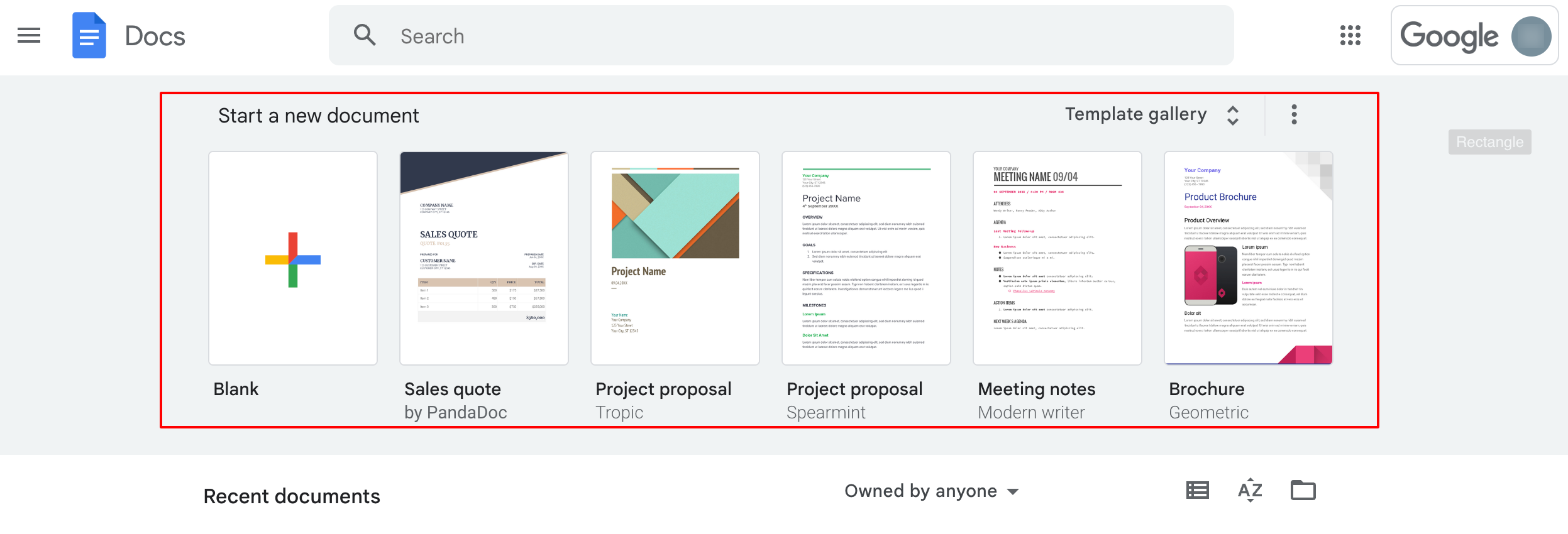
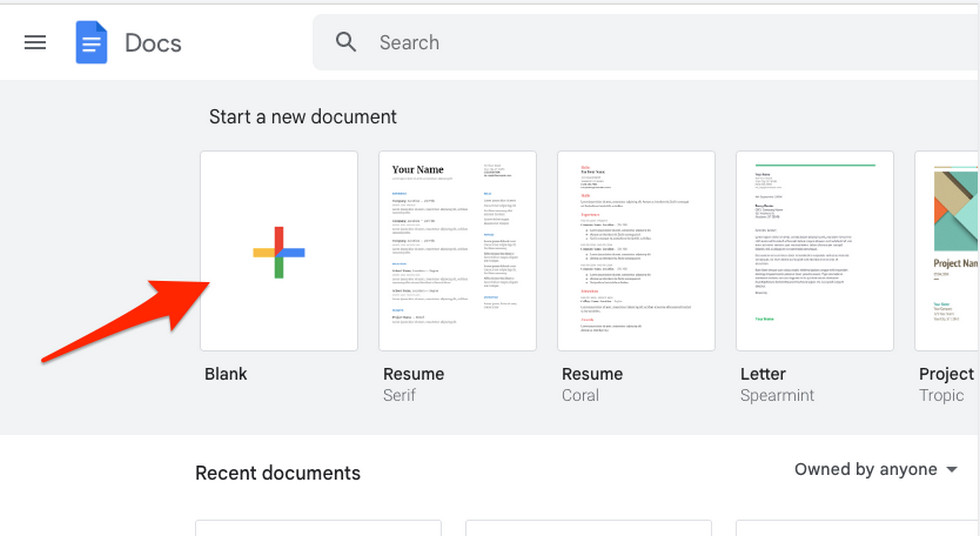
The first step in learning how to make a PDF fillable in Google Docs is getting your content into the editor. You cannot edit a PDF directly in Google Drive's preview mode; you must convert it first.
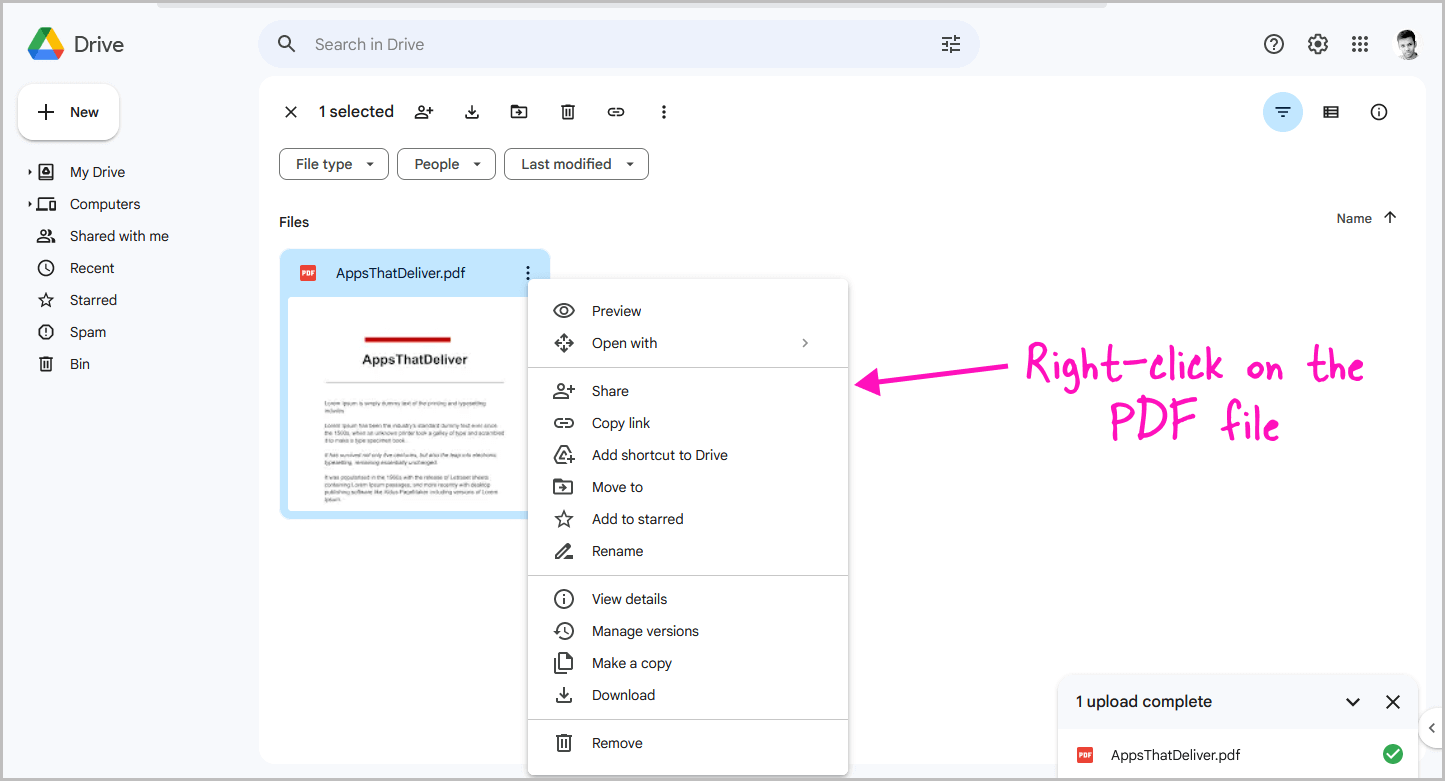
- Upload to Google Drive: Drag and drop your PDF file into your Google Drive folders.
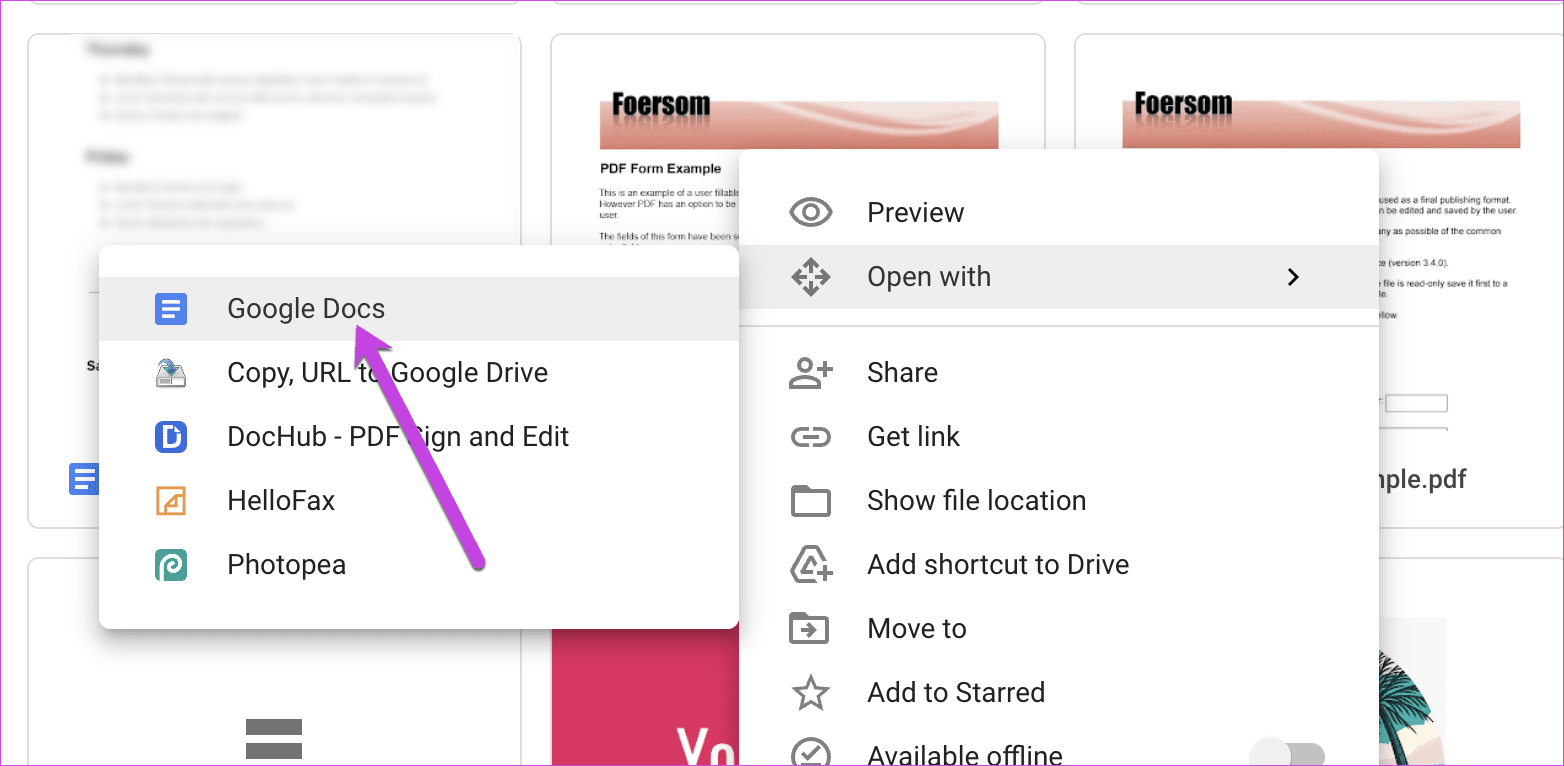
- Open with Google Docs: Right-click on the uploaded PDF file, hover over "Open with," and select "Google Docs."
- Review the Conversion: Google's Optical Character Recognition (OCR) will attempt to convert the images and text into an editable format. Note that complex layouts, background images, or specific fonts may shift during this process.
Once the document is open in Google Docs, you can now delete unwanted text, fix formatting errors, and prepare the document to become a "fillable" template.
Step 2: Designing "Fillable" Fields Using Tables and Underlines
Since Google Docs doesn't support active form fields (like those found in Adobe), we use visual cues to tell the user where to type. The most professional way to do this is by using Tables.
Using Tables for Form Fields
Tables are the secret weapon for creating clean, fillable layouts. Instead of using a series of underscores (which move when you type on them), a table cell provides a fixed box for the user to click into.
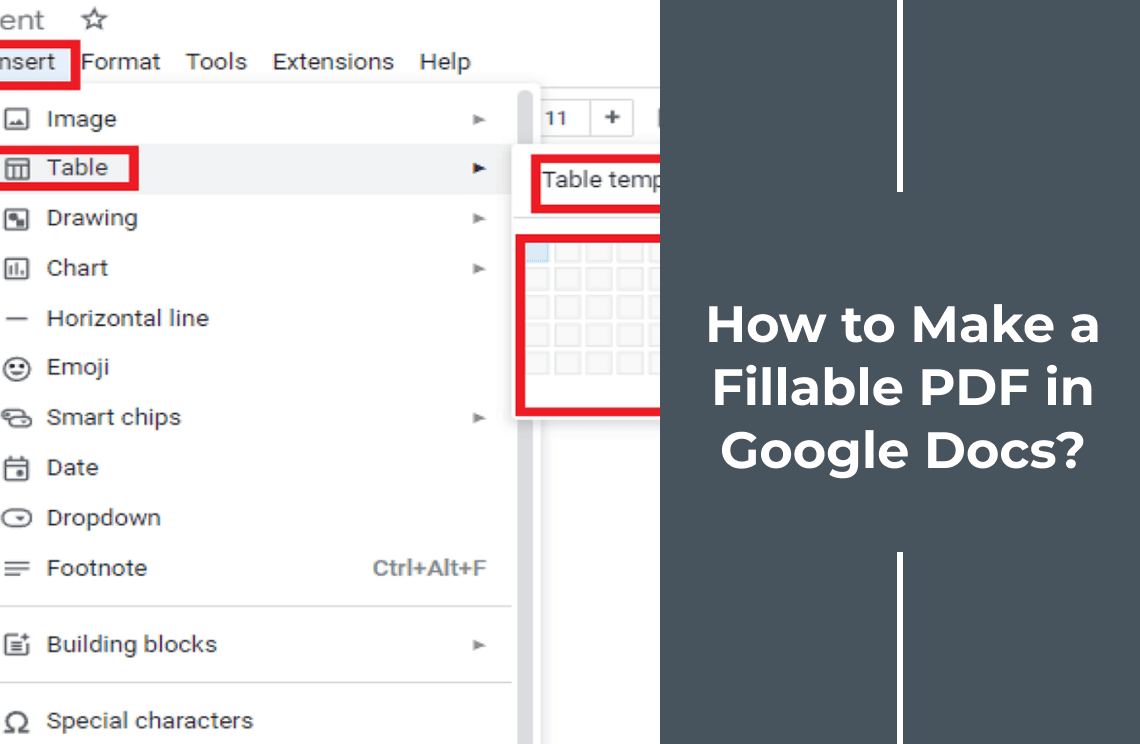
- Go to Insert > Table and select a 1x1 or 2x1 grid.
- In the left cell, type your label (e.g., "Full Name:").
- In the right cell, leave it blank for the user to type in.
- To make it look like a professional form, right-click the table, go to "Table properties," and set the border color to a light gray or hide the borders you don't need.
Using Checkboxes
Google Docs recently updated its checkbox feature. You can now go to Format > Bullets & numbering > Checkbox list. This allows users who have access to the Doc to digitally "check" the boxes. If you export this as a PDF, however, the boxes will become static unless you use a PDF filler tool in the final step.
Comparing Google Docs with Traditional PDF Editors
To help you decide if Google Docs is the right tool for your project, refer to the table below comparing various aspects of document creation.
| Feature/Aspect | Google Docs Description |
|---|---|
| Cost | Free (with a Google Account). |
| Ease of Conversion | High; uses built-in OCR to turn PDFs into text. |
| Interactive Fields | Limited; relies on tables and text placeholders. |
| Collaboration | Excellent; multiple users can edit the form simultaneously. |
| Native Export | Supports "Download as PDF" but won't include interactive "blue boxes." |
Step 3: Making the PDF Truly Interactive (The Final Polish)
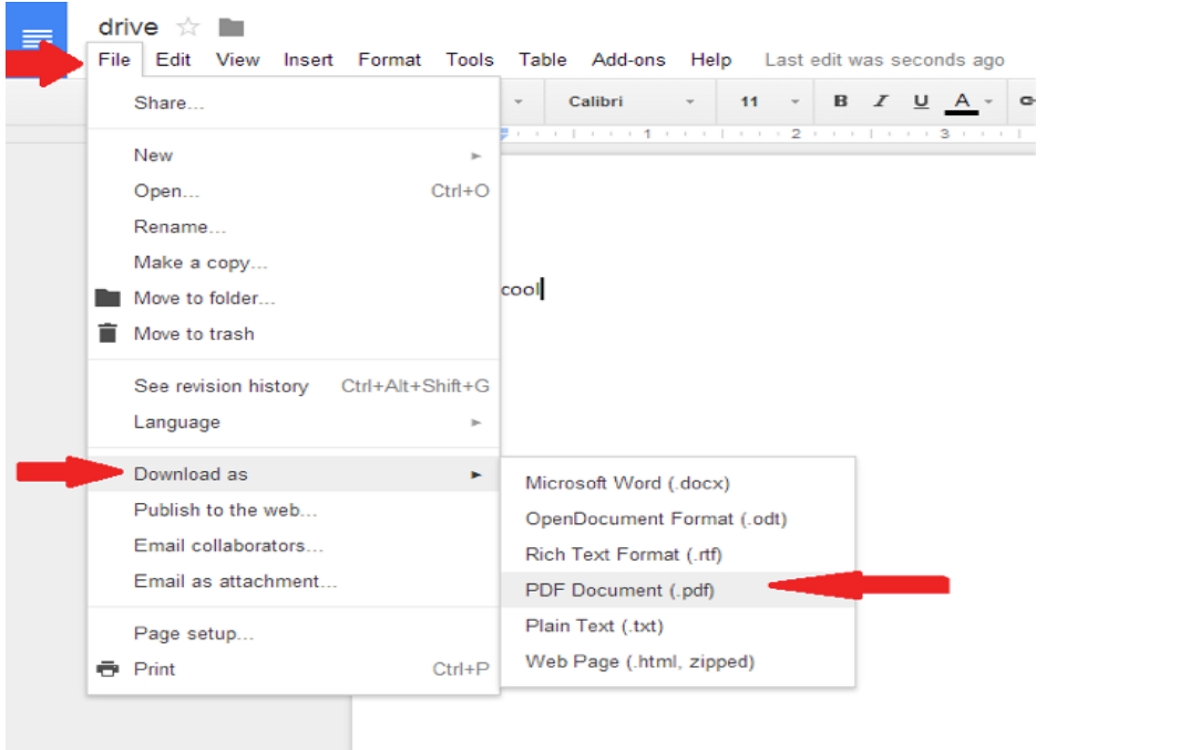
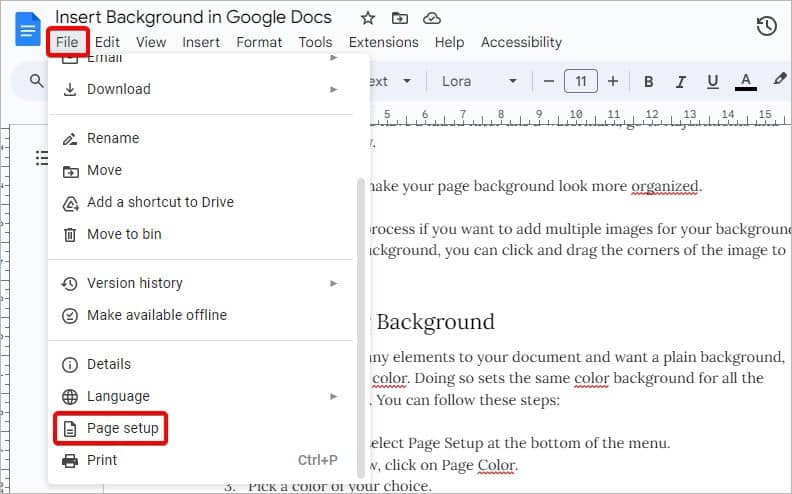
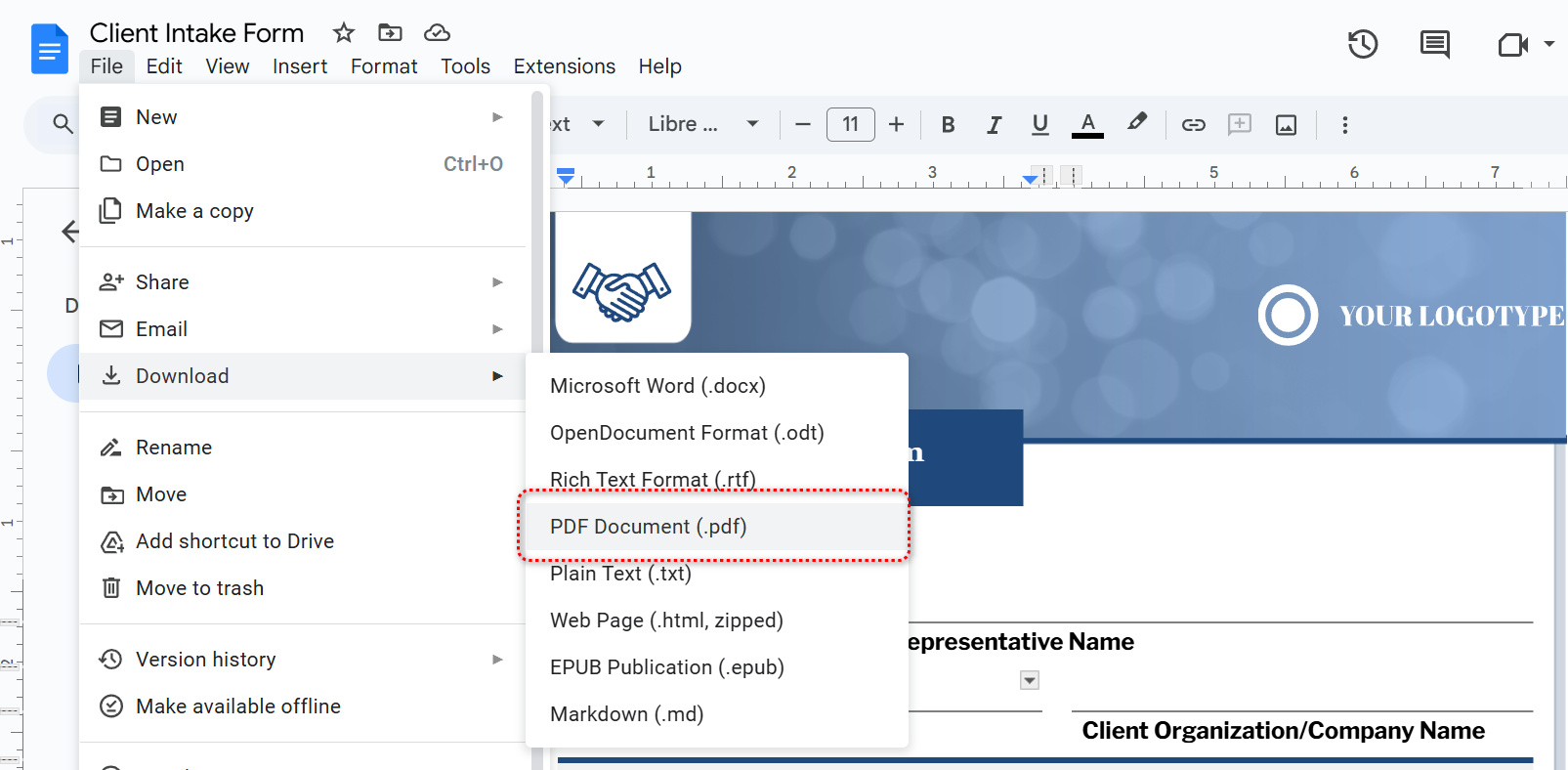
If your goal is to send a PDF where users see highlighted "fillable" boxes, Google Docs is just the middleman. After you have designed your form in Google Docs and downloaded it as a PDF (File > Download > PDF Document), you may want to add true form fields.
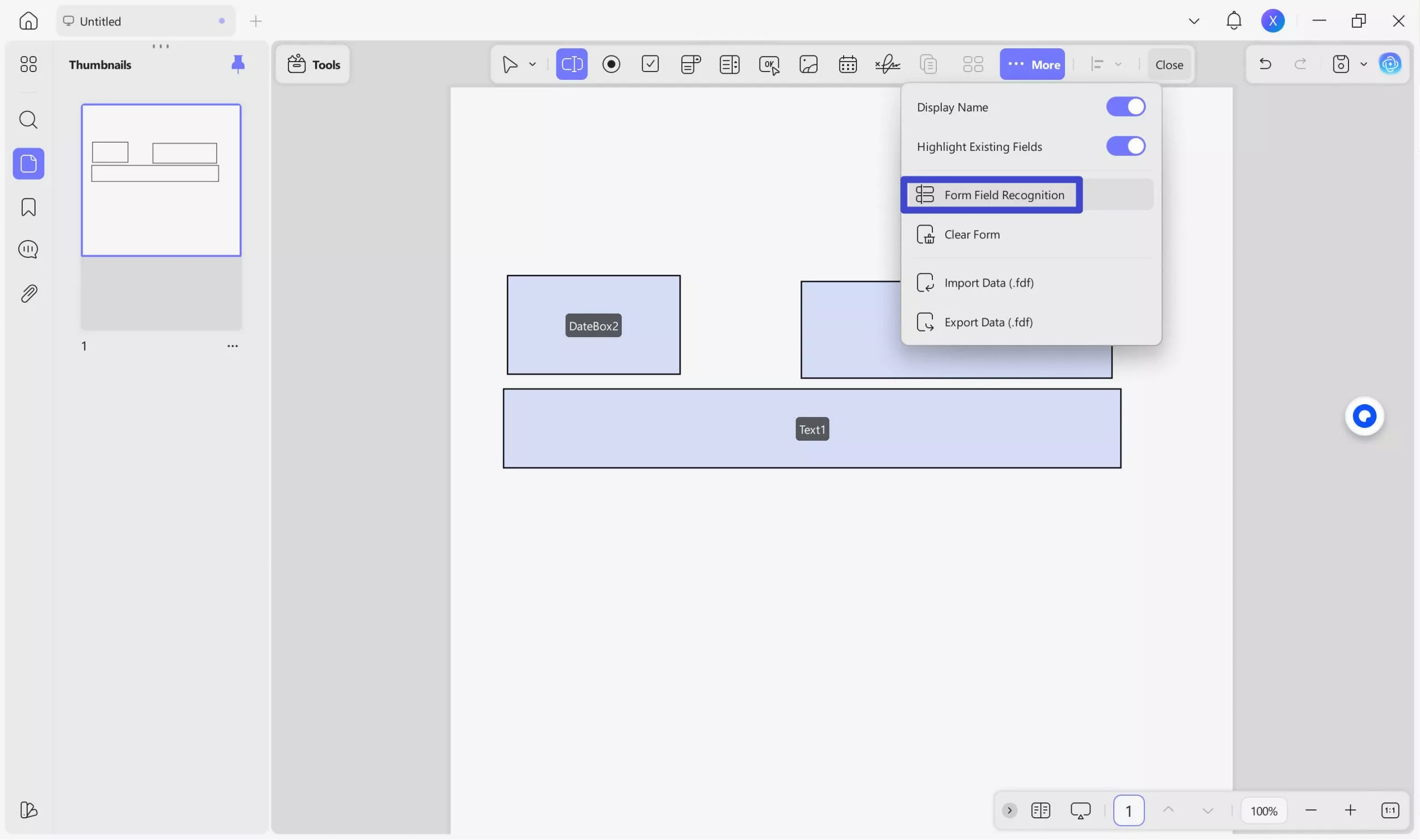
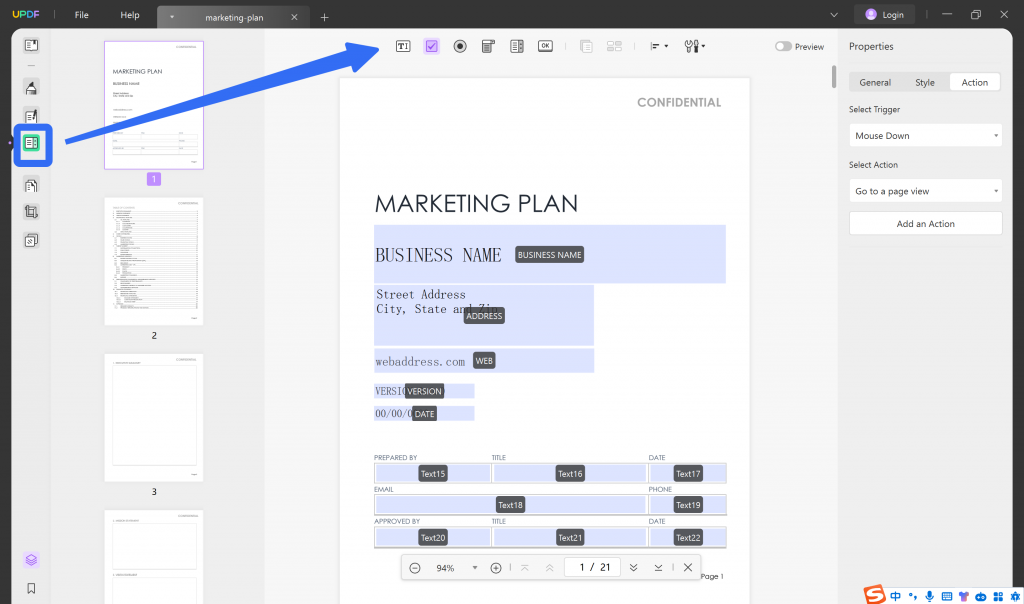
You can use free online tools like DocFly, Sejda, or PDFescape. Simply upload the PDF you created in Google Docs to these platforms. These tools automatically detect the underlines or table cells you created and allow you to drop "Text Field" or "Signature" widgets over them. This creates the professional "blue box" effect that users expect from official forms.
Step 4: Using Add-ons for Enhanced Functionality
To streamline the process of how to make a PDF fillable in Google Docs, you can use Google Workspace Add-ons. Tools like PDFfiller or Lumin PDF can be integrated directly into your Google Drive. These add-ons allow you to open a PDF directly from your drive and add fillable fields without the conversion-to-Doc step, though they often require a subscription for advanced features.
Pro Tip: When to Use Google Forms Instead
If your primary goal is to collect data (rather than having a signed document that looks like a paper form), Google Forms is a much better choice. Google Forms is natively fillable, mobile-friendly, and automatically organizes all responses into a Google Sheet. However, if you specifically need the "look and feel" of a document, stick with the Google Docs to PDF method described above.
Frequently Asked Questions (FAQ)
1. Can I add a digital signature field in Google Docs?
Google Docs does not have a native "Signature" field like DocuSign. However, you can use the "Insert > Drawing > New" feature to let users scribble a signature, or use an add-on like "eSign" to add a formal signature block after exporting to PDF.
2. Why does my PDF layout look messy when I open it in Google Docs?
This happens because Google Docs tries to convert PDF elements into editable text. If the original PDF has multiple columns, complex graphics, or unique fonts, the OCR might fail to replicate the layout perfectly. In such cases, it is better to recreate the layout manually in Google Docs.
3. Is it possible to make the checkboxes clickable in the final PDF?
If you only use the Google Docs checkbox feature, they will appear as static boxes in a PDF. To make them clickable in the final PDF version, you must use a PDF editor (like Sejda or Acrobat) to place a "Checkbox" form widget over the ones you created in Docs.
Conclusion
Learning how to make a PDF fillable in Google Docs is a valuable skill that bridges the gap between static documents and interactive digital tools. While Google Docs requires a few extra steps—such as using tables for alignment and potentially using a third-party tool for final interactivity—it remains one of the most accessible and collaborative ways to build forms without expensive software.
By following the steps outlined in this guide—converting the file, using tables for structure, and utilizing free online PDF editors for the finishing touches—you can create professional, fillable PDFs that are easy for your audience to complete. Start experimenting with these methods today to streamline your documentation and data collection workflows!
How To Make A Pdf Fillable In Google Docs
How To Make A Pdf Fillable In Google Docs Wallpapers
Collection of how to make a pdf fillable in google docs wallpapers for your desktop and mobile devices.
Stunning How To Make A Pdf Fillable In Google Docs View Photography
Find inspiration with this unique how to make a pdf fillable in google docs illustration, crafted to provide a fresh look for your background.
Detailed How To Make A Pdf Fillable In Google Docs Capture Illustration
Discover an amazing how to make a pdf fillable in google docs background image, ideal for personalizing your devices with vibrant colors and intricate designs.
Mesmerizing How To Make A Pdf Fillable In Google Docs Photo Illustration
Transform your screen with this vivid how to make a pdf fillable in google docs artwork, a true masterpiece of digital design.
Lush How To Make A Pdf Fillable In Google Docs Design Art
Immerse yourself in the stunning details of this beautiful how to make a pdf fillable in google docs wallpaper, designed for a captivating visual experience.
Gorgeous How To Make A Pdf Fillable In Google Docs Photo in 4K
Find inspiration with this unique how to make a pdf fillable in google docs illustration, crafted to provide a fresh look for your background.
Lush How To Make A Pdf Fillable In Google Docs Scene Art
This gorgeous how to make a pdf fillable in google docs photo offers a breathtaking view, making it a perfect choice for your next wallpaper.
Artistic How To Make A Pdf Fillable In Google Docs Image Digital Art
Find inspiration with this unique how to make a pdf fillable in google docs illustration, crafted to provide a fresh look for your background.

Lush How To Make A Pdf Fillable In Google Docs Moment for Desktop
Find inspiration with this unique how to make a pdf fillable in google docs illustration, crafted to provide a fresh look for your background.

Dynamic How To Make A Pdf Fillable In Google Docs Moment for Desktop
A captivating how to make a pdf fillable in google docs scene that brings tranquility and beauty to any device.
Vibrant How To Make A Pdf Fillable In Google Docs Wallpaper Digital Art
Discover an amazing how to make a pdf fillable in google docs background image, ideal for personalizing your devices with vibrant colors and intricate designs.

Beautiful How To Make A Pdf Fillable In Google Docs Landscape Illustration
Discover an amazing how to make a pdf fillable in google docs background image, ideal for personalizing your devices with vibrant colors and intricate designs.
Spectacular How To Make A Pdf Fillable In Google Docs Landscape for Your Screen
A captivating how to make a pdf fillable in google docs scene that brings tranquility and beauty to any device.
Dynamic How To Make A Pdf Fillable In Google Docs Scene for Your Screen
Immerse yourself in the stunning details of this beautiful how to make a pdf fillable in google docs wallpaper, designed for a captivating visual experience.
Exquisite How To Make A Pdf Fillable In Google Docs Scene in 4K
Immerse yourself in the stunning details of this beautiful how to make a pdf fillable in google docs wallpaper, designed for a captivating visual experience.

Breathtaking How To Make A Pdf Fillable In Google Docs Image Illustration
Explore this high-quality how to make a pdf fillable in google docs image, perfect for enhancing your desktop or mobile wallpaper.
Dynamic How To Make A Pdf Fillable In Google Docs View Nature
This gorgeous how to make a pdf fillable in google docs photo offers a breathtaking view, making it a perfect choice for your next wallpaper.
Amazing How To Make A Pdf Fillable In Google Docs Landscape Illustration
Experience the crisp clarity of this stunning how to make a pdf fillable in google docs image, available in high resolution for all your screens.
Exquisite How To Make A Pdf Fillable In Google Docs Design Art
A captivating how to make a pdf fillable in google docs scene that brings tranquility and beauty to any device.
Stunning How To Make A Pdf Fillable In Google Docs Landscape Illustration
This gorgeous how to make a pdf fillable in google docs photo offers a breathtaking view, making it a perfect choice for your next wallpaper.

Beautiful How To Make A Pdf Fillable In Google Docs Scene for Desktop
Transform your screen with this vivid how to make a pdf fillable in google docs artwork, a true masterpiece of digital design.
Download these how to make a pdf fillable in google docs wallpapers for free and use them on your desktop or mobile devices.