How To Create Pdf File On Ios
Mastering Mobile Productivity: A Comprehensive Guide on How to Create PDF Files on iOS
In today's digital-first environment, the ability to manage documents on the go is no longer a luxury—it is a necessity. Whether you are a student submitting an assignment, a professional signing a contract, or a creative freelancer sharing a portfolio, the PDF (Portable Document Format) remains the gold standard for document sharing due to its universal compatibility and formatting consistency. If you own an iPhone or an iPad, you already have a powerful document processing engine in your pocket. Learning how to create PDF files on iOS is surprisingly simple, yet many users are unaware of the built-in tools that make third-party apps almost unnecessary.
Apple has deeply integrated PDF creation across its ecosystem. From the "Files" app to "Notes" and even the "Print" menu, iOS offers multiple pathways to convert images, web pages, and text documents into professional-grade PDFs. This guide will walk you through every method available, ensuring you can handle any document task without needing a desktop computer.
1. How to Create PDF Files on iOS Using the "Print" Gesture
One of the most powerful "hidden" features in iOS is the ability to turn almost anything into a PDF via the Print menu. This method works in Safari, Photos, Mail, and any app that supports the standard system sharing sheet.
Converting Web Pages in Safari
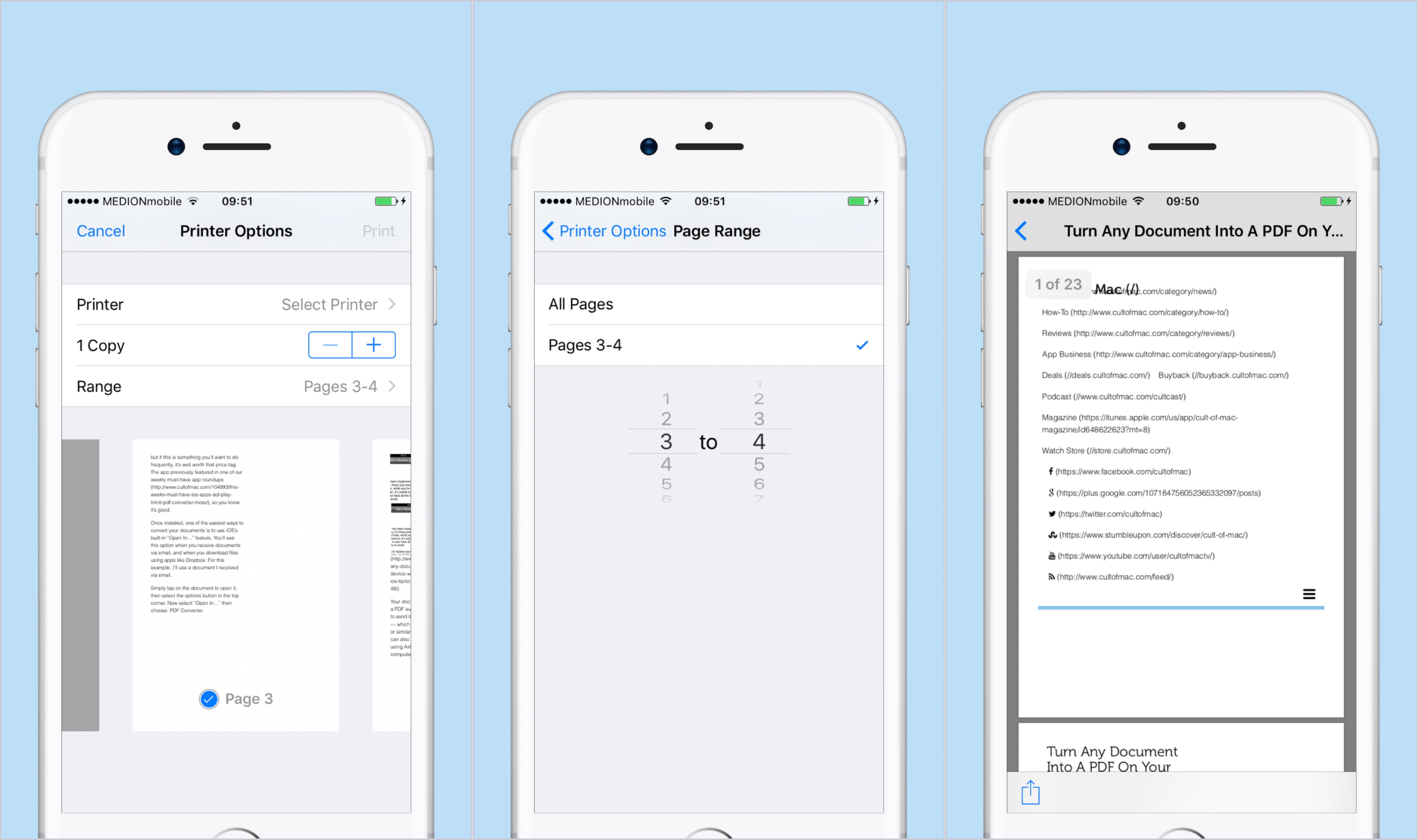
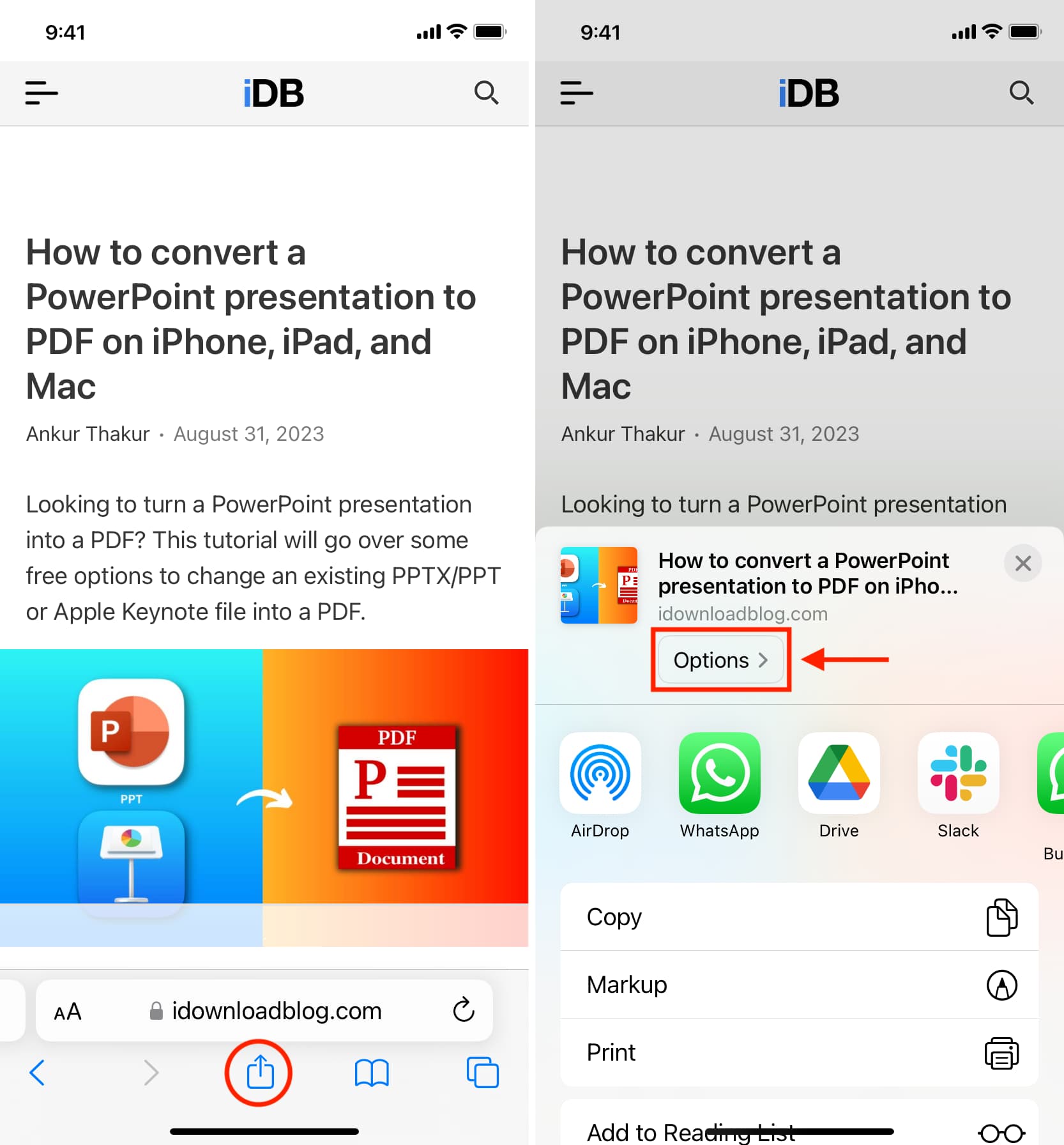
If you find an article or a receipt online that you want to save for offline viewing, Safari makes it easy. Tap the Share button (the square with an arrow pointing up), scroll down, and tap Print. Instead of selecting a printer, use two fingers to "pinch out" or zoom in on the document preview. This action instantly converts the view into a PDF. From there, tap the Share icon again to save the PDF to your Files app or send it via email.
Turning Photos into PDFs
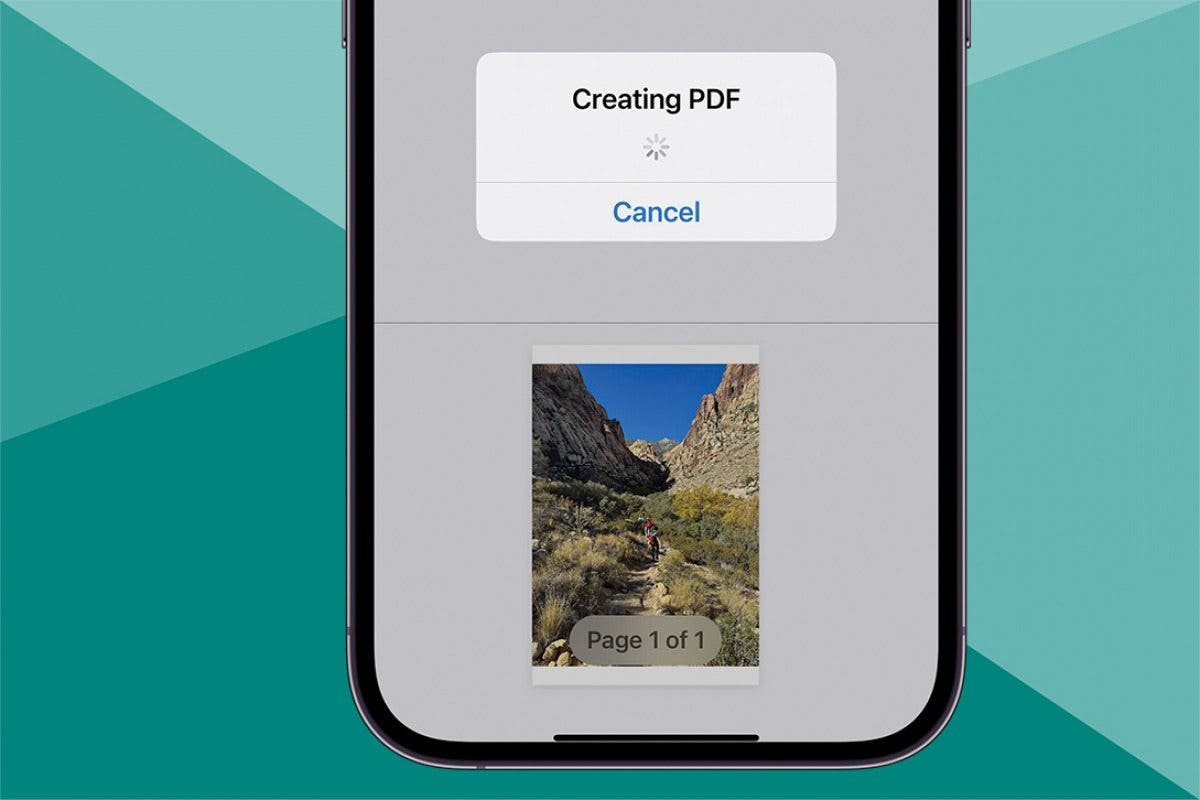
To convert one or multiple images into a single PDF, go to the Photos app. Select the images you want to include, tap the Share button, and choose Print. Just like with the Safari method, zoom in on the preview to generate the PDF. This is particularly useful for consolidating multiple receipts or sketches into a single, shareable document.
2. Using the Files App for Instant PDF Creation
The Files app is the central hub for document management on iOS. Since the introduction of iOS 13, Apple has added robust document editing features directly into this app, making it the most efficient way to manage file conversions.
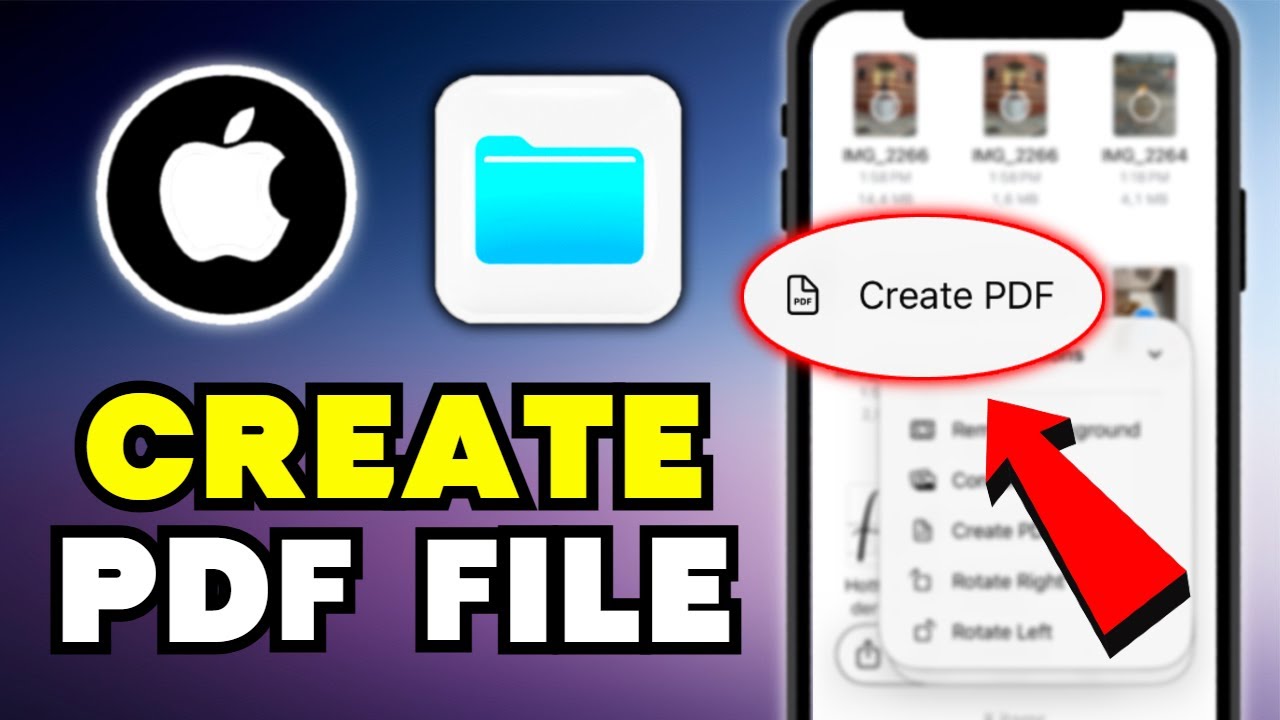
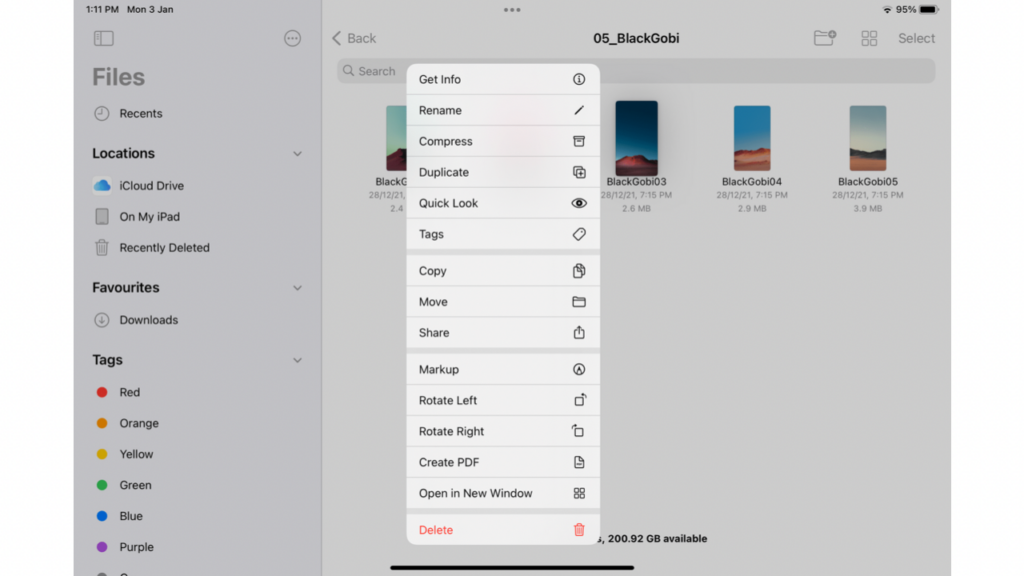
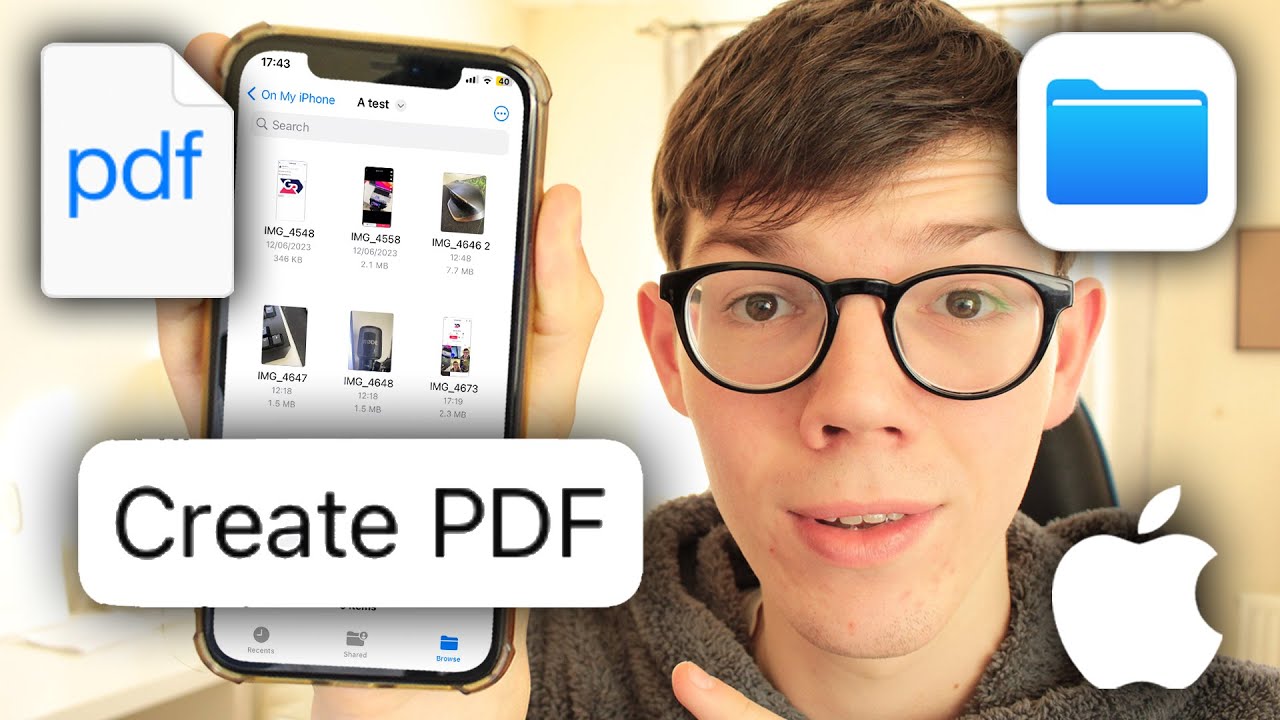
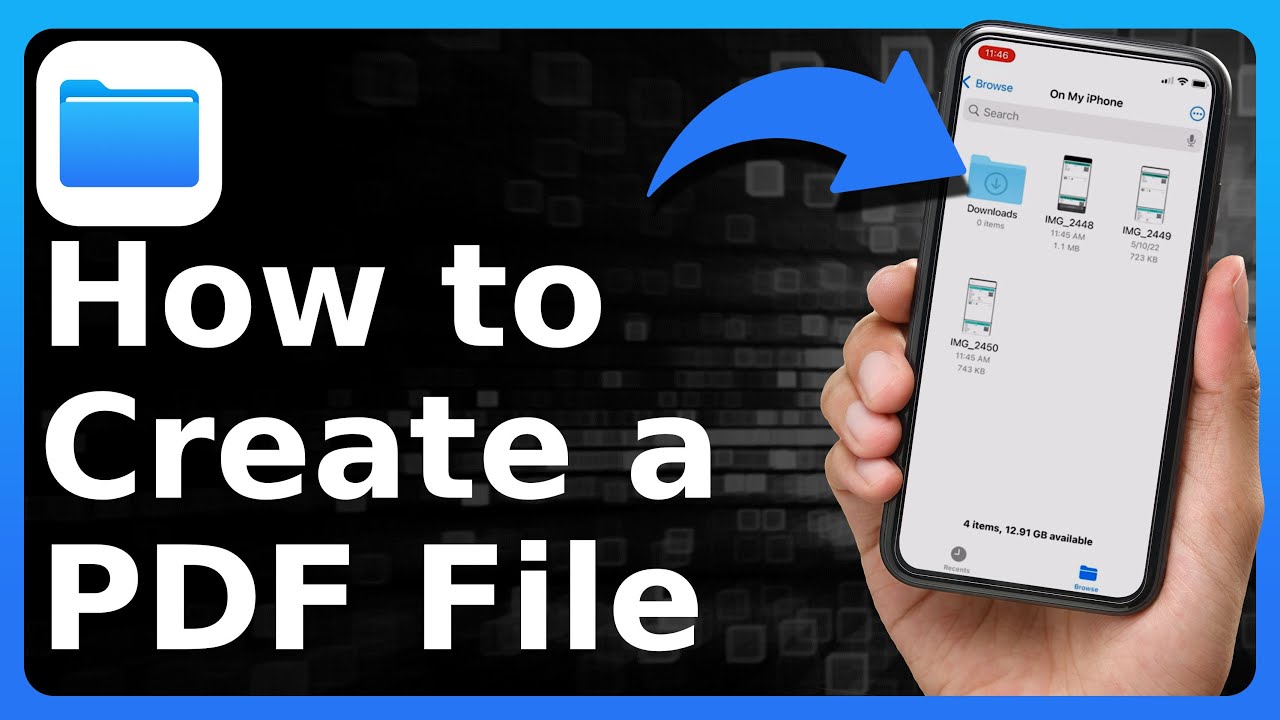
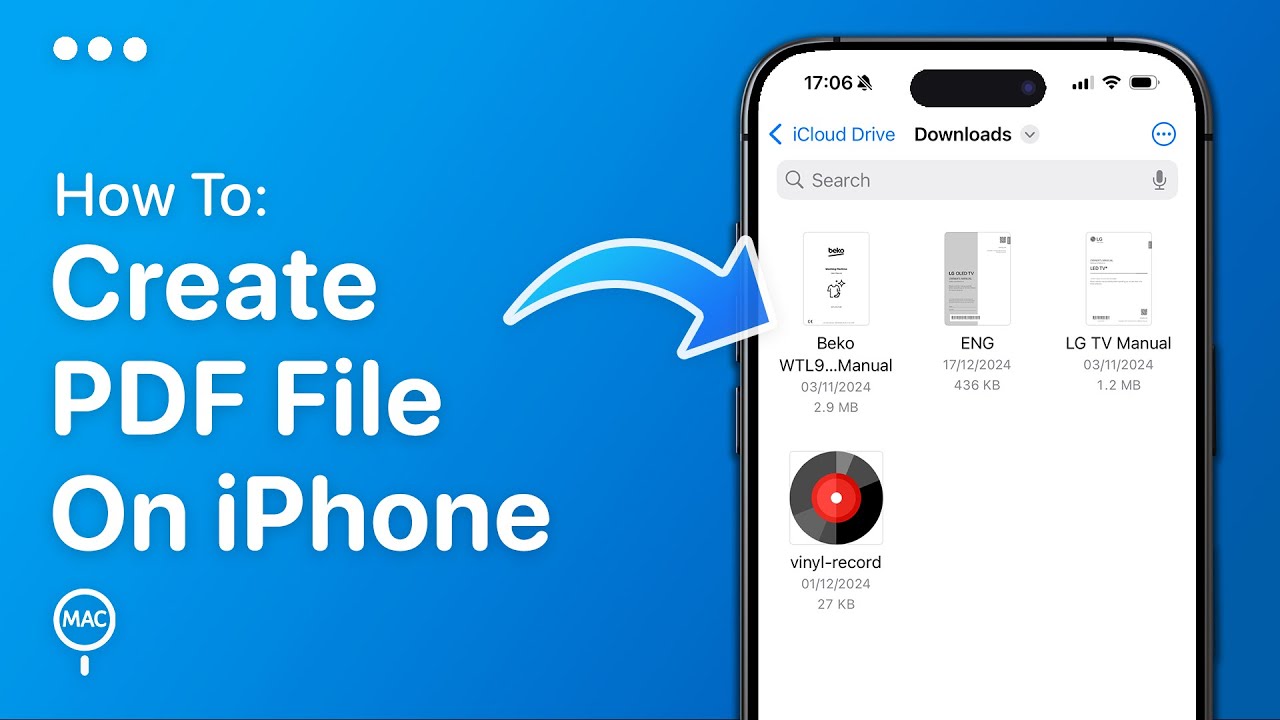
- Single File Conversion: Open the Files app and navigate to the document or image you wish to convert. Long-press on the file to bring up the context menu. Scroll down and select "Create PDF." iOS will instantly generate a PDF version of that file in the same folder.
- Merging Multiple Files: If you have several images or documents that need to be merged into one PDF, tap the three dots (ellipsis) in the top right corner and choose Select. Tap all the files you want to combine. Once selected, tap the three dots in the bottom right corner and select "Create PDF." The system will merge them in the order they were selected.
3. Scanning Physical Documents with the Notes App
If you are wondering how to create PDF files on iOS from a physical piece of paper, the Notes app is your best friend. It includes a high-quality document scanner that automatically detects edges, corrects perspective, and optimizes contrast.
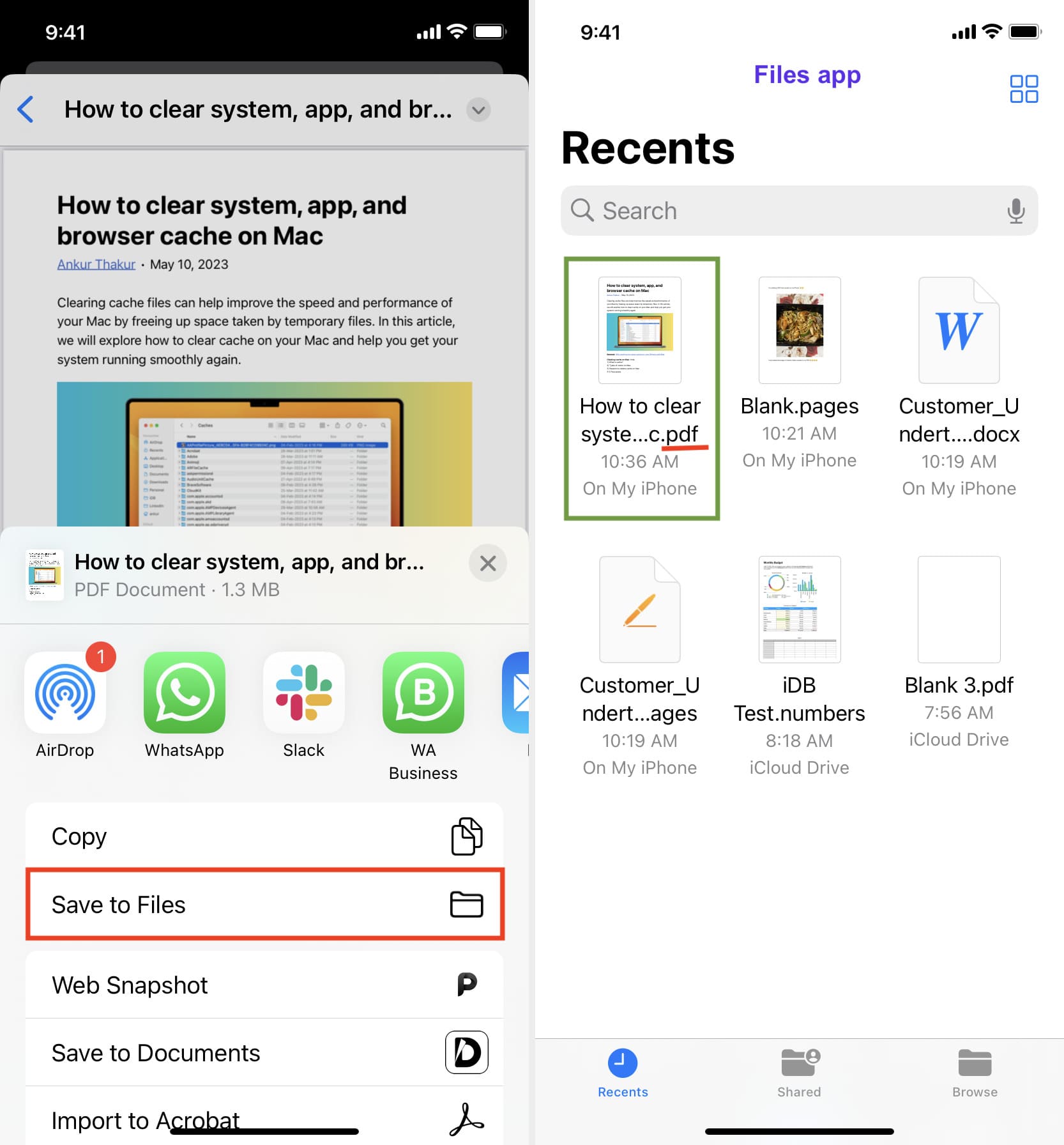
Open a new or existing note, tap the Camera icon, and select Scan Documents. Position your camera over the paper. In "Auto" mode, the iPhone will automatically capture the scan when the document is in focus. Once you have scanned all pages, tap Save. To turn this note into a standalone PDF, tap the Share button at the top of the screen and choose "Save to Files." The resulting file is a professional, searchable PDF document.
Comparison of PDF Creation Methods on iOS
| Method | Best Used For |
|---|---|
| Print Gesture (Pinch-to-Zoom) | Quickly converting web pages, emails, and single photos. |
| Files App Context Menu | Merging multiple images or converting existing local documents. |
| Notes App Scanner | Digitizing physical paperwork, contracts, and receipts. |
| Shortcuts App | Automating repetitive PDF tasks for power users. |
| Books App | Saving long-form web content for offline reading. |
4. Advanced Features: Markup and Annotations
Once you have created your PDF, iOS allows you to edit and sign it without downloading third-party software like Adobe Acrobat. This is handled through the Markup tool.
To access Markup, open your PDF in the Files app and tap the small Pen icon in the top right corner. From here, you can add text boxes, draw with different pen styles, and even add a digital signature. To add a signature, tap the "+" button in the Markup toolbar and select Signature. You can draw your signature with your finger (or Apple Pencil on iPad) and place it anywhere on the document. This feature makes the iPhone an incredible tool for completing business paperwork while traveling.
5. Optimizing Your PDFs for Sharing
When you create PDF files on iOS, the file size can sometimes become quite large, especially if the PDF contains high-resolution photos. To ensure your PDF is email-friendly, consider the following tips:
- Use the "Optimize File Size" Action: Within the Files app, you can use the "Compress" feature by long-pressing a file to create a smaller ZIP version, though for PDFs, using the Shortcuts app to "Make PDF" often offers more compression control.
- Black and White Scans: When using the Notes scanner, you can choose "Grayscale" or "Black & White" filters to significantly reduce the final file size compared to "Photo" mode.
- Naming Conventions: Always rename your files immediately after creation. iOS often gives generic names like "Scan.pdf" or "Image.pdf." Long-press the file and select Rename to give it a descriptive title, which improves searchability later.
Frequently Asked Questions (FAQ)
Q1: Can I password-protect a PDF on iOS?
A: Yes. Open the PDF in the Files app, tap the file name at the top (dropdown), and select "Lock PDF." You can then set a password that will be required to view the document on any device.
Q2: How do I combine two separate PDF files into one?
A: In the Files app, tap "Select," choose the PDFs you want to merge, tap the three dots in the bottom right, and select "Create PDF." A new file containing all pages from both documents will be created.
Q3: Is the document scanner in Notes as good as third-party apps?
A: For most users, yes. Apple’s scanning technology uses advanced computer vision to remove shadows and straighten pages, making it comparable to dedicated apps like CamScanner or Scanbot for standard document needs.
Conclusion
Learning how to create PDF files on iOS transforms your iPhone or iPad from a simple media device into a comprehensive mobile workstation. By leveraging native features like the Files app, the Notes scanner, and the "Print" shortcut, you can handle almost any professional document task with ease. These built-in tools are not only free but also respect your privacy more than many third-party alternatives. Whether you are signing a lease or archiving important research, the power of PDF creation is right at your fingertips. Start experimenting with these methods today to streamline your workflow and master your mobile productivity.
How To Create Pdf File On Ios
How To Create Pdf File On Ios Wallpapers
Collection of how to create pdf file on ios wallpapers for your desktop and mobile devices.
Amazing How To Create Pdf File On Ios Scene for Your Screen
Discover an amazing how to create pdf file on ios background image, ideal for personalizing your devices with vibrant colors and intricate designs.
High-Quality How To Create Pdf File On Ios Photo in 4K
Experience the crisp clarity of this stunning how to create pdf file on ios image, available in high resolution for all your screens.

Mesmerizing How To Create Pdf File On Ios Scene Photography
Experience the crisp clarity of this stunning how to create pdf file on ios image, available in high resolution for all your screens.

Dynamic How To Create Pdf File On Ios Moment Illustration
Find inspiration with this unique how to create pdf file on ios illustration, crafted to provide a fresh look for your background.

Amazing How To Create Pdf File On Ios Moment for Mobile
Experience the crisp clarity of this stunning how to create pdf file on ios image, available in high resolution for all your screens.
Amazing How To Create Pdf File On Ios Moment Concept
Discover an amazing how to create pdf file on ios background image, ideal for personalizing your devices with vibrant colors and intricate designs.
Vivid How To Create Pdf File On Ios Moment in HD
Experience the crisp clarity of this stunning how to create pdf file on ios image, available in high resolution for all your screens.
Spectacular How To Create Pdf File On Ios Abstract in HD
A captivating how to create pdf file on ios scene that brings tranquility and beauty to any device.

Artistic How To Create Pdf File On Ios Artwork for Desktop
A captivating how to create pdf file on ios scene that brings tranquility and beauty to any device.
Vibrant How To Create Pdf File On Ios Picture Illustration
Explore this high-quality how to create pdf file on ios image, perfect for enhancing your desktop or mobile wallpaper.

Serene How To Create Pdf File On Ios Scene Art
Discover an amazing how to create pdf file on ios background image, ideal for personalizing your devices with vibrant colors and intricate designs.

Amazing How To Create Pdf File On Ios Landscape in HD
Explore this high-quality how to create pdf file on ios image, perfect for enhancing your desktop or mobile wallpaper.

Detailed How To Create Pdf File On Ios Landscape Art
Transform your screen with this vivid how to create pdf file on ios artwork, a true masterpiece of digital design.

Detailed How To Create Pdf File On Ios Design Concept
Transform your screen with this vivid how to create pdf file on ios artwork, a true masterpiece of digital design.
Vivid How To Create Pdf File On Ios Artwork Collection
Transform your screen with this vivid how to create pdf file on ios artwork, a true masterpiece of digital design.
Serene How To Create Pdf File On Ios Wallpaper for Desktop
Discover an amazing how to create pdf file on ios background image, ideal for personalizing your devices with vibrant colors and intricate designs.
Stunning How To Create Pdf File On Ios Photo in 4K
A captivating how to create pdf file on ios scene that brings tranquility and beauty to any device.
Breathtaking How To Create Pdf File On Ios Artwork Concept
Experience the crisp clarity of this stunning how to create pdf file on ios image, available in high resolution for all your screens.

Artistic How To Create Pdf File On Ios Photo in 4K
Find inspiration with this unique how to create pdf file on ios illustration, crafted to provide a fresh look for your background.

Spectacular How To Create Pdf File On Ios Photo in 4K
This gorgeous how to create pdf file on ios photo offers a breathtaking view, making it a perfect choice for your next wallpaper.
Download these how to create pdf file on ios wallpapers for free and use them on your desktop or mobile devices.