How To Make A Pdf A Fillable Form In Bluebeam
How to Make a PDF a Fillable Form in Bluebeam: The Ultimate Professional Guide
In the modern world of Architecture, Engineering, and Construction (AEC), the transition from physical paperwork to digital documentation is not just a trend—it is a necessity for efficiency. Bluebeam Revu has established itself as the industry standard for document management, but many users only scratch the surface of its capabilities. One of the most powerful features available is the ability to transform static PDF documents into interactive, fillable forms. Whether you are creating an RFI (Request for Information), a safety checklist, or a project bid, knowing how to make a PDF a fillable form in Bluebeam can save your team hours of manual data entry and reduce the risk of legibility errors.
Understanding Bluebeam’s Form Creation Capabilities
Before diving into the technical steps, it is important to understand that form creation in Bluebeam is primarily handled through the Forms panel. While Bluebeam Revu Standard offers basic markup capabilities, the more advanced automated form features are typically found in the eXtreme edition (or the Complete tier in the newer Bluebeam subscription model).
Fillable forms allow users to input data into specific fields without altering the underlying content of the document. These fields can range from simple text boxes to complex dropdown menus and digital signature blocks. By utilizing these tools, you ensure that the data collected is standardized, professional, and easy to export for further analysis.
Method 1: Using the Auto-Create Tool (The Fastest Way)
For those looking for the most efficient workflow, Bluebeam offers an "Auto-Create" feature. This tool uses sophisticated OCR (Optical Character Recognition) and layout analysis to identify lines and boxes that look like form fields and automatically populates them with interactive elements.
Step-by-Step for Auto-Create:
- Open your PDF: Launch Bluebeam Revu and open the document you wish to convert.
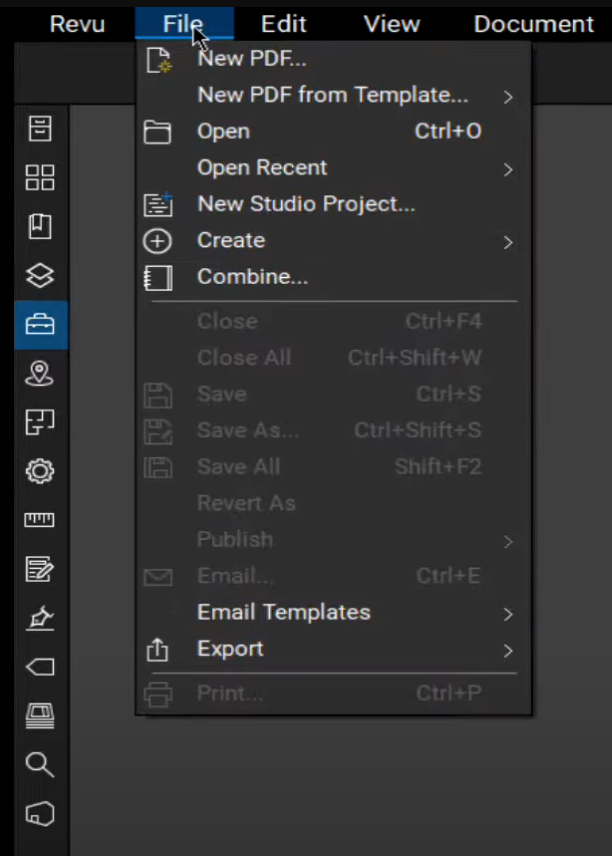
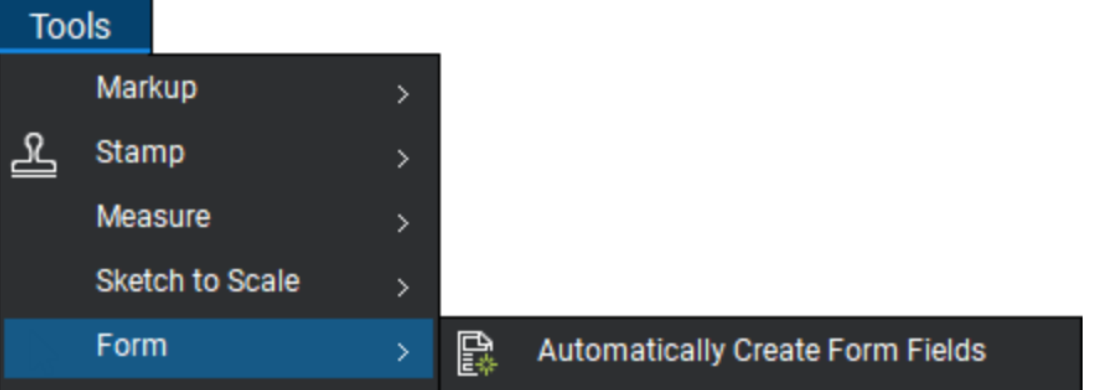
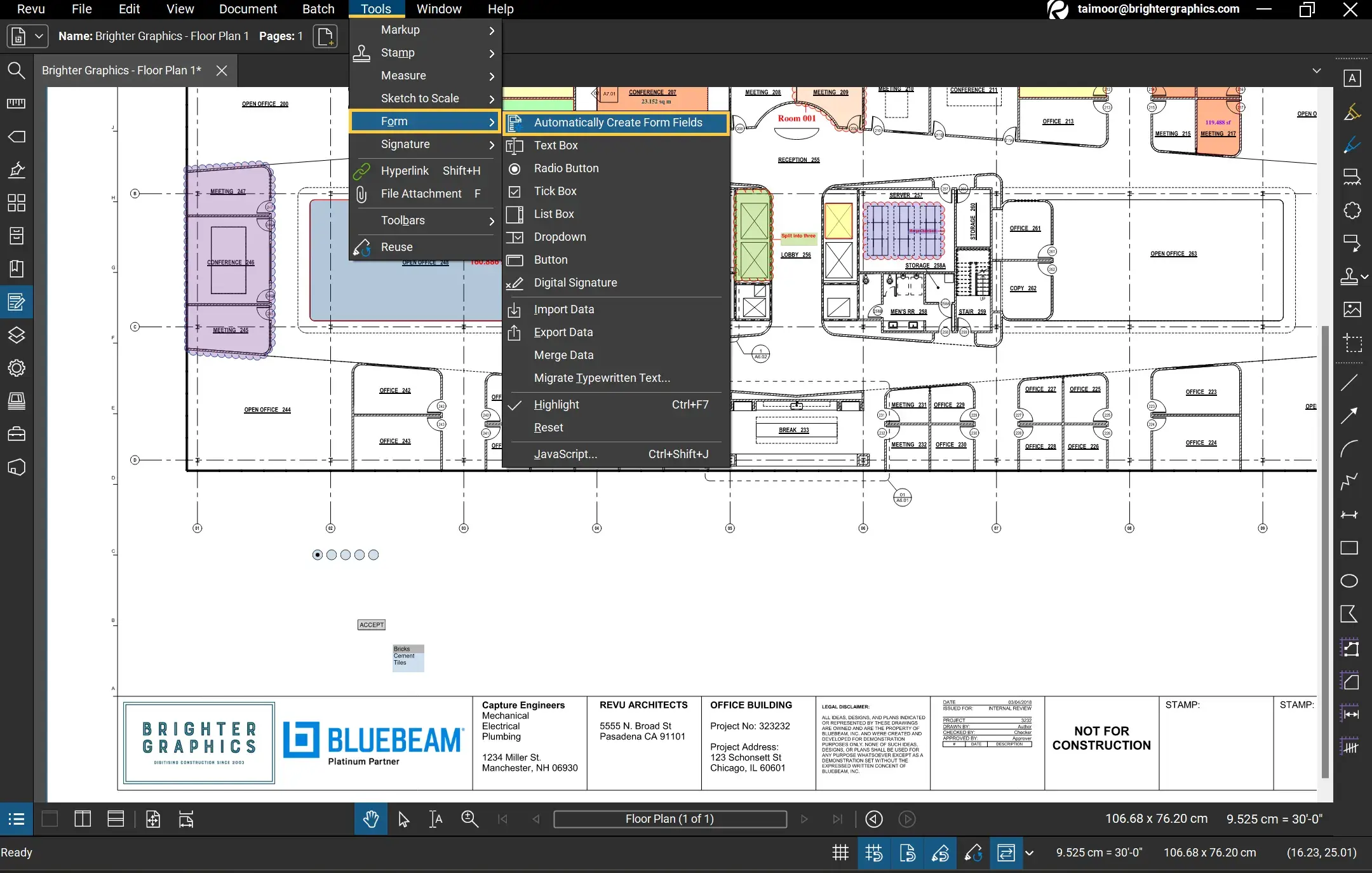
- Access the Forms Menu: Go to the Form tab on the top menu bar.
- Select Auto-Create: Click on the Auto-Create button. Bluebeam will process the document.
- Review the Fields: Once the process is finished, Bluebeam will have placed text boxes, checkboxes, and radio buttons where it detected form-like structures.
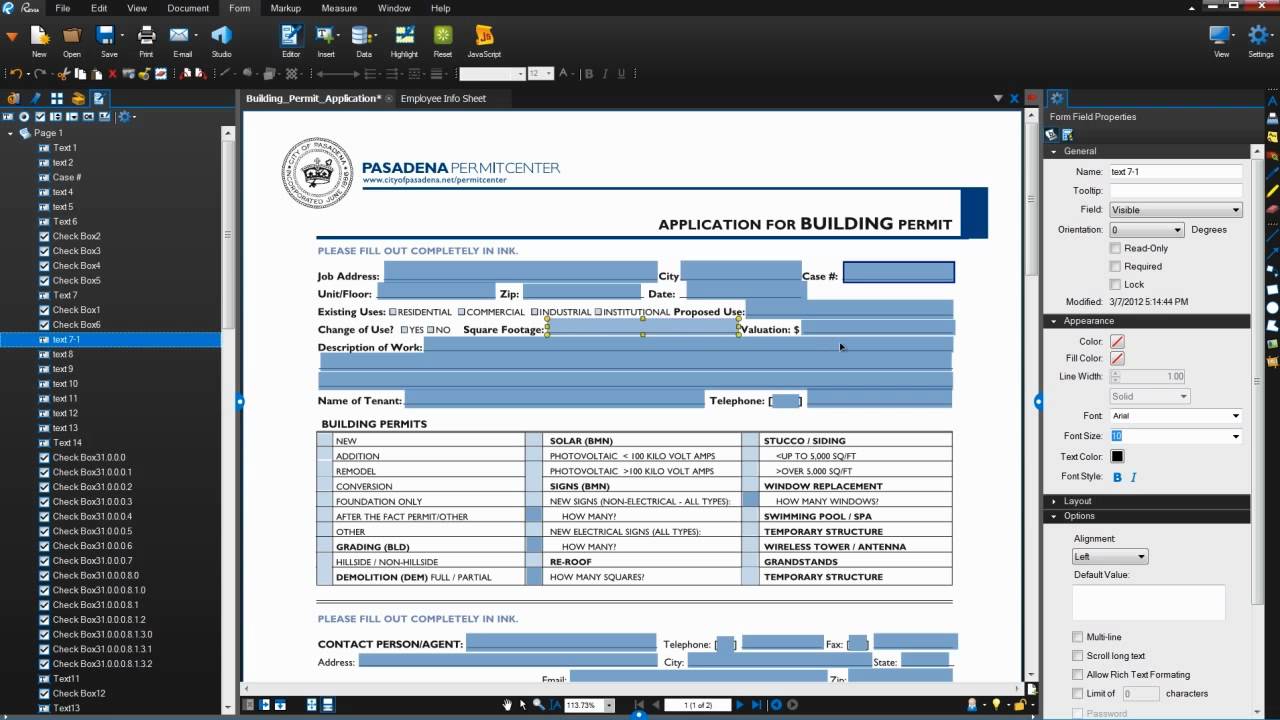
- Rename and Refine: It is crucial to open the Forms Panel (usually on the right or left sidebar) to rename your fields. Instead of "Text1", rename it to "Client Name" to make data management easier later on.
Method 2: Manually Creating Form Fields for Custom Control
Sometimes the Auto-Create tool might miss subtle nuances, or you may be building a form from a blank page. In these instances, manual creation provides the highest level of precision. This method allows you to define the exact behavior of every field.
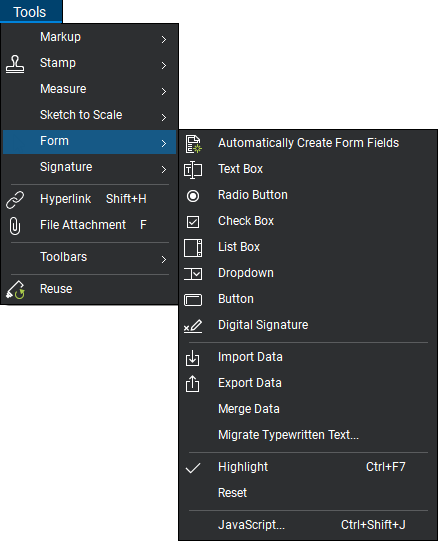
Common Form Field Types:
- Text Box: Used for names, dates, or general notes.
- Checkboxes: Ideal for "Yes/No" options or selecting multiple items from a list.
- Radio Buttons: Used when a user must select only one option from a group.
- Dropdowns: Perfect for long lists of items where you want to save space on the page.
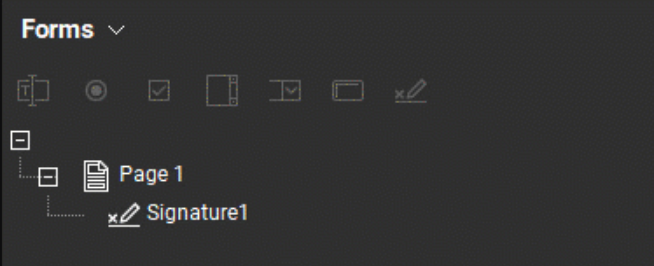
- Digital Signatures: Essential for legally binding approvals and document authentication.
How to Add Fields Manually:
- Navigate to the Form menu.
- Select the type of field you want to insert (e.g., Text Box).
- Click and drag on the document to draw the field to your desired size.
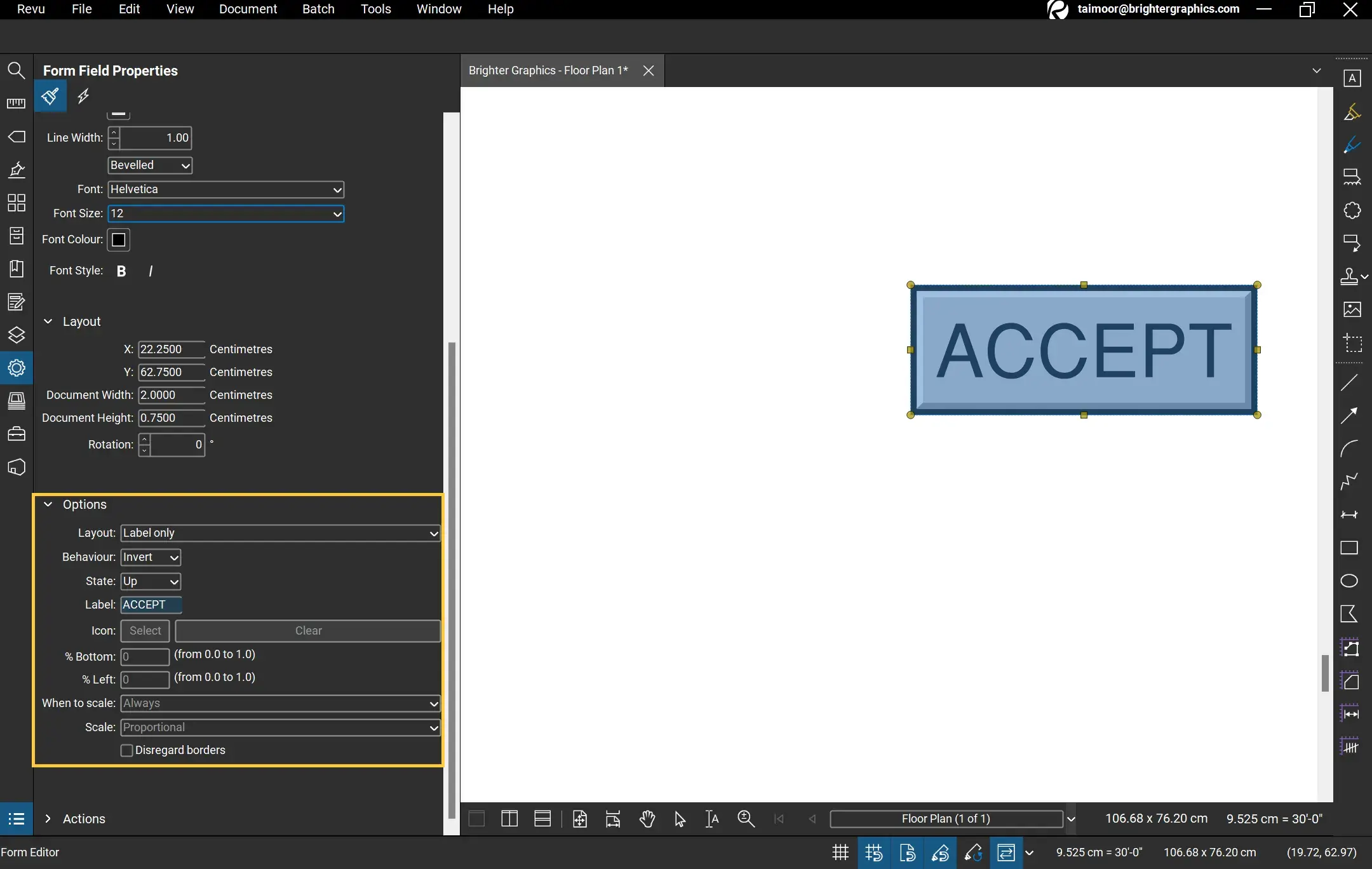
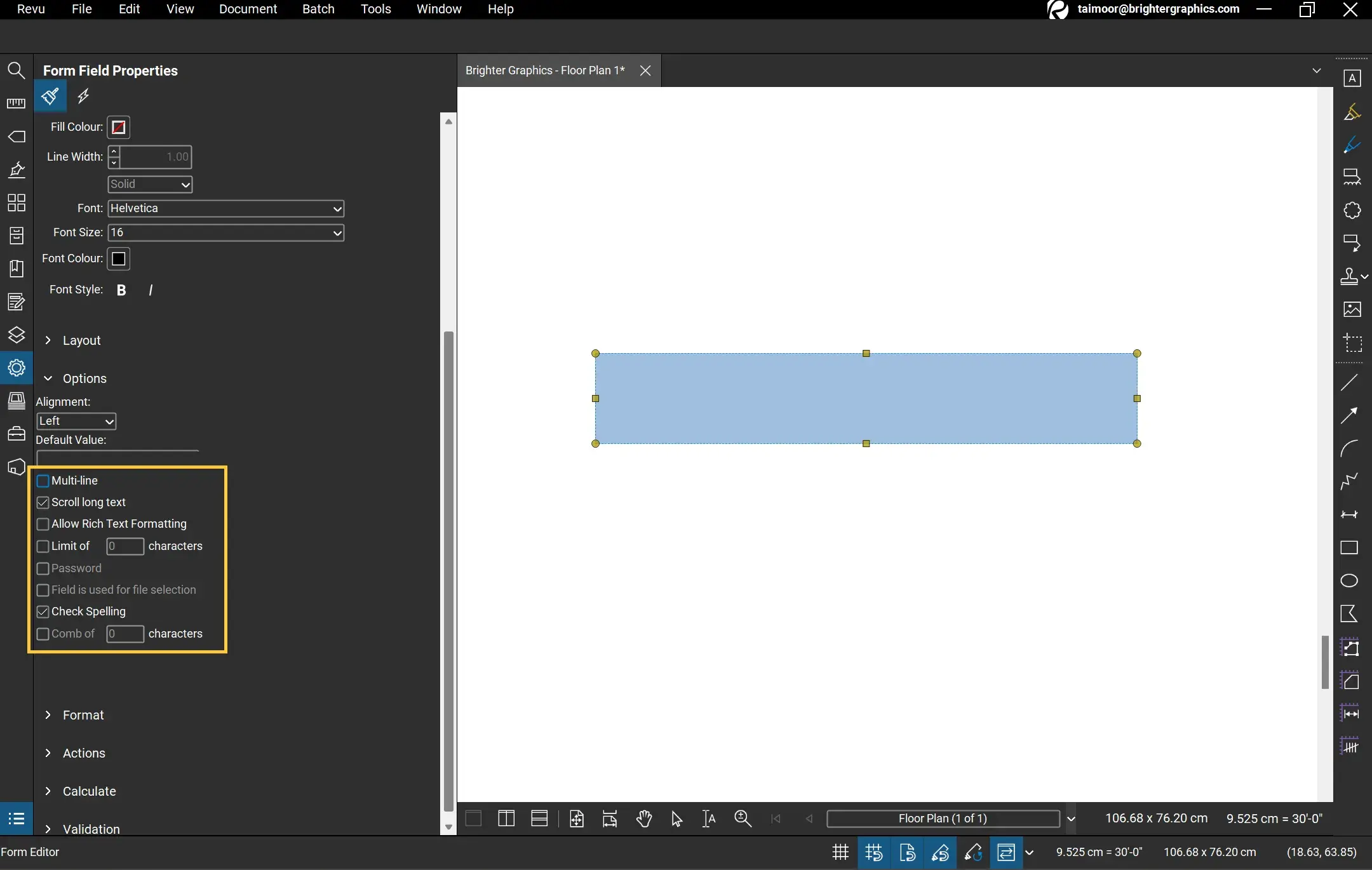
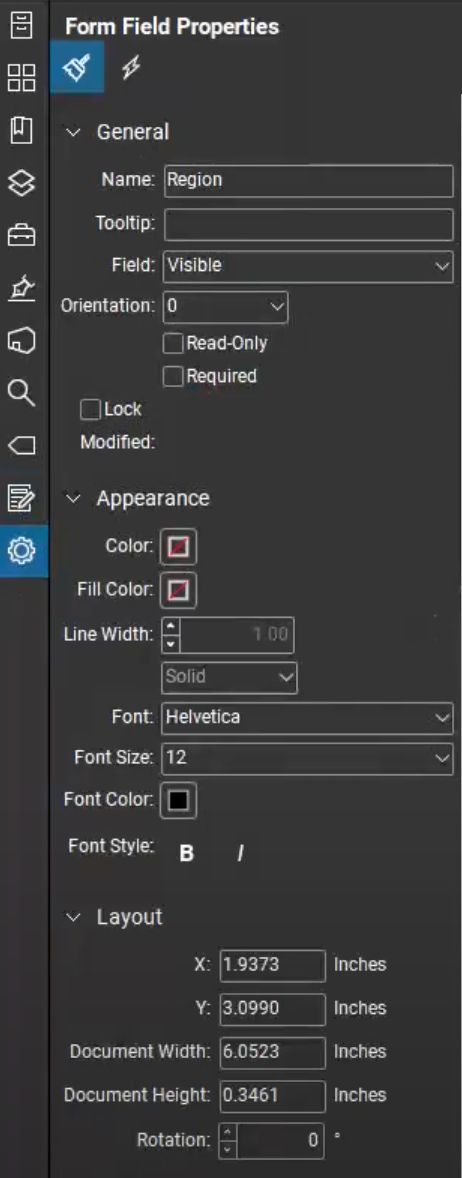
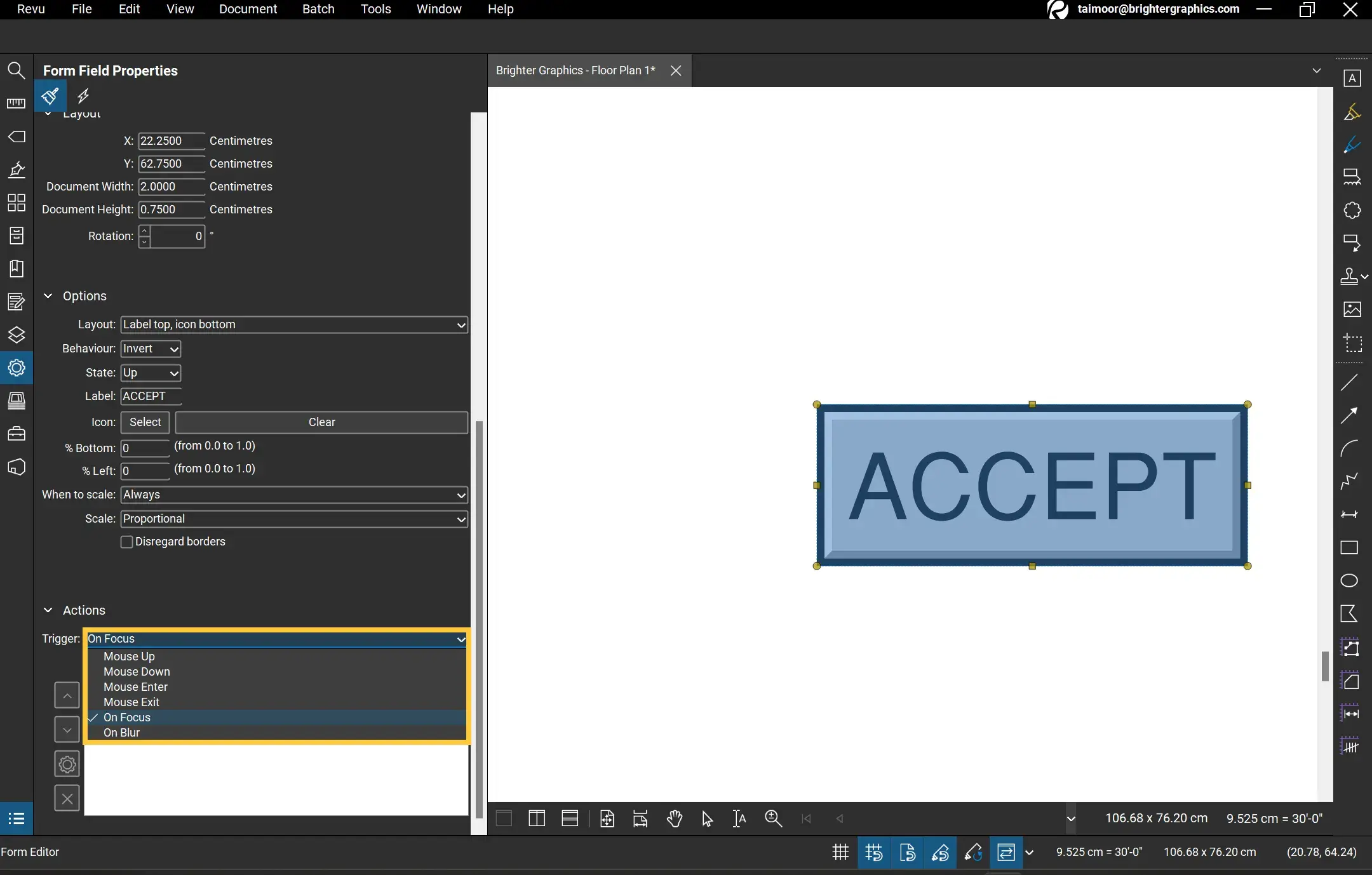
- Right-click the field and select Properties to customize the appearance, font size, and data format (such as setting a field to only accept numbers or dates).
| Feature/Aspect | Description |
|---|---|
| Auto-Create | Automatically detects and generates form fields from existing lines/text. |
| Field Properties | Allows customization of fonts, colors, required status, and data validation. |
| Calculation Fields | Enables the form to perform mathematical operations (Sum, Product, Average). |
| Form Flattening | The process of making form data permanent so it cannot be edited further. |
Advanced Form Techniques: Calculations and Logic
One of the most underutilized aspects of Bluebeam forms is the ability to include basic logic and mathematical calculations. If you are creating an invoice or an expense report, Bluebeam can automatically calculate totals, taxes, and subtotals.
To set up a calculation, go to the Properties of a text box, navigate to the Calculate tab, and select the fields you wish to include in the operation. This eliminates human error and ensures that your financial or technical data is always accurate. Additionally, you can set "Required" fields to ensure that a user cannot submit or sign a document until all critical information has been entered.
Finalizing and Distributing Your Fillable PDF
Once your form is designed, you must prepare it for the end-user. If the user is viewing the PDF in a standard reader like Adobe Acrobat or a web browser, they will be able to see the blue highlights indicating fillable areas. To ensure your form looks professional, use the Alignment tools in Bluebeam to make sure all boxes are perfectly lined up and uniform in size.
Pro Tip: Before sending the document out, use the "Preview" mode to test the tab order. The tab order determines which field the cursor moves to when the user presses the 'Tab' key. You can easily reorder these in the Forms Panel by dragging and dropping the field names into the correct sequence.
Frequently Asked Questions (FAQ)
1. Do I need Bluebeam eXtreme to create fillable forms?
While basic manual form creation is available in several versions, the Auto-Create feature and advanced scripting are exclusive to the eXtreme edition or the Complete subscription plan. If you do a lot of form work, the upgrade is highly recommended.
2. Can someone without Bluebeam fill out the form I created?
Yes. Once you save the PDF, the form fields are embedded into the file standard. Anyone using Adobe Acrobat Reader, specialized PDF software, or even a modern web browser (Chrome, Edge, Safari) can fill out the fields and save their responses.
3. How do I lock a form after it has been filled out?
To prevent further changes, you can Flatten the document. Go to Document > Flatten. You can choose to flatten "Form Fields," which turns the inputted text into permanent page content that can no longer be edited.
4. Why isn't my Auto-Create button working?
Auto-Create requires a document with recognizable text and layout. If your PDF is a scanned image (flattened pixels), you must first run OCR (Optical Character Recognition) to make the text selectable before the form tools can identify where fields should go.
Conclusion
Learning how to make a PDF a fillable form in Bluebeam is a transformative skill for any professional dealing with high volumes of documentation. By moving away from handwritten notes and static files, you improve data accuracy, enhance professionalism, and streamline your project workflows. Whether you leverage the speed of the Auto-Create tool or the precision of manual field placement, Bluebeam Revu provides all the tools necessary to create high-quality, interactive documents. Start converting your standard templates today and experience a more organized, digital-first approach to your project management.
how to make a pdf a fillable form in bluebeam
how to make a pdf a fillable form in bluebeam Wallpapers
Collection of how to make a pdf a fillable form in bluebeam wallpapers for your desktop and mobile devices.
High-Quality How To Make A Pdf A Fillable Form In Bluebeam Abstract Concept
Explore this high-quality how to make a pdf a fillable form in bluebeam image, perfect for enhancing your desktop or mobile wallpaper.
Spectacular How To Make A Pdf A Fillable Form In Bluebeam Picture Illustration
Find inspiration with this unique how to make a pdf a fillable form in bluebeam illustration, crafted to provide a fresh look for your background.
Captivating How To Make A Pdf A Fillable Form In Bluebeam Background for Mobile
This gorgeous how to make a pdf a fillable form in bluebeam photo offers a breathtaking view, making it a perfect choice for your next wallpaper.
Vivid How To Make A Pdf A Fillable Form In Bluebeam Background Collection
Explore this high-quality how to make a pdf a fillable form in bluebeam image, perfect for enhancing your desktop or mobile wallpaper.
Stunning How To Make A Pdf A Fillable Form In Bluebeam Artwork in HD
Immerse yourself in the stunning details of this beautiful how to make a pdf a fillable form in bluebeam wallpaper, designed for a captivating visual experience.
Beautiful How To Make A Pdf A Fillable Form In Bluebeam Photo Art
Explore this high-quality how to make a pdf a fillable form in bluebeam image, perfect for enhancing your desktop or mobile wallpaper.
Amazing How To Make A Pdf A Fillable Form In Bluebeam Artwork Nature
Experience the crisp clarity of this stunning how to make a pdf a fillable form in bluebeam image, available in high resolution for all your screens.
Detailed How To Make A Pdf A Fillable Form In Bluebeam Landscape Digital Art
Experience the crisp clarity of this stunning how to make a pdf a fillable form in bluebeam image, available in high resolution for all your screens.
Lush How To Make A Pdf A Fillable Form In Bluebeam Scene for Desktop
This gorgeous how to make a pdf a fillable form in bluebeam photo offers a breathtaking view, making it a perfect choice for your next wallpaper.

Vibrant How To Make A Pdf A Fillable Form In Bluebeam Scene Digital Art
Discover an amazing how to make a pdf a fillable form in bluebeam background image, ideal for personalizing your devices with vibrant colors and intricate designs.

Gorgeous How To Make A Pdf A Fillable Form In Bluebeam Design for Your Screen
A captivating how to make a pdf a fillable form in bluebeam scene that brings tranquility and beauty to any device.

Mesmerizing How To Make A Pdf A Fillable Form In Bluebeam Abstract Photography
Experience the crisp clarity of this stunning how to make a pdf a fillable form in bluebeam image, available in high resolution for all your screens.
Mesmerizing How To Make A Pdf A Fillable Form In Bluebeam Artwork for Your Screen
Explore this high-quality how to make a pdf a fillable form in bluebeam image, perfect for enhancing your desktop or mobile wallpaper.
Crisp How To Make A Pdf A Fillable Form In Bluebeam Capture for Desktop
Immerse yourself in the stunning details of this beautiful how to make a pdf a fillable form in bluebeam wallpaper, designed for a captivating visual experience.
Captivating How To Make A Pdf A Fillable Form In Bluebeam Landscape Digital Art
A captivating how to make a pdf a fillable form in bluebeam scene that brings tranquility and beauty to any device.

Crisp How To Make A Pdf A Fillable Form In Bluebeam Wallpaper Concept
Immerse yourself in the stunning details of this beautiful how to make a pdf a fillable form in bluebeam wallpaper, designed for a captivating visual experience.
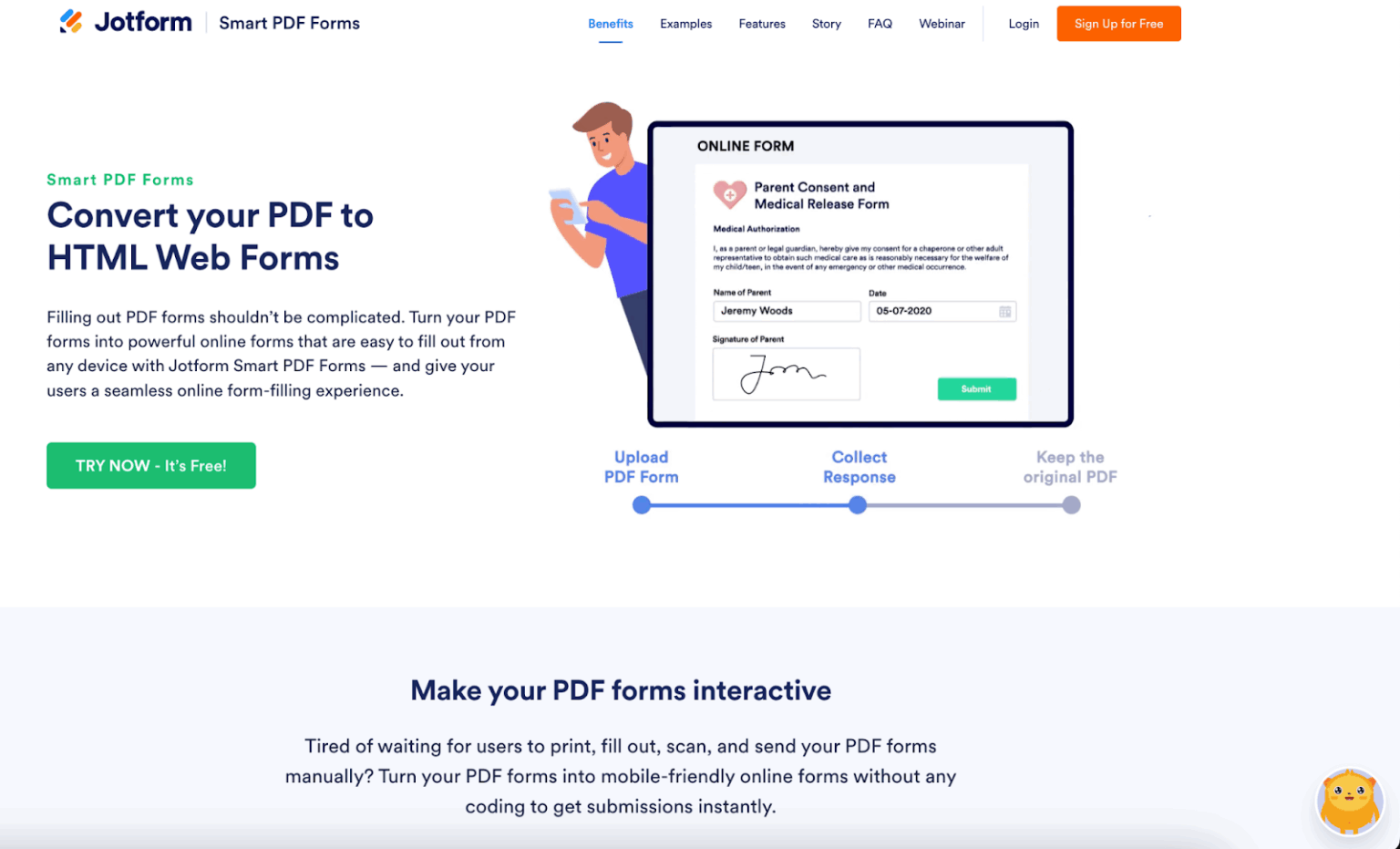
Serene How To Make A Pdf A Fillable Form In Bluebeam Background in 4K
Experience the crisp clarity of this stunning how to make a pdf a fillable form in bluebeam image, available in high resolution for all your screens.
Mesmerizing How To Make A Pdf A Fillable Form In Bluebeam Background in 4K
Transform your screen with this vivid how to make a pdf a fillable form in bluebeam artwork, a true masterpiece of digital design.

Vibrant How To Make A Pdf A Fillable Form In Bluebeam Design in 4K
Discover an amazing how to make a pdf a fillable form in bluebeam background image, ideal for personalizing your devices with vibrant colors and intricate designs.

Stunning How To Make A Pdf A Fillable Form In Bluebeam Scene Illustration
Find inspiration with this unique how to make a pdf a fillable form in bluebeam illustration, crafted to provide a fresh look for your background.
Download these how to make a pdf a fillable form in bluebeam wallpapers for free and use them on your desktop or mobile devices.